Who is this article for?
A lunch break, a team meeting, a training day, an errand... You can block that time in your scheduler so that nobody books an appointment then, not even your clients on your booking page. This article explains how to block time once or on a regular basis, and how to change or remove a block.
Before you start: time is blocked from your scheduler (www.colib.io/scheduler) with the ** Busy ** or ** Other ** event types. They exist in every Colib account: you have nothing to create.
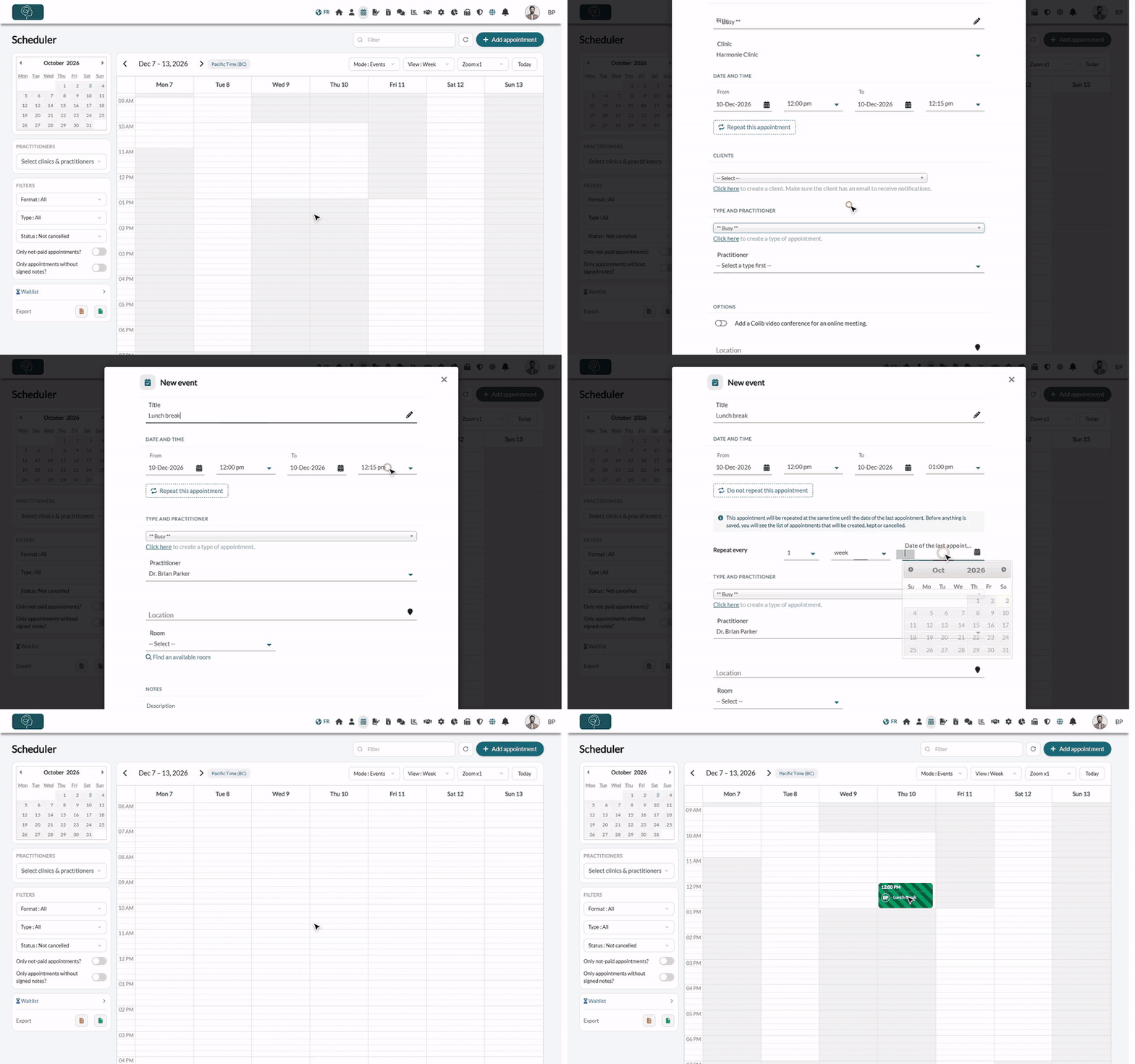
1Select the time slot
- Go to your scheduler: www.colib.io/scheduler.
- Click on the day and time to block (or click and drag over the whole period). You can also click Add appointment at the top right and set the date and times yourself.
2Choose the Busy or Other type
- In Type and practitioner, choose ** Busy ** or ** Other **. The client section disappears: no client is linked to a block and nobody is notified.
- Choose the Practitioner whose time is blocked.
- Enter a Title, for example Lunch break: it is shown on the scheduler. Without a title, the block is called ** Busy ** or ** Other **.
- Check the start and end times in From and To. Unlike an appointment type, these types have no duration: set the end time yourself.
- Optionally, add a Location or a Description for your team.
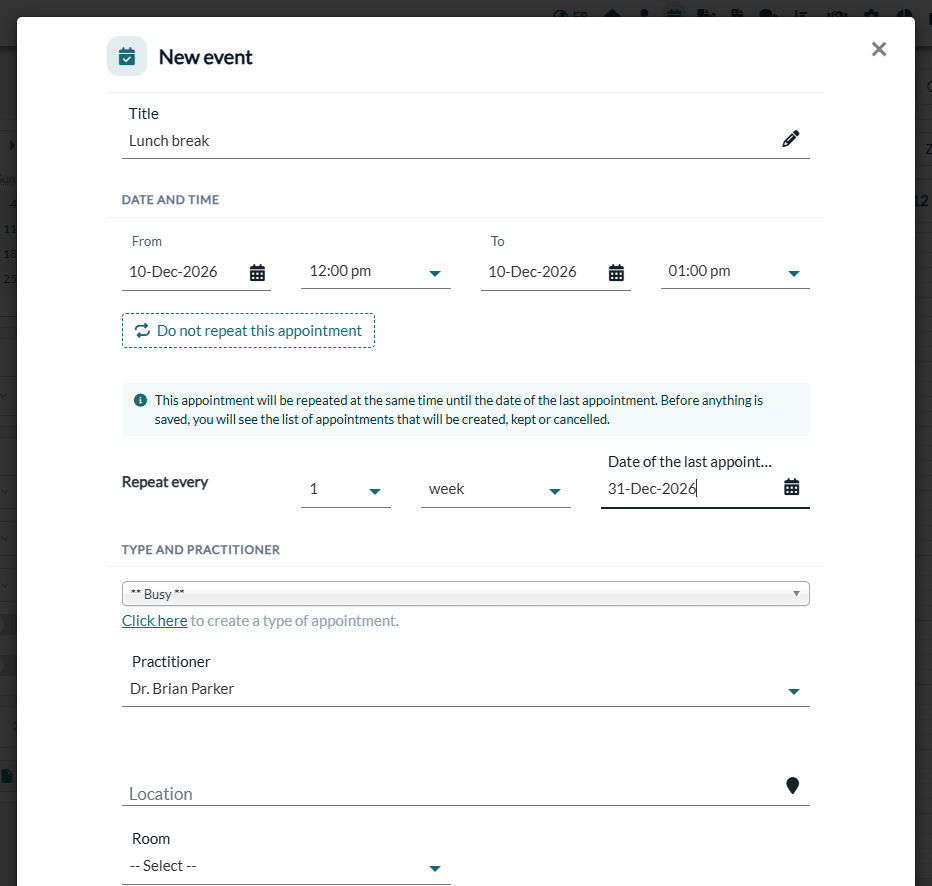
Busy and Other work the same way: both make the time unavailable. Use them to tell your blocks apart at a glance (for example Busy for breaks and absences, Other for meetings and training), since each has its own color and its own filter in the scheduler (Type : Busy, Type : Other).
3Repeat the block (optional)
For a block that comes back regularly (a lunch break every day, a meeting every Monday):
- Click Repeat this appointment.
- In Repeat every, choose the interval and the unit (day, week or month): for example every 1 day, every 1 week or every 2 weeks.
- Pick the Date of the last appointment: for example December 31 to keep the block until the end of the year (at most 18 months from today).
When you save, Colib shows the list of the blocks that will be created: click Confirm and save. To change or stop the series later, see How to create and edit recurring appointments
4Save
- Click Save.
- The block appears in the scheduler with stripes, in the color of its type.
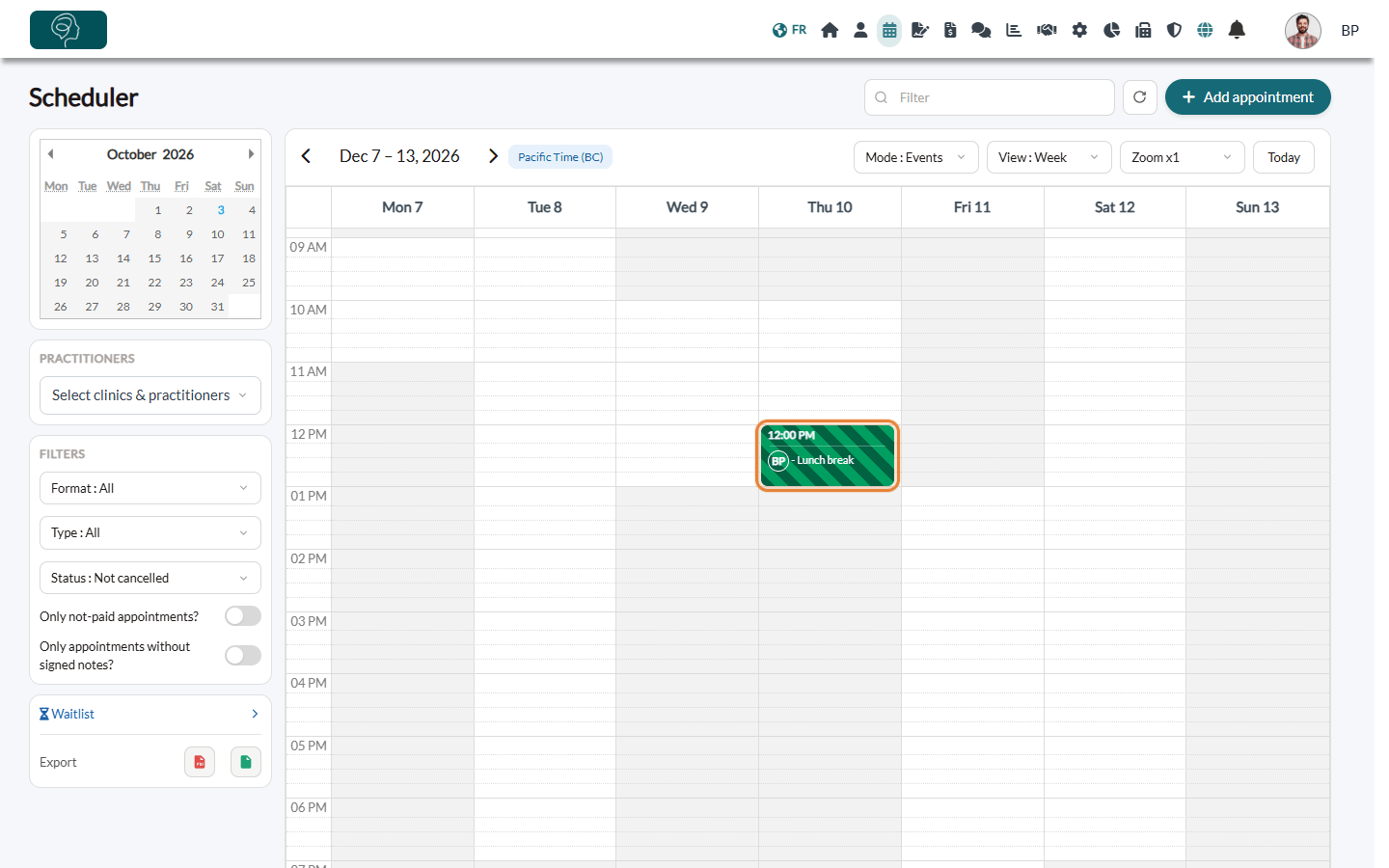
From now on, this time is no longer offered on your booking page for this practitioner. In the scheduler, nothing prevents you from adding an appointment over a block if you really need to.
Change or remove a block
- Change — click the block, change the title or the times, then click Save. You can also drag it to another time.
- Remove — click the block, then More actions > Delete appointment/event.
- Repeated block — Colib asks whether your change applies to this block only or also to the following ones; Stop the series removes this block and all the following ones.
Colors of the blocks
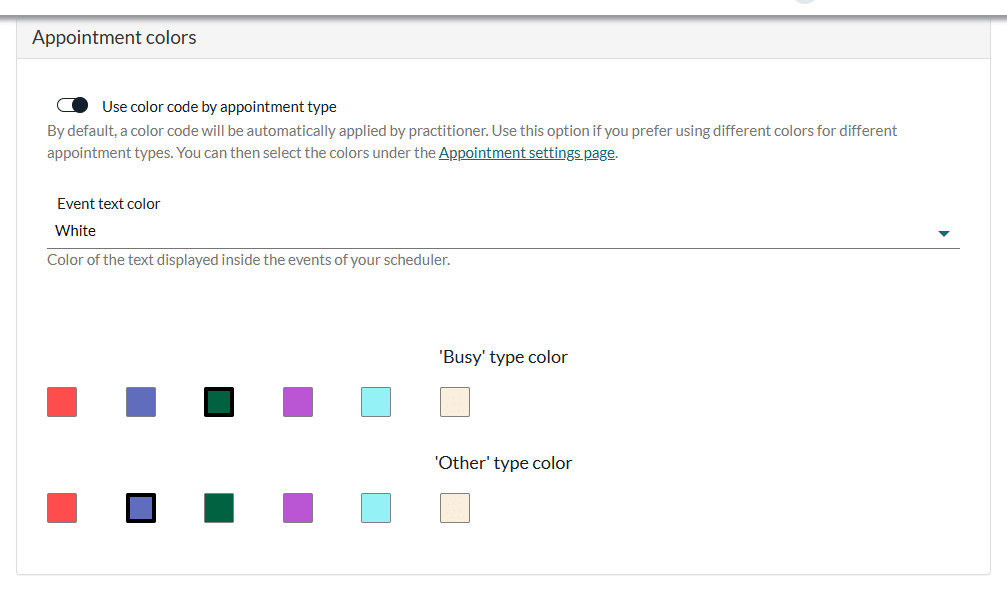
By default, Busy blocks are shown with red stripes and Other blocks with blue stripes. To change these colors, go to Settings > Scheduler (www.colib.io/settings?show=scheduler), open the Appointment colors section, choose the 'Busy' type color and the 'Other' type color, then click Save.
Other ways to manage your availability
- Pauses — you can also create a pause in your settings, for example a daily break: see How to pause online bookings (vacations, absences, closures)
- Working days and hours — to change the days and hours when you can be booked, see How can I update the days and hours that I work?
- Shifts — see How to manage your shifts (extra availability)
Still have a question?
Write to us at support@colib.io, we will be happy to help.
Was this article helpful?
That’s Great!
Thank you for your feedback
Sorry! We couldn't be helpful
Thank you for your feedback
Feedback sent
We appreciate your effort and will try to fix the article