Who is this article for?
Canada spans six time zones, which can make managing an online practice a bit challenging. Your clients may live in another province, a practitioner of your team may work from another city, and some of your clients book online from wherever they are. Colib handles these situations for you, as long as each time zone is set in the right place.
This article explains the four places where a time zone is set in Colib, what each one changes, and how to choose the right one.
In short: the practice time zone is the default for everything, each user can display Colib in their own personal time zone, each client can have their own client time zone for their notifications, and clients choose a time zone when they book online.
| Time zone | Where to set it | What it changes |
|---|---|---|
| Practice | Settings > General | The default time zone of the whole practice: scheduler, online meetings, in-person appointments booked online, clients without a time zone. |
| Personal | Settings > Personal > Profile | The times and dates that you see in Colib (and only you). |
| Client | Client record > Profile > Settings | The times written in the notifications sent to that client (reminders, recalls...). |
| Online booking | Chosen by the client on the date selection step | The times displayed on your booking page, then saved in the record of a new client. |
1Set your practice time zone
After creating your account, the first thing to do is confirm that the time zone of your practice is correct. It is filled in automatically when the account is created. It is the default time zone used to display dates across Colib, including the scheduler, online meetings and more.
- Go to Settings > General (www.colib.io/settings?show=general).
- Check the Time zone field and choose another one in the list if needed.
- Save your settings.

Important: this setting should only be changed before you start using the scheduler to manage your appointments, and should remain unchanged once configured. If you need to change it afterwards, write to us at support@colib.io.
Choosing the right time zone in the list:
- British Columbia — choose Pacific Time (BC). British Columbia no longer changes its clocks, so it is not always at the same time as the US Pacific coast: do not choose the Pacific time zone of the United States (Los Angeles, Seattle).
- Northeast British Columbia (Dawson Creek, Fort St. John, Fort Nelson) and Creston — choose Mountain Time - no daylight saving - Northeast BC, Arizona.
- Saskatchewan — choose Central Time (Saskatchewan), which does not change for daylight saving time either.
- Elsewhere in Canada — choose Mountain Time, Central Time, Eastern Time, Atlantic Time or Newfoundland Time.
The offset shown next to each name (for example -7.00 UTC) is the offset of the current day: it follows daylight saving time.
2Set your personal time zone
Practitioners and team members can display dates and times in a different time zone than their practice's. This is useful when someone works from another province.
- Go to Settings > Personal > Profile (www.colib.io/settings?show=personalgeneral).
- In Time Zone, choose your time zone.
- Click Save.

Once it is saved, all appointment times, item creation dates and other dates and times displayed in Colib for this user are shown in the selected time zone. It only changes your own account: the other members of the team and your clients are not affected.
3Set the time zone of a client
Each client record can have its own time zone. It is used to write the date and time in all the notifications sent to that client, such as appointment reminders and recalls.
- Open the client's record from your client list (www.colib.io/clients).
- Click the Profile tab, then open the Settings section.
- Choose the client's Time zone.
- Click Save.
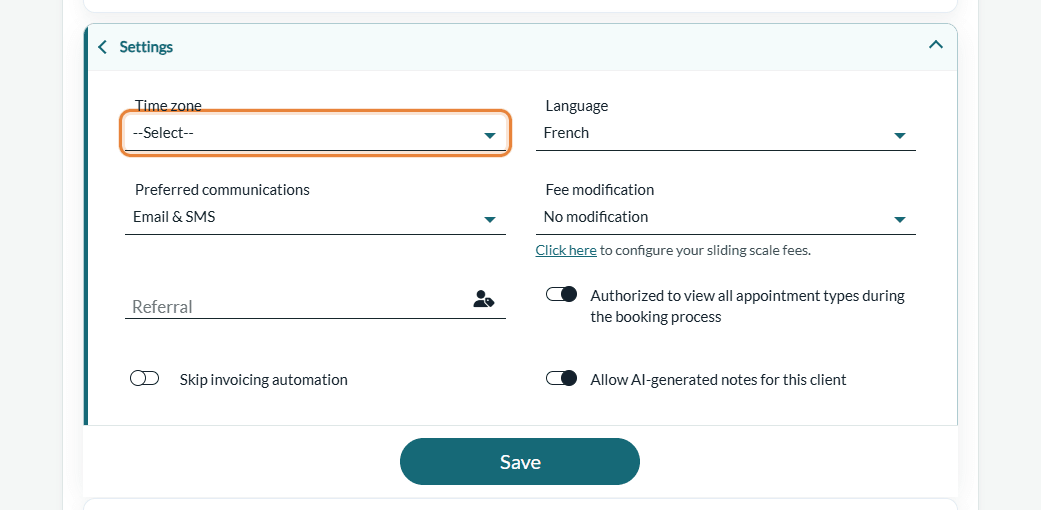
- Automatic setup — when a client is created through your online booking page, their time zone is filled in automatically with the one used during the booking.
- Optional — you can leave this field empty. The time zone of the appointment is then used, which is your practice's time zone by default.
4Time zones on your booking page
When clients book an appointment online, they can select the time zone that suits them on the date selection step. The available times are then displayed in that time zone.
- Online appointments — the client's current time zone (the one of their device) is pre-selected.
- In-person appointments — your practice's time zone is pre-selected.
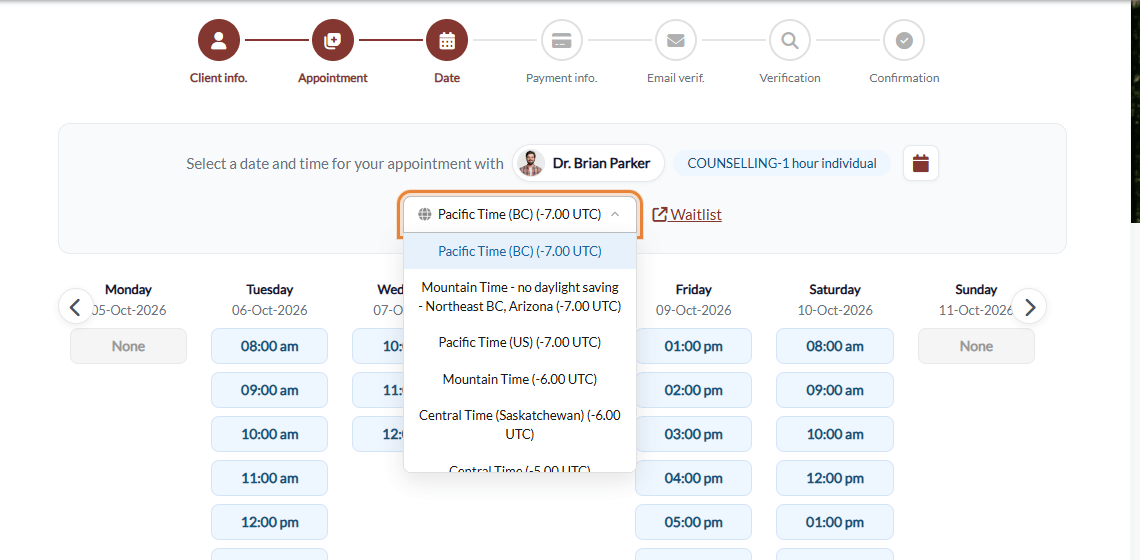
Appointment notifications (reminders and recalls) then display the date and time in the time zone chosen by the client, which avoids any confusion.
If all your clients are in the same time zone as you, you can stop them from changing it:
- Go to Settings > Booking Page (www.colib.io/settings?show=bookingpage).
- Turn on Block time zone during booking process. Your clients can no longer pick a time zone: the booking page always uses your practice's time zone.
- Save your settings.

This option is only shown when your clients can book online.
Good to know
- Each person sees their own time — an appointment at 10:00 am for a practitioner in Vancouver (Pacific Time (BC)) is shown at 1:00 pm to a team member who set Eastern Time in their profile, during daylight saving time. It is the same appointment.
- Your clients see their time — set the time zone of clients who live elsewhere, so that their reminders show the time where they are.
- Language and time zone are separate — changing the language of your profile does not change your time zone, and the other way around.
By leveraging Colib's time zone tools, you ensure smooth scheduling and clear communication with your clients, no matter where they are.
Still have a question?
Write to us at support@colib.io, we will be happy to help.
Was this article helpful?
That’s Great!
Thank you for your feedback
Sorry! We couldn't be helpful
Thank you for your feedback
Feedback sent
We appreciate your effort and will try to fix the article