Who is this article for?
Every Colib user has a personal profile: practice owners, administrators and team members. It holds your picture, your name as it appears in Colib, your cell phone number, your language and your time zone. This article explains each field and what it changes.
Your profile is personal. It only changes your own account. The information of the practice (name, logo, address, opening hours) is managed separately in Settings > General.
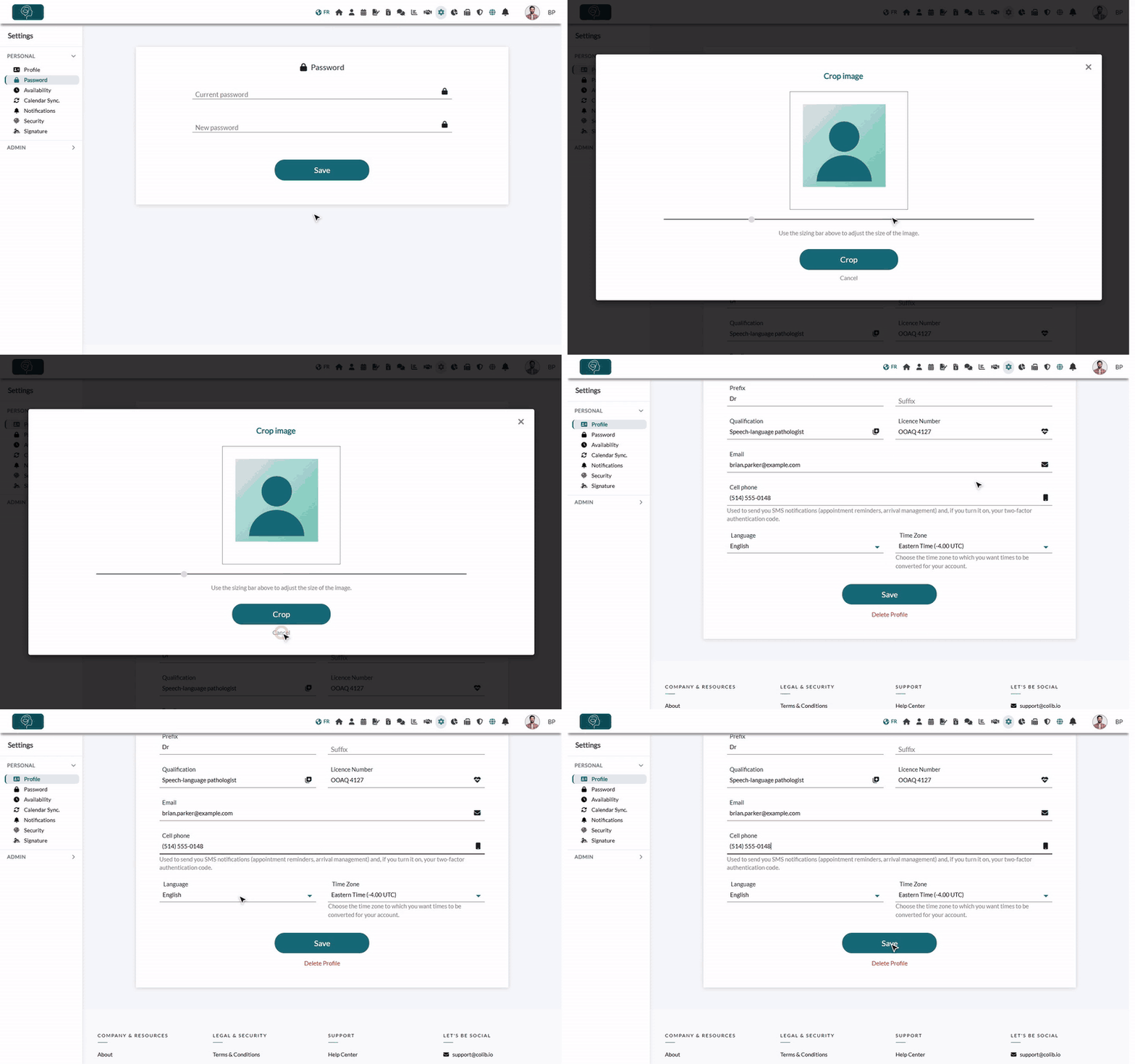
1Open your profile
- Go to Settings > Personal > Profile (www.colib.io/settings?show=personalgeneral). You can also click the Settings icon (gear) in the top bar, then Profile in the Personal menu on the left.
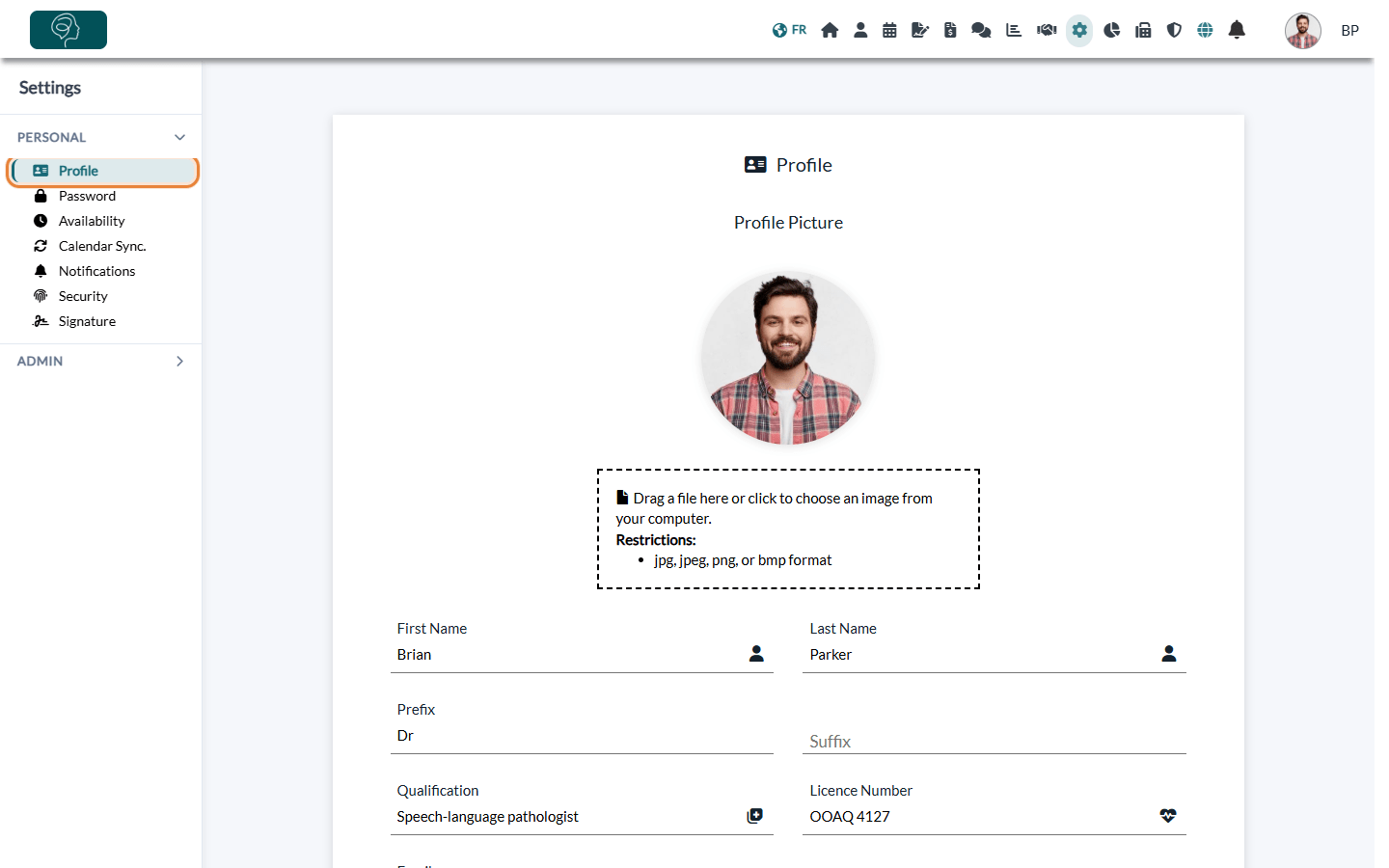
2Change your profile picture
- Under Profile Picture, drag an image into the dotted box, or click the box to choose an image on your computer. Accepted formats: jpg, jpeg, png and bmp.
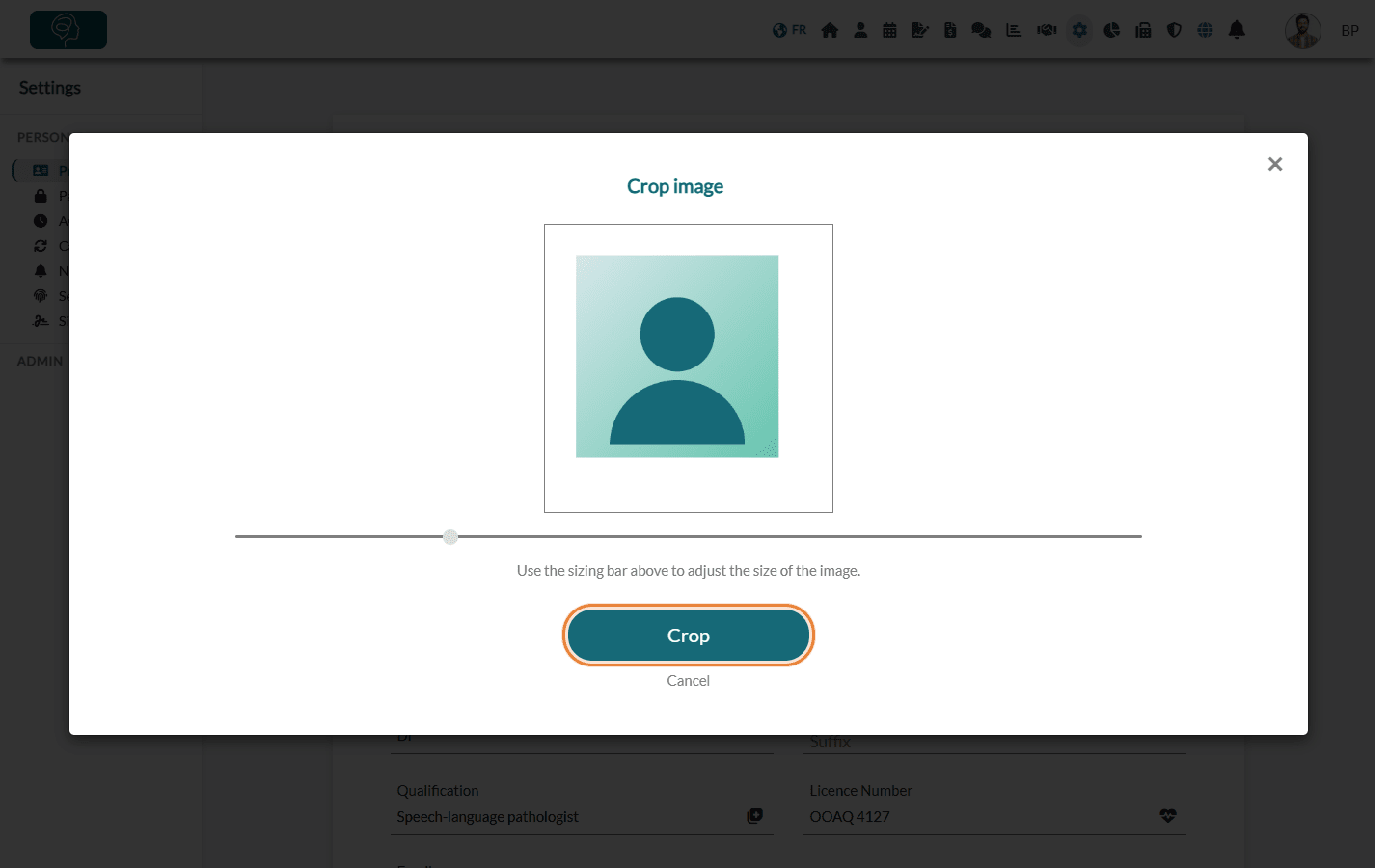
- The Crop image window opens. Use the sizing bar to adjust the image, then click Crop.
- Colib confirms that the image has been cropped. Click Save at the bottom of the page to keep it: the picture is not saved until you do.
Your picture appears in the top bar of Colib. If you are a practitioner, it can also be shown to your clients next to your name on your booking page and on the public page of your practice.
3Update your name and professional details
| Field | What it is used for |
|---|---|
| First Name and Last Name | Mandatory. Together with the prefix and the suffix, they form the name shown in Colib and to your clients. |
| Prefix and Suffix | Optional, for example Dr before your name or a title after it. |
| Qualification | For practitioners: your profession or title (for example Speech-language pathologist). It is added after your name on the notes you export as PDF, and shown under your name on the public page of your practice when practitioners are displayed there. |
| Licence Number | For practitioners: your licence or registration number. It is added after your name on the notes you export as PDF. |
| The address you use to sign in. Changing it requires your password and signs you out. See How to change my email address. |
4Set your cell phone, language and time zone
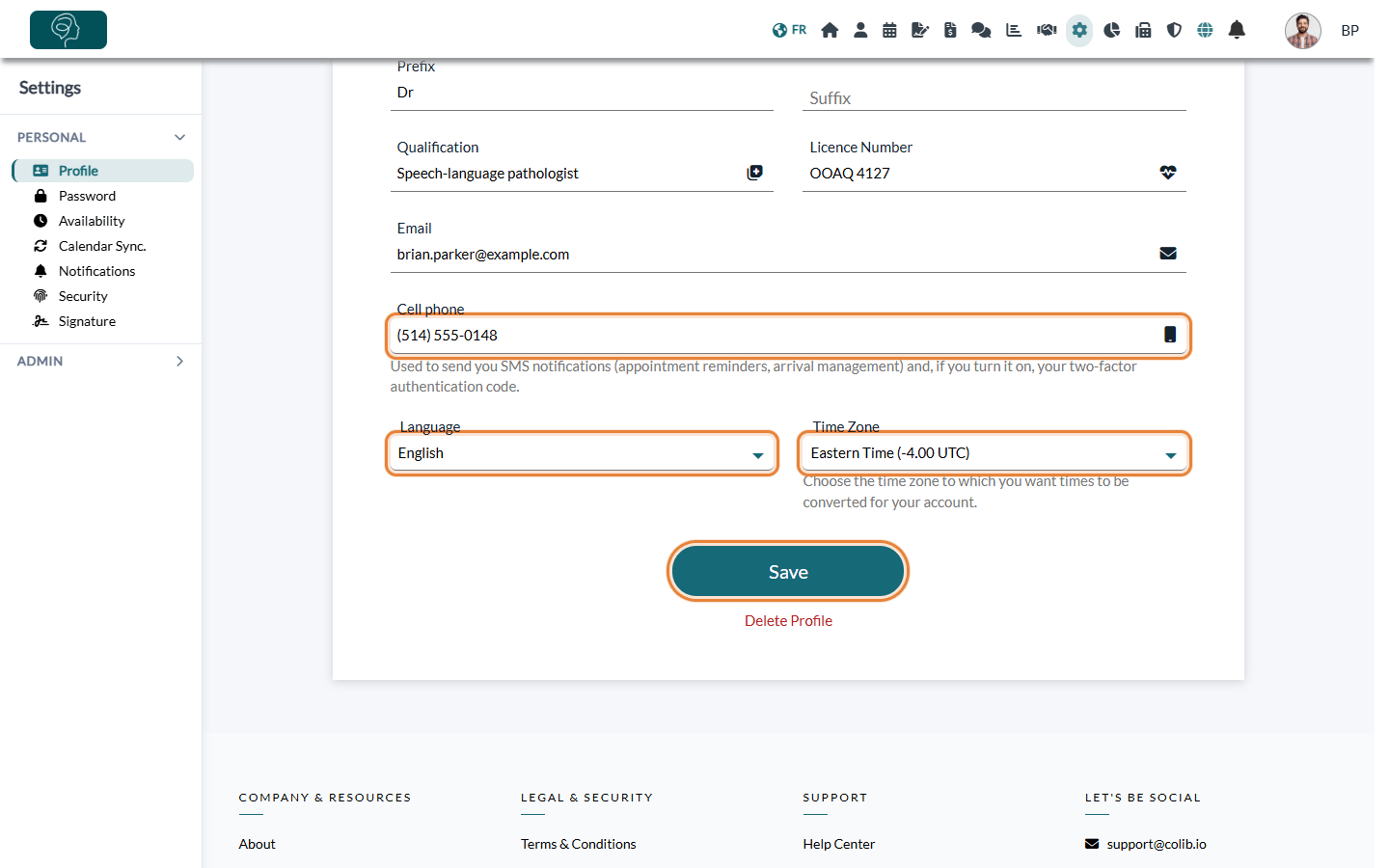
- Cell phone — enter a Canadian or US number. Colib uses it to send you SMS notifications (appointment reminders, arrival management) and, if you turn it on, your two-factor authentication code.
- Language — the language of Colib and of the emails Colib sends you. The change applies as soon as you pick a language: the page reloads in that language.
- Time Zone — all times are shown to you in this time zone: scheduler, appointments, creation dates. Choose it if you work in a different time zone from your practice.
- Click Save. Colib shows Profile Updated.
Good to know
- Security email — when you change your cell phone number, you receive an email telling you that a security setting of your account was changed.
- Time zones — the practice time zone, your personal time zone and your clients' time zones work together. See How to manage a multi-time zone practice.
- Two-factor authentication — to receive your sign-in code by SMS, enter your cell phone here, then see How to turn on two-factor authentication (2FA).
- Password — it is changed in Settings > Personal > Password (www.colib.io/settings?show=password).
- Notifications — the emails you want to receive from Colib are chosen in Settings > Personal > Notifications (www.colib.io/settings?show=personalnotifications).
- Delete Profile — the red link at the bottom of the page deletes your personal profile. Before using it, please see the article titled "How do I cancel my subscription or close my Colib account?".
Still have a question?
Write to us at support@colib.io, we will be happy to help.
Was this article helpful?
That’s Great!
Thank you for your feedback
Sorry! We couldn't be helpful
Thank you for your feedback
Feedback sent
We appreciate your effort and will try to fix the article