Who is this article for?
This article is for every Colib user: practice owners, administrators and team members. It explains what to do if you forgot your password or cannot sign in, and how to change your password when you are already signed in.
Your clients do not use this page: they reset the password of their client portal from the portal's own sign-in page.
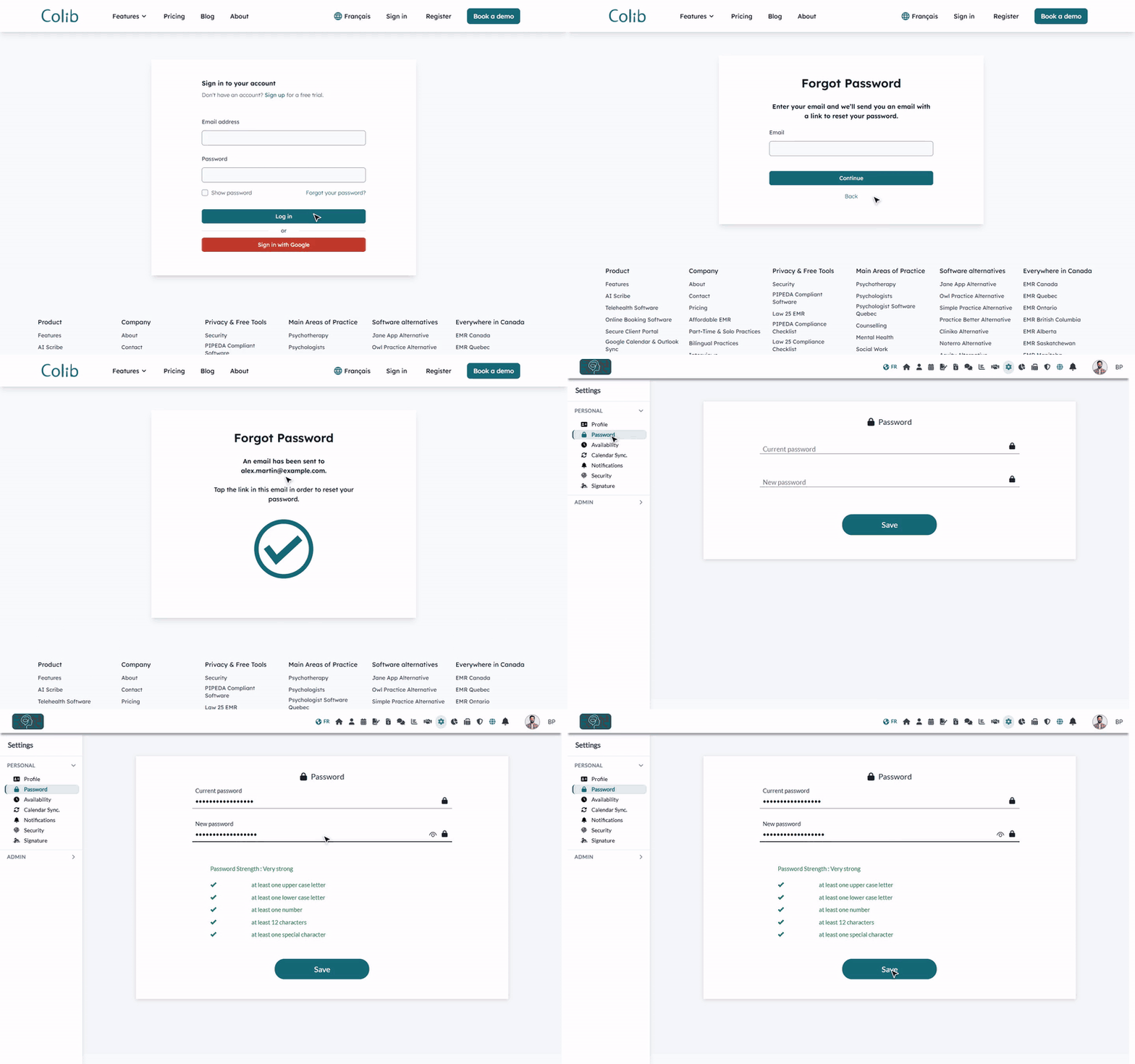
1Reset a forgotten password
- Open the sign-in page: www.colib.io/login.
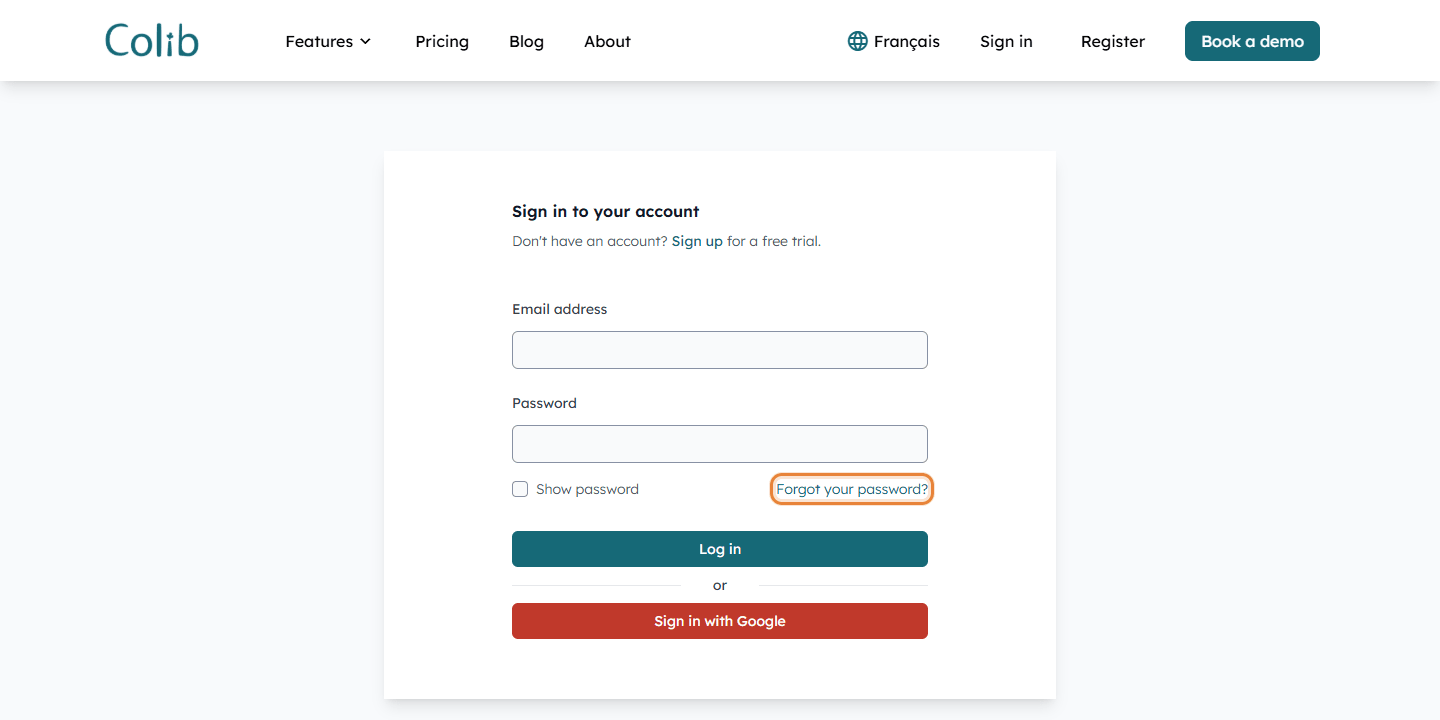
- Under the Password field, click Forgot your password?.
- Enter the email address you use to sign in to Colib, then click Continue.
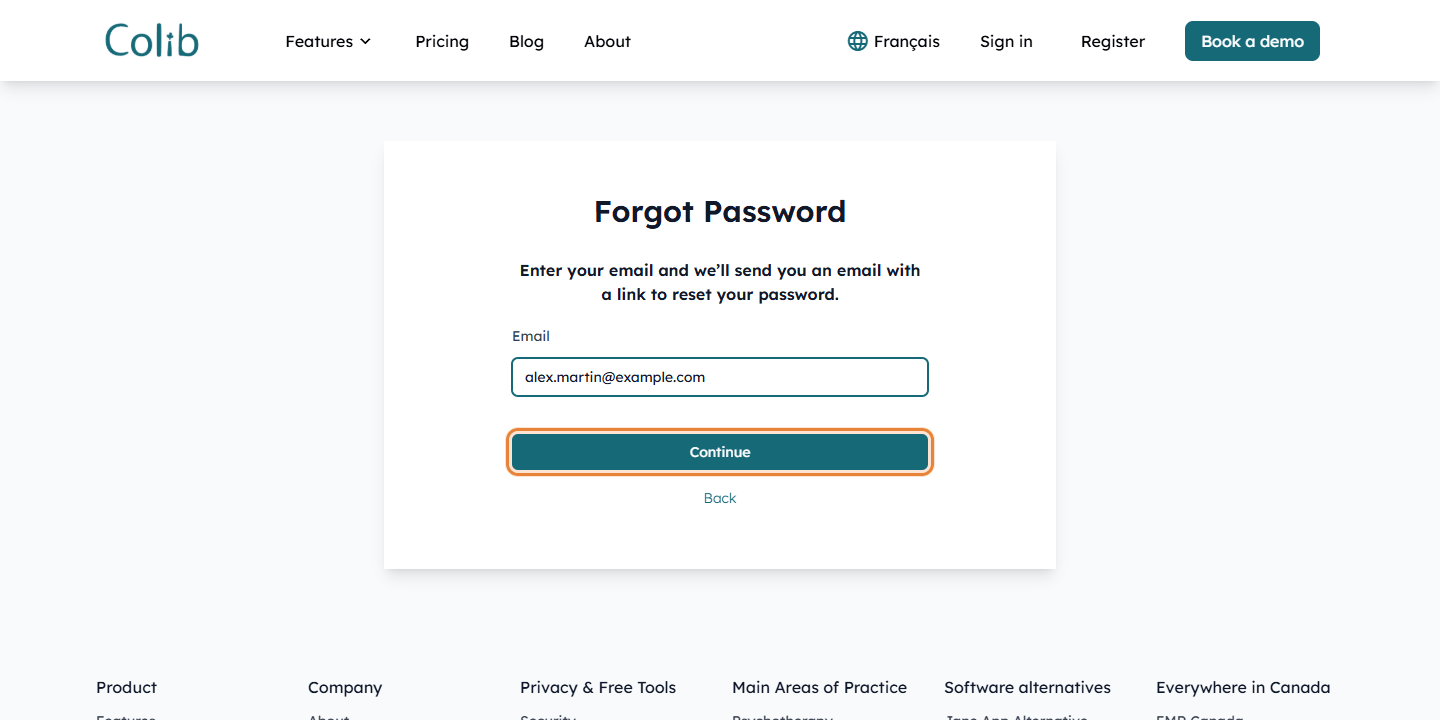
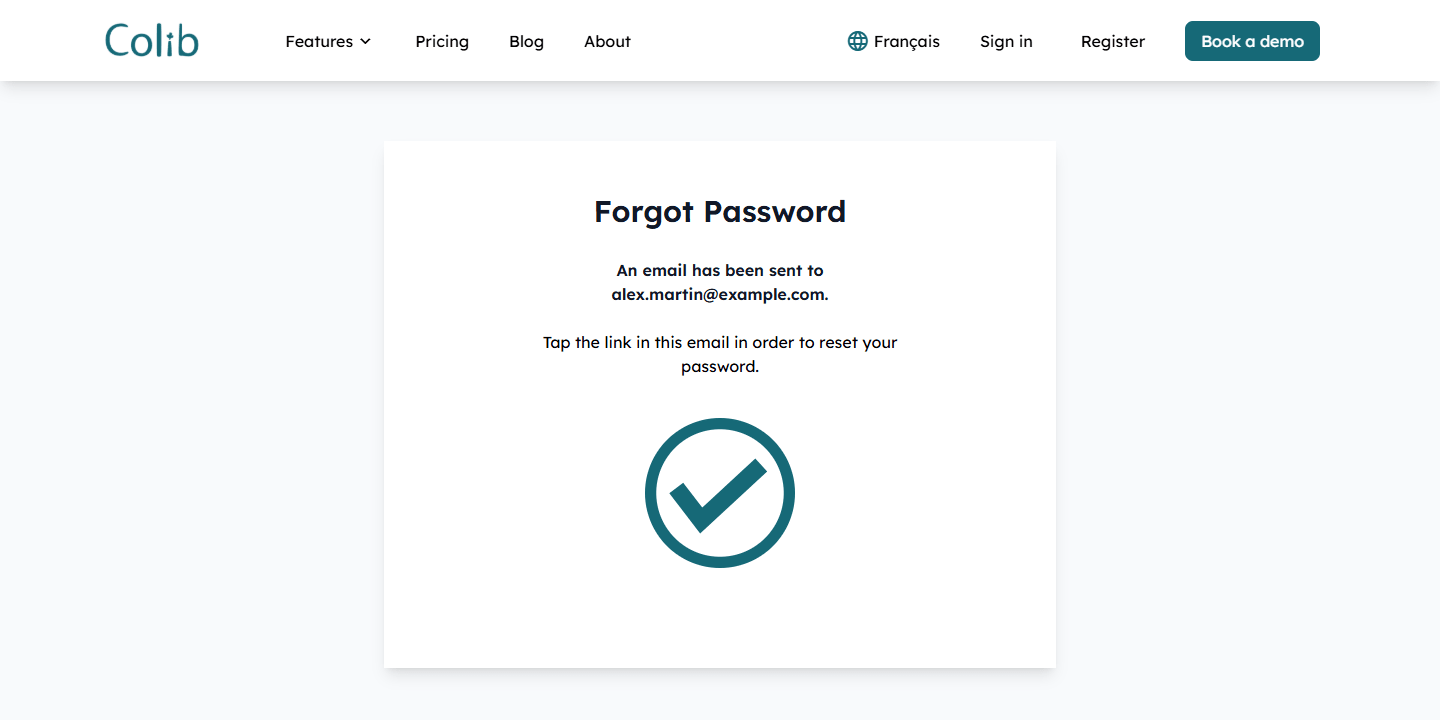
- Colib confirms: An email has been sent to your address. Open the email Reset Password and click the link it contains.
2Choose your new password
- The link opens the Reset Your Password page. Enter your new password.
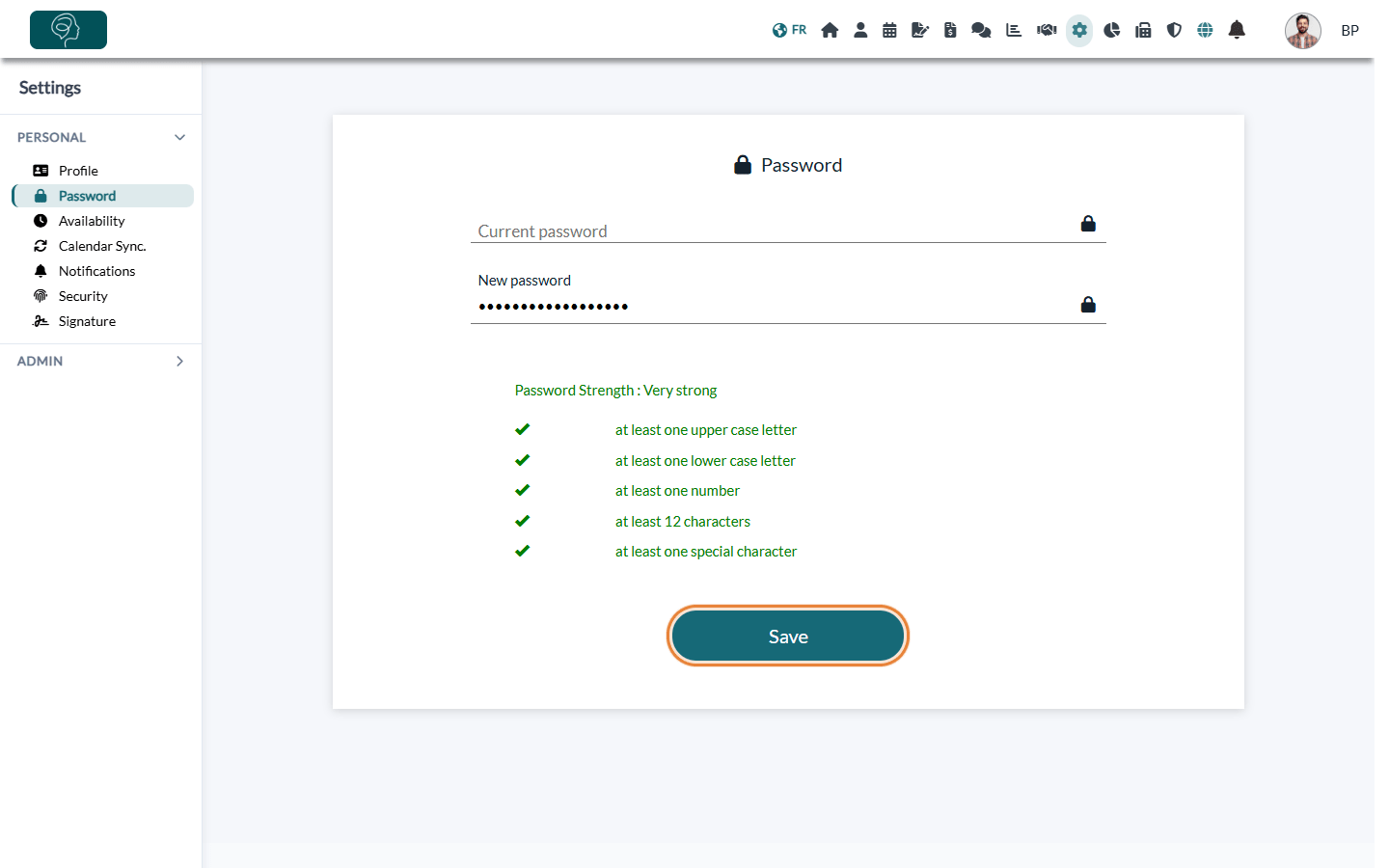
- As you type, Colib shows the Password Strength and the rules your password must follow: at least 12 characters, one upper case letter, one lower case letter, one number and one special character.
- Click Save. You are signed in right away, and you receive an email confirming that your password has been reset.
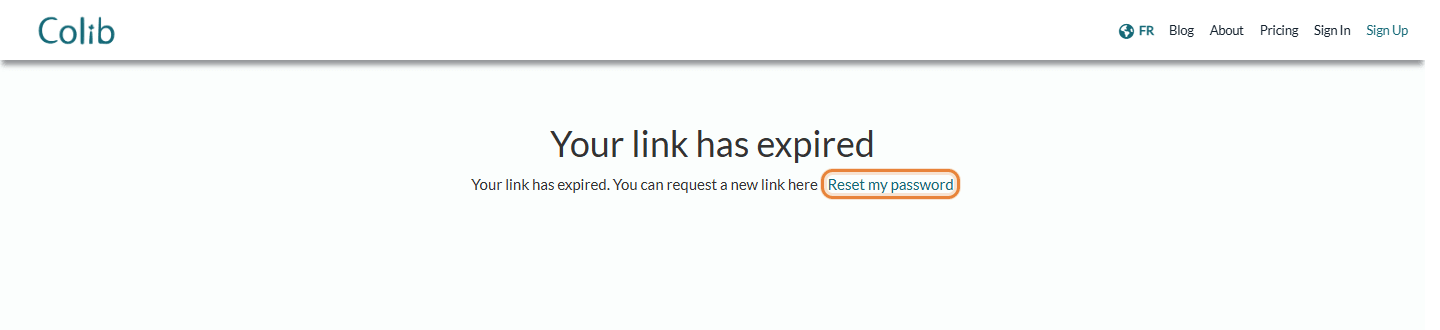
The link is valid for two days. If you request several emails, only the most recent link works. If the link has expired, Colib shows Your link has expired: click Reset my password to receive a new one.
3Change your password when you are signed in
- Go to Settings > Personal > Password (www.colib.io/settings?show=password).
- Enter your Current password, then your New password. The same rules apply.
- Click Save. For your security, you are signed out: sign in again with your new password. You also receive an email telling you that a security setting of your account was changed.
If you always sign in with Google, your account may not have a Colib password yet. In that case, the page shows only the New password field and a Set Password button.
Good to know
- No email? Check your spam or junk folder, and make sure you typed the address you use to sign in to Colib. The email is sent only if this address belongs to a Colib account.
- You cannot reuse a recent password. If Colib refuses your new password, choose one you have not used before.
- Account locked? After several unsuccessful sign-in attempts, Colib shows Your account is currently locked out. and sends you an email. You can sign in again after a few minutes, or reset your password right away: your account is unlocked as soon as the new password is saved.
- Signing in with Google — if you created your account with Google, click Sign in with Google on the sign-in page instead of entering a password.
- Two-factor authentication — if it is turned on, Colib asks for a code sent by email or SMS after your password. See How to turn on two-factor authentication (2FA).
- New email address? See How to change my email address.
Still have a question?
Write to us at support@colib.io, we will be happy to help.
Was this article helpful?
That’s Great!
Thank you for your feedback
Sorry! We couldn't be helpful
Thank you for your feedback
Feedback sent
We appreciate your effort and will try to fix the article