Who is this article for?
Your clinic invited you to join its Colib account, but you cannot find the invitation email, or its link no longer works. This article is for team members (practitioners, receptionists, assistants) in that situation, and for the administrators who invited them.
The short answer: you do not need a new invitation. Your account was created when your clinic invited you. On the Colib sign-in page, click Forgot your password? and enter the email address your clinic invited: you receive a link to choose your password, and your invitation is accepted at the same time.
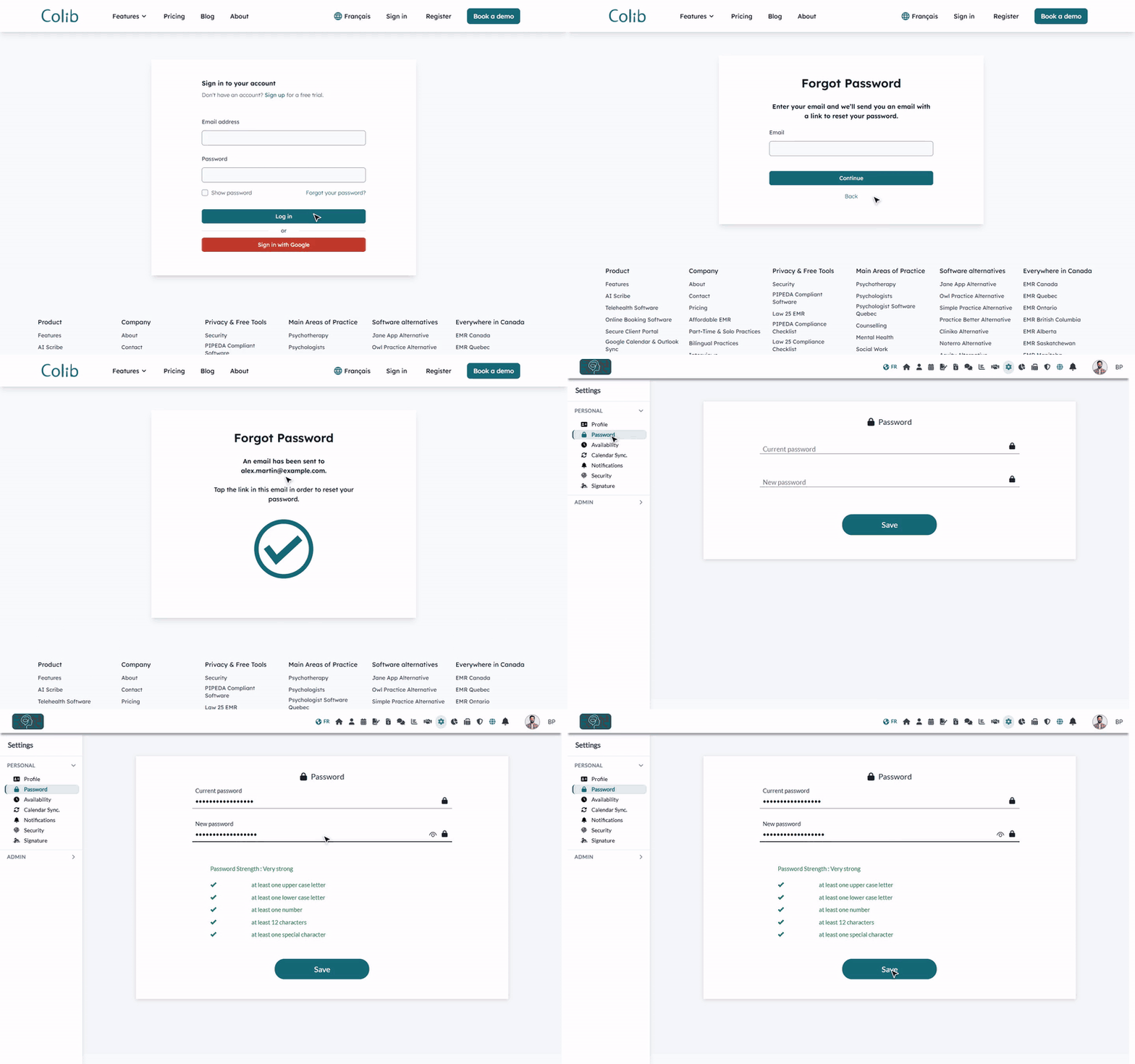
1Check your mailbox first
- The invitation is an email named Welcome to Colib.io, telling you that your clinic invited you. Look for it in your spam or junk folder, and in the other tabs of your mailbox (for example Promotions or Other).
- Ask your administrator which email address they used: the invitation is sent to that exact address, and it becomes your username to sign in to Colib.
Found it? Click Continue in the email to confirm your address and choose your password. Otherwise, follow the next step.
2Request a link with "Forgot your password?"
- Open the sign-in page: www.colib.io/login.
- Under the Password field, click Forgot your password?.
- Enter the email address your clinic invited, then click Continue.
- Colib confirms: An email has been sent to your address. Open the email Reset Password and click the link it contains.
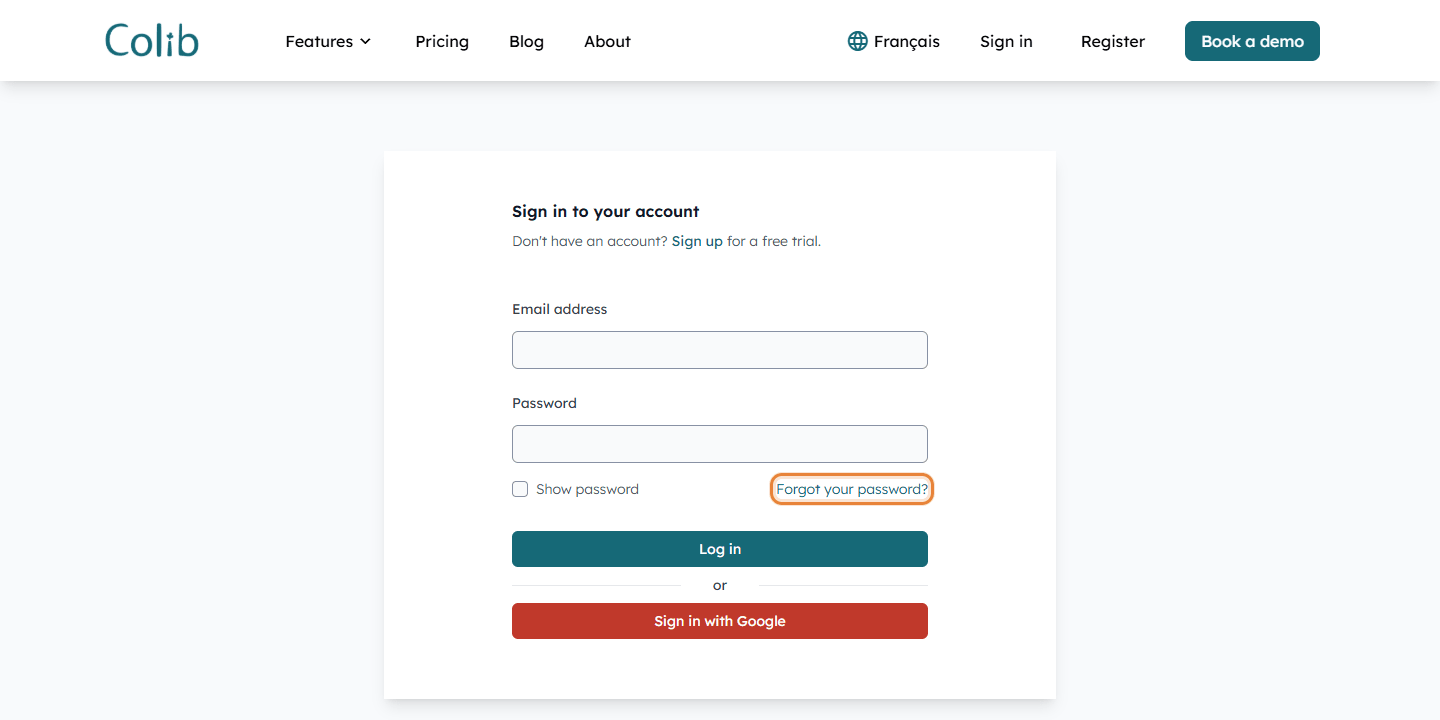
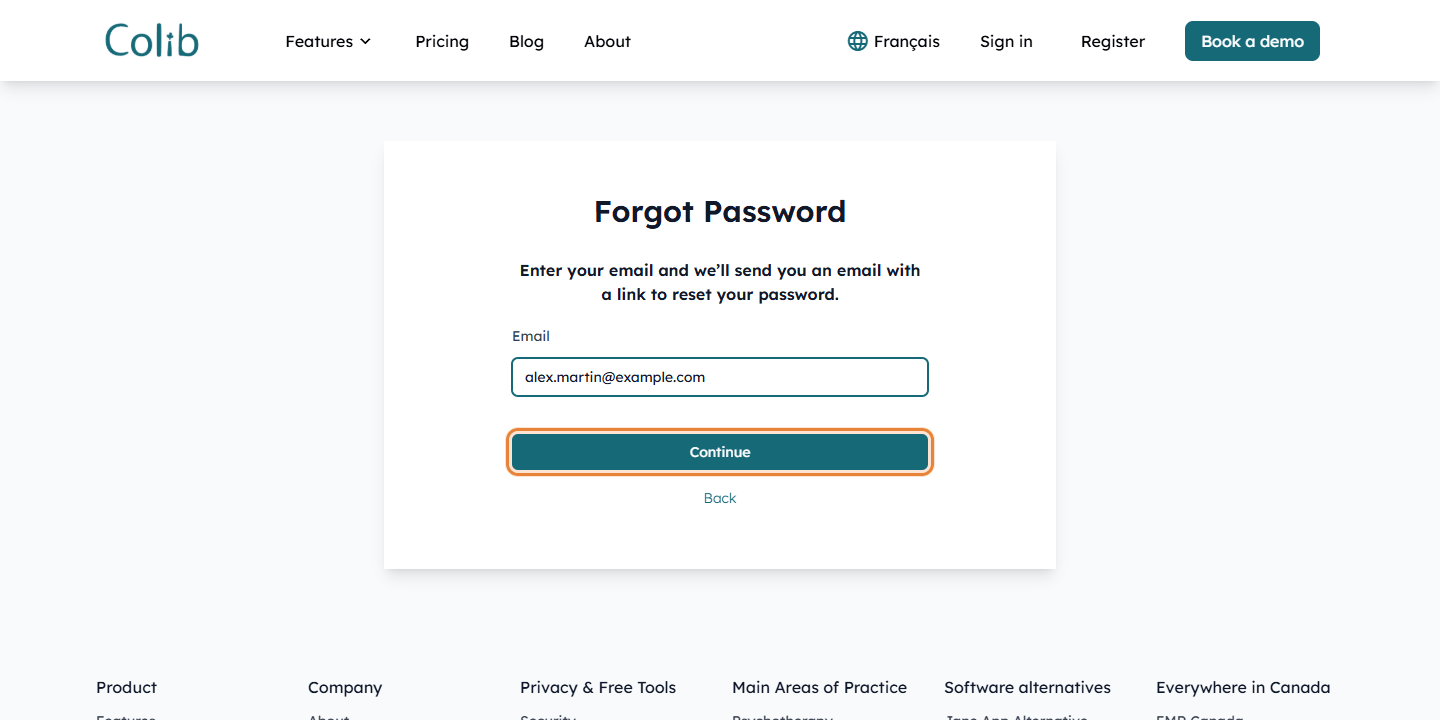
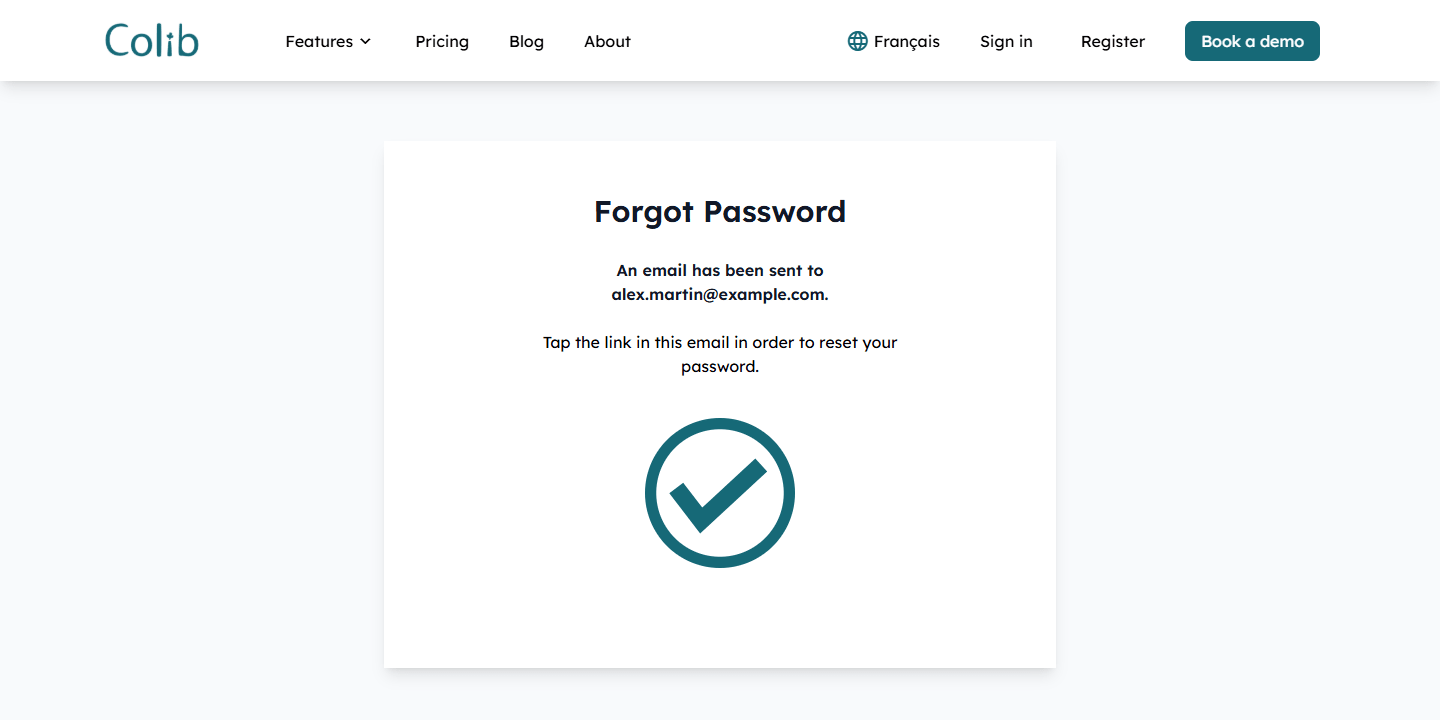
3Choose your password and sign in
- The link opens the Reset Your Password page. Enter the password of your choice: at least 12 characters, one upper case letter, one lower case letter, one number and one special character. Colib shows the Password Strength as you type.
- Click Save. You are signed in right away.
Your email address is confirmed and your invitation is accepted: in the team list of your clinic, your Invitation Status changes from Pending to Accepted. From now on, sign in at www.colib.io/login with this email address and your new password.
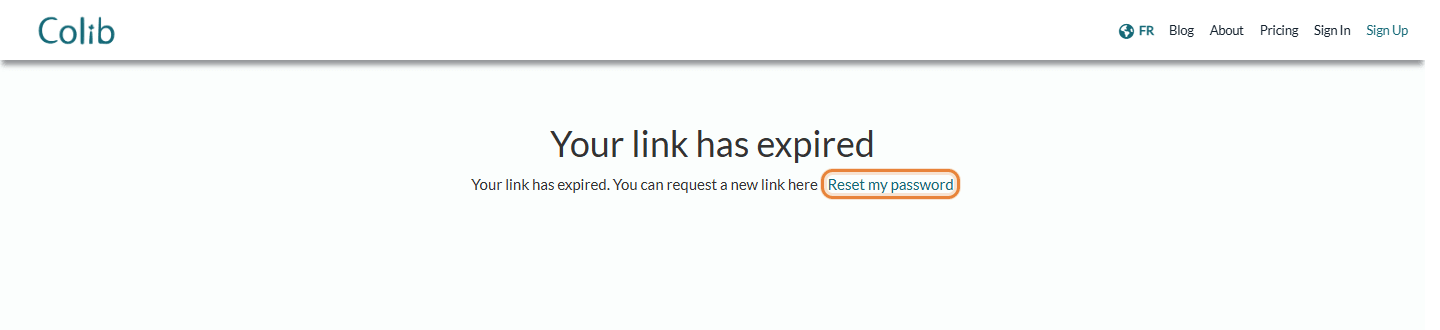
The link is valid for two days. If you request several emails, only the most recent link works. If the link has expired, Colib shows Your link has expired: click Reset my password to receive a new one.
Good to know
- Still no email after "Forgot your password?" — the email is sent only if the address belongs to a Colib account. The address you typed is probably not exactly the one your clinic invited (a typo, or another address). Ask your administrator to check it in the team list (Settings > Team). If the address is wrong, write to us at support@colib.io.
- For administrators — there is no button to send the invitation again: share this article with the person, or tell them to use Forgot your password? with the address you invited. If a person does not accept the invitation within a few days, Colib also sends them a reminder email automatically. Please see the article titled "How to invite a team member".
- One address per person — the email address is the username of each team member: two people cannot share the same address, such as a shared reception mailbox.
- Two-factor authentication — if it is required for your clinic (for example, in Quebec), Colib asks for a code sent by email or SMS after your password. See How to turn on two-factor authentication (2FA).
- Forgot your password later? — use the same Forgot your password? link: see I forgot my password: how do I sign in?
- Clients — this article is for team members. Your clients sign in to their client portal, which has its own sign-in page and its own Forgot your password? link.
Still have a question?
Write to us at support@colib.io, we will be happy to help.
Was this article helpful?
That’s Great!
Thank you for your feedback
Sorry! We couldn't be helpful
Thank you for your feedback
Feedback sent
We appreciate your effort and will try to fix the article