Who is this article for?
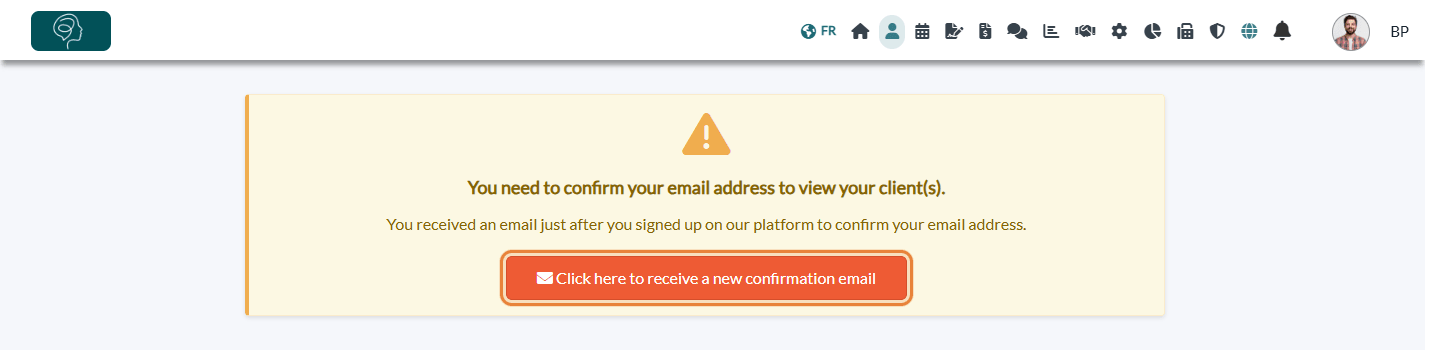
This article is for you if Colib shows You need to confirm your email address to view your client(s). or a similar message instead of your clients, invoices or reports.
Colib holds health information. Before it shows that information, it needs to be sure that the email address of your account really belongs to you: this protects your account, and it guarantees that password reset links and security alerts reach you.
1What is blocked until you confirm
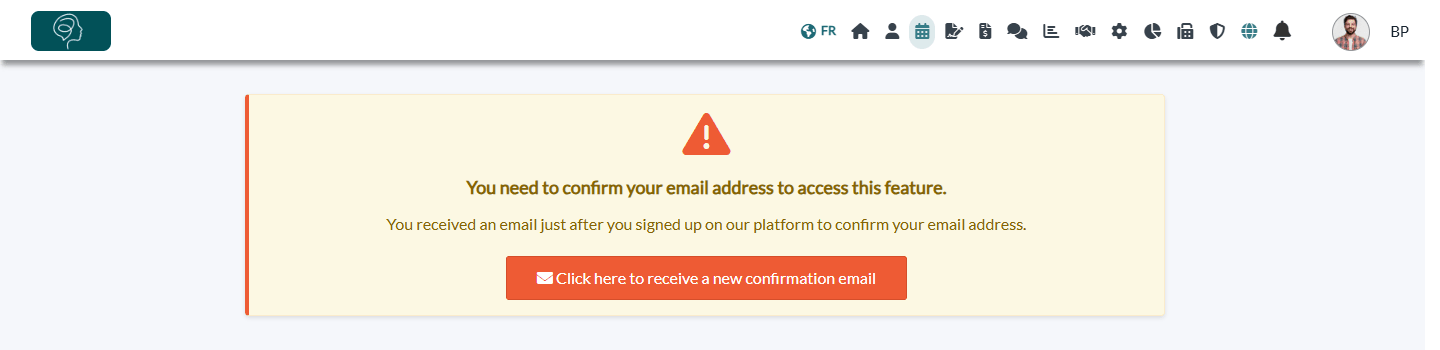
Right after you sign up, you can start setting up Colib. If your address is still not confirmed afterwards, the following pages show a warning instead of their content:
| Page | When the warning appears |
|---|---|
| Clients, Invoices and Reports | 12 hours after your practice account was created |
| Scheduler | 5 days after your user account was created |
| Settings > Payments, sending a form to a client by email, creating a recall, turning on the welcome email for clients | As long as the address is not confirmed |
The rest of Colib stays available. Nothing is deleted: everything reappears as soon as your address is confirmed.
2Confirm your address
- Open the email Welcome to Colib.io that you received just after signing up (or the reminder Get started on Colib.io!).
- Click the Continue button in the email.
3Did not receive the email? Send it again
- On the warning, click Click here to receive a new confirmation email.
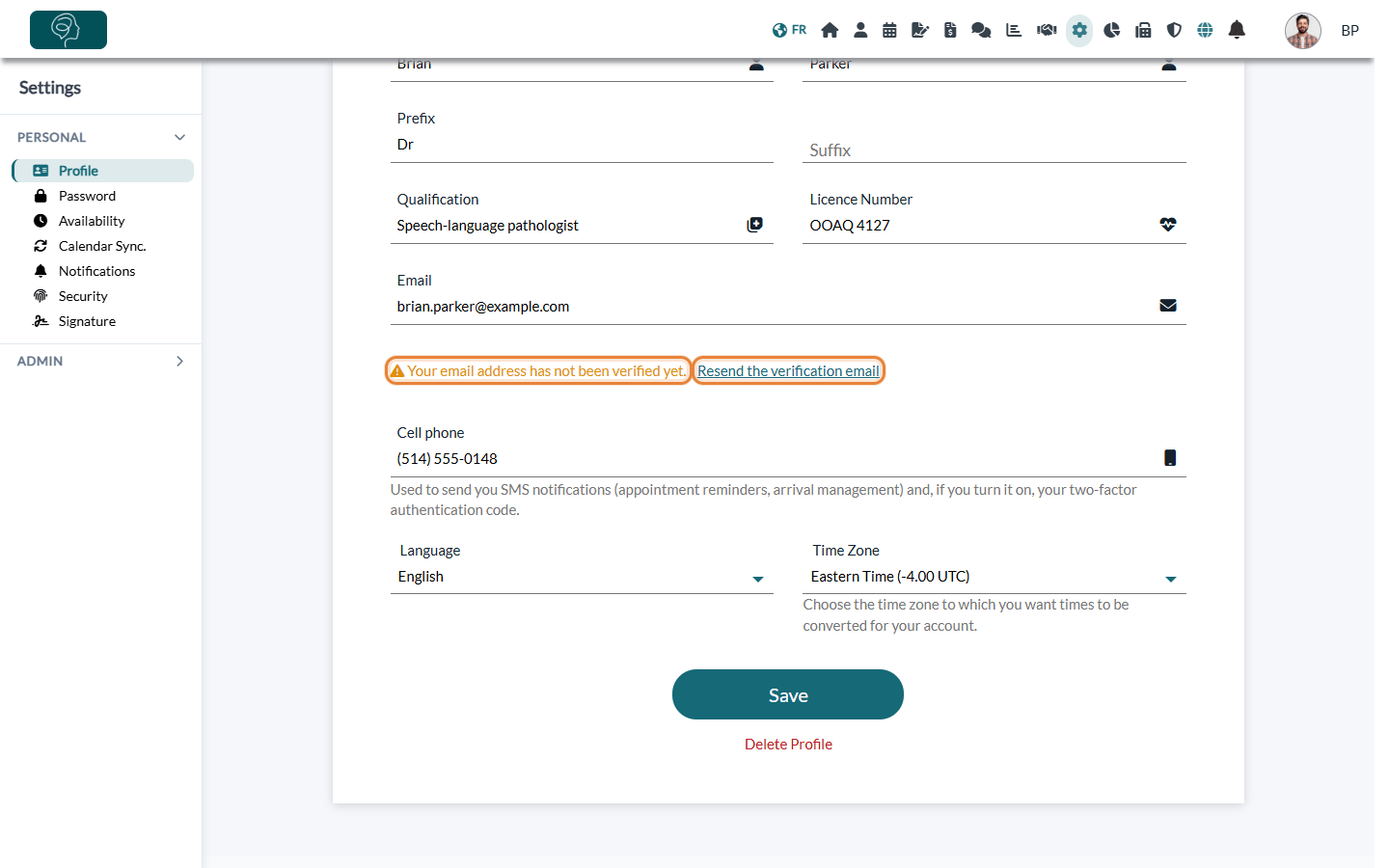
- Or go to Settings > Personal > Profile (www.colib.io/settings?show=personalgeneral): under your email, click Resend the verification email.
- Colib confirms that an email has been sent to your address. Check your spam or junk folder if you do not see it.
Use the most recent email. Each new email replaces the previous link, and a confirmation link is valid for 7 days. If Colib says Your link has expired, sign in and ask for a new confirmation email from the warning or from your profile.
Good to know
- Wrong address? If you made a typo when you signed up, correct your email in your profile, then confirm the new address. See How to change my email address.
- After an email change — a new address must be confirmed too: the warnings come back until you click the link sent to the new address.
- Team members — a team member who accepted the invitation and created a password from the invitation email has already confirmed their address.
- Still blocked? Make sure you click the link from the latest email, then sign in again.
Still have a question?
Write to us at support@colib.io, we will be happy to help.
Was this article helpful?
That’s Great!
Thank you for your feedback
Sorry! We couldn't be helpful
Thank you for your feedback
Feedback sent
We appreciate your effort and will try to fix the article