Who is this article for?
Colib is fully available in English and in French. Each person chooses their own language: you can work in English while a colleague works in French, and each client receives their emails in their own language.
This article explains how to change the language of Colib for yourself, where this choice is saved, how the language works for your clients (booking page, client portal, emails and text messages), and what exists in both languages when you run a bilingual practice. This is the Bilingual FR/EN feature of Colib.
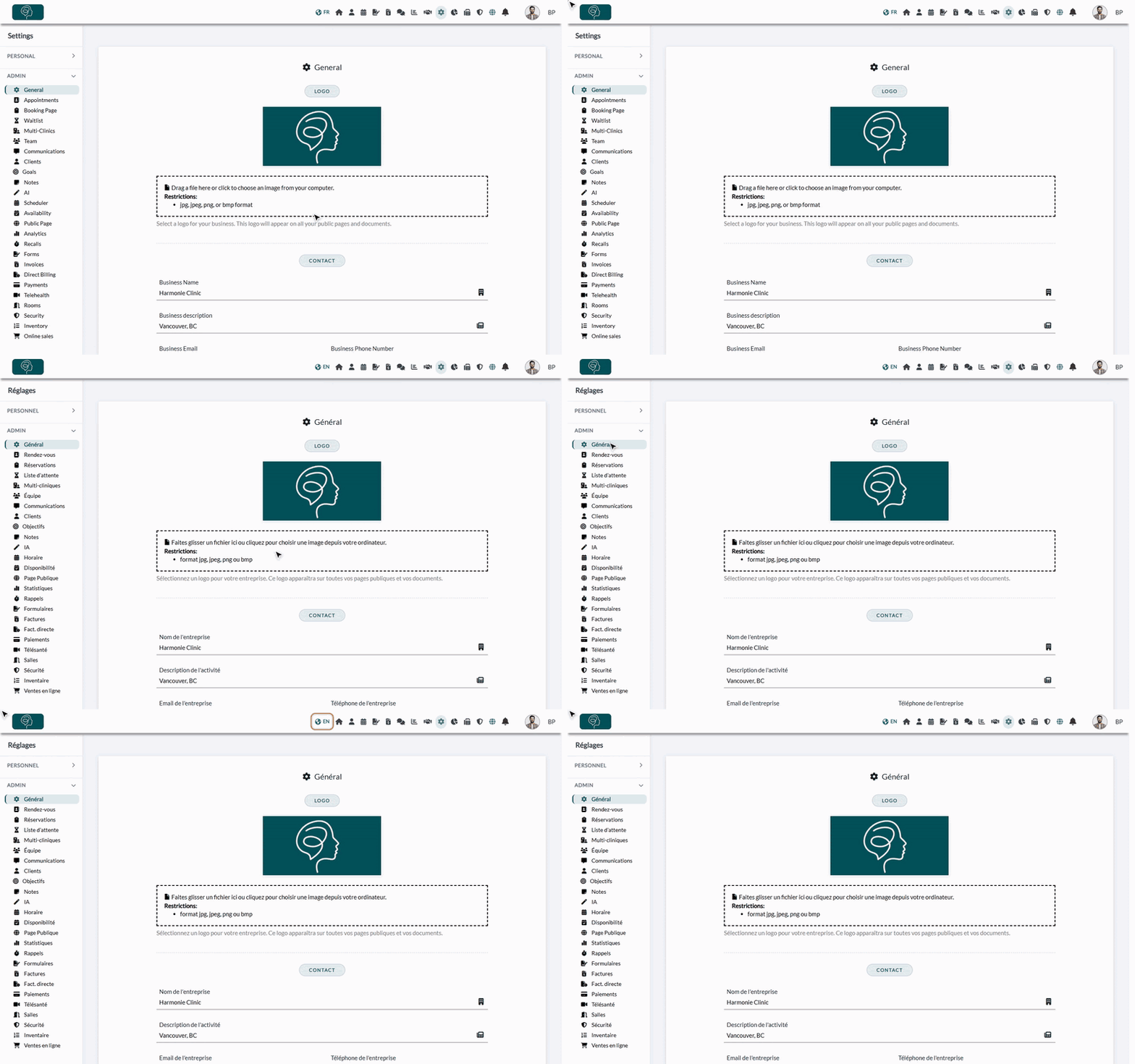
1Switch the language from the top bar
- In the top bar, click FR (next to the globe icon) to switch to French. When Colib is in French, the same link shows EN to go back to English.
- The page reloads in the chosen language. Every page of Colib is now displayed in that language.

When you are signed in, this choice is also saved in your profile: it is used the next time you sign in, on any computer or phone, and for the emails Colib sends you.
2Change the language of your profile
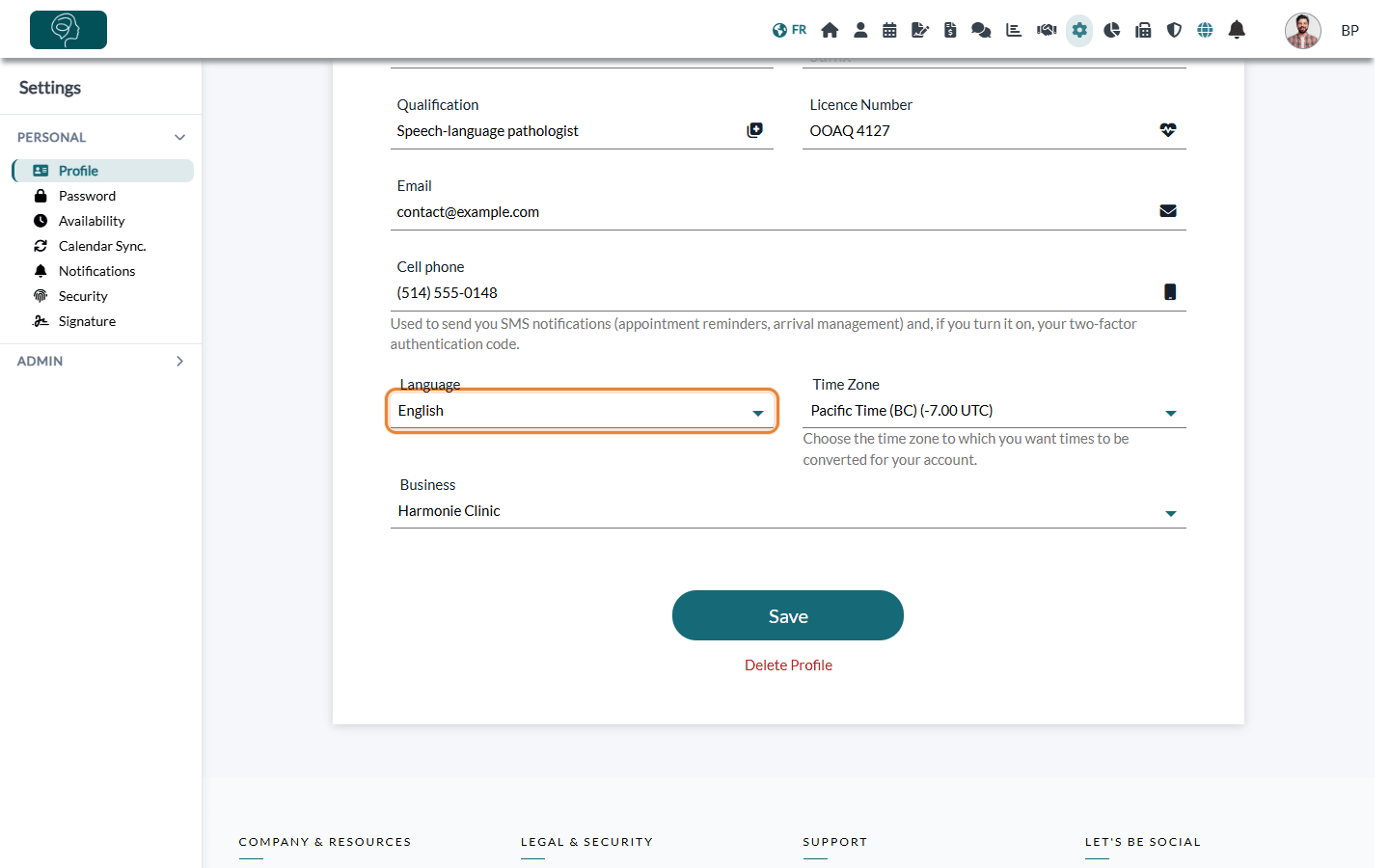
- Go to Settings > Personal > Profile (www.colib.io/settings?show=personalgeneral).
- In the Language list, choose English or French.
- The change is saved as soon as you pick a language: the page reloads in that language. You do not need to click Save.
The language of your profile is applied every time you sign in. The sign-in page itself is displayed in the language of your browser, or in the language you chose on that page.
3The language for your clients
Your clients also choose their language, and Colib uses it to talk to them:
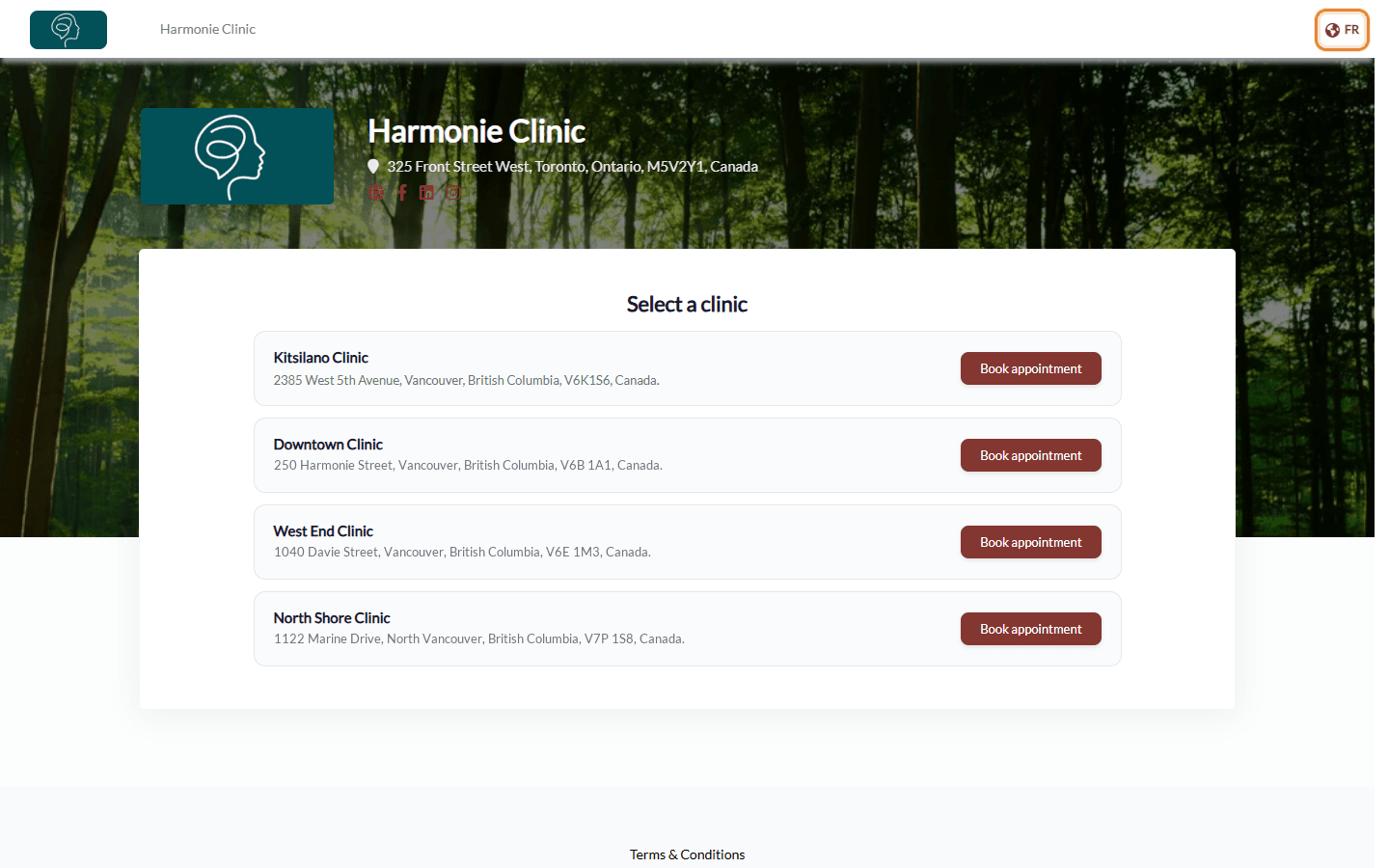
- Booking page — your clients can switch your booking page to English or French with the EN / FR link at the top right. When a new client books online, their client record is created with the language of the page they used.
- Client portal — the portal has the same EN / FR link in its top bar, and a Language list in the client's Profile.
- Emails and text messages — the notifications your practice sends (confirmations, reminders, invoices, forms...) are written in the language of the Language field of the client record. You can change it in the Profile tab of the client record.

Tip: if a client says they receive their emails in the wrong language, open their client record and check the Language field of the Profile tab. Changing the language of the client portal does not change this field.
Running a bilingual practice (Bilingual FR/EN): what exists in both languages
If your clients speak English and French, here is what Colib offers in both languages, how the language of each client is chosen and where you set the two versions of your own texts.
| Item | How the language is chosen | Where to set the two versions | Learn more |
|---|---|---|---|
| Booking page | The language of the page: the language of the client's browser, and the client can switch at any time with the EN / FR link. A new client gets the language in which they booked. | Names of your appointment types and categories: Name (english) and Name (french) in Settings > Appointments. Texts of the page: Pre-booking text (en) / (fr) and Post-booking text (en) / (fr) in Settings > Booking Page. | Please see the article titled "How do I show my appointment type names in both French and English?" and the article titled "How do I customize the texts and SEO of my booking page?". |
| Emails and text messages (confirmations, reminders, follow-ups...) | The Language field of the client record (Profile tab). | The standard Colib texts already exist in English and in French. Your signature has two versions: Email signature (English version) and Email signature (French version) in Settings > Communications; the tone of voice and the greeting apply to both languages. The content you add for an appointment type has one version only: it is sent as written to every client. | How can I customize the emails sent to my clients before and after an appointment?, and the article titled "How to customize the tone, greeting and signature of client emails". |
| Forms | The language of the client record, when the form exists in both languages. | The Language(s) of the form: English, French or English & French. With both, you enter each text in English and in French, and each client sees their version. | How can I build a new form from scratch? |
| Invoices and receipts | A new invoice takes the language of the client record (or yours, if the client has none). You can change it on each invoice with its Language field. The email that sends the invoice follows the language of the client record. | The names of your appointment types on the invoice: Description on the invoices and notifications (english) and (french) in Settings > Appointments. | Invoices and receipts: how does it work? |
| Client portal | The client chooses with the EN / FR link of the portal or the Language list of their Profile. This does not change the Language field of their client record. | Nothing to set: the portal is fully available in both languages. | What is the client portal? |
| Public page | The language in which the visitor views the page. | Description (English) and Description (French), and the SEO title and description in both languages, in Settings > Public Page. | How to configure the public profile page of the practice? |
| Online store (gift certificates) | The language of the store page. | The Language of each type of gift certificate: English, French or English & French. | How gift certificates work (gift cards, service vouchers and packages) |
What is never translated automatically: your own texts. Colib does not translate what you write: notes, messages, form questions, the content you add to your emails for an appointment type, your descriptions. Where Colib offers an English and a French field, fill in both. Where there is only one field (for example, the content added to the emails of an appointment type), write the English and the French text one after the other in the same field.
Why does a page open in English when I expected French (or the reverse)?
Colib chooses the language of each page in this order:
- The language in the address — an address that starts with www.colib.io/fr-ca/ is always displayed in French, and one that starts with www.colib.io/en/ in English.
- The language of your profile — when the address has no language and you are signed in.
- The last language chosen on this browser — when you are not signed in.
- The language of your browser — French if the first language of your browser is French, otherwise English.
Also, when you sign in, Colib switches to the language of your profile, whatever the language of the sign-in page.
Your bookmark opens Colib in the wrong language? First check the language of your profile (step 2): it is the one applied after you sign in. Then keep /fr-ca/ (or /en/) in the address of your bookmark, for example www.colib.io/fr-ca/scheduler. A bookmark without /fr-ca/ or /en/ depends on your profile and on your browser.
Good to know
- One language per person — changing your language has no effect on the other members of your team or on your clients.
- What you write is not translated — the menus, buttons and messages of Colib change language, but the text you enter yourself (notes, client information, messages, form questions) stays as you wrote it. Some settings have an English and a French version, for example the names of your appointment types, so that each client sees the text in their language.
- Remembered on your device — Colib remembers the language you chose on each browser, even before you sign in.
- Other profile settings — the Profile page also holds your picture, your cell phone number and your time zone.
- Feature overview — for an overview of the bilingual features of Colib, see the Bilingual FR/EN page.
Still have a question?
Write to us at support@colib.io, we will be happy to help.
Was this article helpful?
That’s Great!
Thank you for your feedback
Sorry! We couldn't be helpful
Thank you for your feedback
Feedback sent
We appreciate your effort and will try to fix the article