Who is this article for?
When a client pays one of your invoices online by credit or debit card, you probably want to know right away. This article explains how Colib lets you know: with a notification in Colib, and, if you wish, with an email to your practice's address.
Before you start: these notices concern invoices paid online by your clients, which requires the online payment system to be activated. See How do I activate the online payment system on Colib?
The notification in Colib (always on)
Each time a client pays an invoice online by card, the practitioner assigned to the client receives a notification in Colib (bell icon in the top bar). It gives the client's name, the invoice reference and the amount paid, with a View invoice link. You have nothing to set up.
1Check the email option
- Go to Settings > Payments (www.colib.io/settings?show=payment).
- Find the Preferences section, under the payment information.
- The Receive an email when a payment is made by a client switch must be on. Any change is saved as soon as you click the switch.
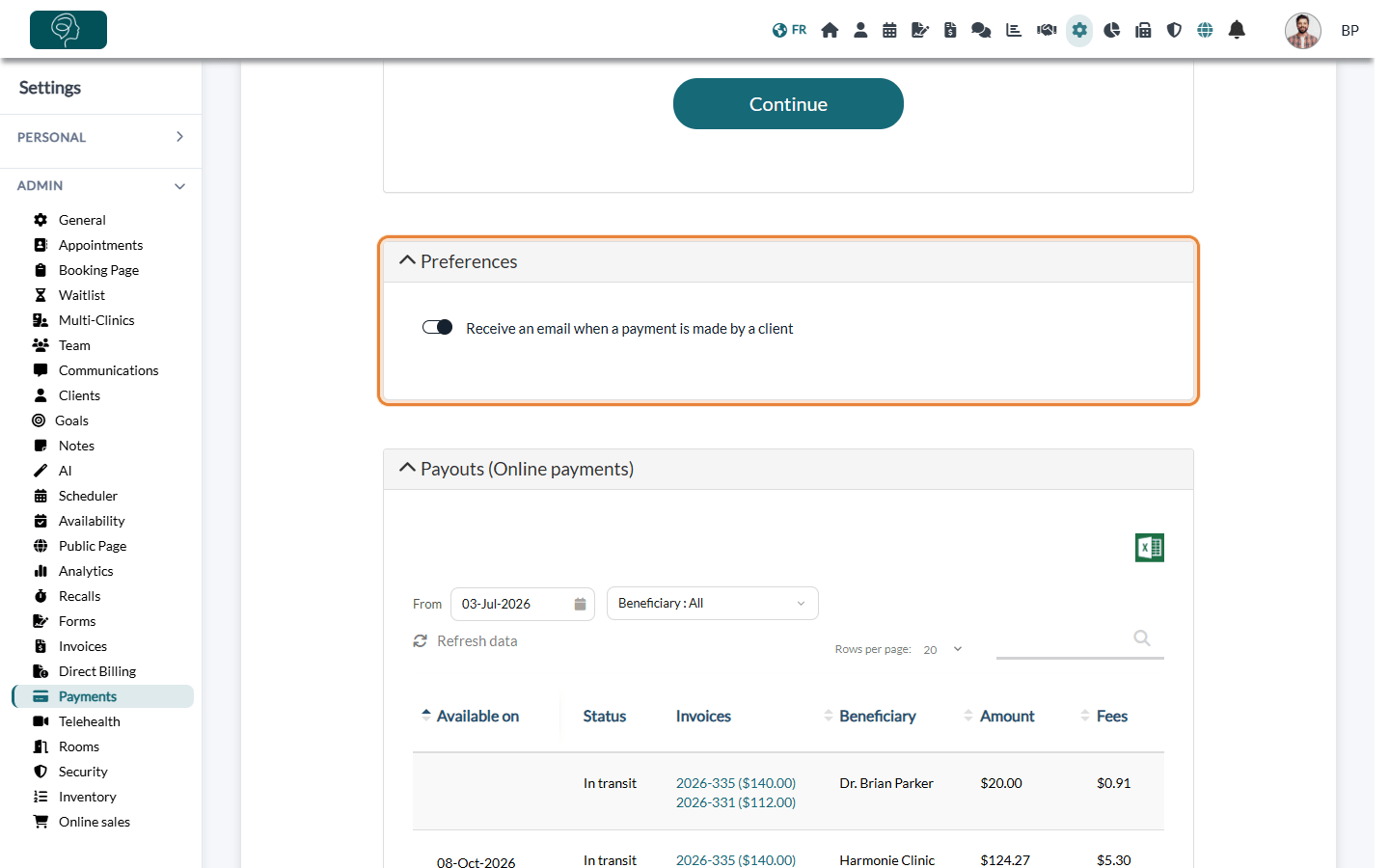
Important: the Preferences section is only displayed when the email option is activated for your account. If you do not see it, the option is off: write to support@colib.io to have it activated. If you turn it off yourself, the section disappears and you will need to contact us to turn it back on.
2Check the address that receives the email
The email is sent to your practice's email address: the Business Email field in Settings > General (www.colib.io/settings?show=general). Make sure it is an address that someone reads.
What does the email contain?
- The subject: New payment made by a client, followed by the client's initials and the invoice reference.
- The body: the client's initials, the invoice reference and its amount.
- A link that opens the invoice in Colib (you are asked to sign in if needed).
To protect your client's privacy, the email only shows their initials, never their full name. It is written in the language the client was using when paying (English or French).
Good to know
- Which payments? — the email and the notification are sent when a client pays an invoice online by card. Payments you record yourself (cash, cheque, Interac e-Transfer entered by hand), cards you charge from Colib and payments charged automatically during online booking do not trigger them.
- The client also gets a receipt — after paying online, the client automatically receives their receipt by email.
- Follow your payouts — the amounts transferred to your bank account and the related fees are listed in Settings > Payments. See Where can I view the payouts to my practice and the associated payment fees?
- Other event notifications — to choose who is notified of bookings, changes, confirmations and cancellations, see How to configure event notification recipients in Colib.
Still have a question?
Write to us at support@colib.io, we will be happy to help.
Was this article helpful?
That’s Great!
Thank you for your feedback
Sorry! We couldn't be helpful
Thank you for your feedback
Feedback sent
We appreciate your effort and will try to fix the article