Who is this article for?
This article is for clients of a practice that uses Colib. When your practice accepts online payments, you can pay your invoices with a payment card in a few clicks, from the invoice email or from the client portal, then download your receipt.
Before you start: online payment depends on your practice. If you see no Pay button (see No Pay button? below), contact your practice to know how to pay.
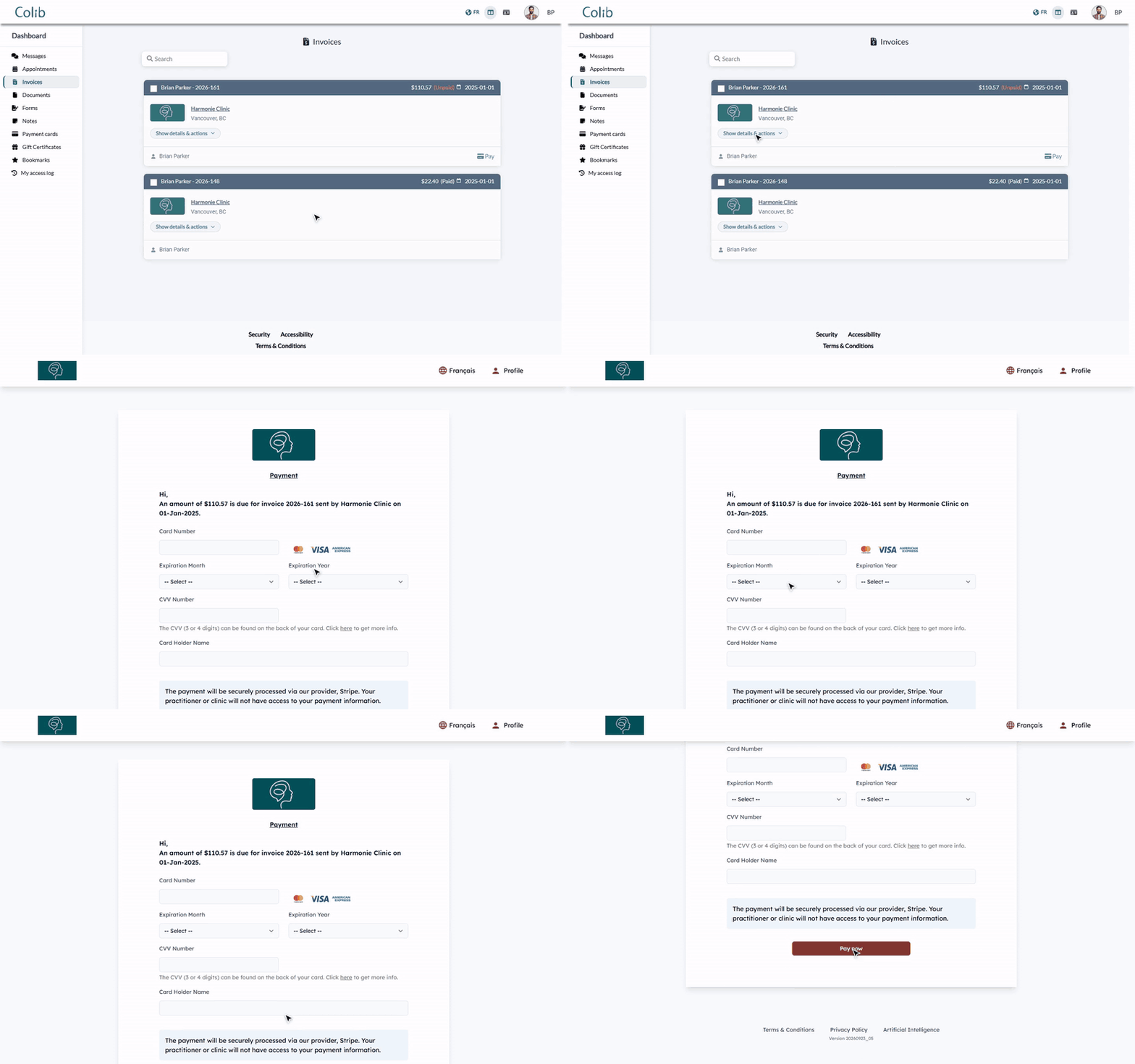
1Open the invoice to pay
You can reach the payment page in two ways:
- From the email — the invoice email is titled [Practice] - Invoice [number] and contains the invoice as a PDF file. Click the Pay Invoice button. You do not need to sign in.
- From the client portal — sign in to portal.colib.io and open the Invoices tab. On an invoice marked (Unpaid), click Pay, or click Show details & actions then Pay invoice.
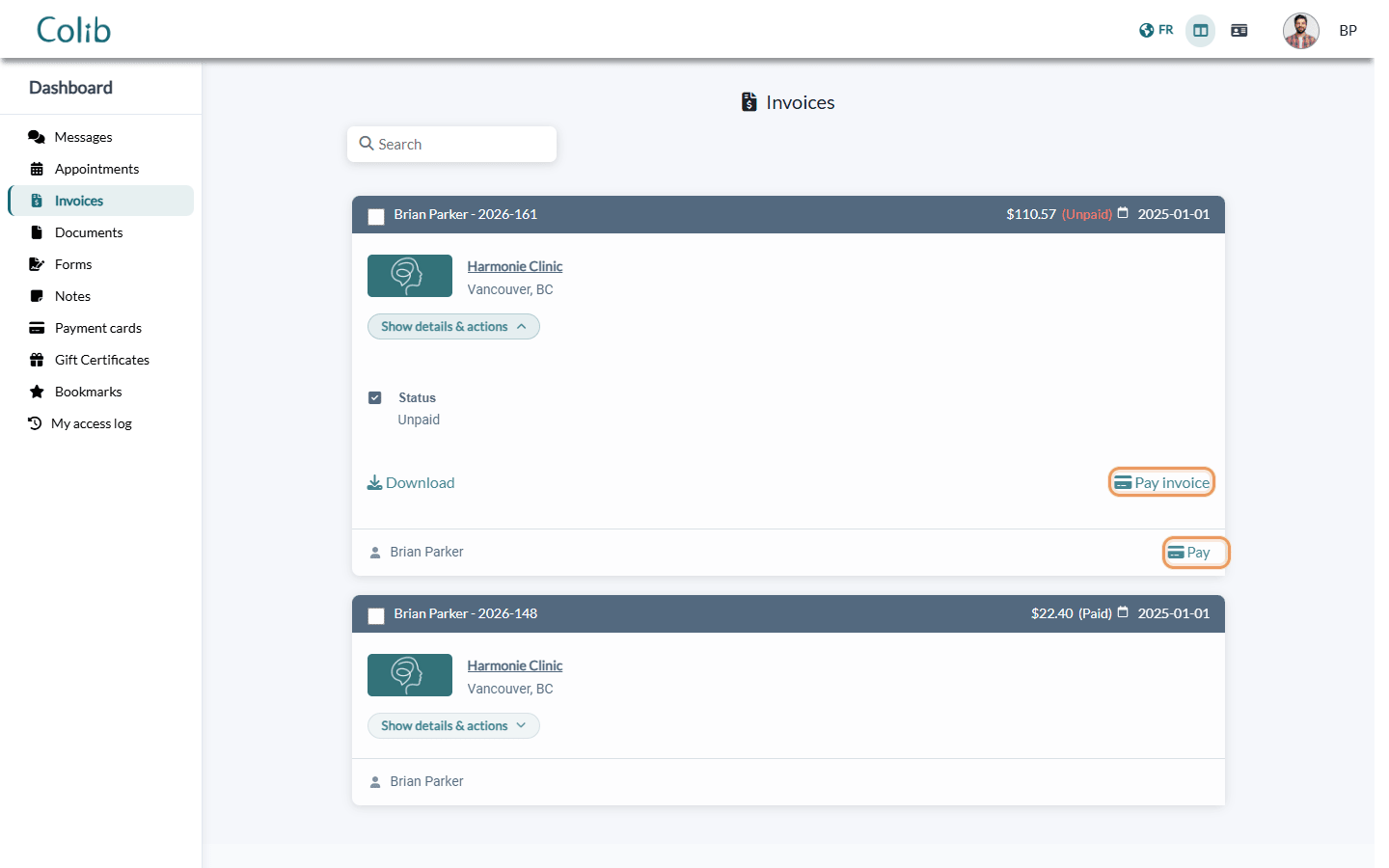
The portal only lists the invoices your practice has sent you. If the tab shows You need to confirm your email address to view your invoice(s)., first confirm your email address with the link you received when your account was created.
2Pay with your card
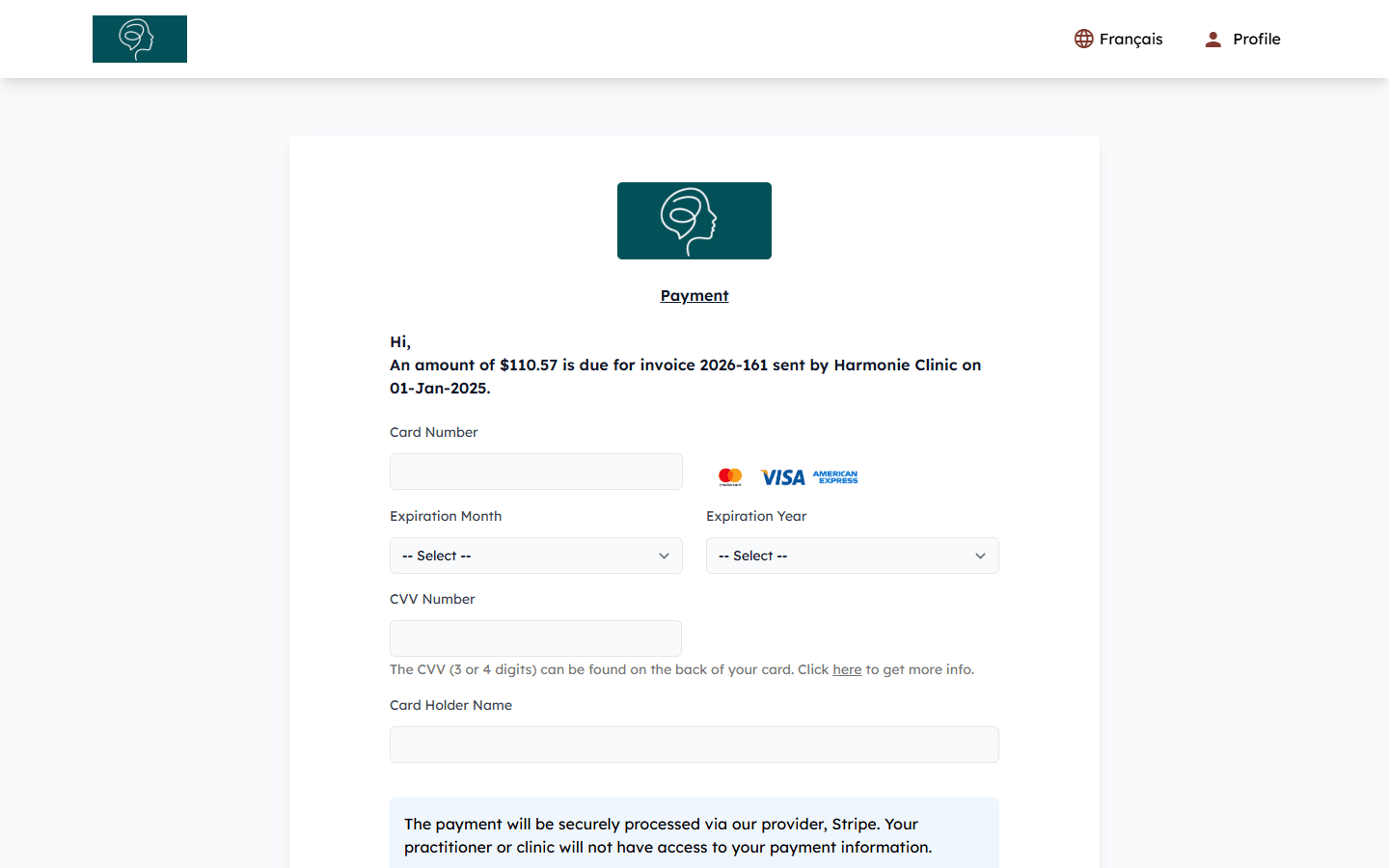
- Check the amount: the page shows An amount of [amount] is due for invoice [number] sent by [practice] on [date]. The amount is the balance still due on the invoice; it cannot be changed.
- Enter the Card Number (digits only), the Expiration Month and the Expiration Year.
- Enter the CVV Number: the 3 or 4 digits on the back of your card.
- Enter the Card Holder Name, as written on the card.
- Click Pay now. Wait a few seconds while Payment in progress ... is shown: do not close the page.
Accepted cards: Mastercard, Visa and American Express. The payment is processed securely by Stripe, the payment provider: your practitioner or practice never sees your card details.
When the payment is accepted, the page shows Thank you! [Practice] has successfully received your payment. You will receive an email with the receipt in the next few seconds. The Access Client Portal link takes you to your invoices.
Your card is saved: the card you use is added to the Payment cards tab of the client portal. Your practice can use it for your next invoices, and you receive a receipt by email each time. You can delete it from that tab at any time.
3Get your receipt
Once the invoice is paid, you get your receipt in two places:
- By email — an email titled [Practice] - Receipt for your invoice [number] (or Receipt for your appointment on [date]), with the receipt as a PDF file.
- In the client portal — in the Invoices tab, the invoice now shows (Paid). Click Show details & actions then Download: the PDF you get is the receipt.
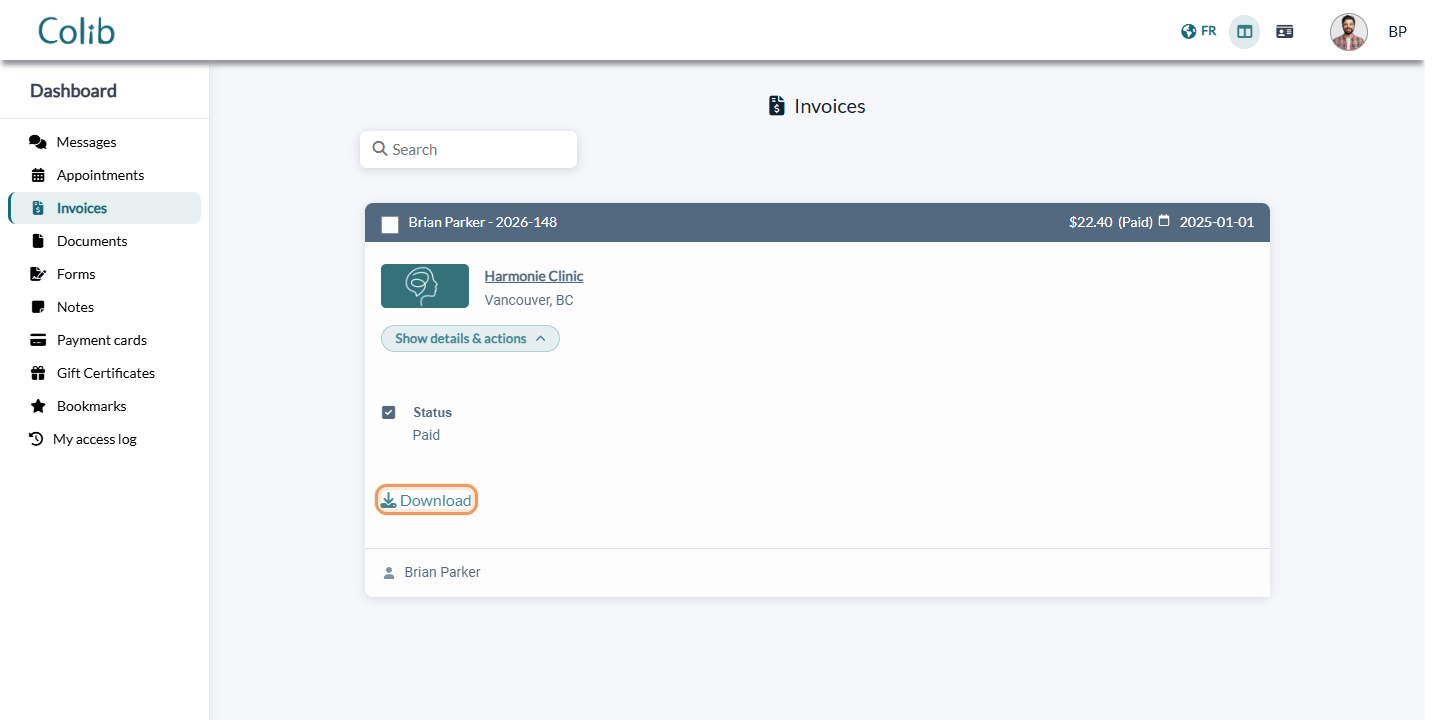
To download several invoices or receipts at once, tick their boxes in the Invoices tab, then click Download selected invoices. You get a ZIP file with one PDF per invoice, plus a PDF that merges them all.
If the payment does not go through
- Your card was declined — check the card number, the expiration date and the CVV, then click Continue to try again, or use another card.
- Your card is not supported — cards that require an extra verification step with your bank cannot be used on this page. Use another card, or contact your practice.
- The invoice has been paid or does not exist. — the invoice was paid in the meantime (by you or by your practice). Nothing else to do.
No Pay button?
The Pay buttons are only shown when the invoice can be paid online. They do not appear when:
- the invoice is already Paid, or it was Cancelled;
- your practice does not offer online payment, or has turned off the pay button;
- the invoice is billed to someone else (for example, an organization that pays for your care).
In these cases, contact your practice: it will tell you how to pay (in person, by bank transfer...).
Good to know
| Status | What it means |
|---|---|
| Unpaid | Nothing has been paid yet. |
| Partially paid | Part of the invoice is paid; online, you pay the balance still due. |
| Paid | The invoice is fully paid: the PDF is your receipt. |
| Refunded | Your practice refunded the payment. |
| Cancelled | The invoice was cancelled: there is nothing to pay. |
- Full payment only — online, you pay the whole balance of the invoice at once.
- Payment details — in Show details & actions, the Payments section lists each payment with its date, its amount and the last digits of the card used.
- Client portal — see What is the client portal?.
- For practitioners — to choose the payment methods offered to your clients, see What payment methods are accepted on Colib? What are the fees?; to send payment reminders, see How to automate invoice payment reminders?.
Still have a question?
Write to us at support@colib.io, we will be happy to help.
Was this article helpful?
That’s Great!
Thank you for your feedback
Sorry! We couldn't be helpful
Thank you for your feedback
Feedback sent
We appreciate your effort and will try to fix the article