Who is this article for?
This article is for clients of a practice that uses Colib. When no appointment time suits you, you can join the practice's waitlist: you tell the practice when you are available and which services you want, and you are told as soon as a matching opening becomes available.
In short: open the waitlist page of your practice, fill in your contact details, your preferred days and times and the appointment types you want, then click Continue.
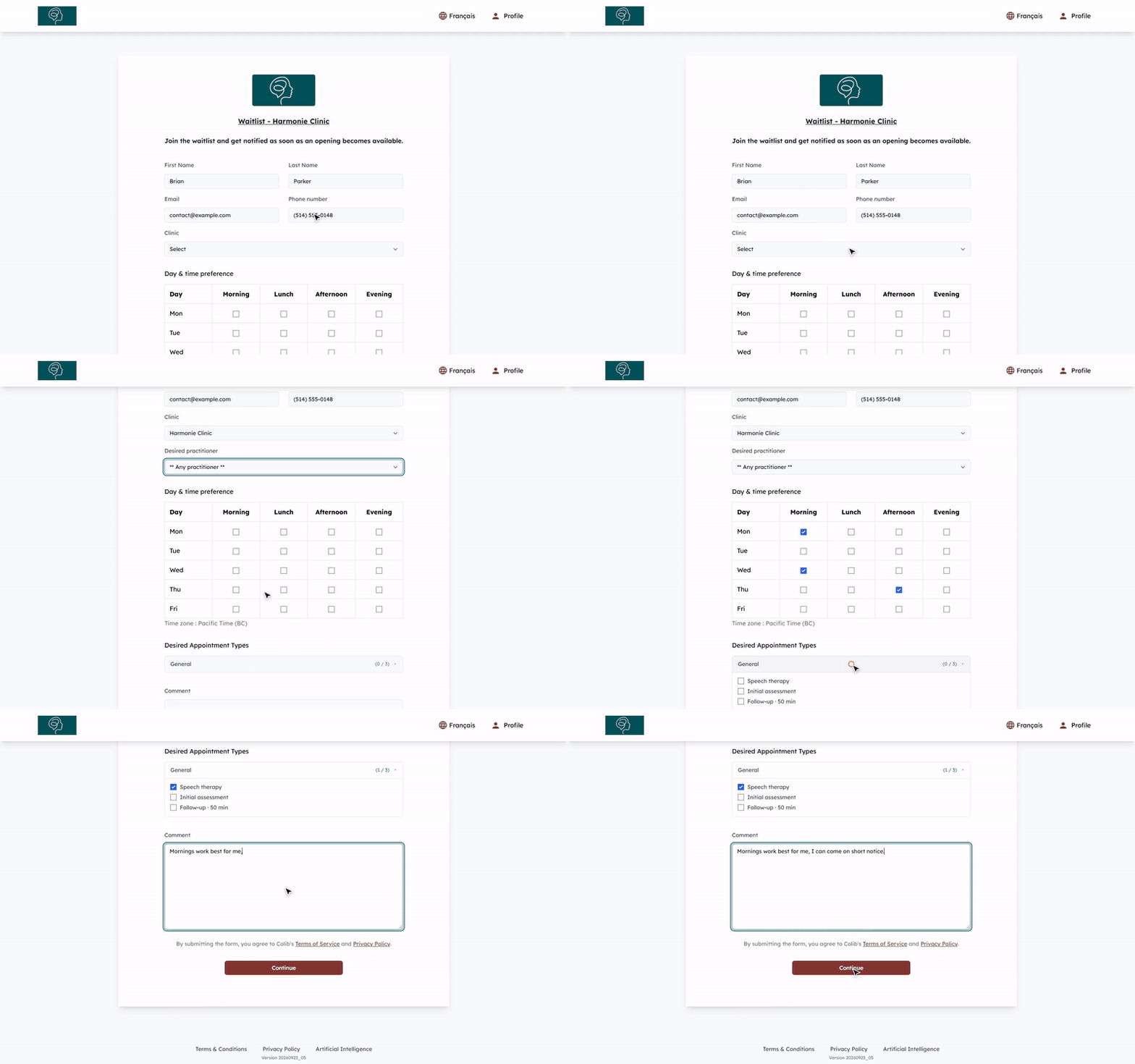
1Open the waitlist page
The waitlist is only offered by practices that have turned it on. You can open it in two ways:
- From the booking page — when you book online and no time suits you, click the link Join the waitlist and get notified when a slot becomes available, under Couldn't find a suitable time for your appointment?. The details you already entered (name, email, phone, appointment type, practitioner) are filled in for you.
- From the link shared by your practice — your practice can give you the address of its waitlist page, for example on its website or in an email.
You do not need a client portal account to join a waitlist. If you are signed in to the portal, your name, email and phone number are filled in automatically.
2Fill in your contact details
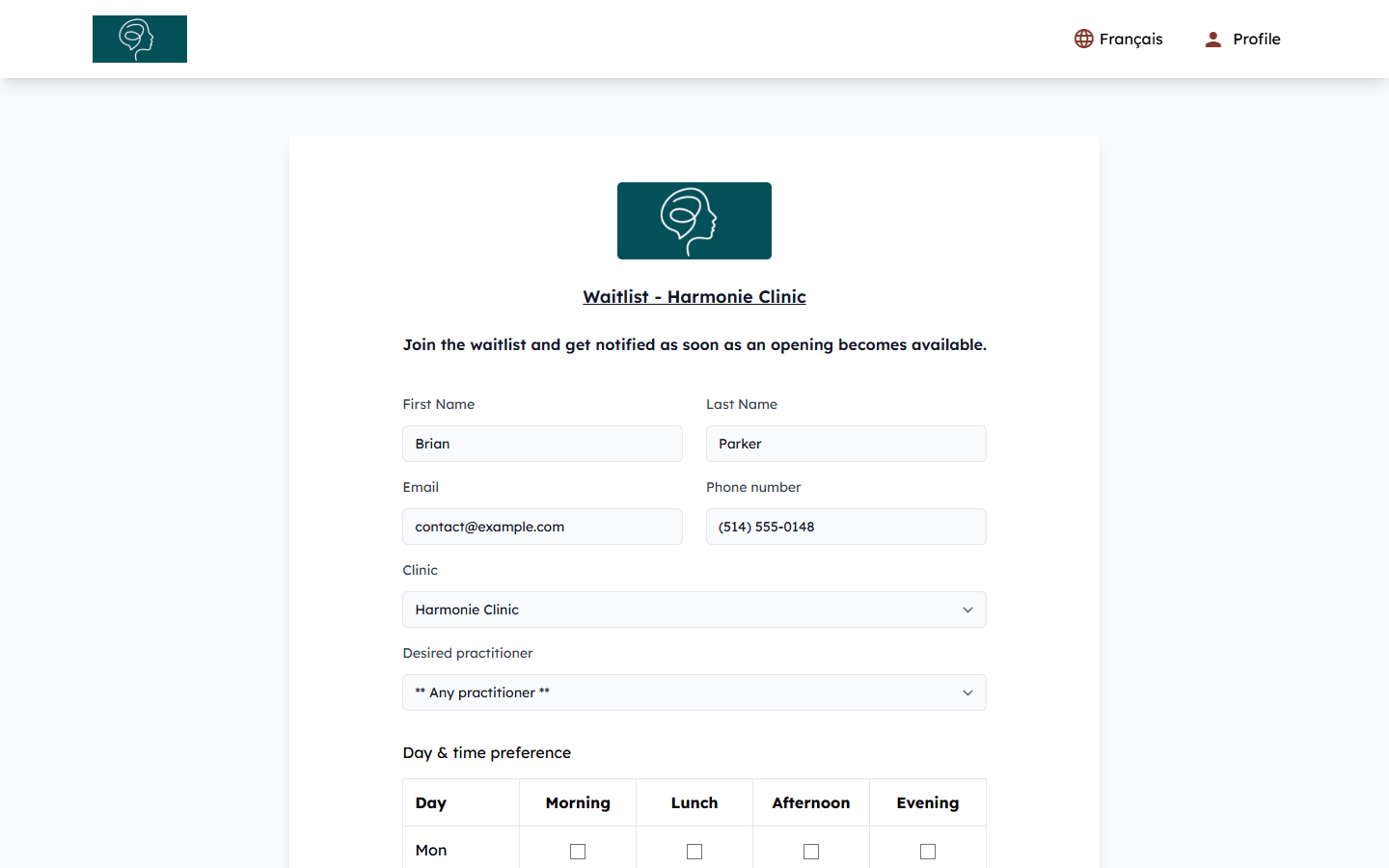
- Check your First Name, Last Name and Email (required).
- Enter your Phone number (a Canadian or US number). It may be optional, depending on the practice.
- If the practice has several locations, choose the Clinic where you want to be seen. The practitioners and appointment types of that clinic then appear.
- In Desired practitioner, choose a practitioner, or keep ** Any practitioner ** to be offered the first opening with anyone.
3Choose your availability and the appointment types
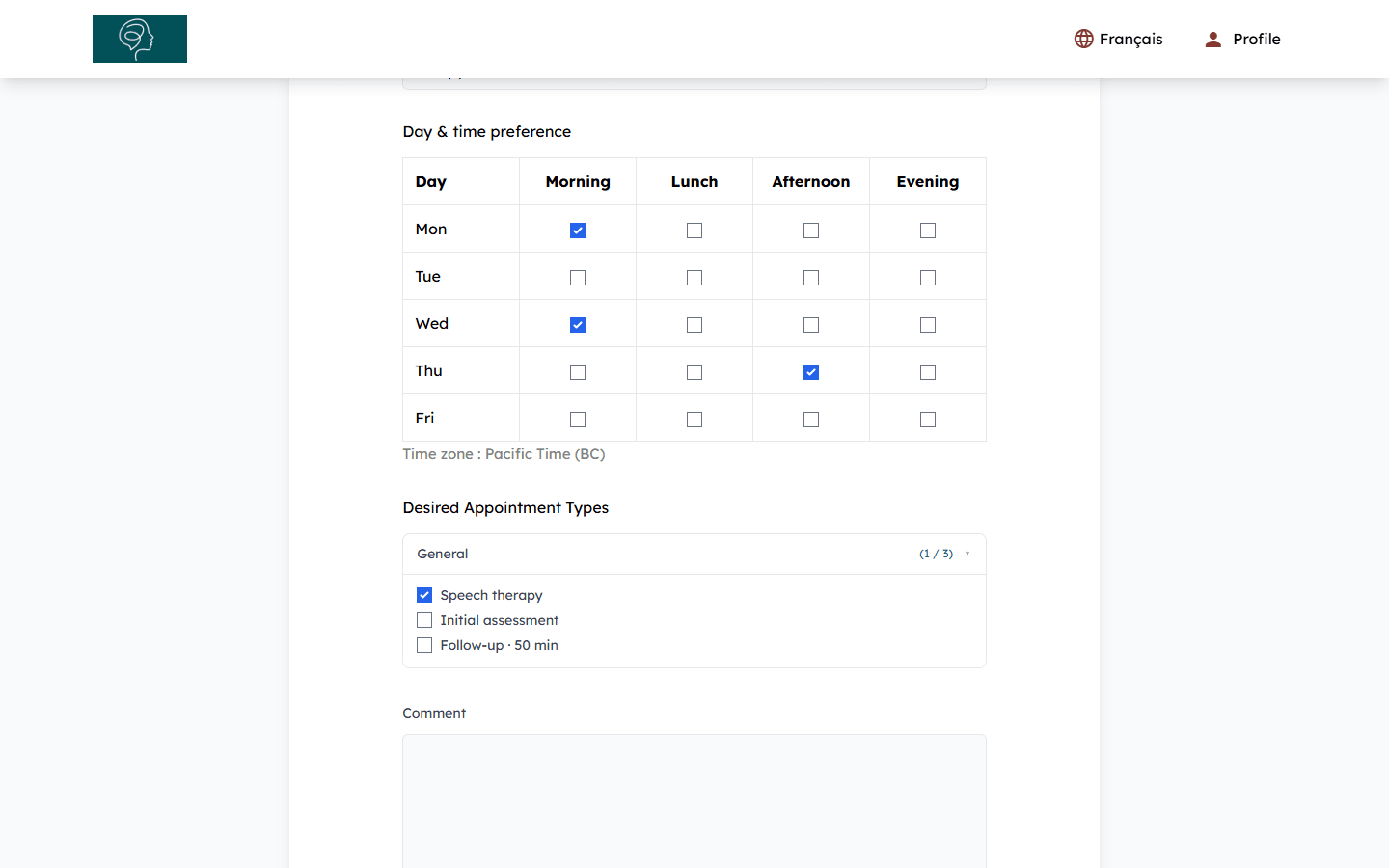
- In Day & time preference, tick every time slot that suits you: Morning, Lunch, Afternoon or Evening, for each day the practice is open. Tick at least one box. The times are in the time zone shown under the grid.
- In Desired Appointment Types, open a category and tick the appointment types you want (at least one). The counter next to each category shows how many types you selected.
- Optionally, add a Comment for the practice (up to 600 characters), for example your constraints or how much notice you need.
4Send your request
- Click Continue.
- If something is missing, a message tells you what to complete (for example, Please select at least one availability.).
- Once the request is sent, the message Thank you! [Practice] has successfully received your request. You will be notified as soon as an opening becomes available. is displayed.
The practice sees your request in its waitlist. No confirmation email is sent to you.
When an opening becomes available
When an appointment matching your preferences becomes free, the practice can let you know by email or text message (for example, [Practice] - Appointment Available on [date]). Click Book Appointment in the email, or the link in the text message, to book the time. Openings are offered to several people in the order of the waitlist: the first person to book gets the appointment.
Once you book an appointment, your request is removed from the waitlist automatically.
Good to know
- Leave the waitlist — click Click here to unsubscribe from the waitlist. at the bottom of an opening email, then Continue to confirm. The message Your waitlist has been cancelled. confirms it. You can also ask your practice to remove you.
- Change your request — your requests are not listed in the client portal and cannot be edited there. To change your preferences, contact your practice.
- Page not found? — the practice may have turned off its waitlist. Contact it directly.
- For practitioners — see How to activate the waitlist and How to automatically notify clients of new openings that match their preferences.
Still have a question?
Write to us at support@colib.io, we will be happy to help.
Was this article helpful?
That’s Great!
Thank you for your feedback
Sorry! We couldn't be helpful
Thank you for your feedback
Feedback sent
We appreciate your effort and will try to fix the article