Who is this article for?
When an appointment is cancelled or moved, a time becomes free in your schedule. Instead of calling the clients on your waitlist one by one, Colib can alert them automatically by email and/or text message, with a link to book the free time online.
This article explains how to turn on these alerts, how many clients are alerted, and when Colib detects a new opening.
Important: this option only works if online booking by clients is enabled for your practice: in Settings > Booking Page (www.colib.io/settings?show=bookingpage), the Client booking type must be Online booking by client. The waitlist must also be turned on (see How to activate the waitlist).

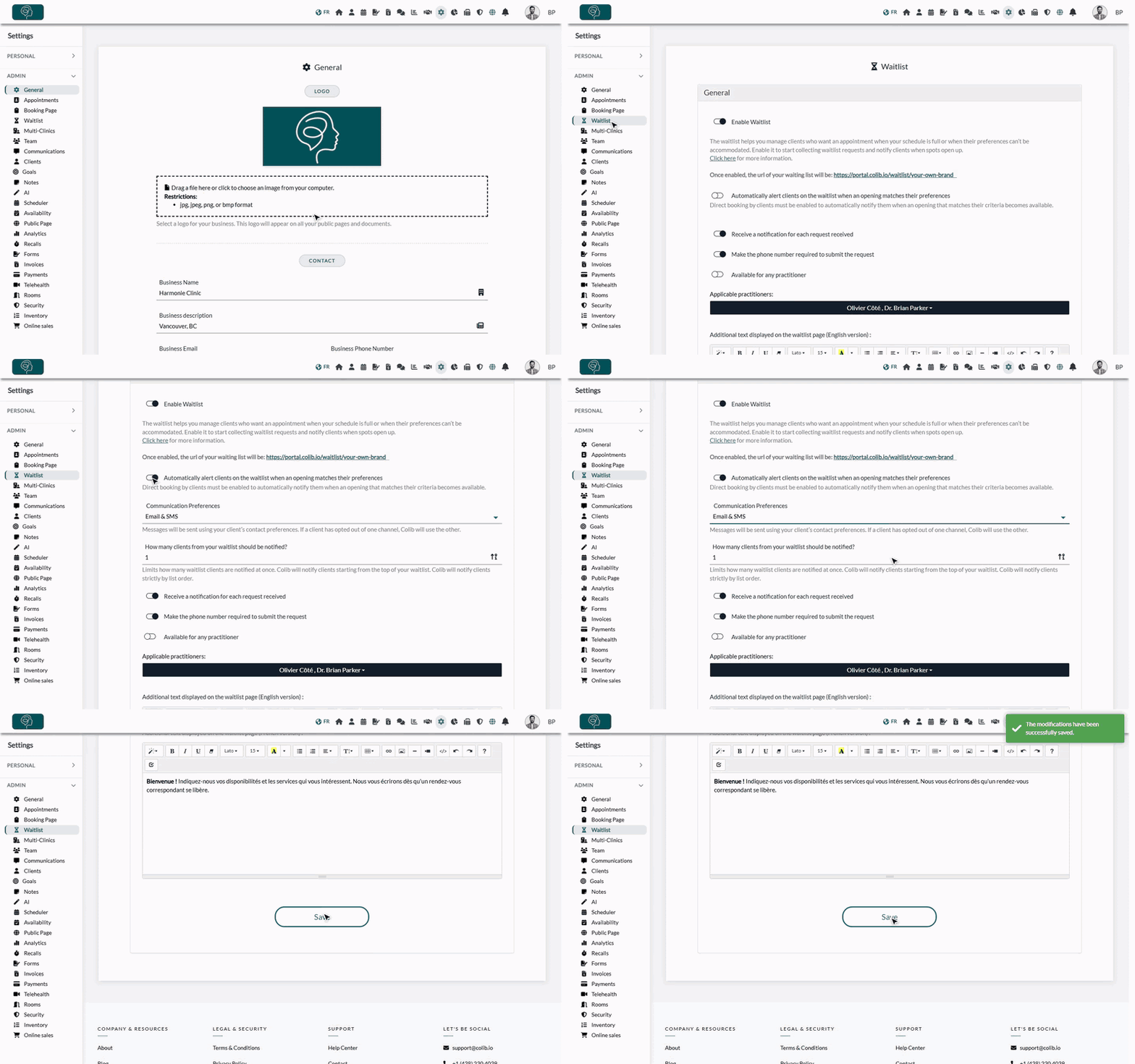
1Turn on the automatic alerts
- Go to your waitlist settings: www.colib.io/settings?show=waitlist.
- Turn on the option Automatically alert clients on the waitlist when an opening matches their preferences. Two settings appear below it.
2Choose how and how many clients are alerted
- In Communication Preferences, choose how the alerts are sent: Email & SMS, Email only or SMS only.
- In How many clients from your waitlist should be notified?, enter the number of clients alerted for each new opening (at least 1).
- Click the Save button at the bottom of the page.
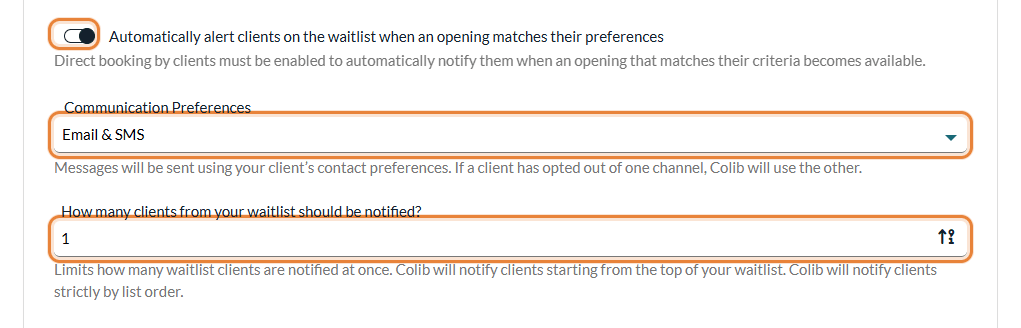
- Contact preferences of the client — messages are sent using your client's contact preferences. If the request is linked to a client record set to Email only or SMS only, Colib uses that channel.
- Order of the alerts — Colib notifies clients starting from the top of your waitlist, strictly by list order, until the number you entered is reached. To change the order, see How to update waitlist request priorities.
- Text messages — a text message can only be sent if the client entered a phone number. To be sure to have one, turn on Make the phone number required to submit the request on the same page.
When does Colib detect a new opening?
New openings are detected in the following situations within your clinic:
- Appointment cancellations
- Appointment modifications (date or practitioner)
- Appointment deletions
This only applies to appointments that were still to come. A few minutes later, Colib looks for the times that can be booked online on the day of the freed appointment, and alerts the clients whose preferences match. When the freed time itself can be booked again, it is the time offered.
In addition, each week, Colib reviews the times that have just become bookable at the far end of your online booking period (the last 7 days your clients can book), and alerts the matching clients who have been on the waitlist for at least 3 days.
Which clients are alerted?
A client is only alerted if the free time matches their request:
- the day and the moment of the day (morning, lunch, afternoon, evening) are among the availabilities they checked;
- the time can be booked for one of the types of appointment they want, with the practitioner they asked for (or any practitioner) and, for practices with several clinics, in the clinic they chose;
- the booking rules of the type of appointment are respected (minimum notice and maximum number of days in advance). A type of appointment that requires your authorization is only offered to clients you have authorized.
What does the client receive?
- By email: the available time or times, with the practitioner, a Book Appointment button that opens your booking page, and a link to leave the waitlist. The email is sent in the language the client used to join the waitlist, and replies go to your clinic.
- By text message: a short message with the date of the opening and the link to your booking page, with the mention First come, first served.
First come, first served: the alert does not reserve the time. The first client who books it on your booking page gets it. Once an appointment is booked for a client, their waitlist request is automatically removed from your list.
Good to know
- Follow the alerts sent — in the details of a request (eye icon on the www.colib.io/waitlist page), Colib shows how many notifications the client has received and the date of the most recent one. See How to consult my waitlist requests.
- Turning the alerts off — turn off the option and click Save: the waitlist keeps working, but the clients are no longer alerted automatically.
Still have a question?
Write to us at support@colib.io, we will be happy to help.
Was this article helpful?
That’s Great!
Thank you for your feedback
Sorry! We couldn't be helpful
Thank you for your feedback
Feedback sent
We appreciate your effort and will try to fix the article