Who is this article for?
Once your waitlist is turned on, the requests sent by your clients are gathered on the Waitlist page. This article explains how to open it, what the list shows, and what you can do with each request: view its details, create the client record, book an appointment or delete it.
Please note: you must first activate the waitlist before you can access this page. Learn how to activate the waitlist.
1Open the waitlist
Two ways to access this page after activating the waitlist:
- Go directly to www.colib.io/waitlist.
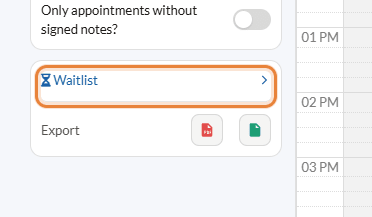
- Open your scheduler (www.colib.io/scheduler) and click the Waitlist link in the left column, under the filters.
On a phone, the Waitlist page is also in the main menu. Depending on your account, the home page (www.colib.io/establishmentadmin/home) can also show the latest requests, with a See all link.
2Read the list of requests
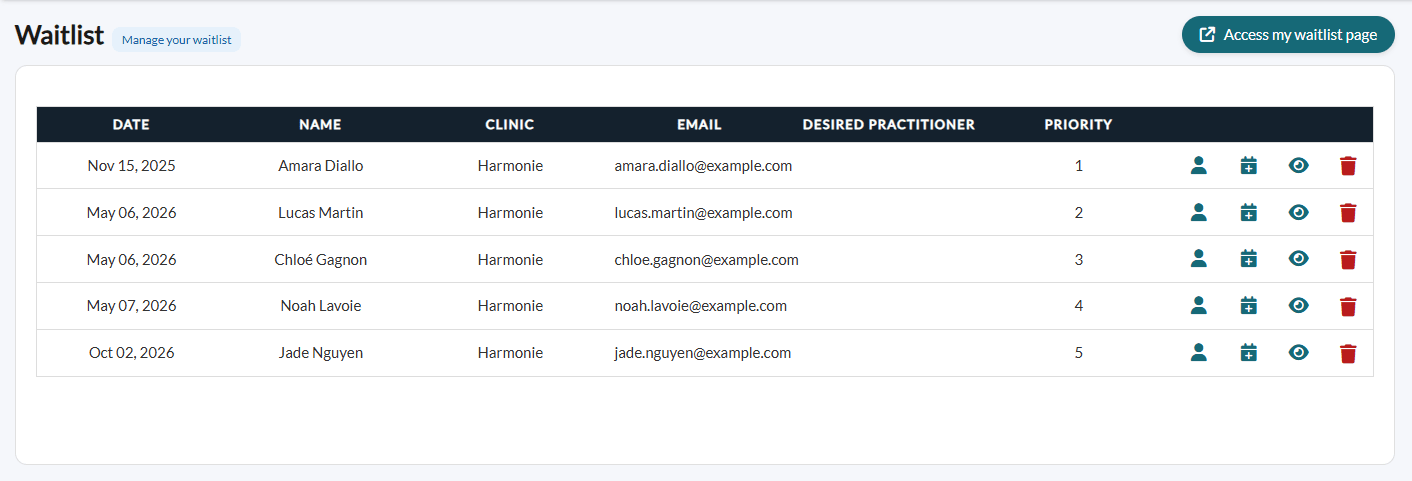
Once on this page, you have access to the list of active requests, from the highest priority to the lowest:
| Column | What it shows |
|---|---|
| Date | The day the client joined the waitlist. |
| Name and Email | The name and email address entered by the client. |
| Clinic | The clinic chosen by the client, for practices with several clinics. |
| Desired practitioner | The practitioner requested. Empty when the client accepts any practitioner. |
| Priority | The position of the request in the list. See How to update waitlist request priorities. |
3Act on a request
The icons at the end of each row let you act on the request:
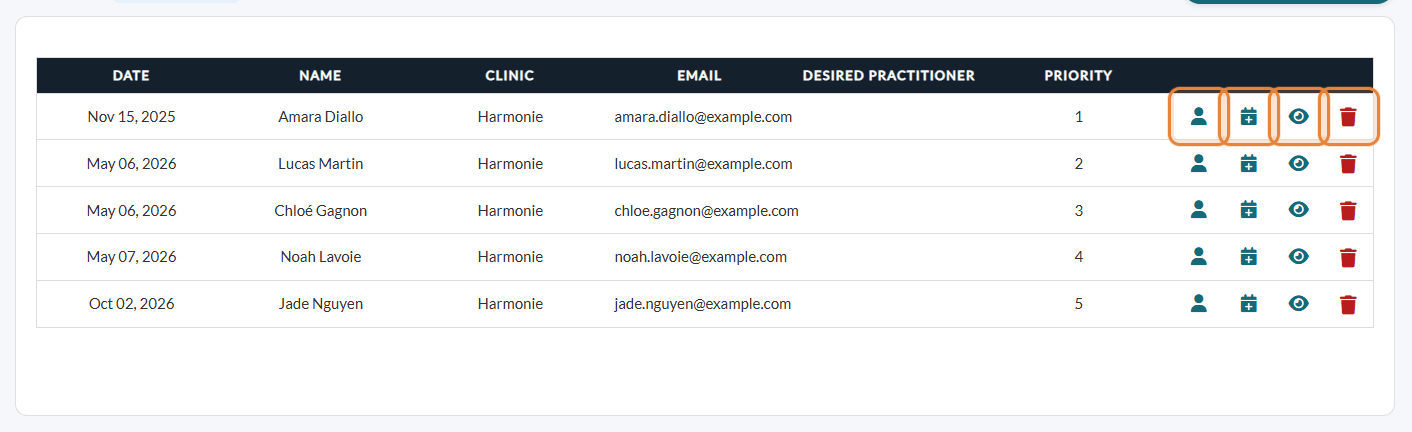
- Person icon (See client) — the request is linked to one of your clients: open their client record.
- Person icon with a + (Create client) — shown when the request is not linked to a client yet. Colib creates the client record with the name, email and phone number of the request, links it to the request and opens it. If your welcome email is sent automatically to new clients, it is sent at that moment.
- Calendar icon (Create appointment for client) — shown when the request is linked to a client: opens your scheduler to book an appointment for this client.
- Eye icon (See details) — opens all the details of the request (see Step 4).
- Trash icon (Delete) — deletes the request after confirmation. The requests below it move up one place.
4View the details of a request
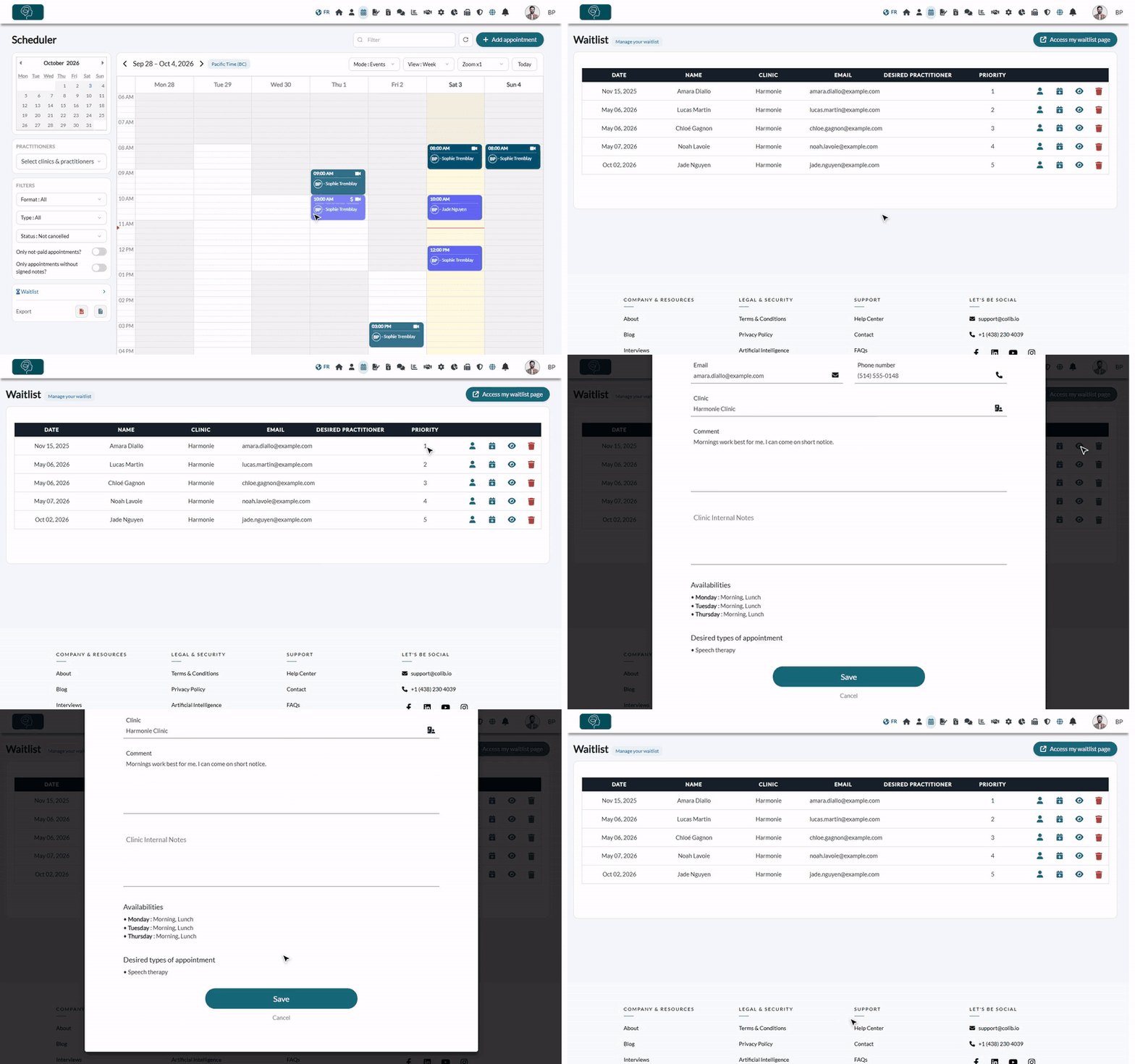
Click the eye-shaped icon of a request to view all its details:
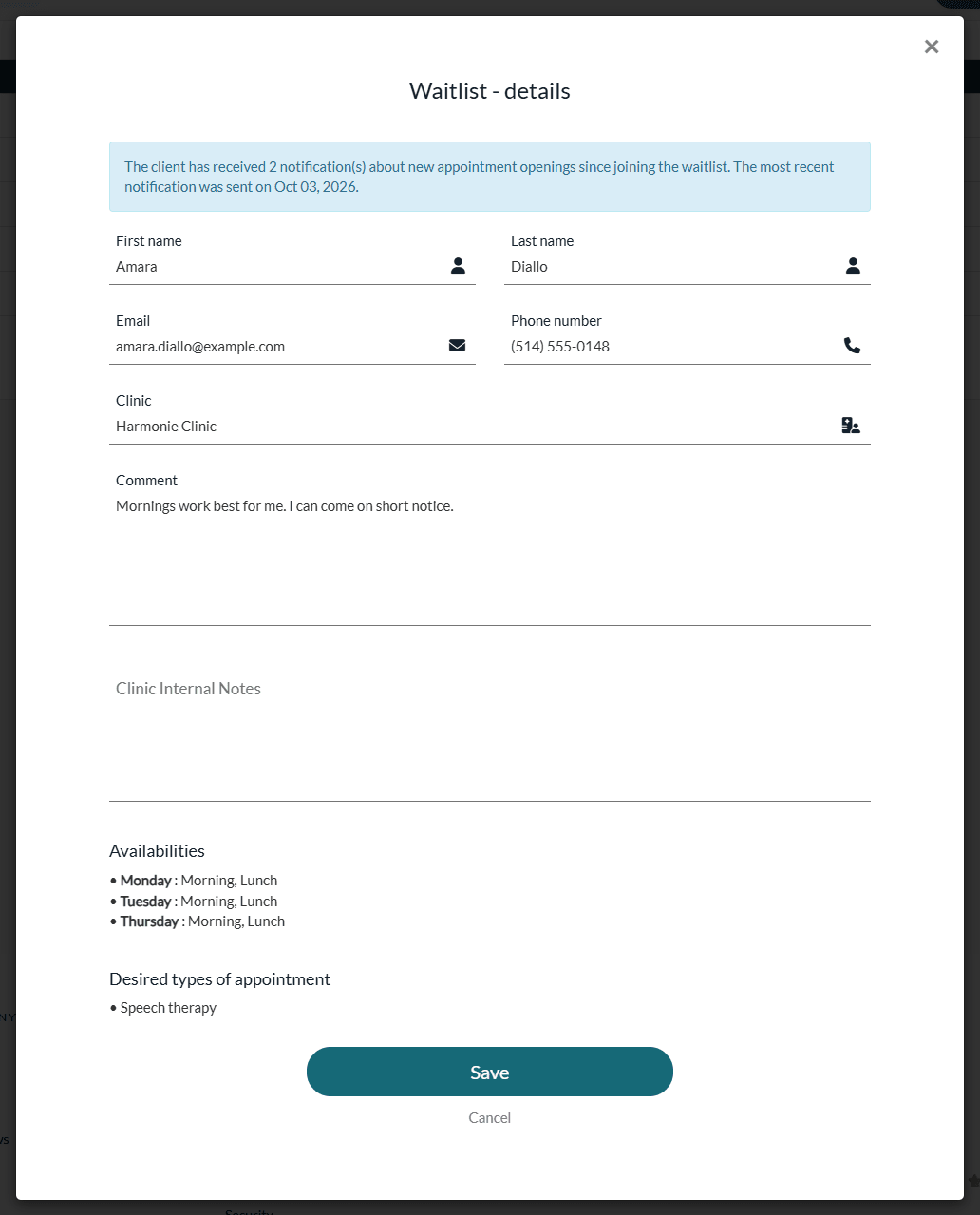
- At the top, if Colib has already alerted the client about openings, the number of notifications received and the date of the most recent one.
- First name, Last name, Email and Phone number: you can correct them, for example if the client made a typo.
- Clinic and desired practitioner, when the client chose them.
- Comment: the message written by the client.
- Clinic Internal Notes: your own notes on the request (calls made, situation...). The client does not see them.
- Availabilities: the days and moments of the day that suit the client (morning, lunch, afternoon, evening).
- Desired types of appointment.
Click Save to keep your changes, or Cancel to close the window.
Good to know
- Automatic removal — if an appointment is created for a client after they have submitted a waitlist request, their waitlist request will automatically be deleted. Colib recognizes the client by their client record or, if the request is not linked to a record yet, by their email address.
- Cancellation by the client — the alerts sent to clients contain a link to leave the waitlist. After confirming, their request disappears from your list.
- Who sees what — team members with access to appointments can view the list; only those with full access to appointments can modify, delete or create a client from a request. Requests not linked to a client are only visible to team members who can see the data of the other practitioners. In a practice with several clinics, each team member only sees the requests of their clinics.
Still have a question?
Write to us at support@colib.io, we will be happy to help.
Was this article helpful?
That’s Great!
Thank you for your feedback
Sorry! We couldn't be helpful
Thank you for your feedback
Feedback sent
We appreciate your effort and will try to fix the article