Who is this article for?
A practitioner is missing from the list on your online booking page, an appointment type is not offered, or the client chooses a practitioner and sees no time slot at all? In almost every case, one setting is missing. This article is a checklist: go through it in order to find which one.
In short: a practitioner appears when they are a practitioner, Available for direct booking and waitlist, and authorized for at least one appointment type that is Available for client booking and waitlist. Then, the time slots depend on their hours, availability groups, pauses and existing appointments.
Tip: after each change, save, then open your booking page in a private browser window to see it as a new client does.
1Check that online booking is on
- Go to Settings > Booking Page (www.colib.io/settings?show=bookingpage).
- The Client booking type must be Online booking by client. With Appointment request form or None, there is no booking page with practitioners and time slots.
See How do I set up the booking process in Colib?
2Check the booking flow
On the same page, in the Booking flow section:
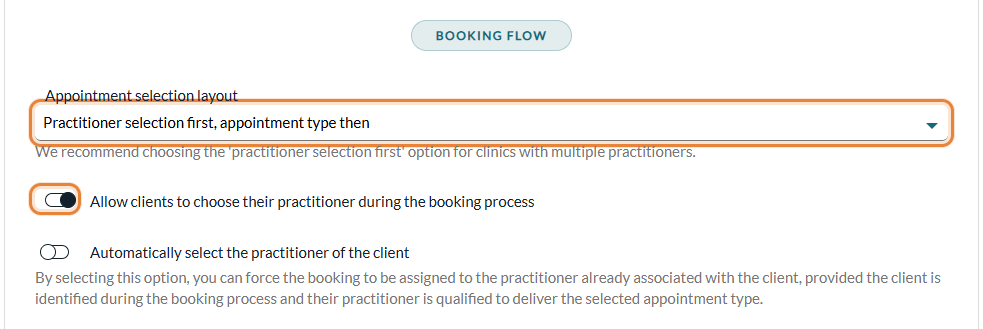
- Appointment selection layout — with Practitioner selection first, appointment type then, clients first see the cards of your practitioners. With Appointment type selection first, practitioner then, they first choose the appointment type, then a practitioner in a list.
- Allow clients to choose their practitioner during the booking process — with the appointment-type-first layout, if this option is off, the list of practitioners is not shown at all: clients only see the time slots of all the practitioners who offer the type. This is normal, not a missing practitioner.
- Automatically select the practitioner of the client — when this option is on and the client is recognized, the booking is assigned to the practitioner already associated with the client (if they offer the chosen type), so the client does not choose.
3Check the practitioner
- Go to Settings > Team (www.colib.io/settings?show=team) and click the pencil icon of the practitioner.
- The Practitioner option must be on: only practitioners can receive appointments.
- In the Booking section, Available for direct booking and waitlist must be on. This option only appears once Practitioner is on.
- In Authorized appointment types, check the types this practitioner offers online. The list only shows the types that are not available for all practitioners.
- Click Save.
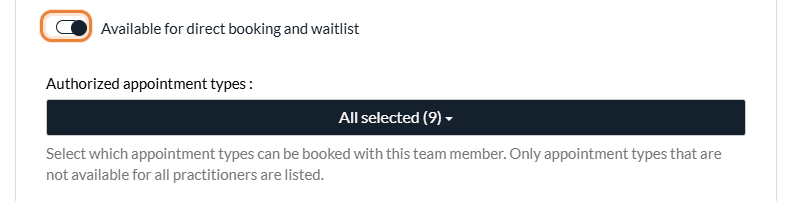
On the practitioner-first screen, a practitioner who is not authorized for any bookable appointment type is not shown. See How to add practitioner information on your booking page
If your booking page shows only the practitioners located near the client (Only show practitioners located within a given distance of the appointment address, in Settings > Booking Page), a practitioner too far from the address entered by the client is hidden.
4Check the appointment type
- Go to Settings > Appointments (www.colib.io/settings?show=appointments) and click the pencil icon of the type.
- In the first section, check:
- Available for all clients — when it is off, the type is hidden from everyone on the booking page, except from the clients whose record allows them to see all appointment types (Authorized to view all appointment types during the booking process) and who enter their email address. See How to Restrict Certain Appointment Types to Specific Clients?
- Available for all practitioners — when it is off, only the Authorized practitioners chosen below offer this type.
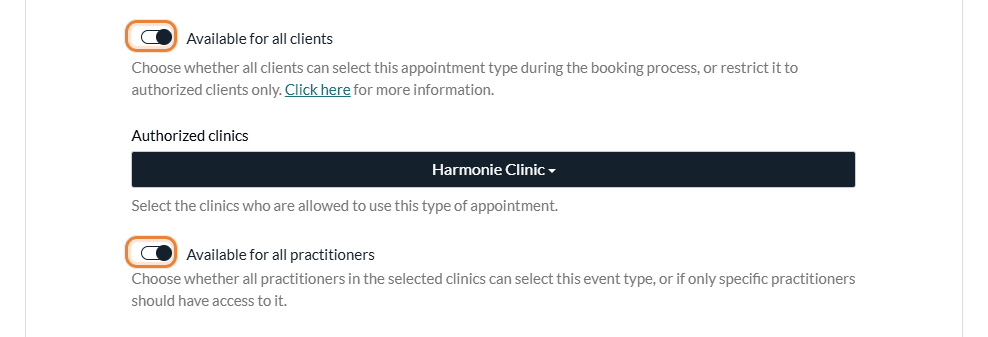
- In the Direct booking section, Available for client booking and waitlist must be on.
- Check the booking window: Only accept reservations made between ... hour(s) and ... day(s) before the start of the appointment. If clients look at dates too close or too far away, they find no time slot.
- Click Save.

Other settings of the type can hide it or leave it without time slots:
- Categories — a category only appears when it contains at least one bookable type. If a category has sub-categories, place its types in the sub-categories: on the booking page, clicking the main category only opens its sub-categories, so a type placed directly in the main category cannot be reached. See Will a category or sub-category appear in the online booking process if there are appointment types inside that are not available for online booking?
- Group appointments — with Allow direct booking only for existing group appointments that have not yet reached the maximum number of participants, time slots only appear where a session of this type already exists in your scheduler and still has room. See How to set up group and class appointments
- Room required for this appointment — a time slot is only offered when a room that accepts this type is free.
- Availability groups — if they are turned on, a type with no availability group has no time slot.
5The practitioner appears, but has no time slot
A practitioner with no free time is still listed. After choosing them, the client sees the message It looks like there is no availability for online appointment booking in the future. (with a link to your waitlist or your request form when you use them). Check, for this practitioner:
- Their hours — the opening hours of the practice, or their own availability if they have one (Settings > Personal > Availability). A practitioner whose own schedule is closed every day has no time slot.
- Availability groups — when they are turned on, a practitioner with no group for the chosen type has no time slot.
- Pauses and statutory holidays — a pause blocks whole days, and holidays are closed unless Allow bookings during national and provincial statutory holidays is on.
- Maximums — the Daily maximum number of authorized appointments of the practitioner, and the Maximum weekly appointments per practitioner of your booking page.
- A full schedule — every appointment or event of the practitioner blocks its time (buffer times included), in every clinic.
The article titled "Opening hours, practitioner availability or availability groups: which should I use?" explains how these settings are combined. See also How can I manage the timing of client bookings to avoid last-minute appointments and control bookings too far in advance?
6With several clinics
Each clinic has its own booking page. In addition to the points above:
- The clinic — in Settings > Multi-Clinics (www.colib.io/settings?show=clinics), Allow direct booking for this clinic must be on. Only these clinics are offered on the clinic choice page; a single open clinic opens directly.
- The appointment type — its Authorized clinics must include the clinic. Otherwise, the type is missing from that clinic's page.
- The practitioner — assign them to the clinic in their team member record (Clinics). On the practitioner-first screen, only the practitioners assigned to the clinic are shown.
Important: with the appointment-type-first layout, the list of practitioners and the Any practitioner choice are based on the practitioners authorized for the appointment type, not on their clinics. Practitioners of another clinic can then be offered. To keep a practitioner off a clinic's page, also limit the appointment types of that clinic to its own practitioners (Authorized practitioners). In the same way, a type that requires a room only uses the rooms of the clinic: rooms set to Available for all clinics are not offered on the booking page.
See How to have a different booking page for each clinic?
Good to know
- Invitation not accepted yet — a new team member can appear on the booking page as soon as the options above are on, even before accepting their invitation. Turn off Available for direct booking and waitlist until they are ready.
- Direct link to a practitioner — the link of a practitioner (How to create a direct link to a specific practitioner schedule?) only works for a practitioner who can be booked online. With several clinics, the practitioner is not kept selected after the clinic choice page.
- Your team is not limited — these settings only apply to online booking. Your team can still book any practitioner and any type in the scheduler.
Still have a question?
Write to us at support@colib.io, we will be happy to help.
Was this article helpful?
That’s Great!
Thank you for your feedback
Sorry! We couldn't be helpful
Thank you for your feedback
Feedback sent
We appreciate your effort and will try to fix the article