Who is this article for?
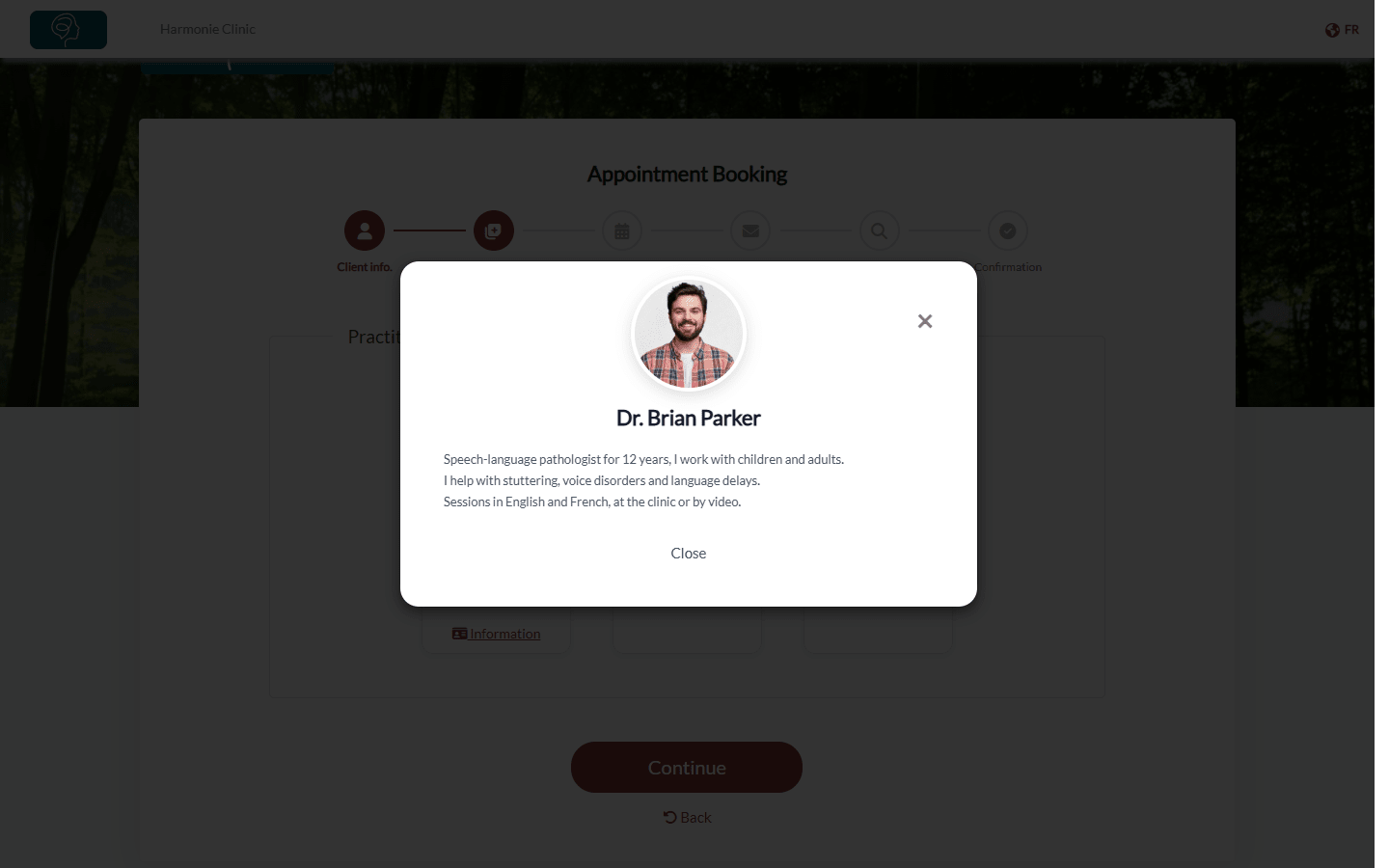
When several practitioners work in your practice, clients like to know who they are booking with. You can add a short biography to each practitioner: it appears on your online booking page, under the practitioner's photo, behind an Information link.
This article explains where to write this text, which booking page setting displays it, and what your clients see.
Before you start: you need access to the practice settings, and online booking must be turned on (Settings > Booking Page, www.colib.io/settings?show=bookingpage). See How do I set up the booking process in Colib?
1Write the practitioner's description
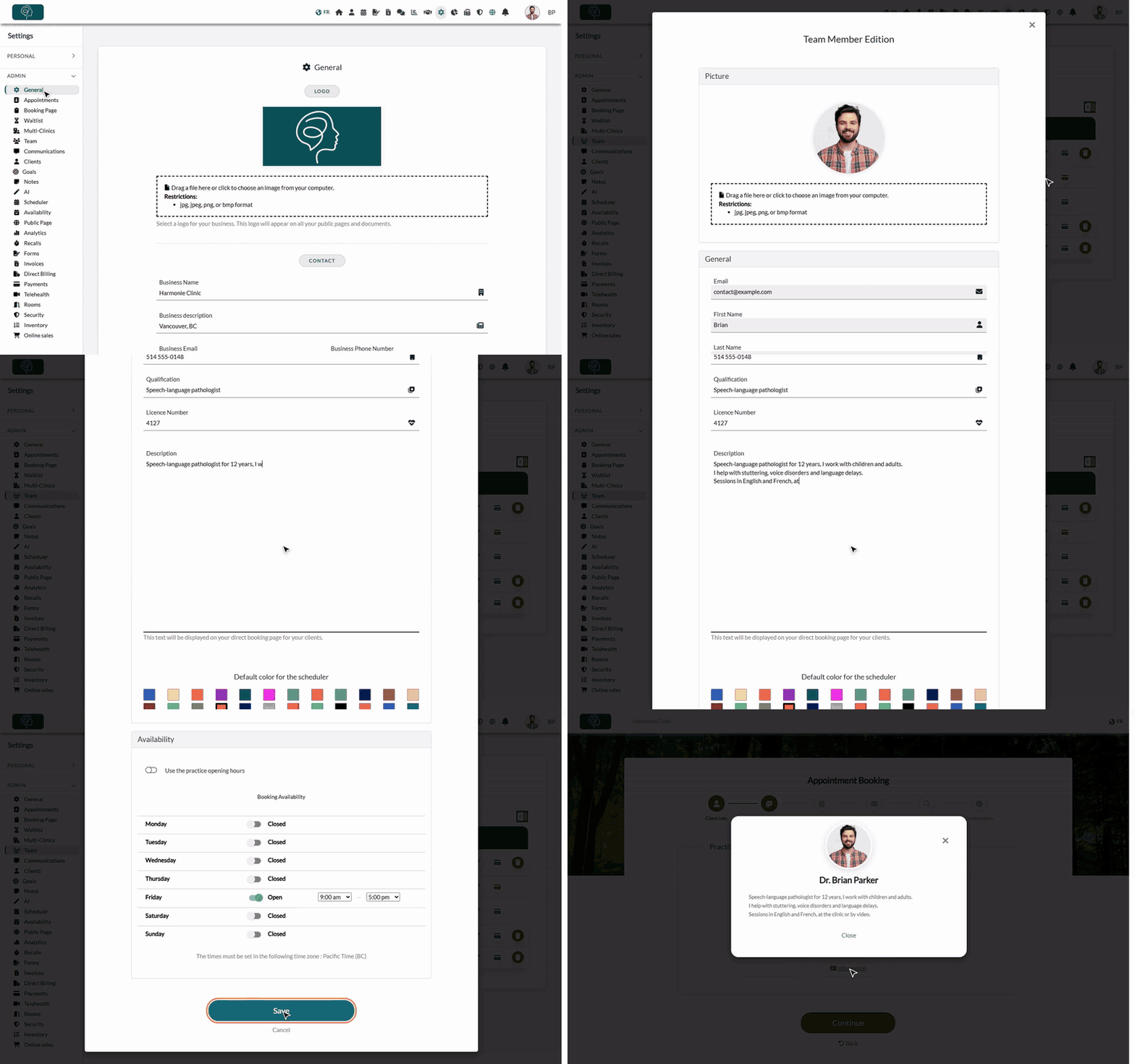
- Go to Settings > Team (www.colib.io/settings?show=team).
- Click the pencil icon on the practitioner's row (or Create team member for a new person).
- In the General section, type the text in the Description field: background, approach, specialties, languages spoken, the clients they see...
- Optionally, add a photo in the Picture section at the top of the window: it is shown on the practitioner's card.
- Click Save at the bottom of the window.
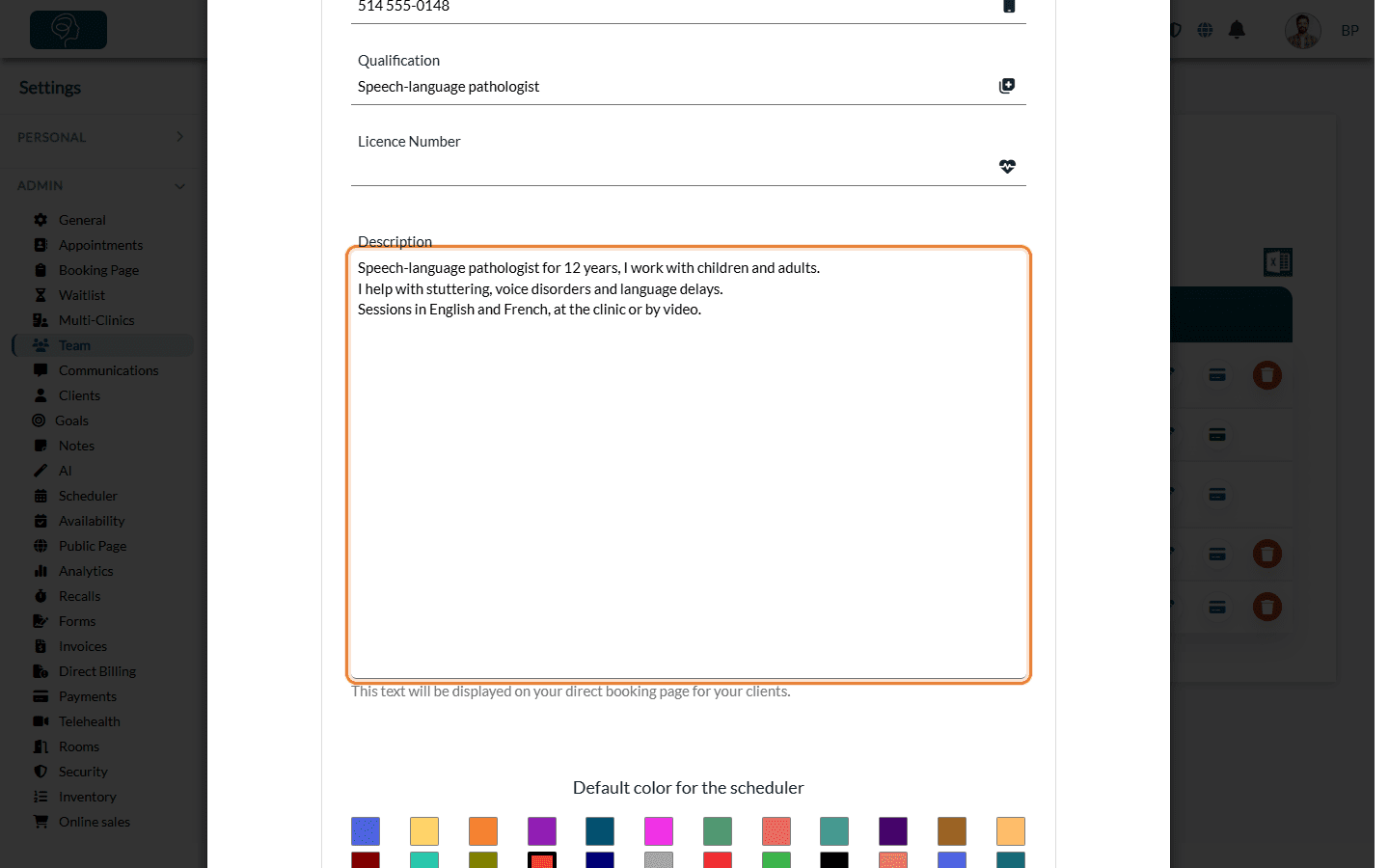
Line breaks are kept: separate your ideas into short paragraphs to make the text easy to read.
2Show the practitioners first on your booking page
The description is only displayed when your clients choose the practitioner before the appointment type.
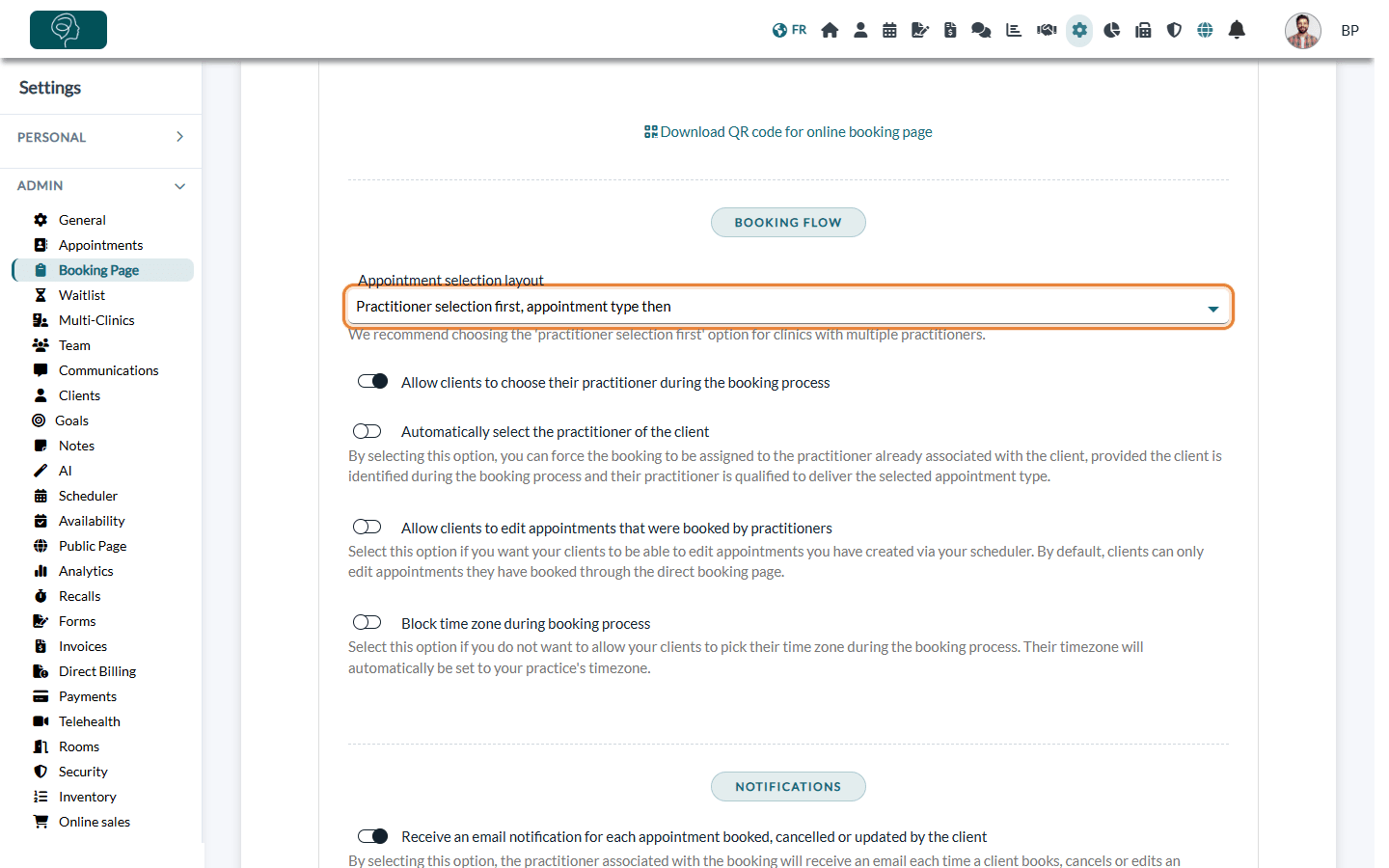
- Go to Settings > Booking Page (www.colib.io/settings?show=bookingpage).
- Open the Direct Booking section.
- Under Booking flow, set Appointment selection layout to Practitioner selection first, appointment type then.
- Click Save at the bottom of the page.
3What your clients see
After entering their contact details, your clients see a card for each practitioner, with their photo and name. When a description exists, an Information link appears on the card.
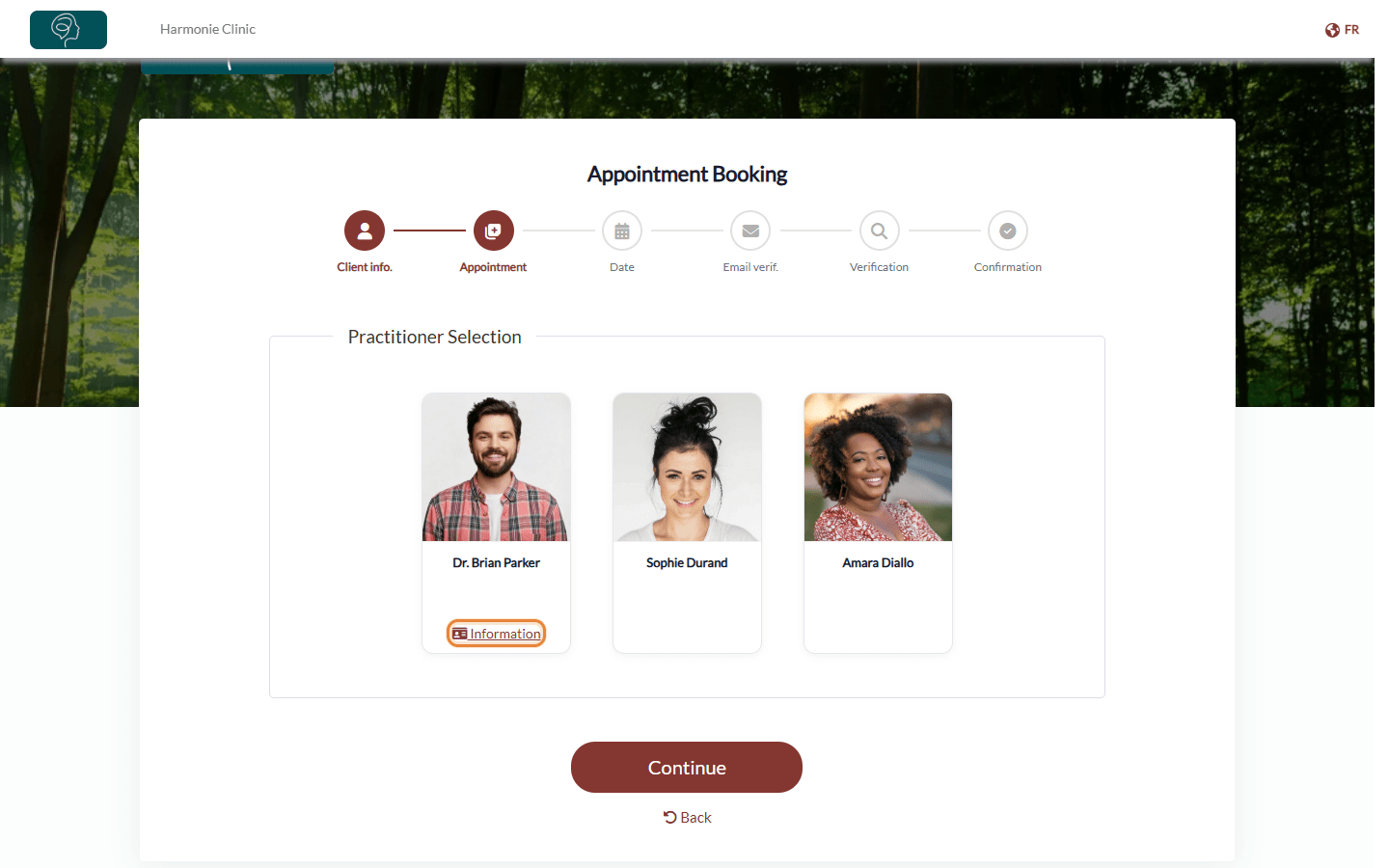
Clicking Information opens a window with the practitioner's photo, name and description. Your client closes it and picks the practitioner by clicking their card.
Good to know
- One text for both languages — the description is shown as you wrote it, whatever the language of the booking page. If your clients speak English and French, write it in both languages.
- Which practitioners are shown? — only team members with Available for direct booking and waitlist turned on (section Booking of the same window) and at least one appointment type that clients can book.
- Order of the cards — the practitioners are shown in a different order each time the page is opened, so that no one is always first.
- No photo — a neutral silhouette is displayed instead.
- Personal booking link — you can also send a link that opens the booking page with one practitioner already chosen. See How to create a direct link to a specific practitioner schedule.
Still have a question?
Write to us at support@colib.io, we will be happy to help.
Was this article helpful?
That’s Great!
Thank you for your feedback
Sorry! We couldn't be helpful
Thank you for your feedback
Feedback sent
We appreciate your effort and will try to fix the article