Who is this article for?
Each practitioner of your practice has a personal booking link. It opens your online booking page with this practitioner already chosen: your clients only see the appointment types this practitioner offers, and only this practitioner's availability. Share it in an email signature, on the practitioner's page of your website or on social media.
This article explains where to find this link, what your clients see when they open it, and what to check if the link does not show the practitioner.
Before you start: the link exists only when online booking is turned on: Settings > Booking Page (www.colib.io/settings?show=bookingpage), Client booking type = Online booking by client. To set up online booking, see How do I set up the booking process in Colib?
1Find the practitioner's link
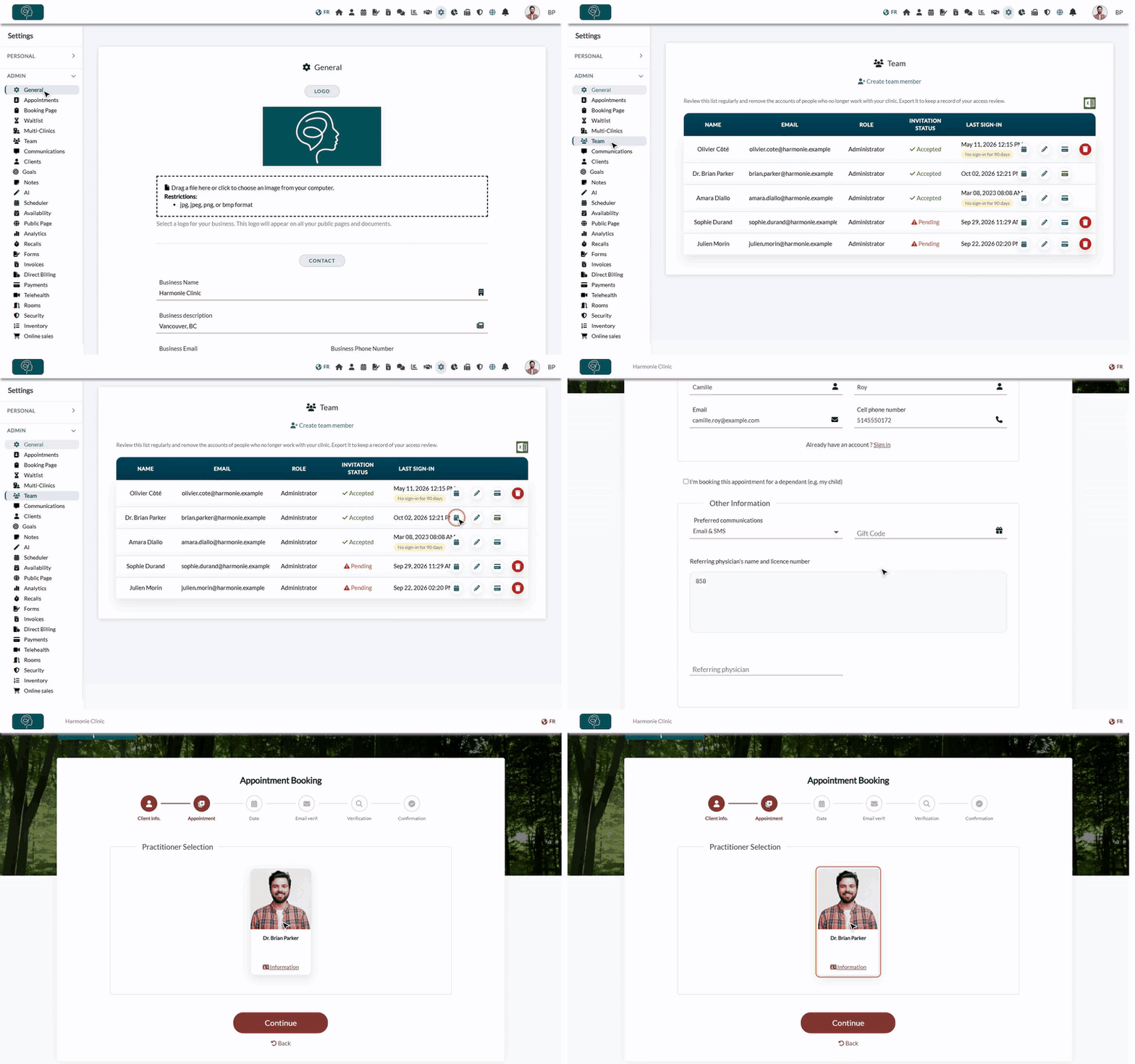
- Go to Settings > Team (www.colib.io/settings?show=team).
- Find the practitioner in the list.
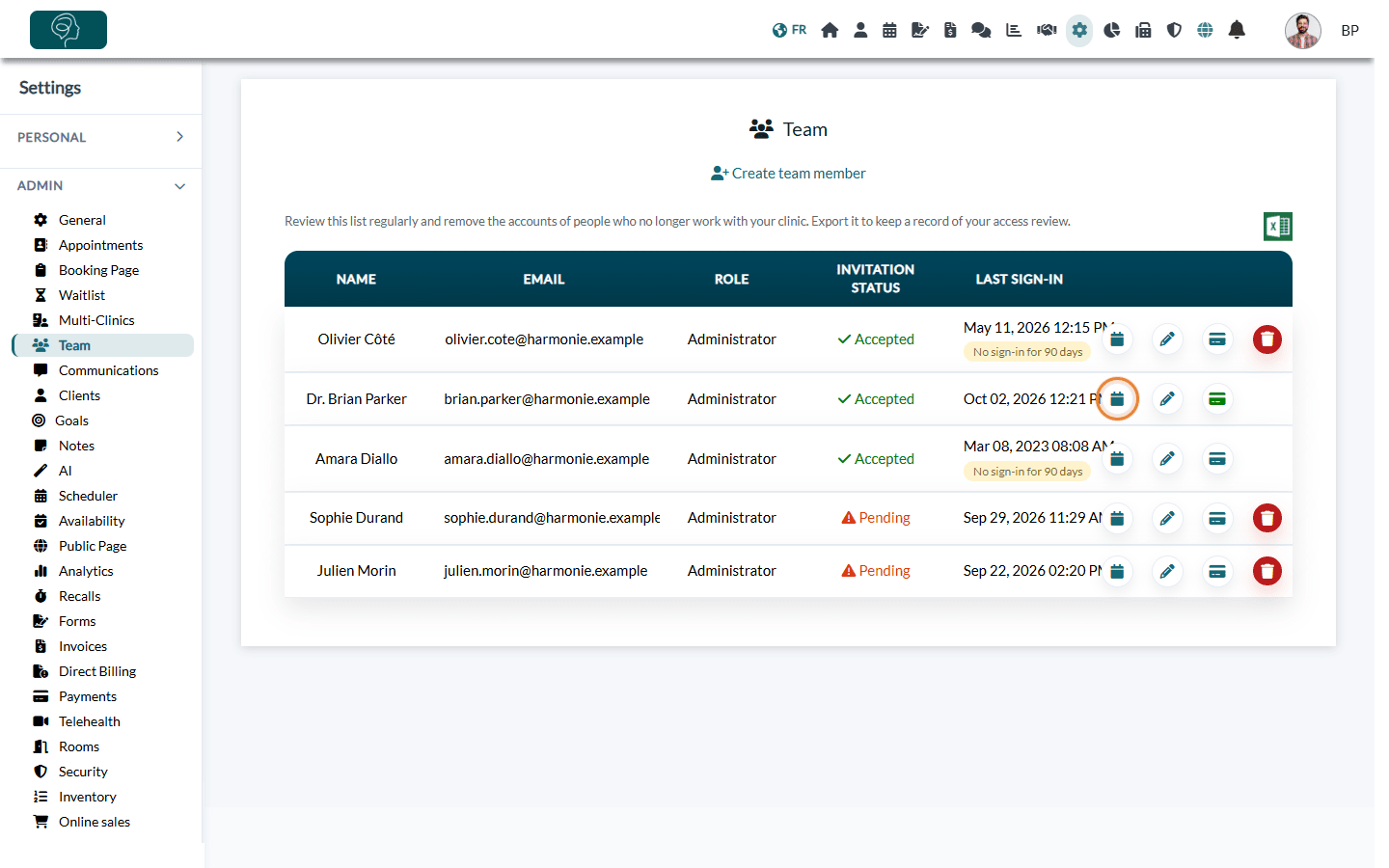
- Click the calendar icon on their row (tooltip Practitioner url). The practitioner's booking page opens.
- Copy the address shown in your browser's address bar. It looks like https://www.colib.io/Booking/your-page-name?p=123, where the number at the end identifies the practitioner. Example: www.colib.io/Booking/lien-direct-demo-link?p=225.
2Share the link
Paste the link wherever your clients will find it: your email signature, the practitioner's biography on your website, a social media post, a message to a client. Anyone can open it, no Colib account is needed.
3What your clients see
- Your client fills in the first step (contact details) as usual.
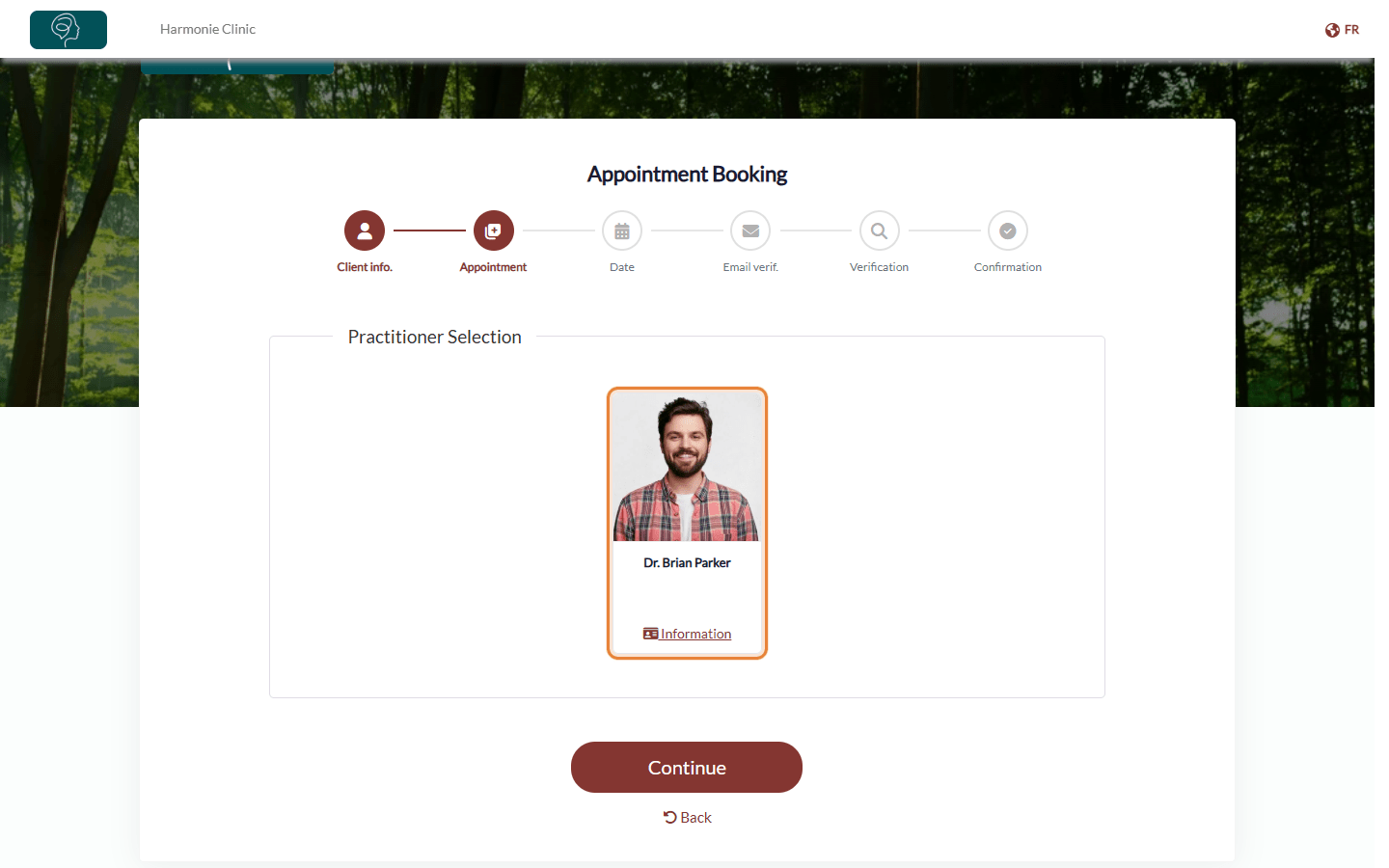
- At the next step, only this practitioner is offered. If your page shows the practitioners first, their card is the only one displayed.
- Only the appointment types this practitioner can deliver are listed, and the dates and times offered are this practitioner's availability.
- The rest of the booking (payment, confirmation, reminders) works exactly like your regular booking page.
Good to know
- No calendar icon? — the icon only appears when the Client booking type is Online booking by client (www.colib.io/settings?show=bookingpage).
- The practitioner does not appear on the page? — edit the team member (pencil icon in Settings > Team) and check, in the Booking section, that Available for direct booking and waitlist is turned on and that they have at least one appointment type that clients can book.
- Several clinics — if your practice uses several clinics, the practitioner link first asks your client to choose a clinic, and the practitioner is no longer preselected after that choice. To send a link for one practitioner in one clinic, open the clinic's booking page from Settings > Multi-Clinics (www.colib.io/settings?show=clinics, calendar icon of the clinic), copy its address and add the end of the practitioner link to it (for example ?p=123).
- Add a biography — a photo and a description help clients choose. See How to add practitioner information on a direct booking page.
- The link does not change — it stays valid as long as the practitioner is part of your team and online booking is turned on. If you change the name of your booking page, the links change too: share them again.
Still have a question?
Write to us at support@colib.io, we will be happy to help.
Was this article helpful?
That’s Great!
Thank you for your feedback
Sorry! We couldn't be helpful
Thank you for your feedback
Feedback sent
We appreciate your effort and will try to fix the article