Who is this article for?
You offer online booking and want to keep a practitioner's workload under control: no more than a given number of appointments per week, or per day, booked through your booking page. Or you are just starting out and would rather not show a completely empty schedule to your clients.
Colib has three settings for this. This article explains where each one is, what it does exactly, and how they work together.
| Setting | What it does | Where |
|---|---|---|
| Maximum weekly appointments per practitioner | Once a practitioner has this number of appointments in the week, clients can no longer book with them online for the rest of that week. | Settings > Booking Page, for all practitioners |
| Daily maximum number of authorized appointments | Once a practitioner has this number of appointments in a day, that day is no longer offered online for them. | Settings > Personal > Availability, by each practitioner |
| Make me look busy | Shows only a few of the free time slots of each day (from 1 to 10), so that a schedule that is still empty looks busier. It does not limit the number of appointments. | Settings > Personal > Availability, or Settings > Team for a team member |
Before you start: these settings only change what clients see on your online booking page. You and your team can still add appointments in the scheduler beyond these limits. To set up online booking itself, see How do I set up the booking process in Colib?
1Set a weekly maximum for all practitioners
- Go to Settings > Booking Page (www.colib.io/settings?show=bookingpage).
- Scroll down to the Availability part of the Direct Booking section.
- In Maximum weekly appointments per practitioner, enter the number of appointments (for example, 25). Leave the field empty if you do not want a weekly limit.
- Click Save at the bottom of the page.
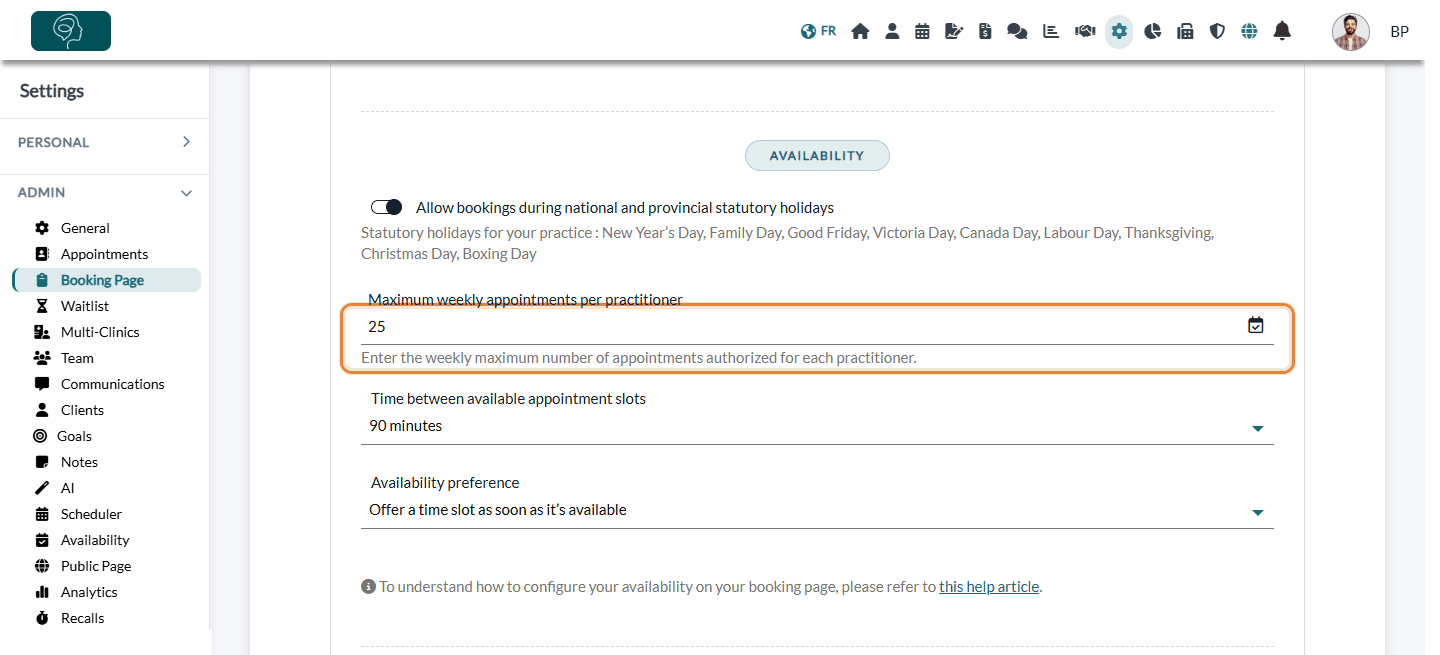
- The same number applies to every practitioner of your practice.
- Colib counts all the appointments already in the practitioner's schedule for that week, whether they were booked online by clients or created by your team.
- As soon as the maximum is reached, the practitioner's time slots are no longer offered for the rest of the week. Clients see the slots of the other practitioners, or the following weeks.
2Set a daily maximum for a practitioner
The daily maximum is a personal setting: each practitioner sets their own, while signed in to their own account.
- Go to Settings > Personal > Availability (www.colib.io/settings?show=personalscheduler).
- In the General section, enter the number in Daily maximum number of authorized appointments (for example, 6). It must be at least 1. Leave the field empty if you do not want a daily limit.
- Click Save at the bottom of the section.
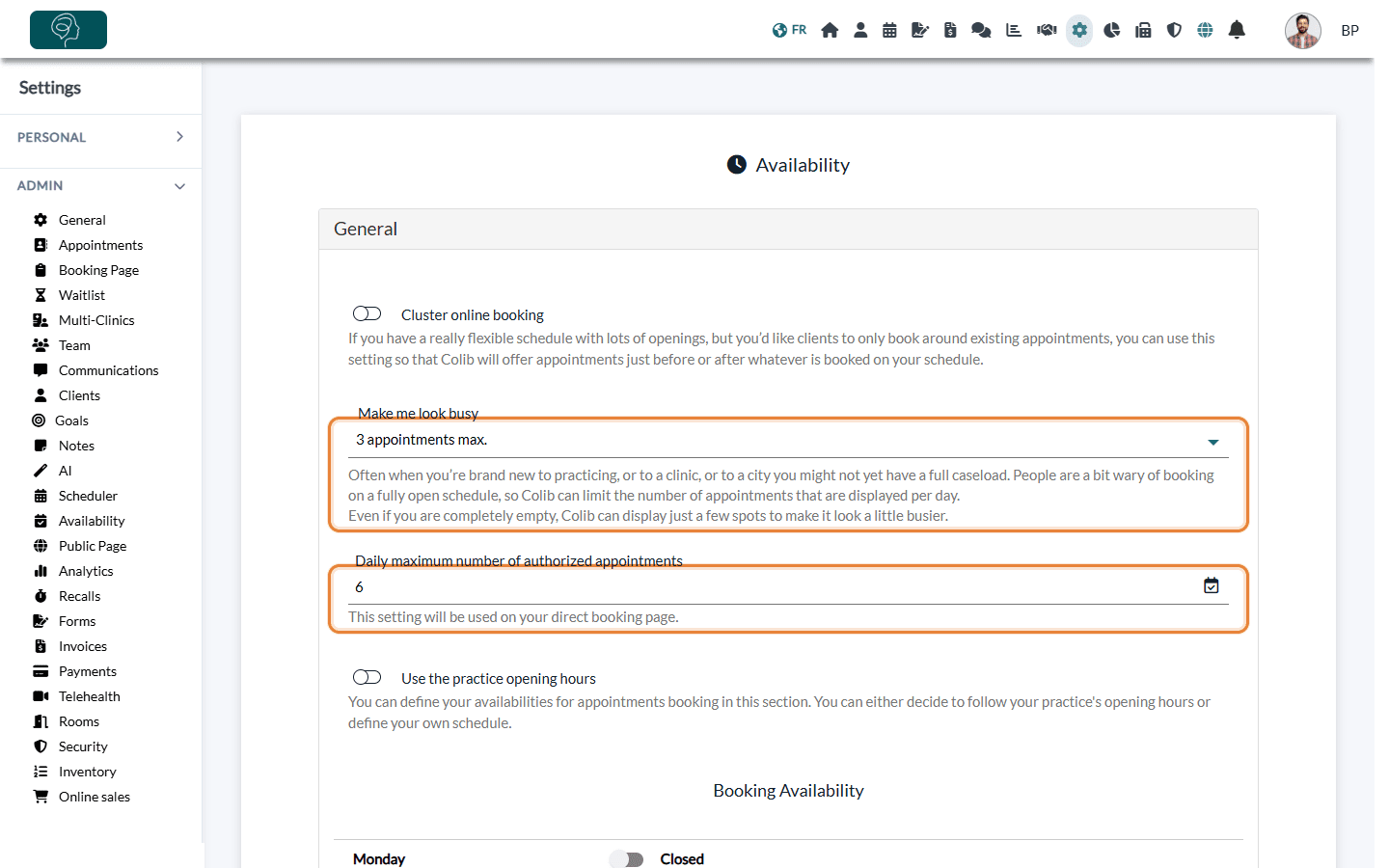
When the practitioner already has this number of appointments on a given day (all appointments of the day count, whoever created them), that day is no longer offered on the booking page for them.
3Show fewer time slots per day (Make me look busy)
When you are new to practicing, to a clinic or to a city, a schedule that is wide open can make clients hesitate. Make me look busy displays only a few of your free time slots each day.
- In Settings > Personal > Availability (www.colib.io/settings?show=personalscheduler), choose a value in Make me look busy: from 1 appointment max. to 10 appointments max., or No daily restriction to show all your free slots.
- Click Save.
An administrator can also set it for a team member:
- Go to Settings > Team (www.colib.io/settings?show=team) and click the pencil icon (Edit team member) on the team member's row.
- Open the Booking section and choose a value in Make me look busy.
- Click Save at the bottom of the window.
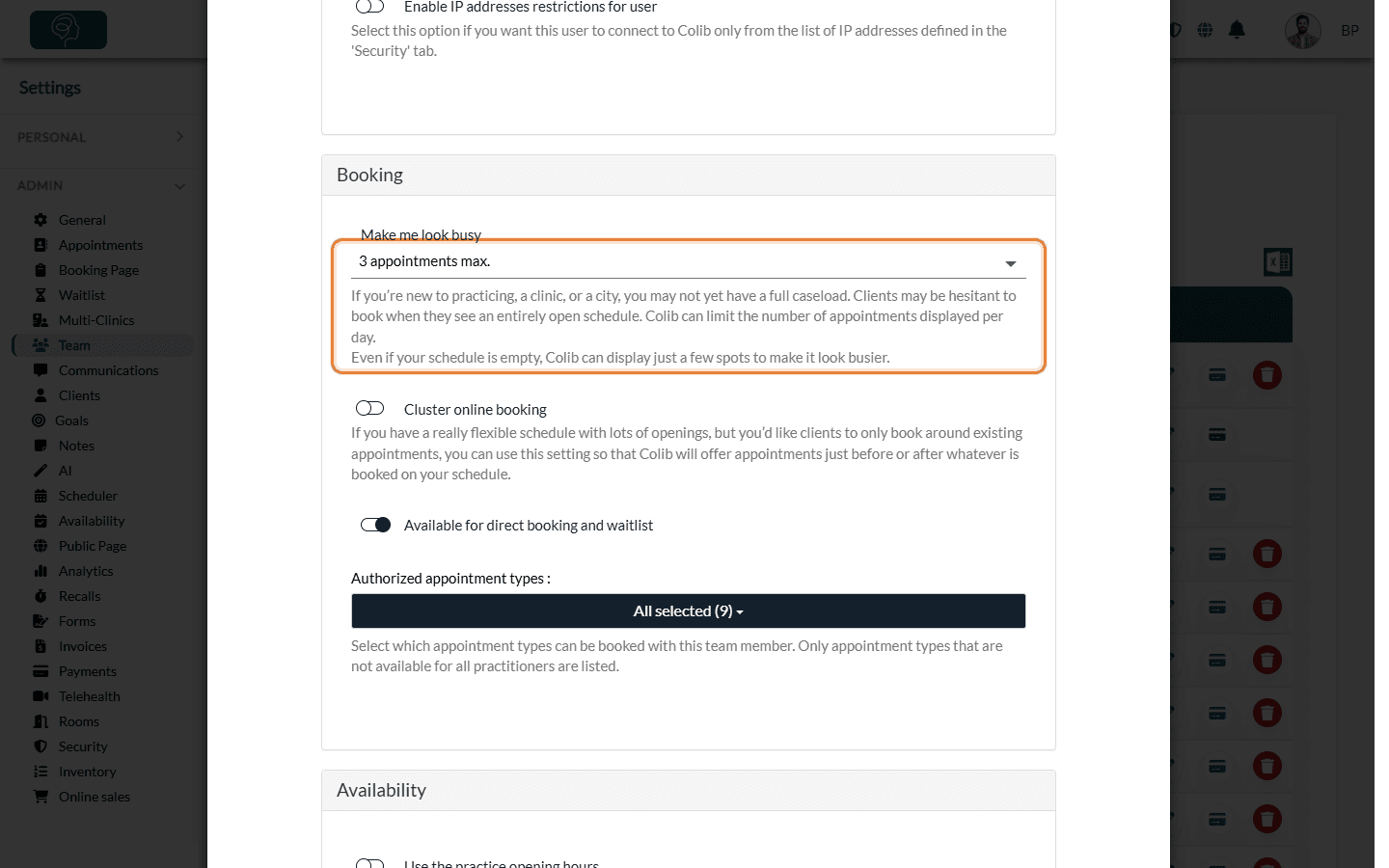
How it works: Colib splits the free time slots of the day into as many groups as the chosen number and shows one slot from each group, so the slots shown are spread over the day. The slots shown change from one day to the next, but stay the same if a client reloads the page.
Important: Make me look busy only applies when the booking page shows the time slots of that practitioner alone: after the client has chosen this practitioner, through the practitioner's direct booking link, or when the practitioner is the only one offering the appointment type. When the client books with "any practitioner" among several, all free slots are shown. It never limits how many appointments can be booked: use the daily or weekly maximum for that.
Good to know
- Combine them — the three settings can be used together. For example, a weekly maximum of 20 and a daily maximum of 5 keep the week balanced.
- Group classes — appointment types that accept online bookings until the maximum number of participants is reached are not affected by the daily and weekly maximums. See How to set up group class appointments.
- Cluster online booking — the option next to Make me look busy only offers the time slots right before or after the appointments already booked, to avoid gaps in the day.
- A practitioner no longer appears? — check whether they reached one of these maximums, and check their availability: see availability groups and time intervals for your online calendar.
- Direct link to a practitioner — to send clients straight to one practitioner's schedule, see How to create a direct link to a specific practitioner schedule.
Still have a question?
Write to us at support@colib.io, we will be happy to help.
Was this article helpful?
That’s Great!
Thank you for your feedback
Sorry! We couldn't be helpful
Thank you for your feedback
Feedback sent
We appreciate your effort and will try to fix the article