Who is this article for?
You keep some appointment types for internal use (a case review, a team meeting, a service you only book yourself) and you wonder whether their category will still show up on your online booking page. This article answers that question and explains how to control what your clients see.
The short answer
Yes, as long as the category contains at least one appointment type available for online booking. Your clients then see the category, but only the bookable types inside it. A category in which no type is available for online booking is not shown at all.
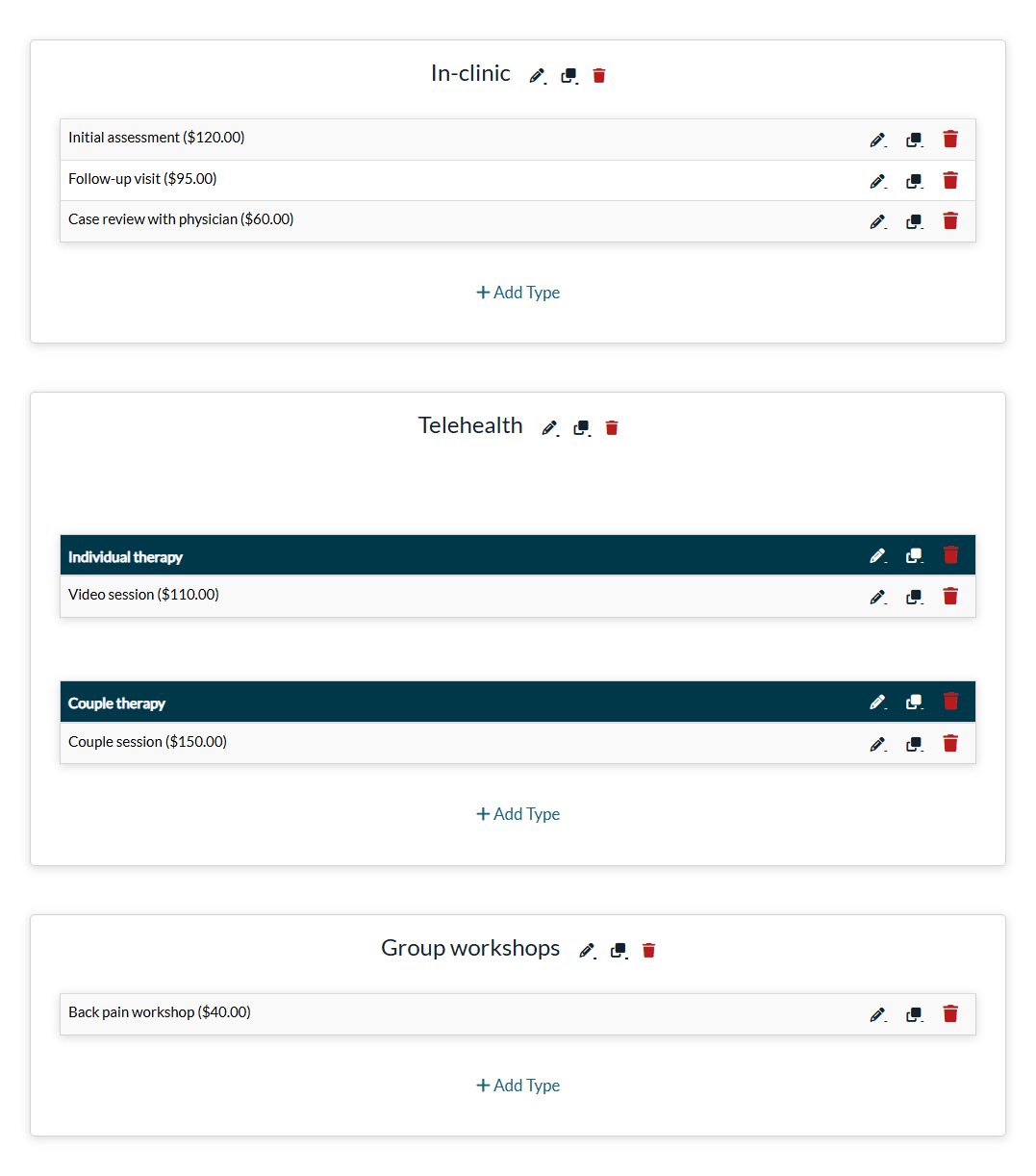
In the example below, In-clinic contains a type reserved for internal use (Case review with physician), and Group workshops only contains a type that is not bookable online.
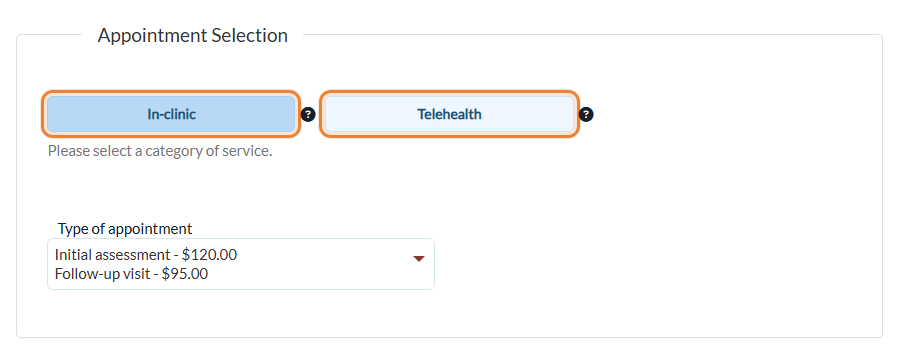
On the booking page, clients see In-clinic and Telehealth, but not Group workshops. In In-clinic, they can only choose Initial assessment and Follow-up visit.
1Make an appointment type unavailable for online booking
- Go to Settings > Appointments (www.colib.io/settings?show=appointments) and click the pencil icon of the appointment type.
- Open the Direct booking section and turn off Available for client booking and waitlist.
- Click Save at the bottom of the window.
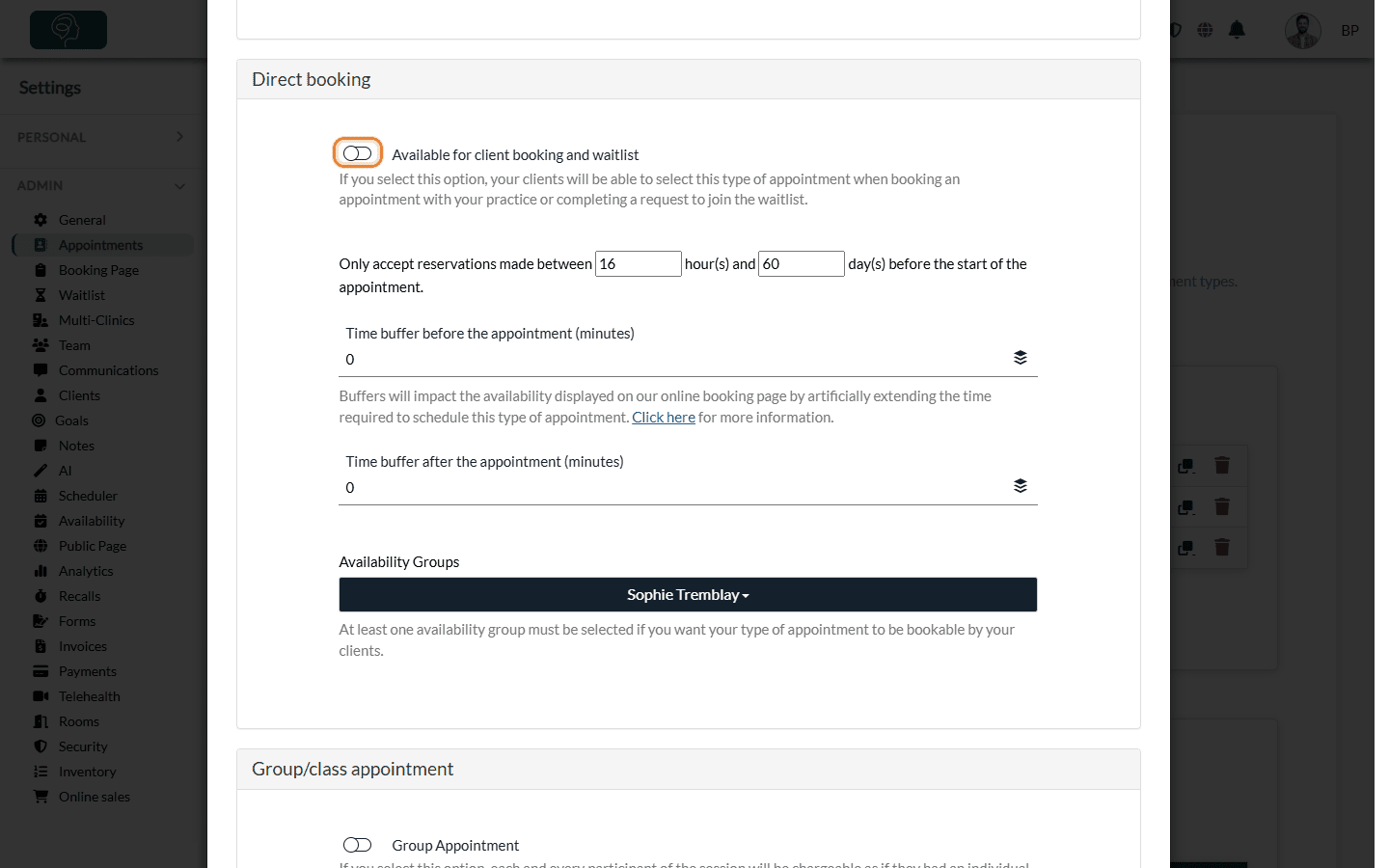
The type stays available to your team in the scheduler; it is only removed from your booking page and from waitlist requests. To offer it online again, turn the option back on.
And sub-categories?
- A category that has sub-categories appears when at least one of its sub-categories contains a type available for online booking.
- Inside a sub-category, only the bookable types are listed, just like in a category.
Important: make sure every sub-category contains at least one bookable type, or delete it. When clients open a category, its sub-categories are listed even if one of them has no bookable type, and a client who chooses that sub-category finds no appointment type in it. (If your booking page asks clients to choose their practitioner first, only the sub-categories offered by that practitioner are shown.)
Good to know
- Other options also hide a type — a type that is not Available for all clients is only shown to the clients you authorized (see How to restrict certain appointment types to specific clients). With several clinics, a type only appears on the booking page of the clinics selected in Authorized clinics. If clients choose their practitioner, they only see the categories and types that this practitioner offers.
- A single category left — when your clients can only book from one category (with no more than one sub-category), the category step is skipped and they go straight to the list of appointment types.
- Check the result — open your booking page in a private browser window to see exactly what your clients see.
- Organize your categories — read How to organize appointment types with categories and sub-categories.
Still have a question?
Write to us at support@colib.io, we will be happy to help.
Was this article helpful?
That’s Great!
Thank you for your feedback
Sorry! We couldn't be helpful
Thank you for your feedback
Feedback sent
We appreciate your effort and will try to fix the article