Who is this article for?
Some appointment types should only be booked online by certain clients. A common case: new clients may only book a free discovery call, and the regular sessions are reserved for clients you already know.
Colib handles this in two steps: you mark the appointment type as restricted, then you authorize the clients who may book it. This article explains both steps and how Colib recognizes an authorized client on your booking page.
Before you start: online booking must be turned on (Settings > Booking Page, www.colib.io/settings?show=bookingpage) and the appointment type must already be bookable online. See How do I set up the booking process in Colib?
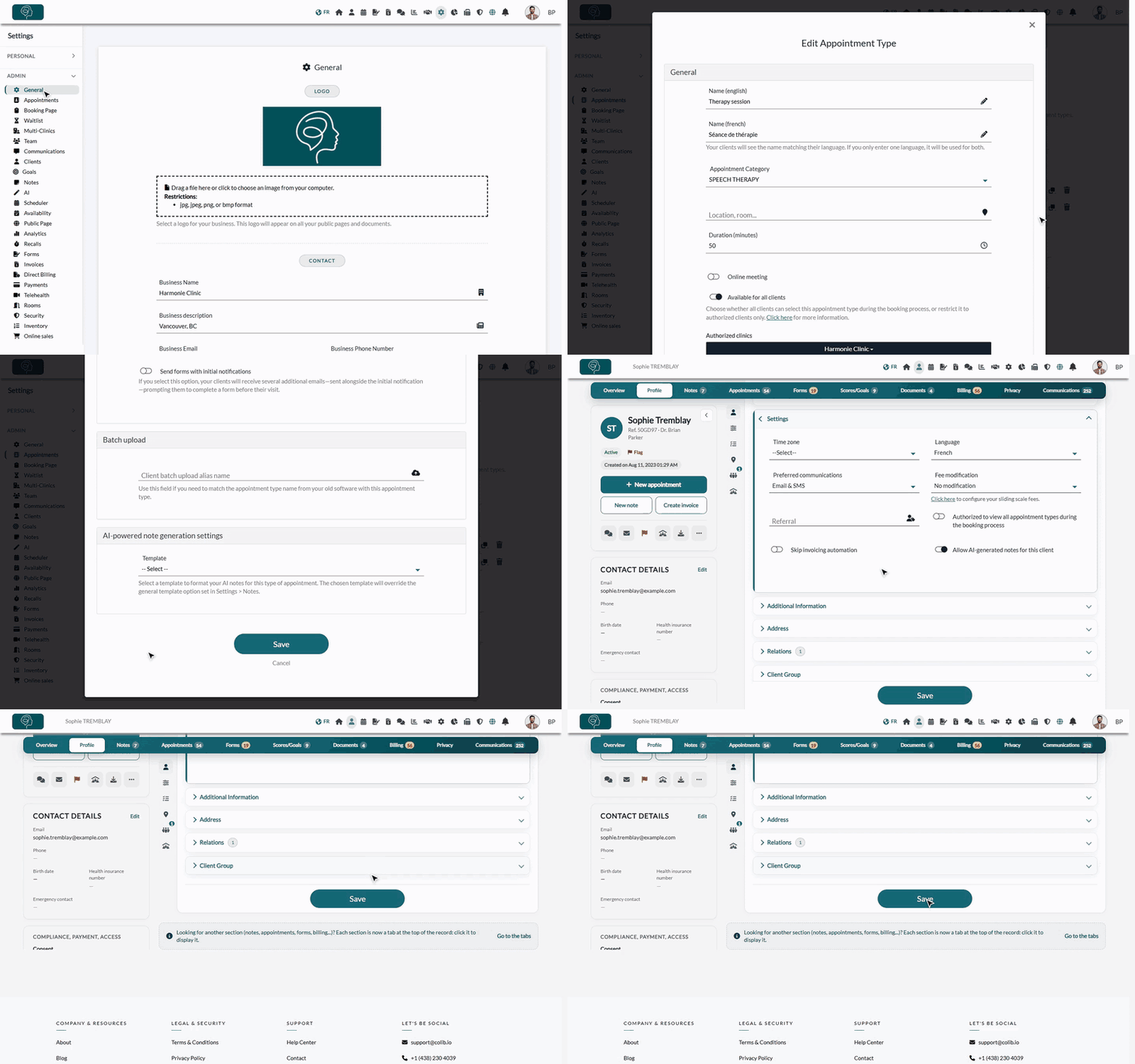
1Restrict the appointment type
- Go to Settings > Appointments (www.colib.io/settings?show=appointments).
- Click the pencil icon of the appointment type to restrict.
- In the General section, turn off Available for all clients.
- Click Save at the bottom of the window.
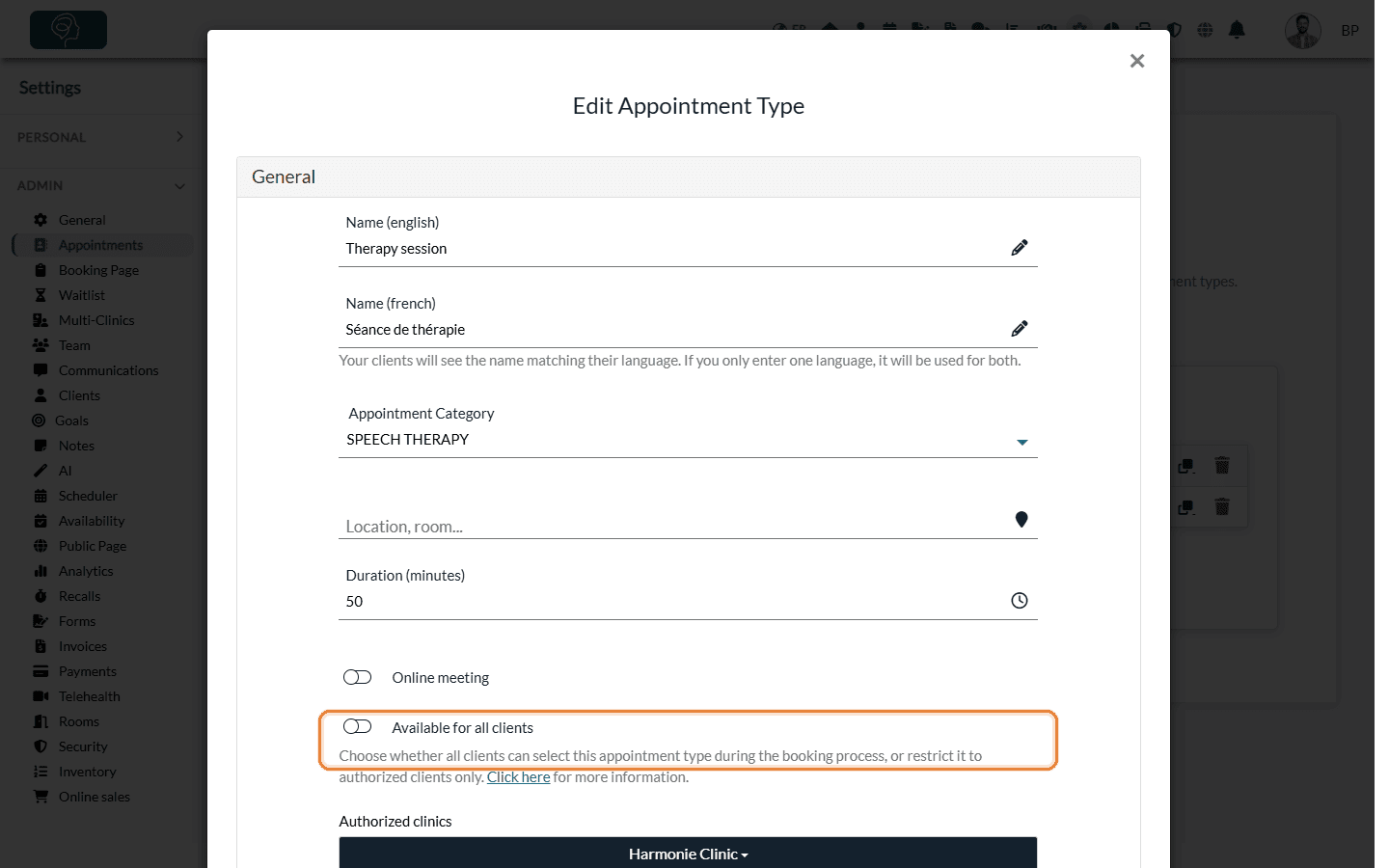
From now on, this type no longer appears on your booking page, except for the clients you authorize. If a category only contains restricted types, the category itself is hidden from the other clients.
2Authorize a client
- Open the client's record from your client list (www.colib.io/clients).
- Click the Profile tab and open the Settings section.
- Turn on Authorized to view all appointment types during the booking process.
- Click Save at the bottom of the page.
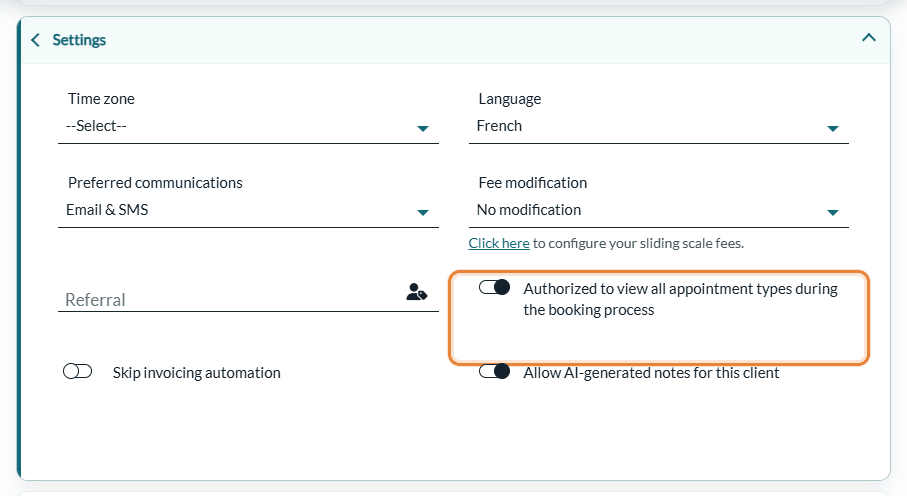
Repeat for each client you want to authorize, for example after their first appointment.
3How Colib recognizes the client
On the first step of the booking page, your client enters their email address. If it matches the email of an active client record of your practice where the option is turned on, the restricted appointment types are shown. Otherwise, the client only sees the types available to everyone.
Important: the client must book with the same email address as the one in their client record. With another address, they are treated as a new client and do not see the restricted types.
Good to know
- All or nothing — an authorized client sees every restricted appointment type of the practice. You cannot authorize a client for one restricted type only.
- New types — Available for all clients is turned on by default when you create an appointment type.
- Your team is not affected — the restriction only applies to online booking. Your team can still book a restricted type for any client from the scheduler.
- Waitlist — when a spot opens for a restricted type, waitlist notifications are only sent to authorized clients.
- Other filters — an appointment type is also hidden when Available for client booking and waitlist is off, or when it is not offered by the chosen practitioner or clinic. See Will a category appear in the online booking process if its appointment types are not bookable?.
Still have a question?
Write to us at support@colib.io, we will be happy to help.
Was this article helpful?
That’s Great!
Thank you for your feedback
Sorry! We couldn't be helpful
Thank you for your feedback
Feedback sent
We appreciate your effort and will try to fix the article