Who is this article for?
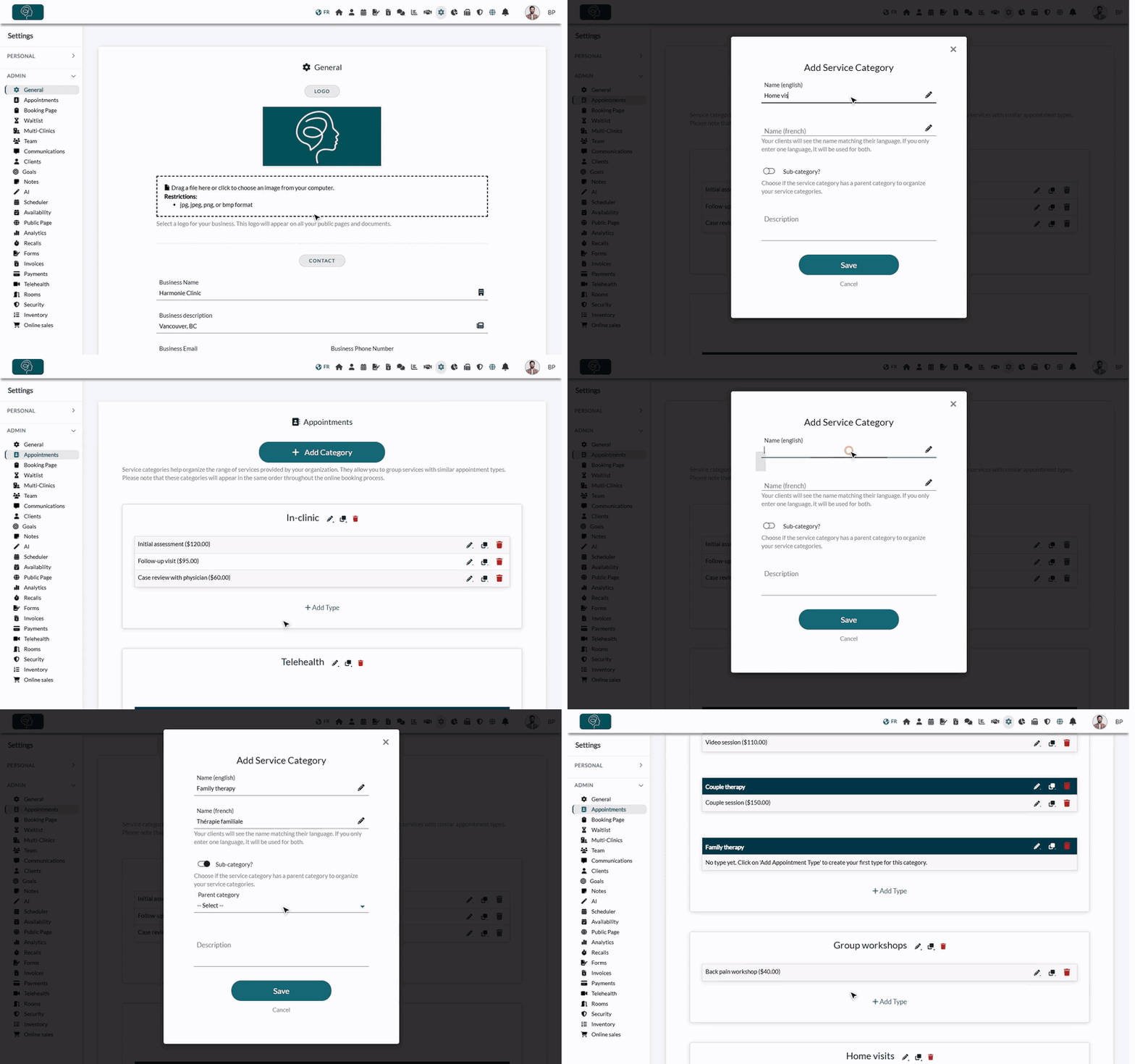
Categories group your appointment types: for example, in-clinic versus telehealth appointments, or one category per specialty in a multidisciplinary clinic. Sub-categories add a second level inside a category, such as Individual therapy and Couple therapy inside Telehealth.
They keep your list of appointment types tidy and, above all, they guide your clients on your booking page: clients first choose a category, then a sub-category if there are any, then the appointment type.
Before you start: categories are managed in Settings > Appointments (www.colib.io/settings?show=appointments). Only the administrators of the practice can see this page and change it.
Do I have to use categories?
Every appointment type belongs to a category, so you always have at least one. If you do not need to organize your services, simply keep your default category and create all your appointment types in it.
On your booking page, the categories are only shown when there is a choice to make: if your clients can only book from a single category (with no more than one sub-category), they go straight to the list of appointment types.
1Create a category
- Go to Settings > Appointments (www.colib.io/settings?show=appointments).
- Click Add Category.
- Enter the Name (english) and the Name (french). Your clients see the name matching their language; if you only enter one language, it is used for both.
- Optionally, add a Description: it is shown to your clients on the booking page (see How to add a description to an appointment category).
- Click Save. The new category appears at the bottom of the list, ready for its first appointment type (Add Type).
2Create a sub-category (optional)
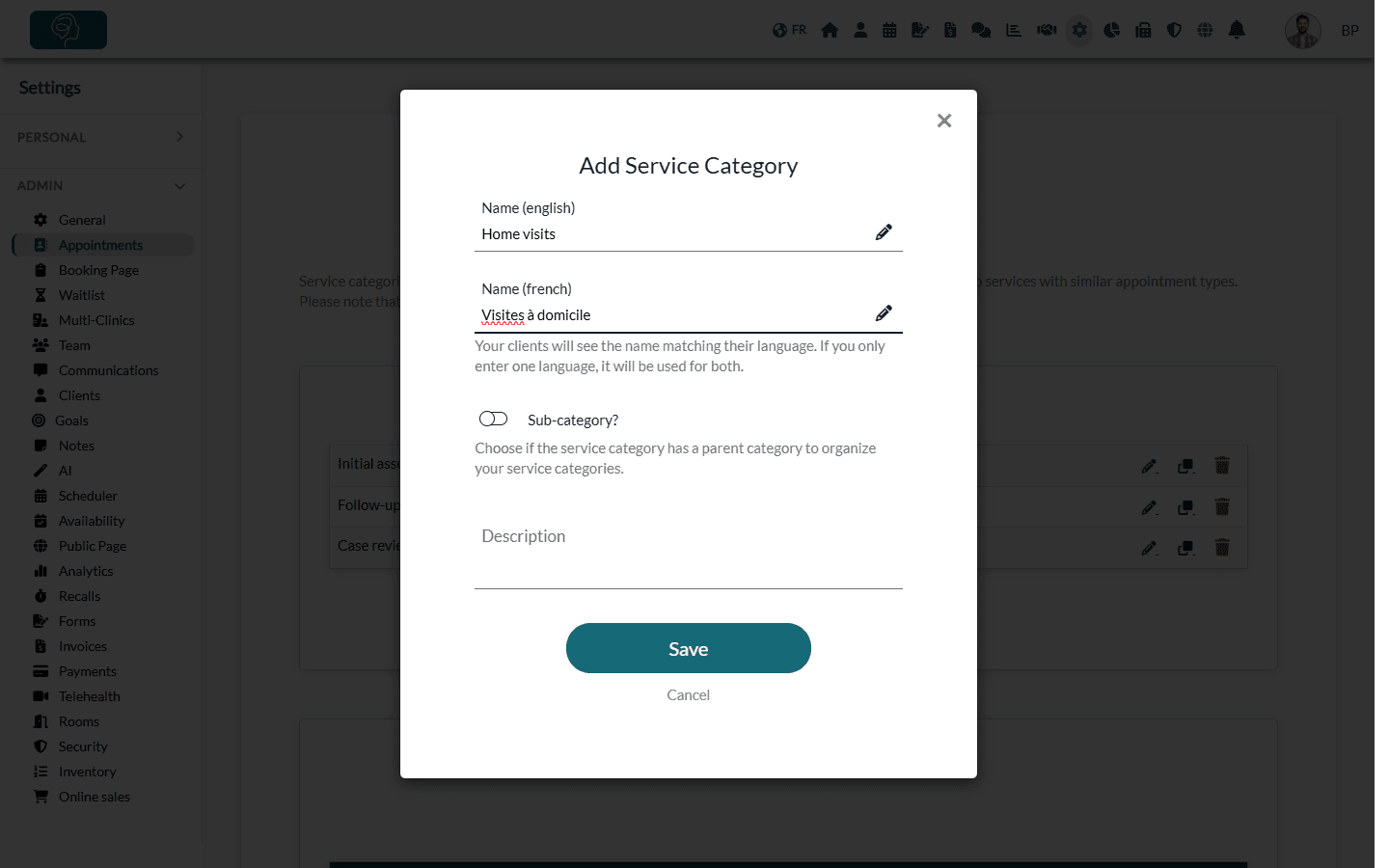
- Click Add Category again and enter the names of the sub-category.
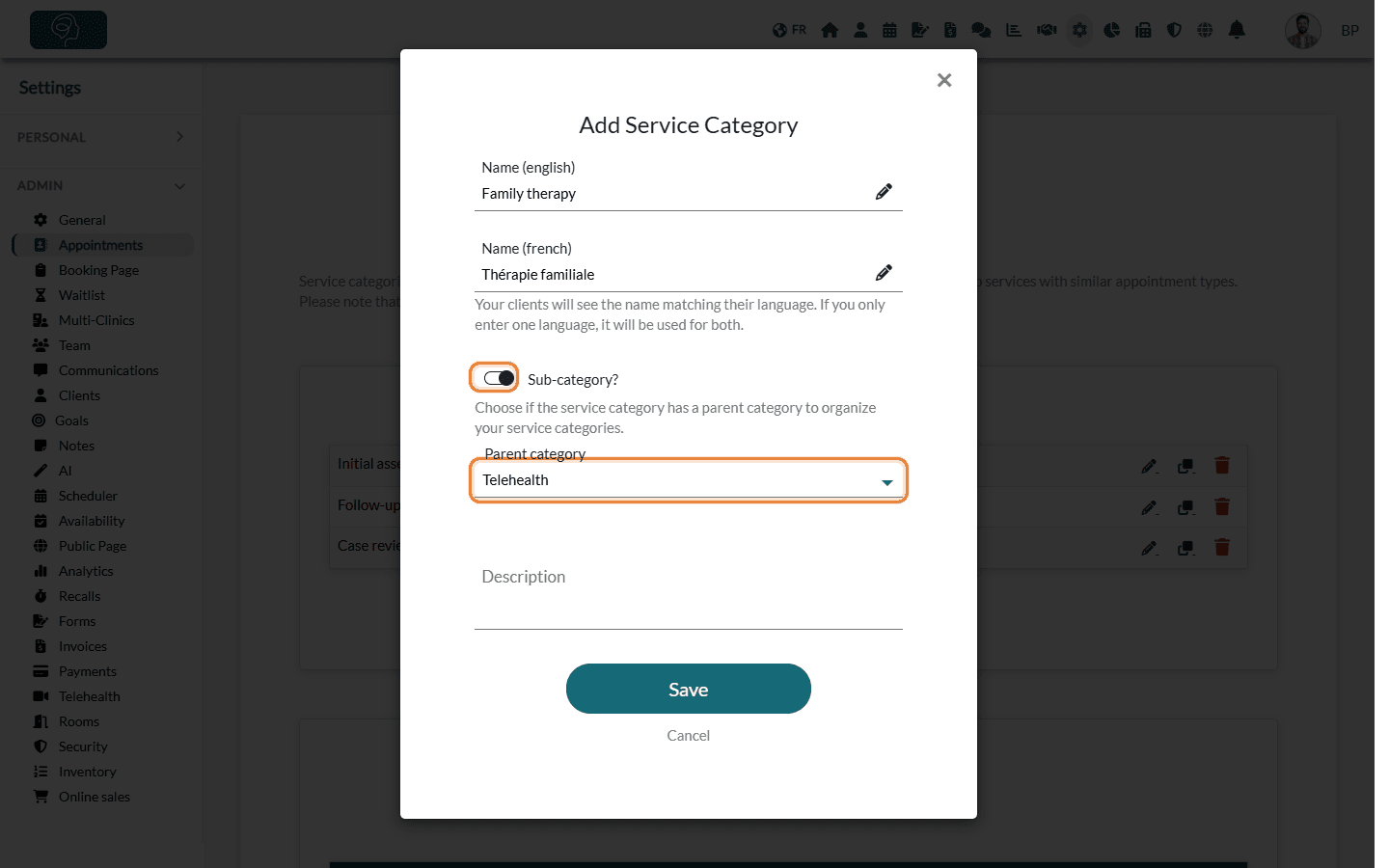
- Turn on Sub-category?.
- In Parent category, choose the category it belongs to.
- Click Save. The sub-category appears inside its parent category.
3Put your appointment types in a sub-category
- Click Add Type under the parent category.
- In Appointment Category, choose the sub-category (the parent category is shown in capital letters, its sub-categories below it).
- Fill in the rest of the appointment type and click Save.
To move an existing type, click its pencil icon and change its Appointment Category.
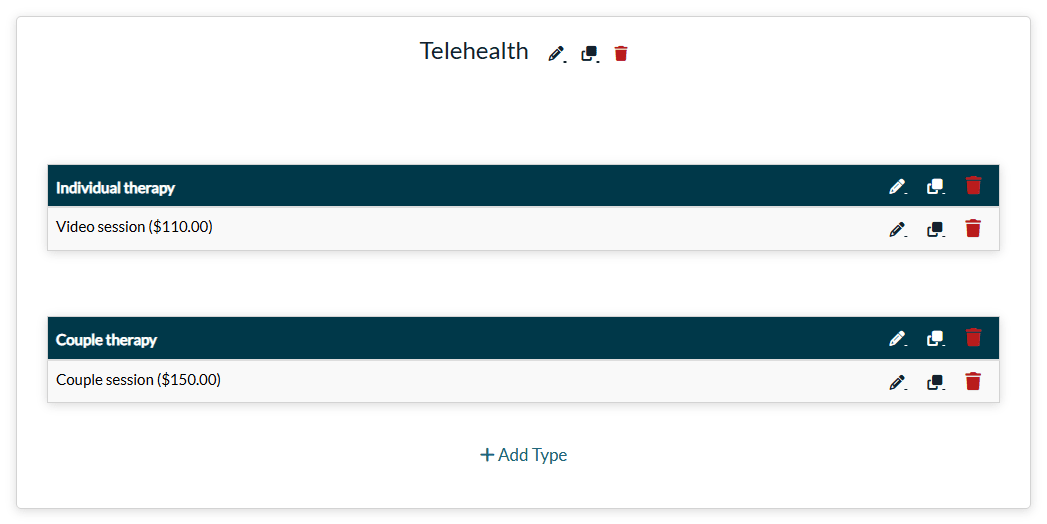
Important: once a category has sub-categories, put each of its appointment types in a sub-category. On the booking page, choosing that category opens its sub-categories, so a type saved directly in the parent category cannot be reached. If you save a type directly in a category that has sub-categories, Colib moves it to a sub-category named Default, which you can rename like any other.
What your clients see
At the appointment step of your booking page, your clients click a category, then a sub-category if there are any, and finally choose the appointment type in the list.
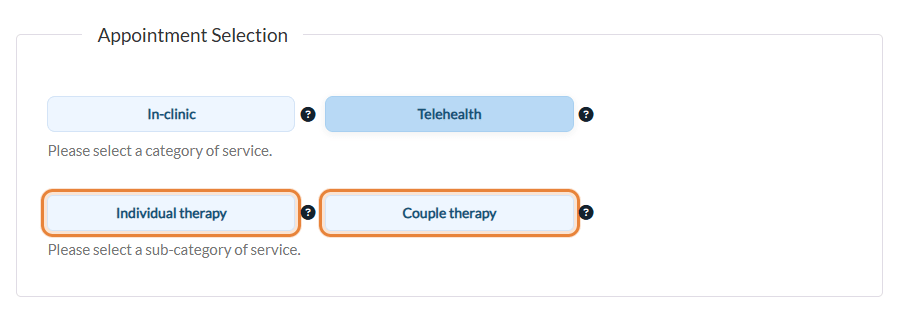
- Categories appear in the same order as in Settings > Appointments. Drag and drop them in the settings to change that order.
- A category only appears if it contains at least one appointment type available for online booking. See Which categories appear on your online booking page?
Good to know
- One level only — a sub-category always belongs to a main category; you cannot create a sub-category inside a sub-category.
- Rename or describe a category — click the pencil icon next to its name. Whether it is a sub-category, and its parent, are chosen when you create it and cannot be changed afterwards.
- Duplicate a category — the duplicate icon copies the category with its sub-categories and appointment types; the copied category and sub-categories have (*) added to their name (the appointment types keep their name).
- Delete a category — the trash icon deletes the category together with its sub-categories and appointment types, after a confirmation. Appointment types already used are deactivated rather than erased, so your existing appointments keep them.
- In your scheduler — as soon as you have more than one category, the appointment types offered when you create an appointment show their category in front of their name, in capital letters (for example, IN-CLINIC-Follow-up visit).
Still have a question?
Write to us at support@colib.io, we will be happy to help.
Was this article helpful?
That’s Great!
Thank you for your feedback
Sorry! We couldn't be helpful
Thank you for your feedback
Feedback sent
We appreciate your effort and will try to fix the article