Who is this article for?
Your clients speak English, French or both? Each appointment type and each category of services can have a name in English and a name in French. Colib then shows each client the name in their language: on your booking page, in the emails and text messages they receive, and on their invoices.
This article explains where to enter both versions and which language each person sees.
Before you start: appointment types and categories are managed in Settings > Appointments (www.colib.io/settings?show=appointments). Only the administrators of the practice can see this page.
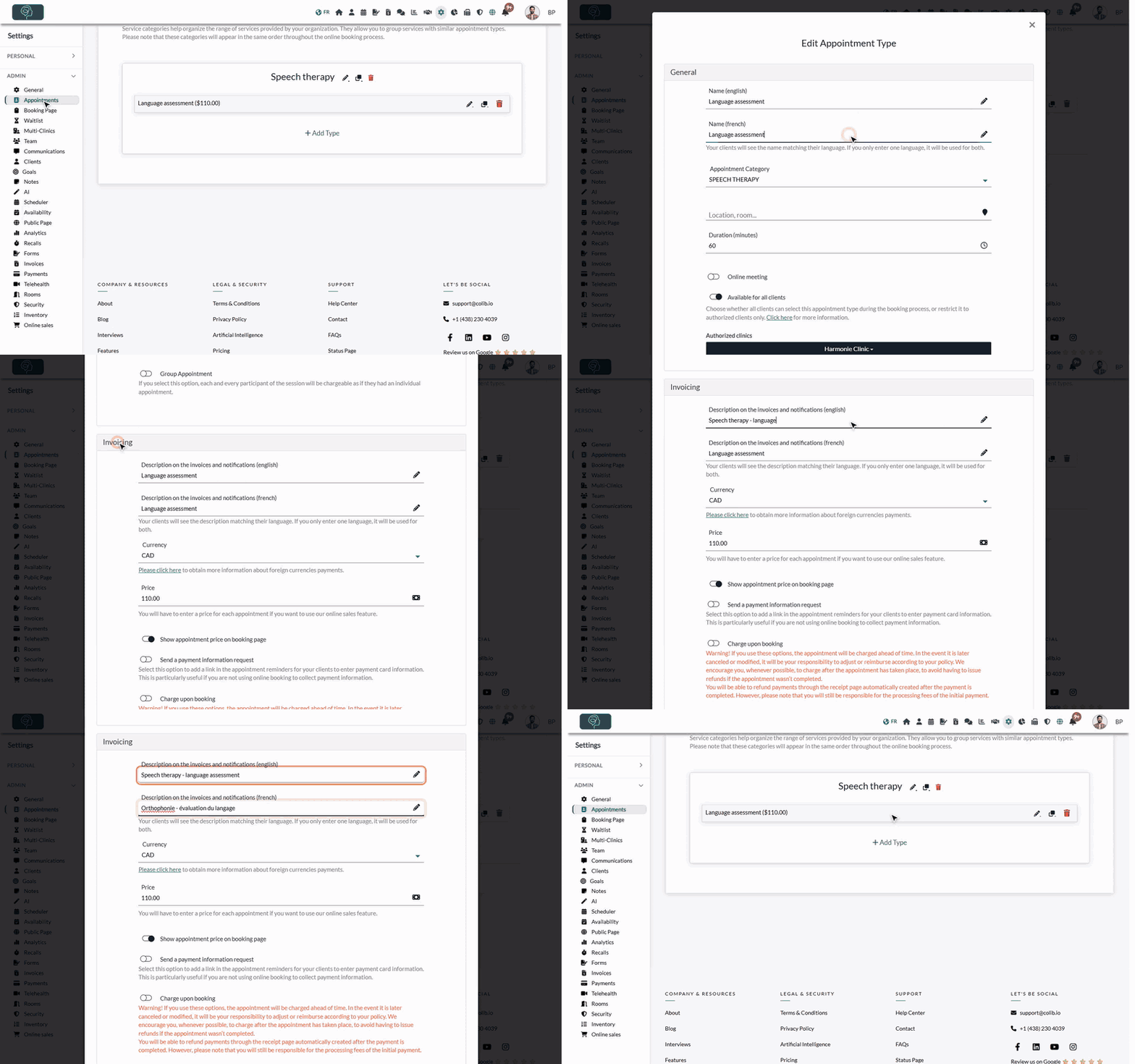
1Name your appointment type in both languages
- Go to www.colib.io/settings?show=appointments. You can also click the Settings icon (gear) in the top bar, then Appointments in the Admin menu on the left.
- Click the pencil icon on the row of the appointment type. For a new type, click + Add Type under its category.
- In the General section, enter the English name in Name (english) and the French name in Name (french).
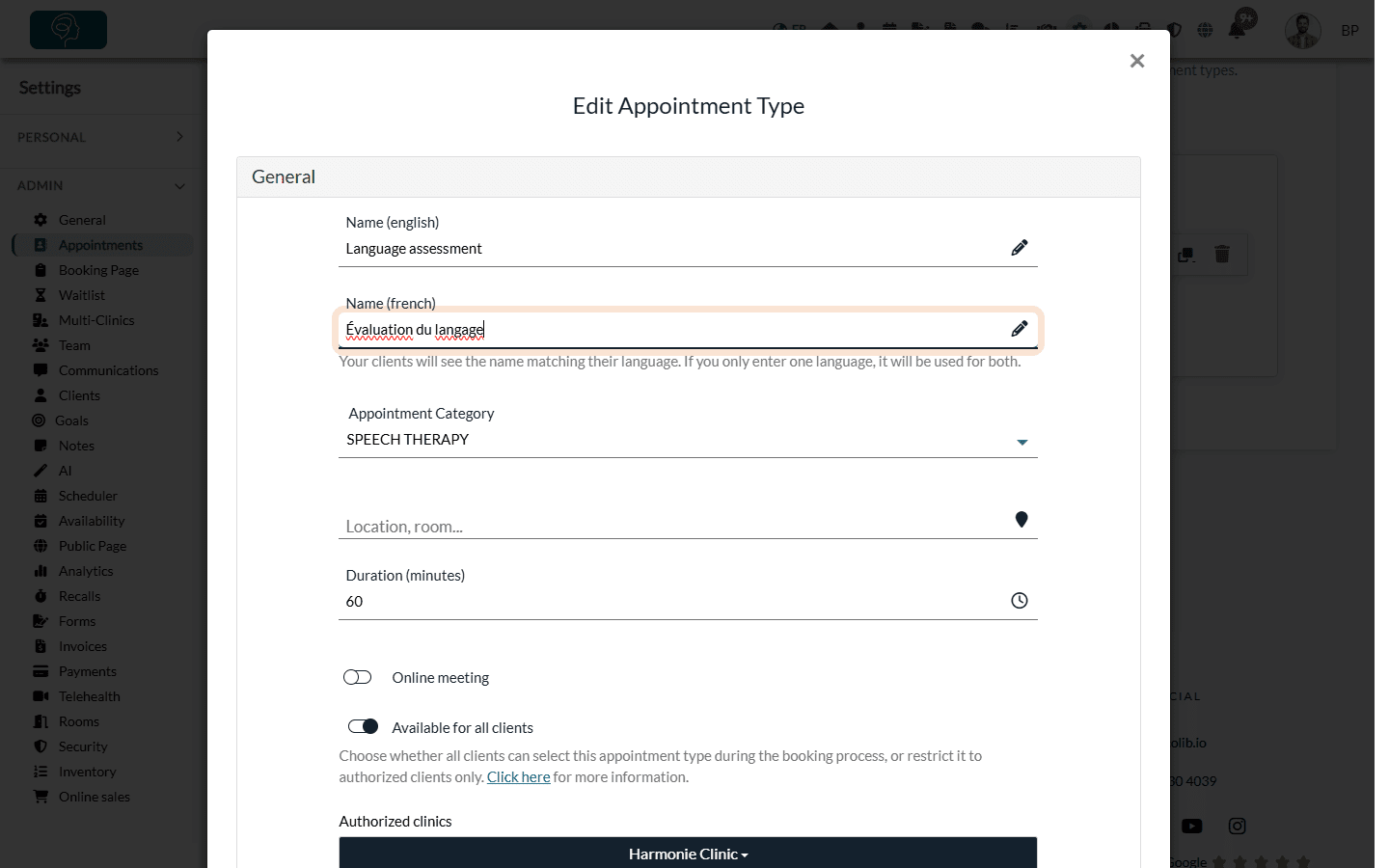
2Translate the description on invoices and notifications
The Invoicing section of the same window has its own wording: the description printed on your invoices and shown in the notifications.
- Open the Invoicing section.
- Enter Description on the invoices and notifications (english) and Description on the invoices and notifications (french).
- Click Save at the bottom of the window.
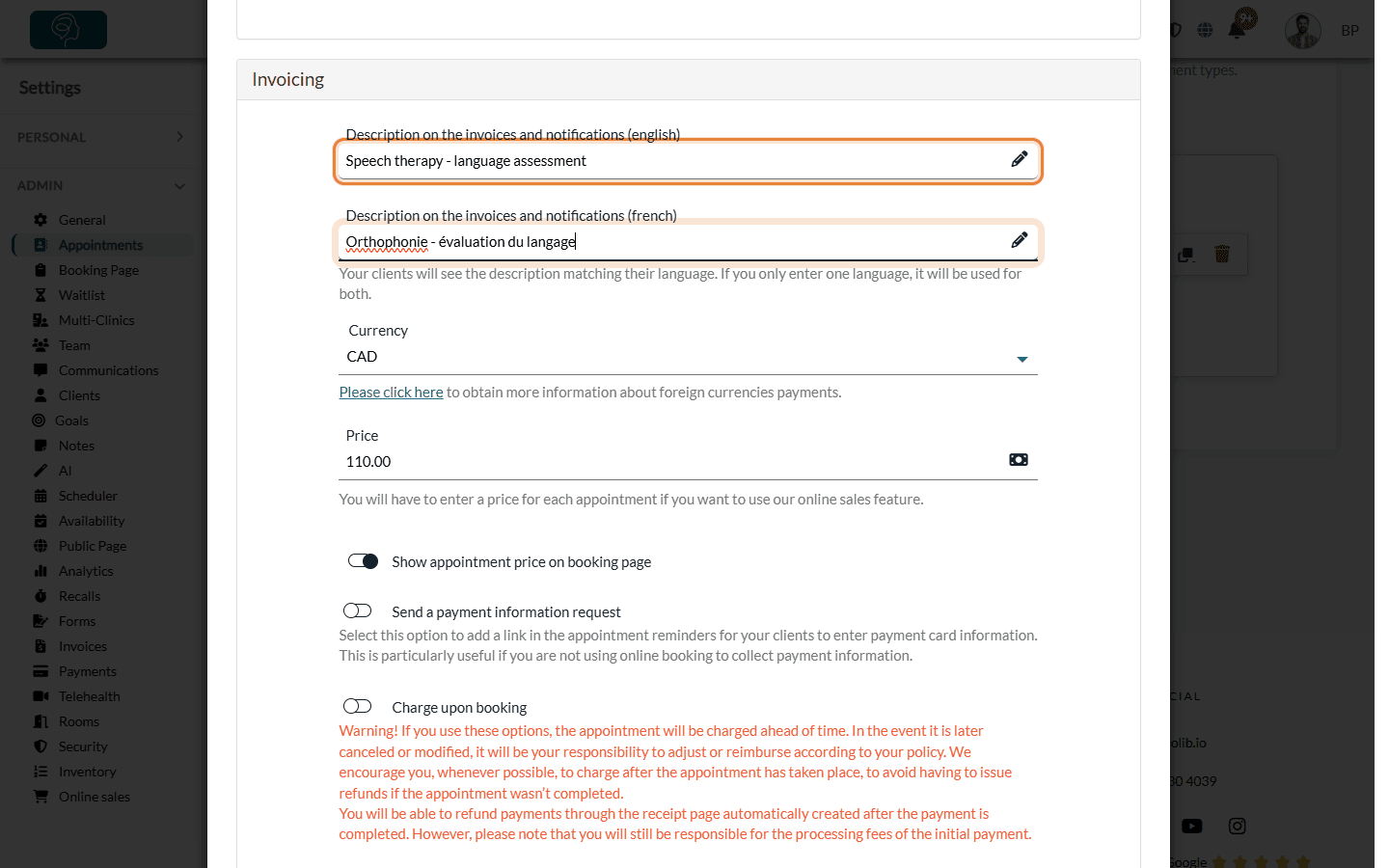
Only one language? You do not have to fill in both fields. If you only enter one language, it is used for both: a type named only in English shows its English name to your French-speaking clients too.
3Name your categories in both languages
Categories and sub-categories group your appointment types on your booking page. They also have a name in each language.
- In Settings > Appointments, click the pencil icon next to the name of the category (or sub-category).
- In the Edit Service Category window, fill in Name (english) and Name (french).
- Click Save.
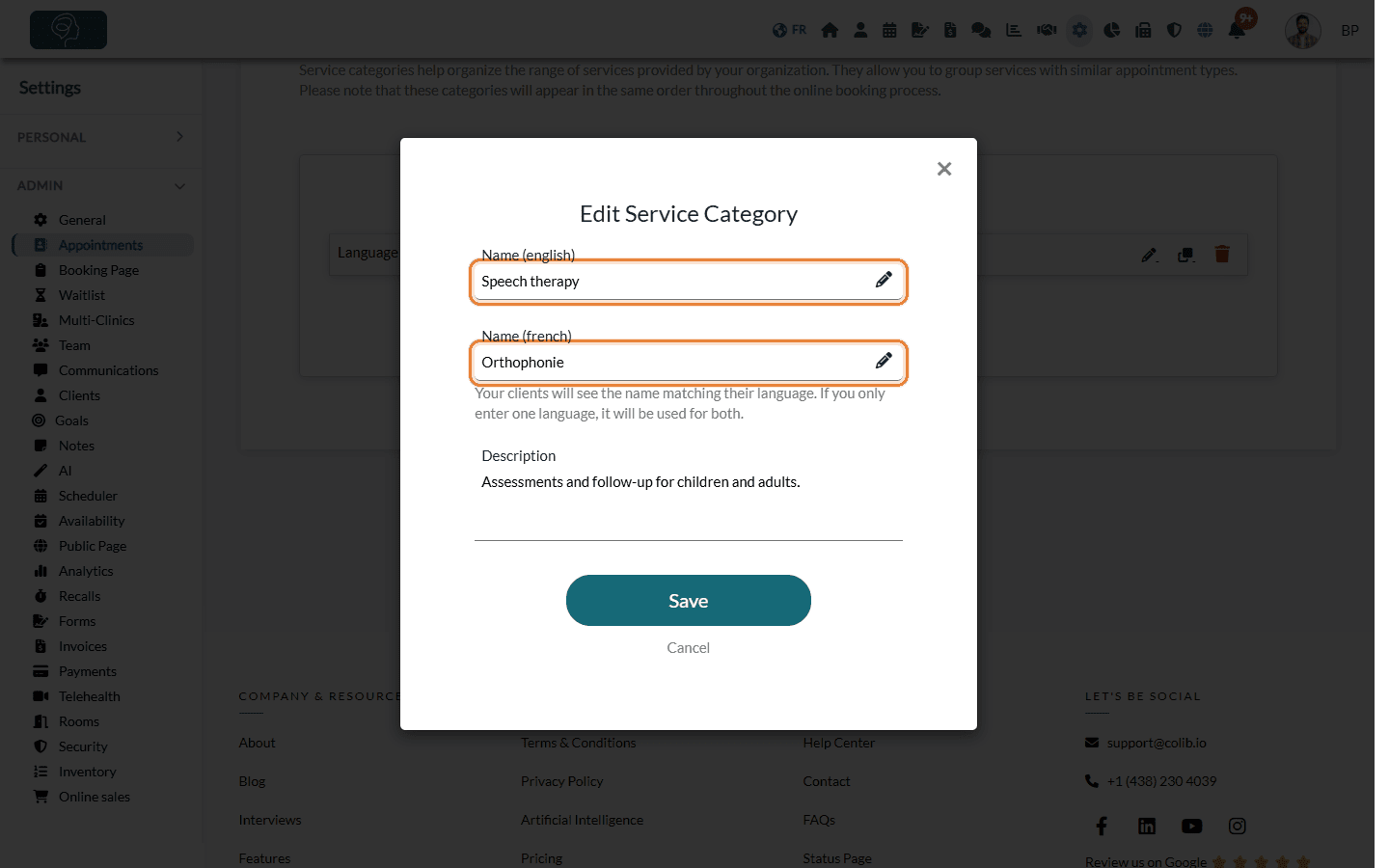
The Description of a category is a single field, shown to every client whatever their language. If your clients are bilingual, you can write it in both languages, one after the other. See what role the descriptions of categories play.
4Check what your clients see
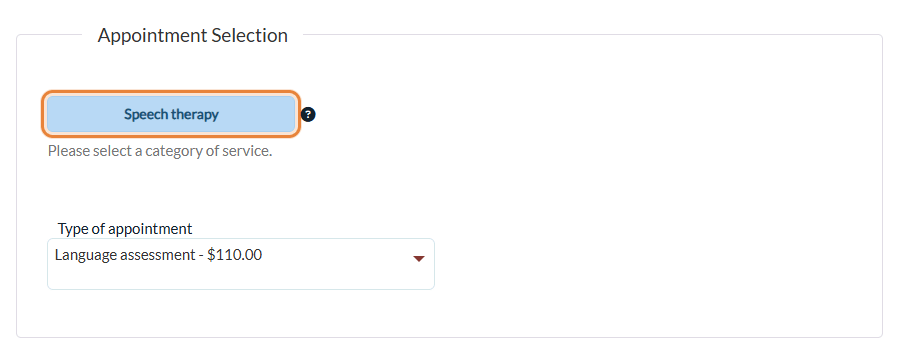
Open your booking page in English, then in French: the categories and appointment types appear in the language of the page.
Which language does each person see?
| Where | Language used |
|---|---|
| Booking page | The language in which the client views the page (English or French). |
| Emails and text messages (confirmation, reminders, changes...) | The language of the client, set in their client record. |
| Invoices | The language of the client who pays: the invoice line uses the description in that language. |
| Your scheduler and settings | The language in which you and your team use Colib. |
The language of a client is the Language field (English or French) of their client record, in the Profile tab. A client created by an online booking gets the language in which they booked. When clients change the language of their client portal, only the portal changes, not this field: if a client asks you, update it in their record.
Good to know
- Invoices already created — the description is copied onto the invoice when it is created. Changing the description afterwards does not change existing invoices; you can still edit the line of an invoice.
- Other texts of your booking page — the welcome and confirmation texts, the custom question, the cancellation policy and the search engine title and description also have an English and a French version, in Settings > Booking Page (www.colib.io/settings?show=bookingpage).
- Manage your types — see how to view, edit, duplicate and delete appointment types and what categories and sub-categories are for.
Still have a question?
Write to us at support@colib.io, we will be happy to help.
Was this article helpful?
That’s Great!
Thank you for your feedback
Sorry! We couldn't be helpful
Thank you for your feedback
Feedback sent
We appreciate your effort and will try to fix the article