Who is this article for?
Every Colib user (practice owner, administrator, practitioner or team member) signs in with an email address. This article explains how to change the email address of your own account, and what changes for you once it is done.
Before you start: have your current password at hand (Colib asks for it), and make sure you can open the mailbox of the new address: you will have to confirm it.
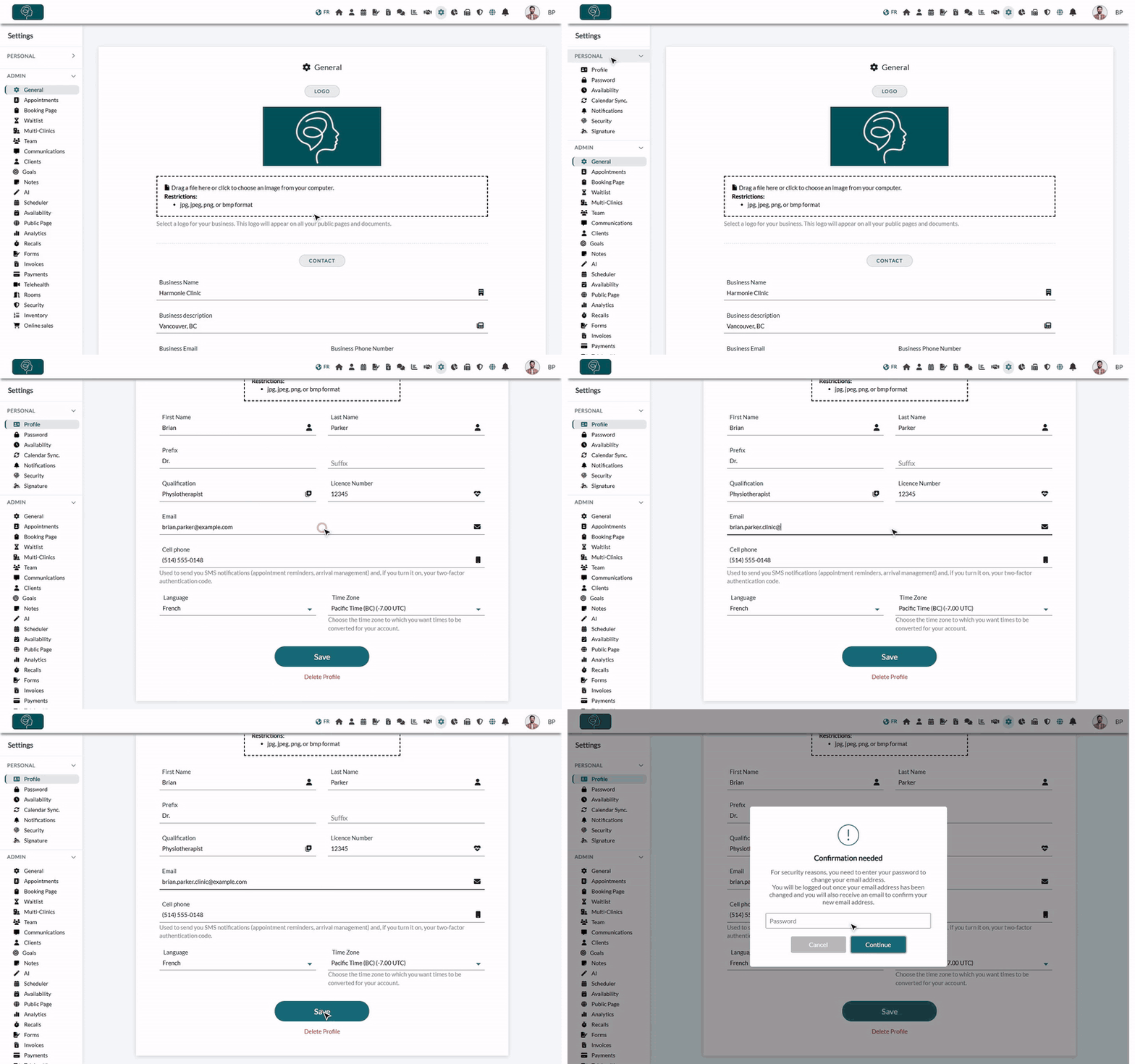
1Enter your new email address
- Go to your profile: Settings > Personal > Profile (www.colib.io/settings?show=personalgeneral). The address www.colib.io/myprofile also takes you there.
- Enter your new email address in the Email field, where your current address is displayed.
- Click Save at the bottom of the page.
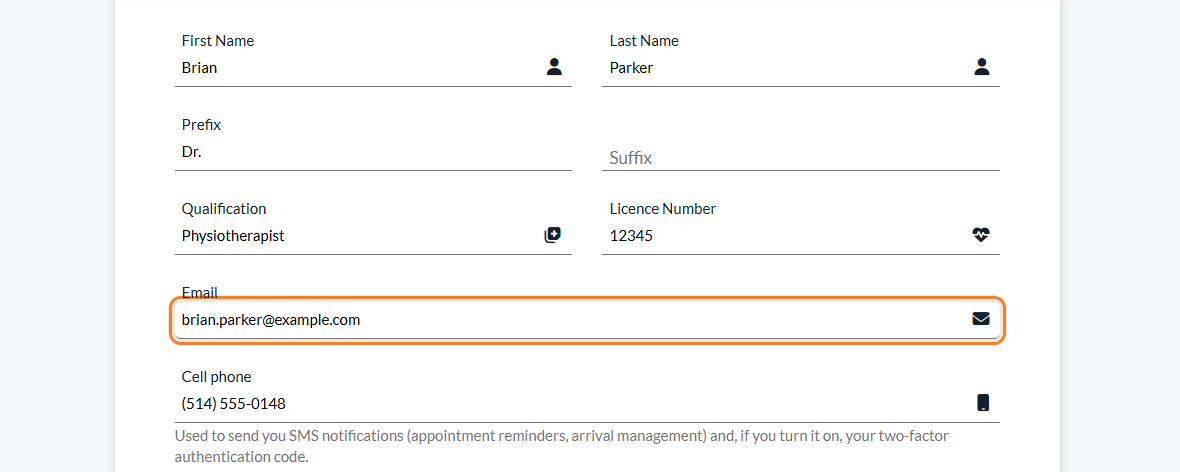
2Confirm with your password
- For security reasons, Colib asks you to enter your current password to change your email address. Type it in the window that opens.
- Click Continue.
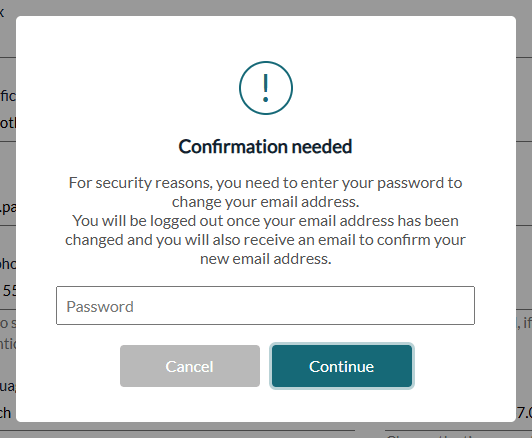
If the change cannot be made, a message tells you why and your address stays the same:
| Message | What to do |
|---|---|
| Sorry, an account already uses this email. | The address is already associated with another Colib account. Choose an address that is not used by another user. |
| This email address is not valid. | Check the spelling of the address (for example, a missing @ or a space). |
| A password is required to change your email address. | Enter your current password in the window, then click Continue. |
| The password you entered is incorrect. | Click Save again and enter the password you use to sign in to Colib. |
3Sign in again with your new address
After confirming your password, you are logged out. Log in again using your new email address and the same password: your password does not change.
4Confirm your new address
Colib sends an email to your new address so that you can confirm it. Open it and follow the link.
- Until the address is confirmed, your profile shows Your email address has not been verified yet. with a Resend the verification email link, in case you did not receive it.
- Some pages, such as your clients, your invoices and the reports, show You need to confirm your email address to access this feature. until you confirm it.
Good to know
- Your old address is notified — for your security, an email titled The email address of your account was changed is sent to your previous address, with the new address and the date of the change. If you did not make this change, write to us right away at support@colib.io.
- Forgot your password? — from now on, the password reset works with your new address only: enter it on the sign-in page to receive the reset link.
- Sign in with Google — if you used the Google button to sign in, that link is removed when your address changes. Sign in with your new address and your password. The Google button works again only with a Google account that uses your new address.
- Only your account changes — the email address of your practice is managed separately, in the Business Email field of Settings > General (www.colib.io/settings?show=general).
Still have a question?
Write to us at support@colib.io, we will be happy to help.
Was this article helpful?
That’s Great!
Thank you for your feedback
Sorry! We couldn't be helpful
Thank you for your feedback
Feedback sent
We appreciate your effort and will try to fix the article