Who is this article for?
To protect your clients' information, Colib temporarily locks an account after several unsuccessful sign-in attempts in a row. This article is for practice owners, administrators and team members who can no longer sign in: it explains how to recognize a locked account and how to unlock it right away.
How do you know your account is locked?
- After several unsuccessful attempts in a row (wrong password, or wrong verification code when two-factor authentication is on), your account is locked for 30 minutes.
- Colib sends you an email Your account has been temporarily locked. It gives the date and time of the last attempt and the address it came from, and contains a link to reset your password.
- While the account is locked, the sign-in page shows the message Either the user account or the password is not valid. After several failed attempts the account may be locked — use the 'Forgot your password?' link to unlock it., even if you now type the right password. No verification code is sent during the lock.
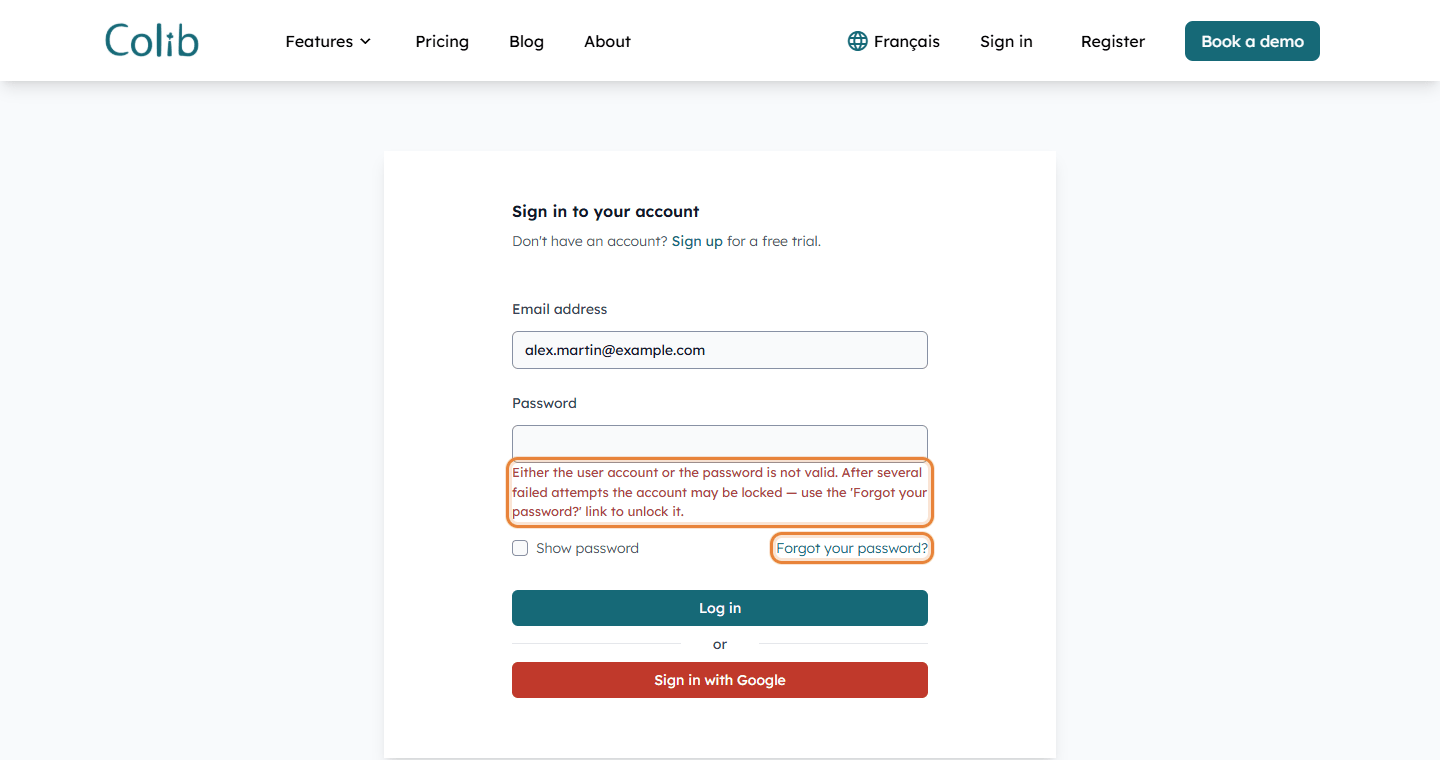
For security reasons, the sign-in page shows the same message for a wrong password and for a locked account: it never confirms whether an account exists.
1Unlock your account right away
You do not have to wait: resetting your password unlocks your account immediately.
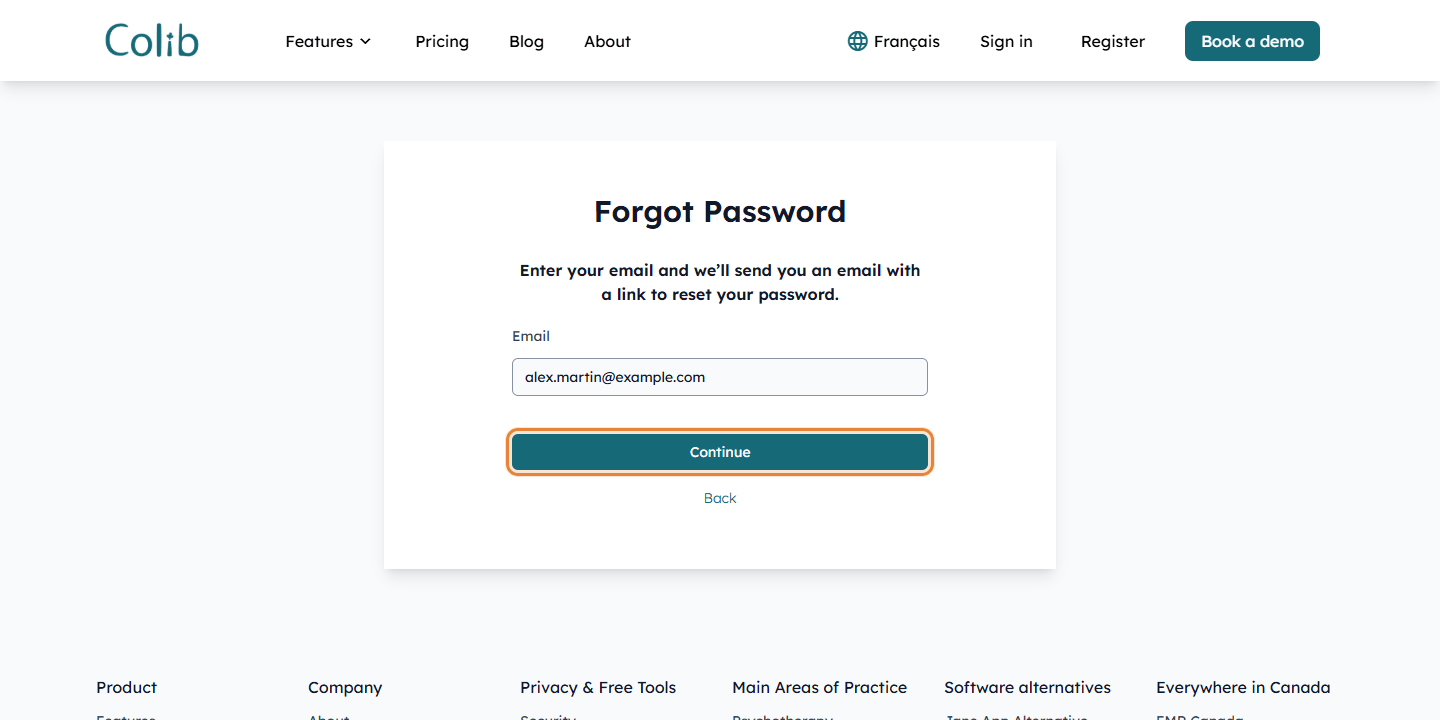
- On the sign-in page, click Forgot your password?.
- Enter the email address of your Colib account and click Continue.
- Open the email you receive and click the link to choose a new password.
- Save your new password: your account is unlocked as soon as it is saved, and you can sign in again.
Your new password must contain at least 12 characters, with an uppercase letter, a lowercase letter, a number and a special character. You cannot reuse one of your 5 previous passwords.
2Or wait 30 minutes
If you are sure of your password (for example, you mistyped it several times), simply wait 30 minutes after the email: the lock ends by itself and you can sign in with your usual password. The counter of attempts starts again from zero after each successful sign-in.
You did not try to sign in?
If you receive the email Your account has been temporarily locked but did not try to sign in, someone may be trying to guess your password. We recommend that you:
- reset your password right away, with a password you do not use anywhere else;
- turn on two-factor authentication, so that a code sent to your phone or your email is required at each sign-in: see How to configure the 2-factor authentication (2FA);
- tell your practice administrator. Administrators can review the sign-ins of the team in the activity log: see How to access the activity log.
Good to know
- Each person has their own account — an administrator cannot unlock the account of a team member. The team member resets their own password, or waits 30 minutes.
- Sign in with Google — if you use the Sign in with Google button, a locked account shows The user is currently locked out. Reset your password or wait 30 minutes in the same way.
- No access to your email anymore? — the reset link is sent to the email address of your account. If you no longer have access to it, write to us.
- Why this protection? — locking an account after repeated failures blocks attempts to guess passwords. You can find all the security measures of Colib in What data security and compliance measures does Colib offer?.
Still have a question?
Write to us at support@colib.io, we will be happy to help.
Was this article helpful?
That’s Great!
Thank you for your feedback
Sorry! We couldn't be helpful
Thank you for your feedback
Feedback sent
We appreciate your effort and will try to fix the article