Who is this article for?
This article is for clients of a practice that uses Colib. Your practice invited you to its client portal, a secure space where you find your appointments, invoices, documents, forms and messages. Here is how to create your account, sign in, and what to do if something does not work.
Good news: creating an account is optional. Without an account, you keep receiving the emails and text messages of your practice and can use the links they contain.
1Open the invitation
- Open the email your practice sent you. It shows the practice's logo and a button to create your account.
- Click the button. A page called Account Creation opens in your browser.
- No invitation email? Most emails from your practice (appointment confirmation, invoice, shared document...) also contain a link to the client portal: it opens the same page as long as you have no account.
2Create your account
- On the Account Creation page, check or enter your First Name and Last Name.
- The Email field is already filled in with the address your practice has on file. It cannot be changed: if it is wrong, ask your practice to correct it and send you a new invitation.
- Choose a Password that meets the rules shown under the field.
- Check the box to accept the privacy policy and the terms of service.
- Click Continue. You are signed in right away.
Then open the email you receive to confirm your email address. Your appointments, invoices, documents and other information are displayed in the portal once your address is confirmed. Until then, the portal shows a message asking you to confirm it.
3Sign in
- Go to portal.colib.io.
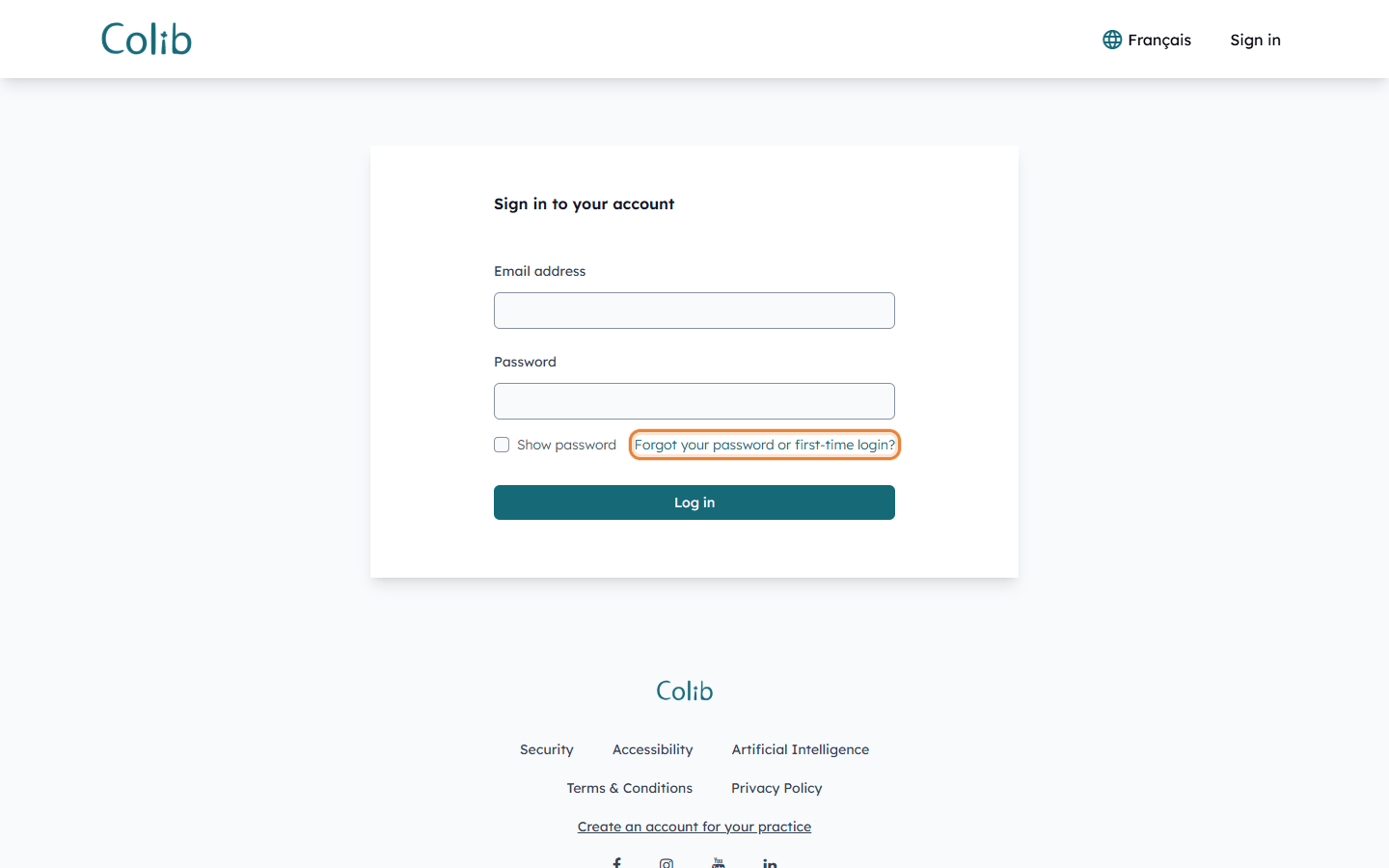
- Enter your Email address and your Password, then click Log in. Check Show password to see what you type.
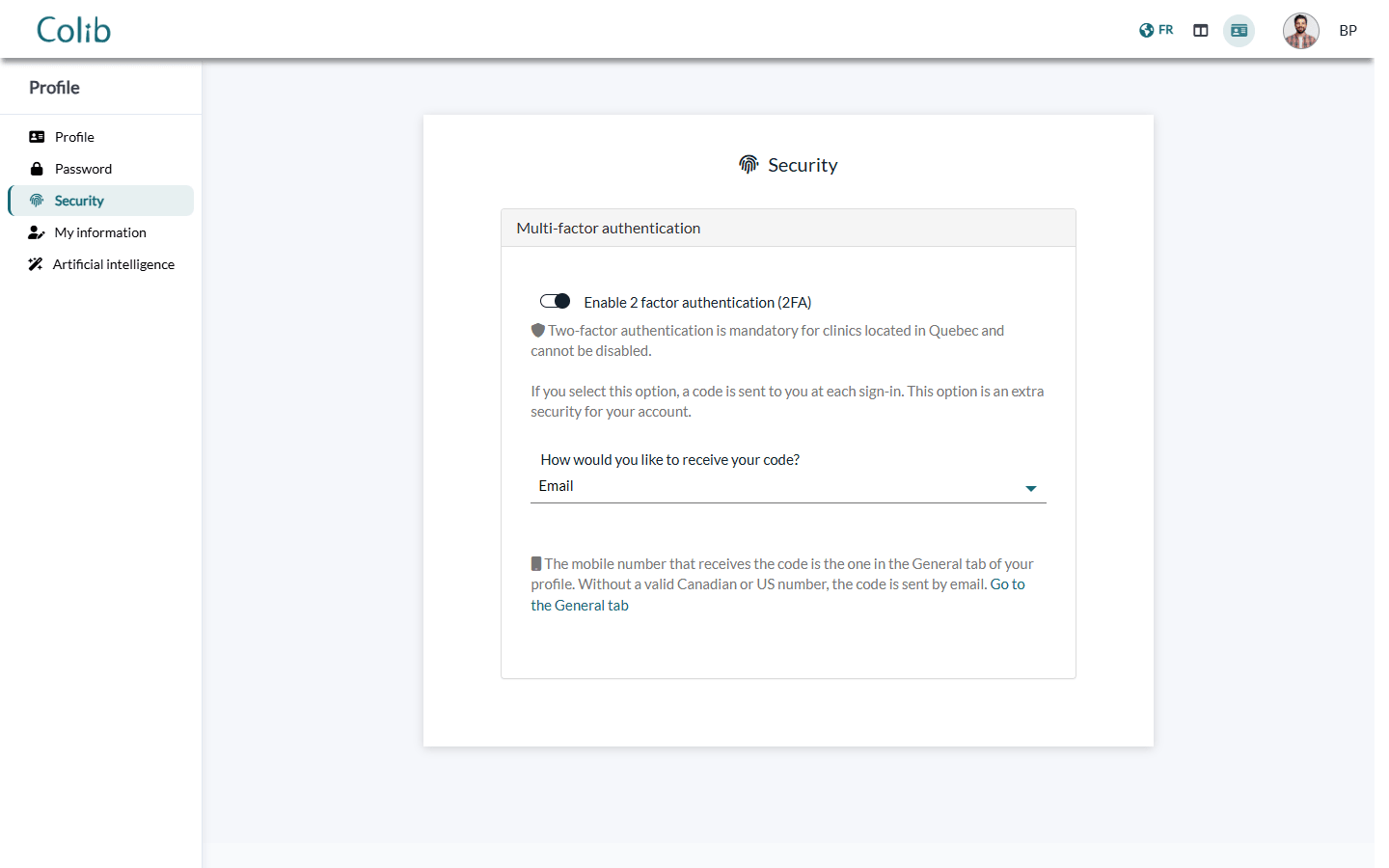
- If two-factor authentication is on, a verification code is sent to you by email or by text message. Enter it to access your account. If you do not receive it, click Click here next to Didn't receive the code?, or choose to receive a new code by SMS or by email.
Two-factor authentication is mandatory for clients of clinics located in Quebec. Everyone else can turn it on in Profile > Security, and choose to receive the code by Email or by SMS. The SMS goes to the cell phone number of your profile; without a valid Canadian or US number, the code is sent by email.
Lost invitation or forgotten password
You do not need a new invitation:
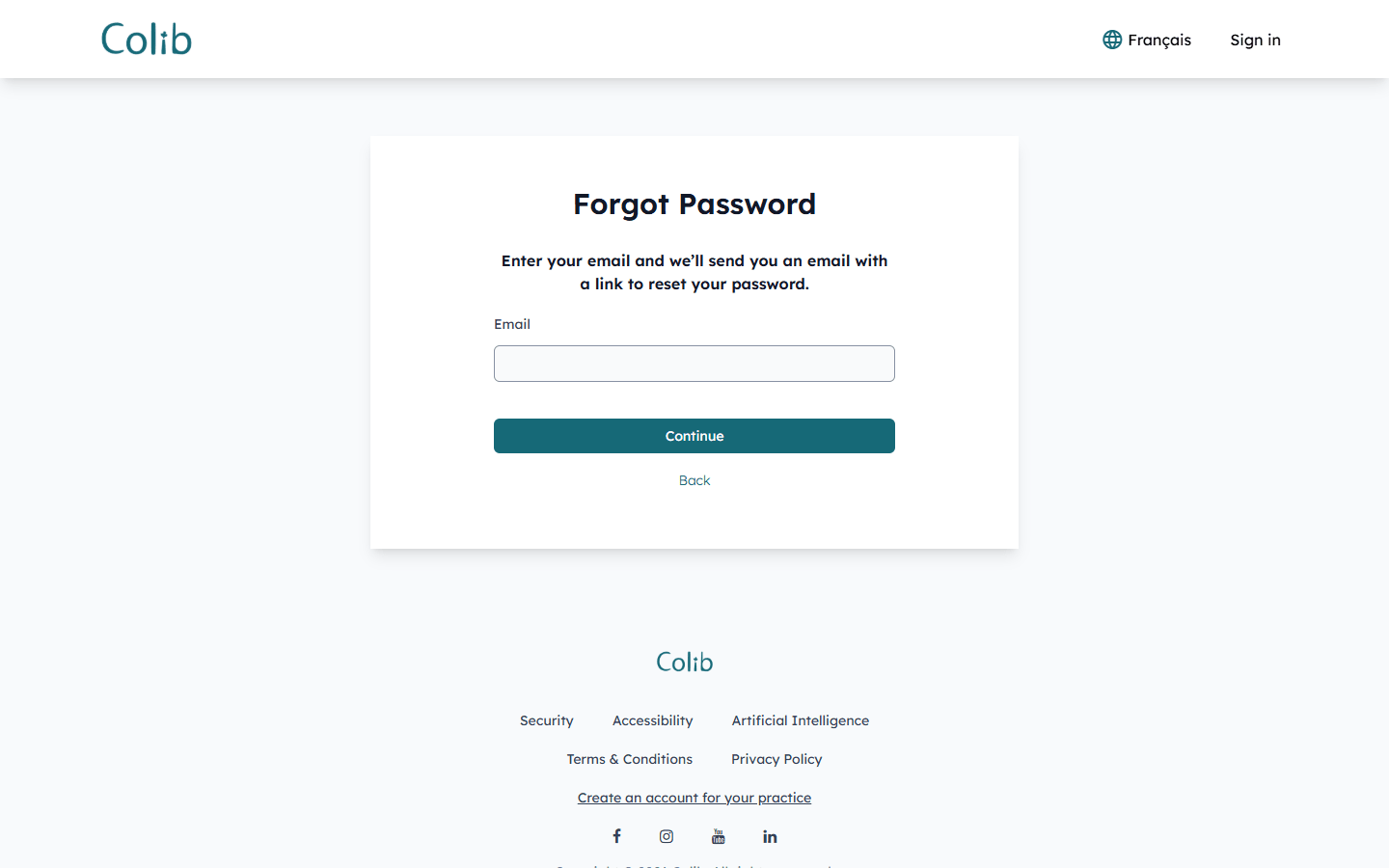
- On the sign-in page, click Forgot your password or first-time login? (portal.colib.io/ForgotPassword).
- Enter the email address your practice has on file, then click Continue.
- If you already have an account, you receive a link to choose a new password. If not, you receive the invitation to create your account.
After several failed sign-in attempts, your account may be locked for security reasons: use the same Forgot your password or first-time login? link to unlock it.
Good to know
- No email received? — check your junk mail folder, then ask your practice to check that the email address in your record is exactly the one you use.
- One account for all your practices — your account is tied to your email address. If several practices that use Colib have the same address for you, you see all of them in the same portal.
- English or French — switch the language with the button at the top of the page.
- Your family — if you are responsible for a child's record at the practice, you see their information in your own portal.
- Delete your account — you can delete your portal account from your Profile. Your record stays at your practice.
- What you find in the portal — see What is the client portal? and Who can access the client portal?.
Still have a question?
Write to us at support@colib.io, we will be happy to help.
Was this article helpful?
That’s Great!
Thank you for your feedback
Sorry! We couldn't be helpful
Thank you for your feedback
Feedback sent
We appreciate your effort and will try to fix the article