Who is this article for?
This article is for clients of a practice that uses Colib. Your practice may ask you to confirm that you will attend your appointment. Confirming takes one click and lets the practice know that you are coming.
1Find the confirmation link
When your practice asks for a confirmation, the link is in the reminders you receive before your appointment:
- By email — the reminder shows Please click on the button below to confirm your appointment and a Confirm Appointment button. The button is no longer shown once your appointment is confirmed.
- By SMS — the reminder contains Please click on the following link to confirm the appointment, followed by the link.
The first email or SMS you receive after booking only confirms that your appointment is booked: the confirmation link comes with the reminders. If your reminders contain no confirmation link, your practice does not ask for one: you have nothing to do.
2Confirm your appointment
- Click the Confirm Appointment button of the email, or the link of the SMS.
- A page opens in your browser: Thanks [your first name]! Your appointment at [practice] on [date] is confirmed. You do not need to sign in.
- That's it. You can close the page.
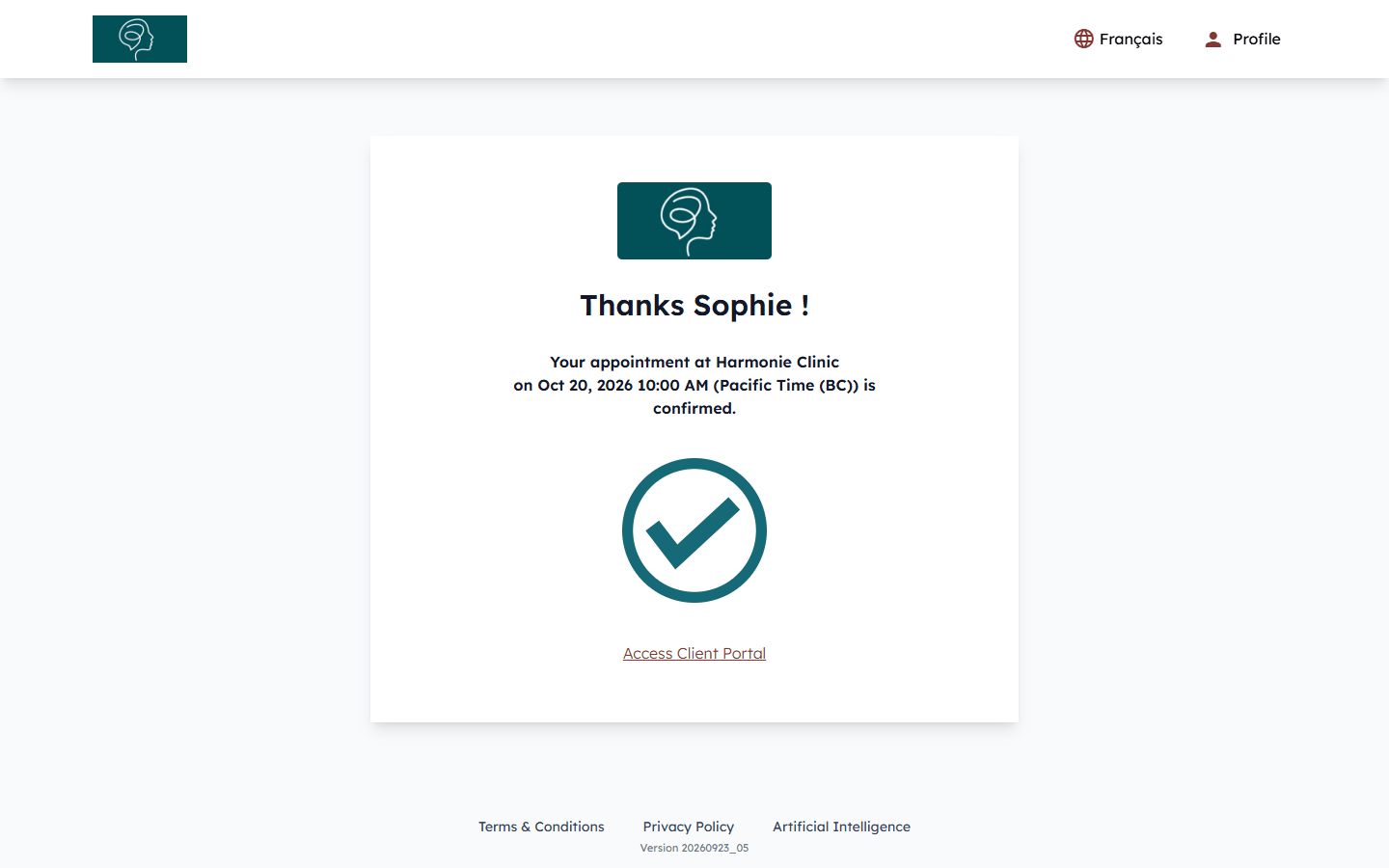
The date and time are shown in your time zone. The Access Client Portal link opens your client portal, or the page to create your account if you do not have one yet.
Good to know
- The practice is informed — your appointment is marked as confirmed in the practice's schedule, and the practice can receive a notification when you confirm.
- Clicking twice is not a problem — the page simply shows again that your appointment is confirmed.
- You cannot attend? — do not confirm: use the change or cancellation link of the same email or SMS, or the Modify and Cancel actions of your appointment in the client portal (portal.colib.io), if the practice allows it. See How to cancel an appointment. Otherwise, contact the practice directly.
- The page says the appointment cannot be found — the appointment may have been deleted by the practice. If you are signed in to the client portal with another account (for example a family member's), sign out and click the link again.
- No reminder received? — check your junk mail folder, and make sure the practice has your correct email address and cell phone number.
- The client portal — see What is the client portal?.
Still have a question?
Write to us at support@colib.io, we will be happy to help.
Was this article helpful?
That’s Great!
Thank you for your feedback
Sorry! We couldn't be helpful
Thank you for your feedback
Feedback sent
We appreciate your effort and will try to fix the article