Who is this article for?
This article is for practice owners and administrators who want to adapt the scheduler to the way the practice works: show the whole day (for evening or night appointments), display times in the 24-hour format, start the week on Sunday or on Monday, and choose who can be displayed in the scheduler.
Before you start: these options are in Settings > Scheduler (www.colib.io/settings?show=scheduler). You need access to the practice settings to change them. They apply to the whole practice: every member sees the same scheduler.
1Open the scheduler settings
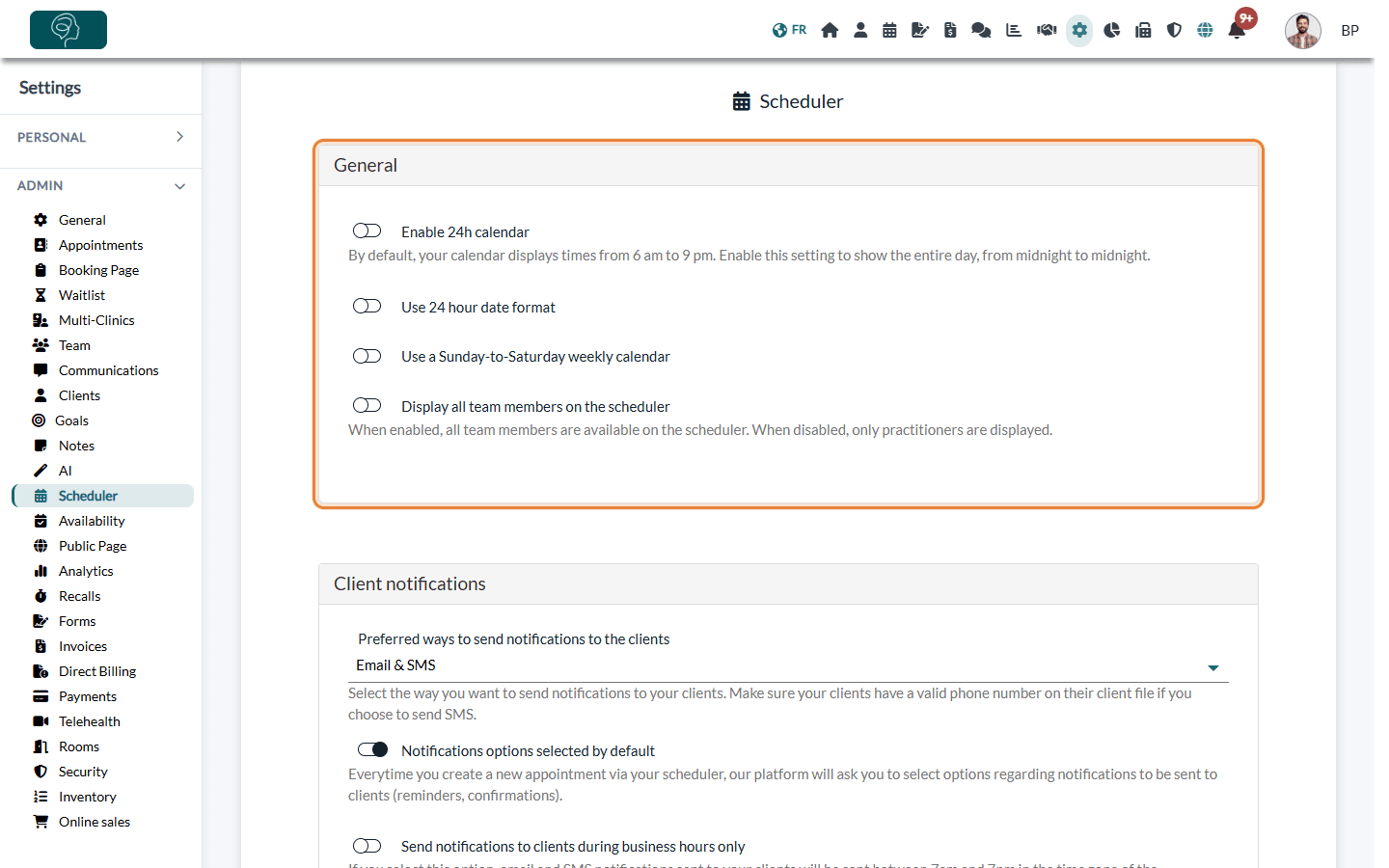
- Go to www.colib.io/settings?show=scheduler. You can also click the Settings icon (gear) in the top bar, then Scheduler in the Admin menu on the left.
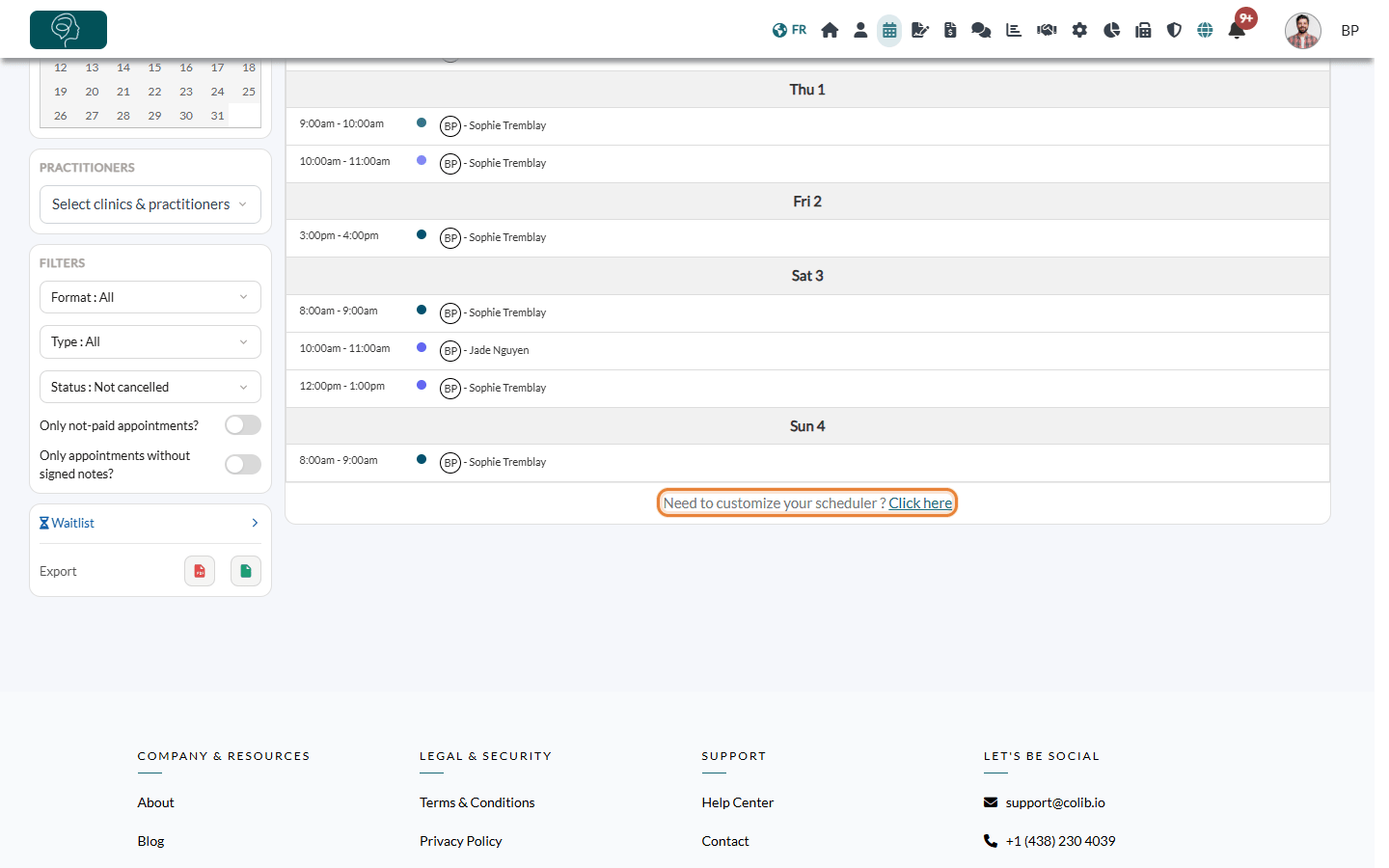
- Another way: under the calendar of your scheduler (www.colib.io/scheduler), next to Need to customize your scheduler ?, click Click here.
- Open the General section if it is closed.
2Turn the options on or off
Click the switch of an option to turn it on or off. The change is saved right away (the Save button at the bottom of the tab saves it as well). Open or refresh your scheduler to see the result.
| Option | Effect |
|---|---|
| Enable 24h calendar | By default, the hourly views of the scheduler go from 6 a.m. to 9 p.m. Turn this on to show the whole day, from midnight to midnight: useful if you see clients early in the morning or late in the evening. |
| Use 24 hour date format | Times are displayed in the 24-hour format (for example 14h00) instead of a.m./p.m. (02 PM), in the scheduler and in the time lists of the appointment window. |
| Use a Sunday-to-Saturday weekly calendar | The week starts on Sunday instead of Monday, in the week and month views and in the small calendar of the scheduler. The weekly display of your online booking page follows the same rule. |
| Display all team members on the scheduler | By default, only the practitioners can be displayed in the scheduler. Turn this on to also list the team members who are not practitioners (for example an assistant), so that their events appear and can be selected in the Practitioners box. |
3Choose the colors (optional)
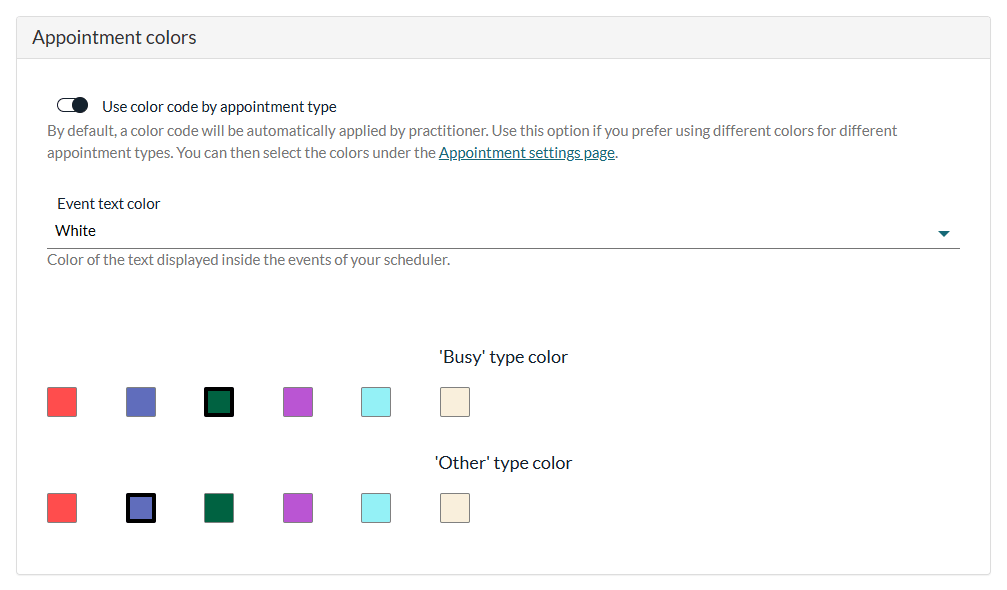
In the same tab, the Appointment colors section changes the look of the events:
- Use color code by appointment type — by default, each practitioner has a color. Turn this on to color the appointments by type instead; the colors are then chosen in Settings > Appointments (www.colib.io/settings?show=appointments).
- Event text color — White or Black text inside the events, to keep them readable with light colors.
- 'Busy' type color and 'Other' type color — click a color to use it for the blocked time of these two types.
To learn more, see Can I use the color code for different appointment types? and How can I block time on my scheduler?
Good to know
- Other sections of the tab — Settings > Scheduler also holds the Client notifications, Cancellations, Practitioner notifications and Tasks sections. See What notifications do clients receive after booking?, How to cancel an appointment: for practitioners and clients and How to use tasks in your scheduler
- What each member chooses — the view, the zoom, the practitioners displayed and the filters are chosen directly in the scheduler by each member, and remembered on their computer.
- Working hours and time off — to change the days and hours each practitioner works, or to add breaks and time off, see How can I update the days and hours that I work? and How to pause online bookings (vacations, absences, closures)
- Time zone — the scheduler displays the appointments in the time zone of your profile (see How to manage a multi-time zone practice?).
Still have a question?
Write to us at support@colib.io, we will be happy to help.
Was this article helpful?
That’s Great!
Thank you for your feedback
Sorry! We couldn't be helpful
Thank you for your feedback
Feedback sent
We appreciate your effort and will try to fix the article