Who is this article for?
This article is for practitioners, administrators and front-desk team members who need their schedule outside Colib: a printed list of the day's appointments for the front desk, a PDF to keep, or an Excel file to analyze or share with your accountant.
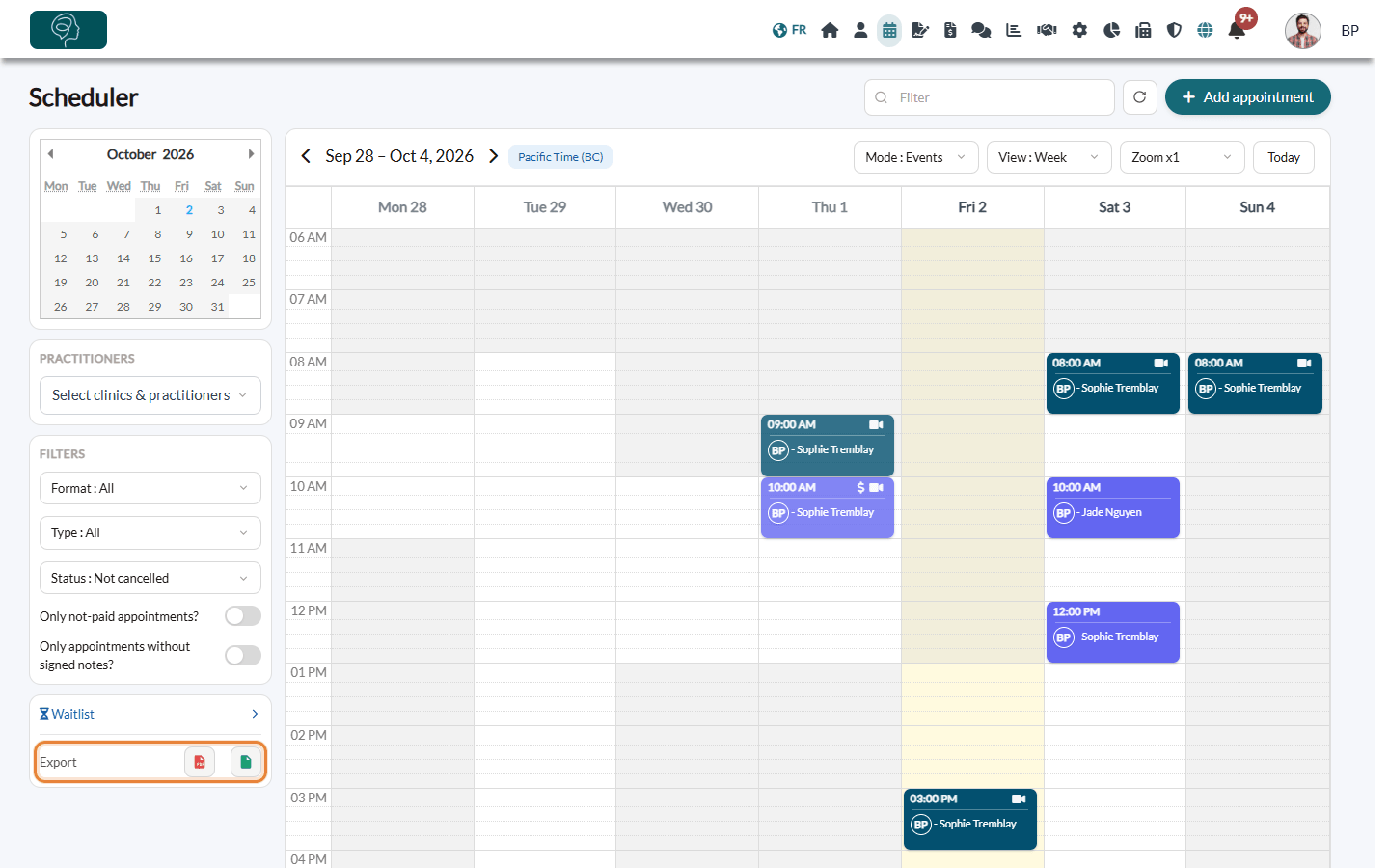
Before you start: the exports are at the bottom of the left column of your scheduler (www.colib.io/scheduler), next to Export. They export exactly what you are looking at: so first choose the period, the practitioners and the filters.
1Display what you want to export
- Go to www.colib.io/scheduler and make sure the Mode list shows Mode : Events (the exports are not available in the Rooms and Availability modes).
- Choose the period with the View list and the arrows: Day for one day, Week or List for one week, Month for one month.
- In the Practitioners box, check the practitioners to include.
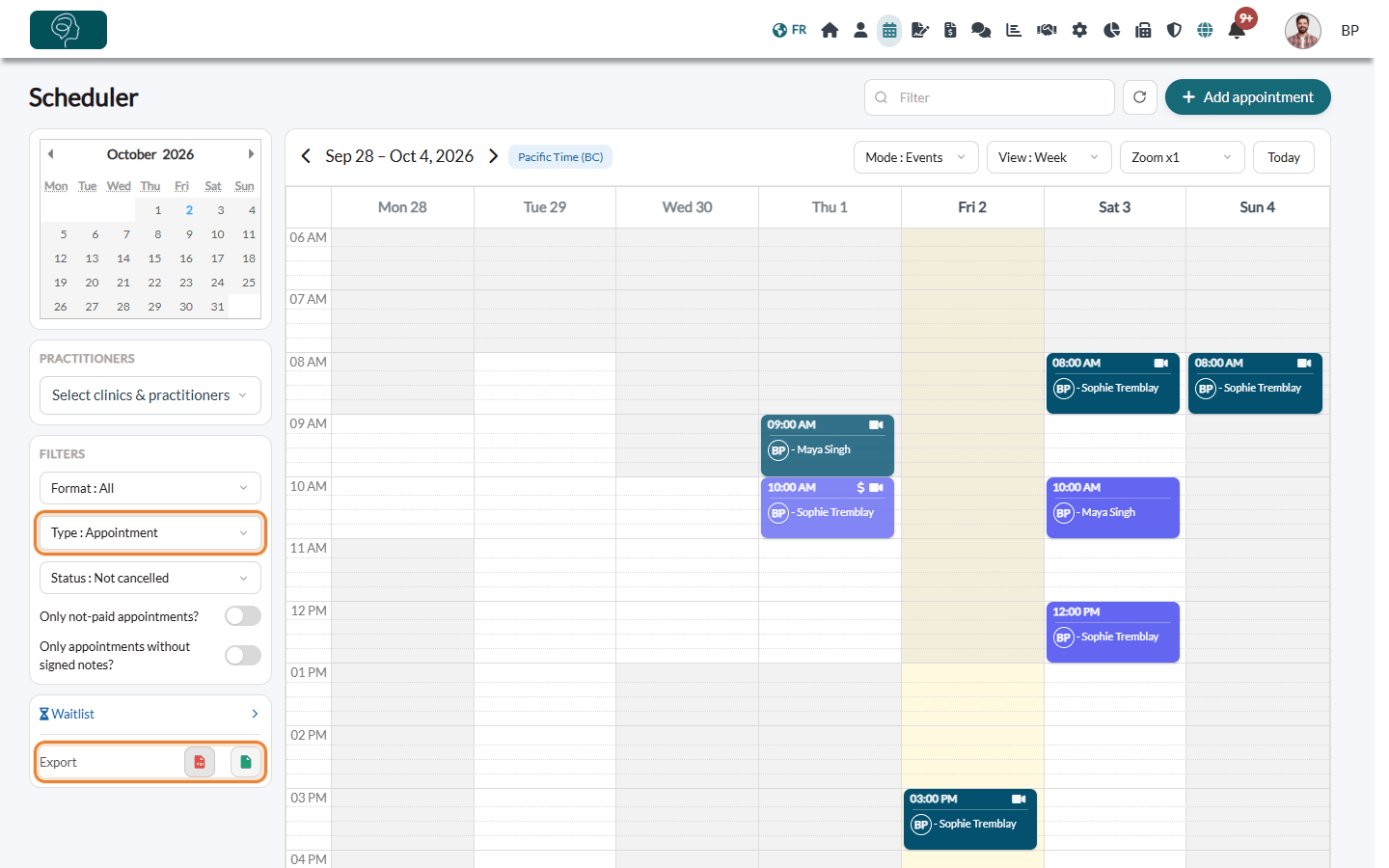
- If needed, use the Filters: Format, Type, Status and Only not-paid appointments? also apply to the exports.
To learn more about the views, please see the article titled "How do I change the scheduler view (day, week, month, list, by practitioner, room or clinic)?". For the filters, please see the article titled "How do I filter the scheduler (practitioners, clinics, unpaid appointments, appointments without a signed note)?".
2Download the PDF or the Excel file
- At the bottom of the left column, next to Export, click:
- the red icon (Download PDF) for a document ready to print;
- the green icon (Download Excel) for a spreadsheet.
- The file is downloaded by your browser, in your usual downloads folder. Its name starts with the date of the day, for example 2026-10-02-appointments.pdf.
- To print your schedule, open the PDF and use the print command of your PDF reader.
What the files contain
| File | Content |
|---|---|
| Your practice logo, the period, the date the file was created, the number of appointments and the practitioners included, then one block per appointment: start and end, status, title, clients, type of appointment, practitioner, location, the answer to the booking question and the description. Unless you choose another value in the Type filter, the PDF only lists the appointments (no tasks or blocked time). | |
| Excel | One row per event (appointments, tasks and blocked time, according to the Type filter), with: reference, start date, end date, type, appointment type or task, clients, practitioner, location, video conference (yes/no), description, booking question and answer, status (cancelled appointments are highlighted in red), title, duration in hours, whether the appointment is paid and whether it has a signed note. |
Important: these files contain personal information about your clients. Keep them in a secure place, share them only with people who need them, and delete them when you no longer need them.
Good to know
- Filters that do not apply — the Filter search field and the Only appointments without signed notes? switch are not used by the exports. In Excel, use the Signed note ? column to sort the appointments.
- Cancelled appointments — with the default Status : Not cancelled, they are left out. Choose Status : All or Status : Cancelled to include them.
- Access rights — a member who is not allowed to see the data of the other practitioners only exports their own appointments. See What are the different levels of rights/options for the members of my practice?
- Traceability — each export is recorded in the activity log of your practice (see How to access the activity log (audit log)).
- Other exports — to export your clients and their data, see How to export my client data? For payment fees and taxes, see How to export a report of payment provider fees and payment taxes?
- See your schedule in another calendar — rather than exporting it, you can sync it with Google Calendar or Outlook (see How to sync your Colib scheduler with Google Calendar or Outlook (two-way sync)).
Still have a question?
Write to us at support@colib.io, we will be happy to help.
Was this article helpful?
That’s Great!
Thank you for your feedback
Sorry! We couldn't be helpful
Thank you for your feedback
Feedback sent
We appreciate your effort and will try to fix the article