Who is this article for?
This article is for practitioners, administrators and front-desk team members who want to see only part of the scheduler: some practitioners or clinics, online or in-person appointments, cancelled appointments, appointments that are not paid yet or that still have no signed note.
The last two filters are very useful for your administrative follow-up: in a few clicks, you find the appointments to invoice and the notes to finish.
Before you start: open your scheduler at www.colib.io/scheduler. The filters are in the column on the left of the calendar. They only change what you see: they never change your appointments.
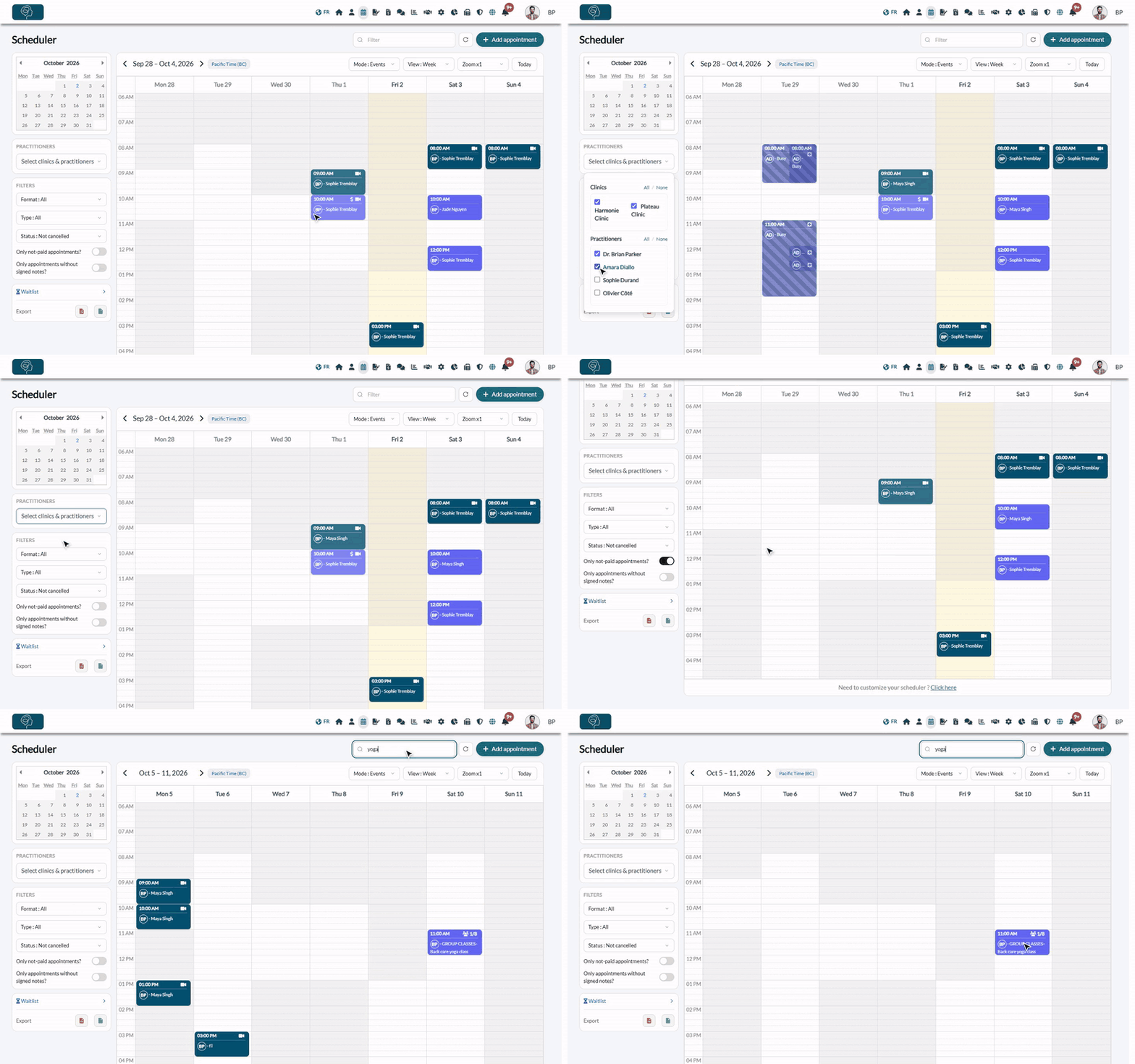
1Choose the practitioners and the clinics
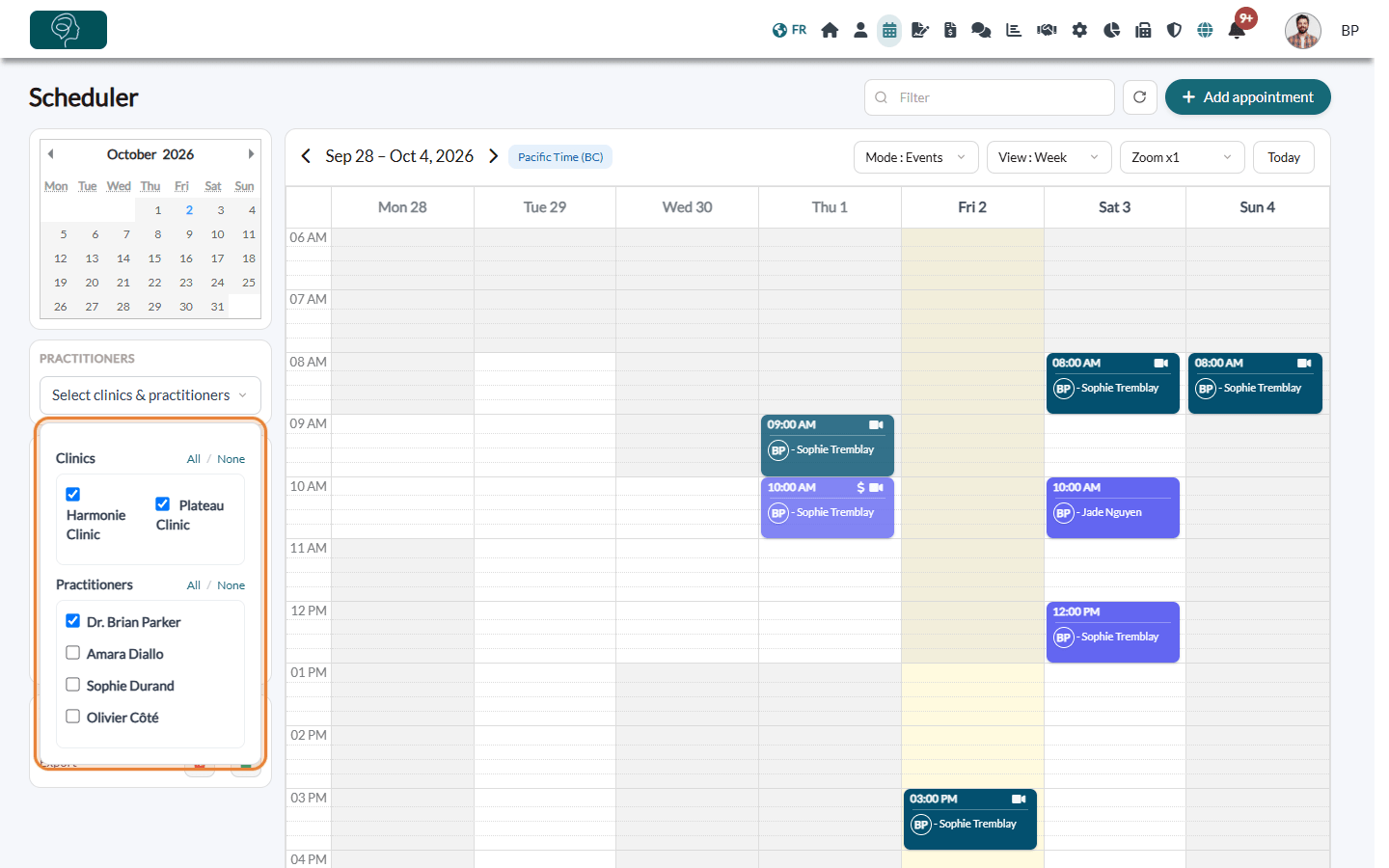
The Practitioners box decides whose appointments are displayed.
- Click the list in the Practitioners box: Select practitioners, or Select clinics & practitioners if your practice has several clinics.
- Check the practitioners to display and uncheck the others. All and None check or uncheck the whole list.
- With several clinics, the Clinics part comes first: the list of practitioners only shows the practitioners of the checked clinics, and the Day by clinic and Week by clinic views only show a column for the checked clinics.
- Click outside the list to close it. The calendar is updated as soon as you check or uncheck a box.
When no practitioner is checked, the calendar shows the message Use the clinics & practitioners filter to select the practitioners you want to display. To see one column per practitioner, use the Day by practitioner or Week by practitioner view.
2Use the filters
The Filters box, under Practitioners, combines three lists and two switches. Each change refreshes the calendar right away, and the filters add up.
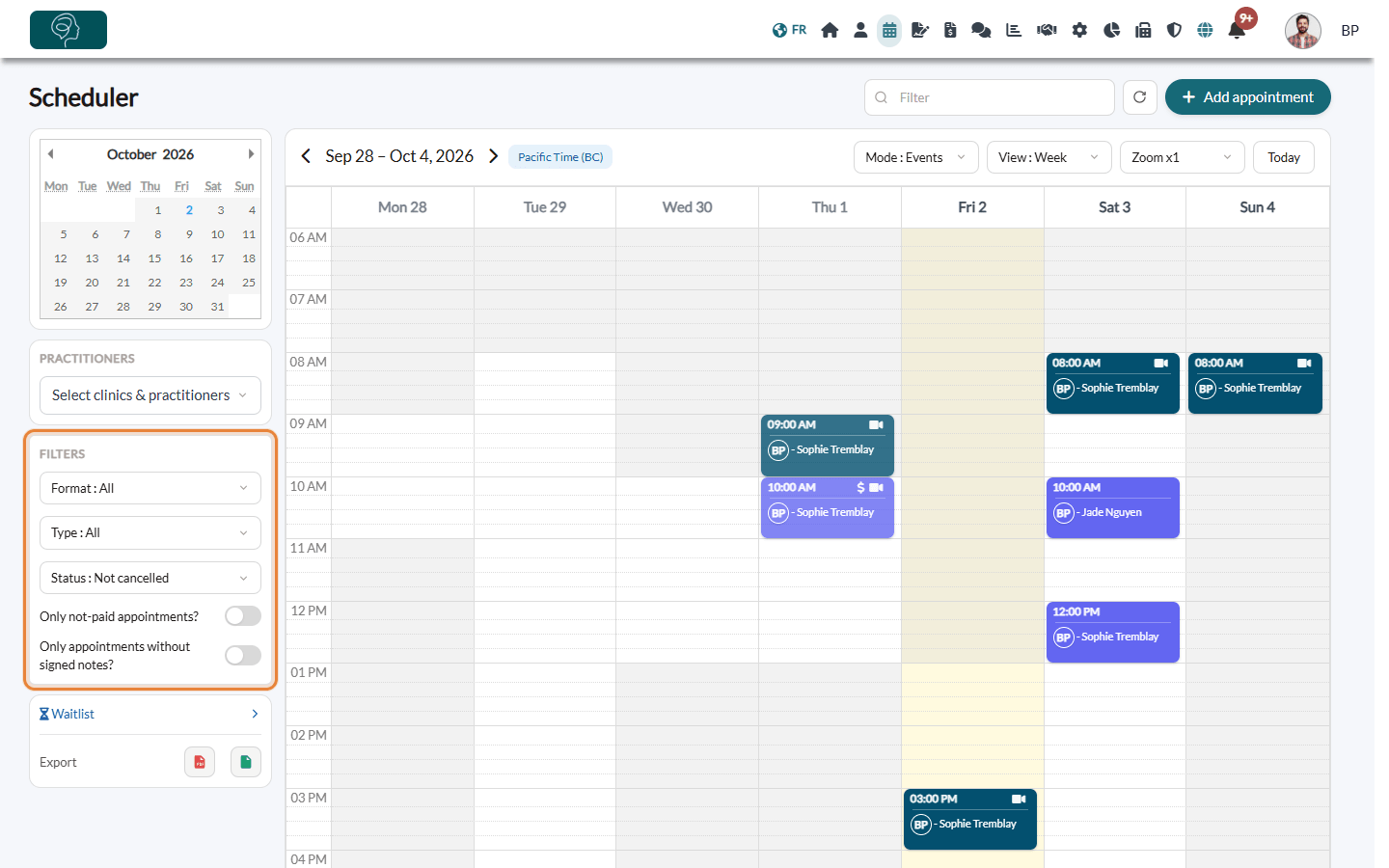
| Filter | What it shows |
|---|---|
| Format | All, Online (video appointments) or In-person. Tasks and blocked time count as in-person. |
| Type | All, or only the Appointment, Task, Busy or Other events. |
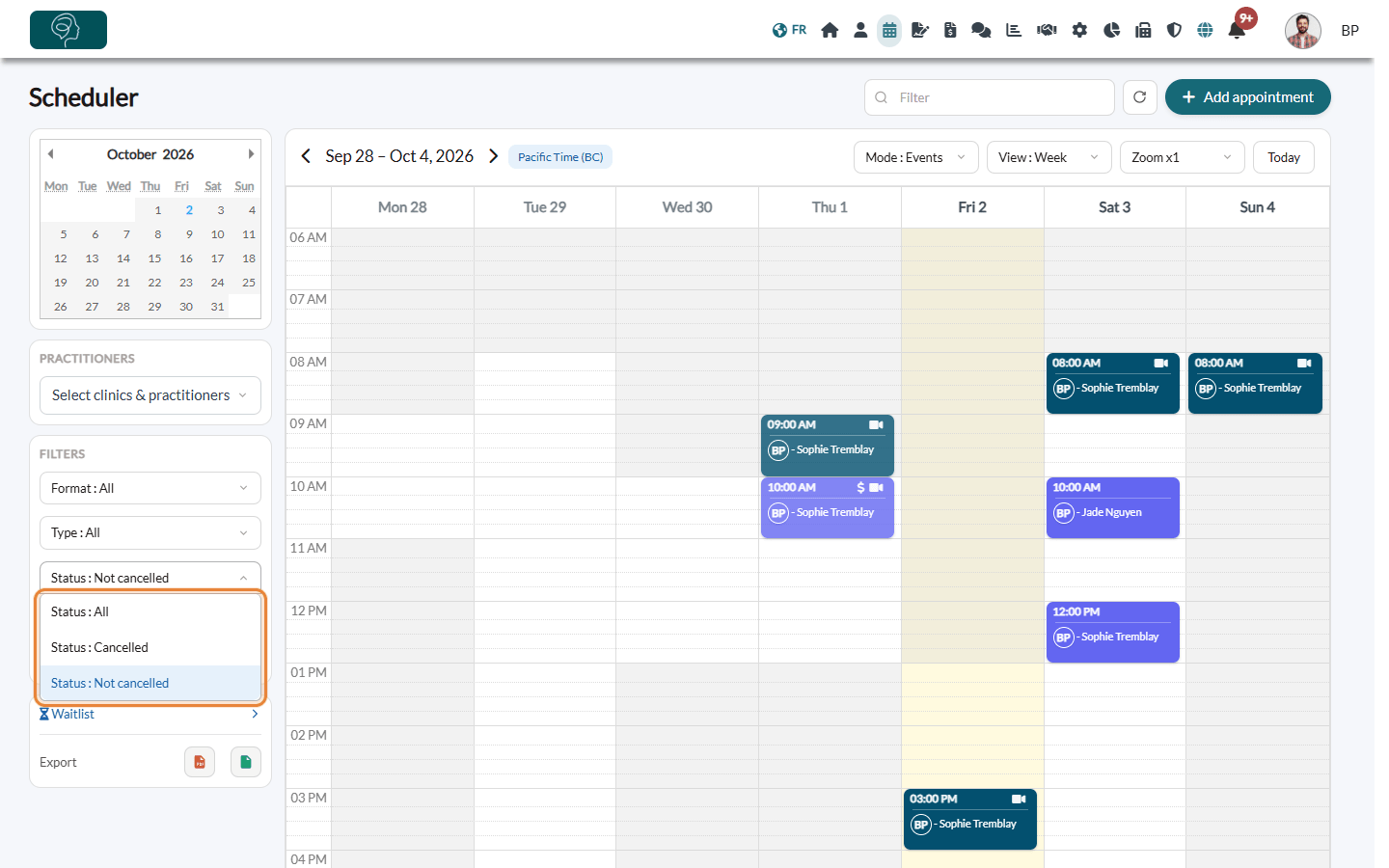
| Status | Not cancelled (the default), Cancelled (only the cancelled appointments) or All (both). |
| Only not-paid appointments? | Only the appointments that have no paid invoice yet. For a group appointment, it stays in the list until every participant has a paid invoice. |
| Only appointments without signed notes? | Only the appointments that have no signed note yet. |
When one of the two switches is on, tasks and blocked time are hidden: only appointments are shown.
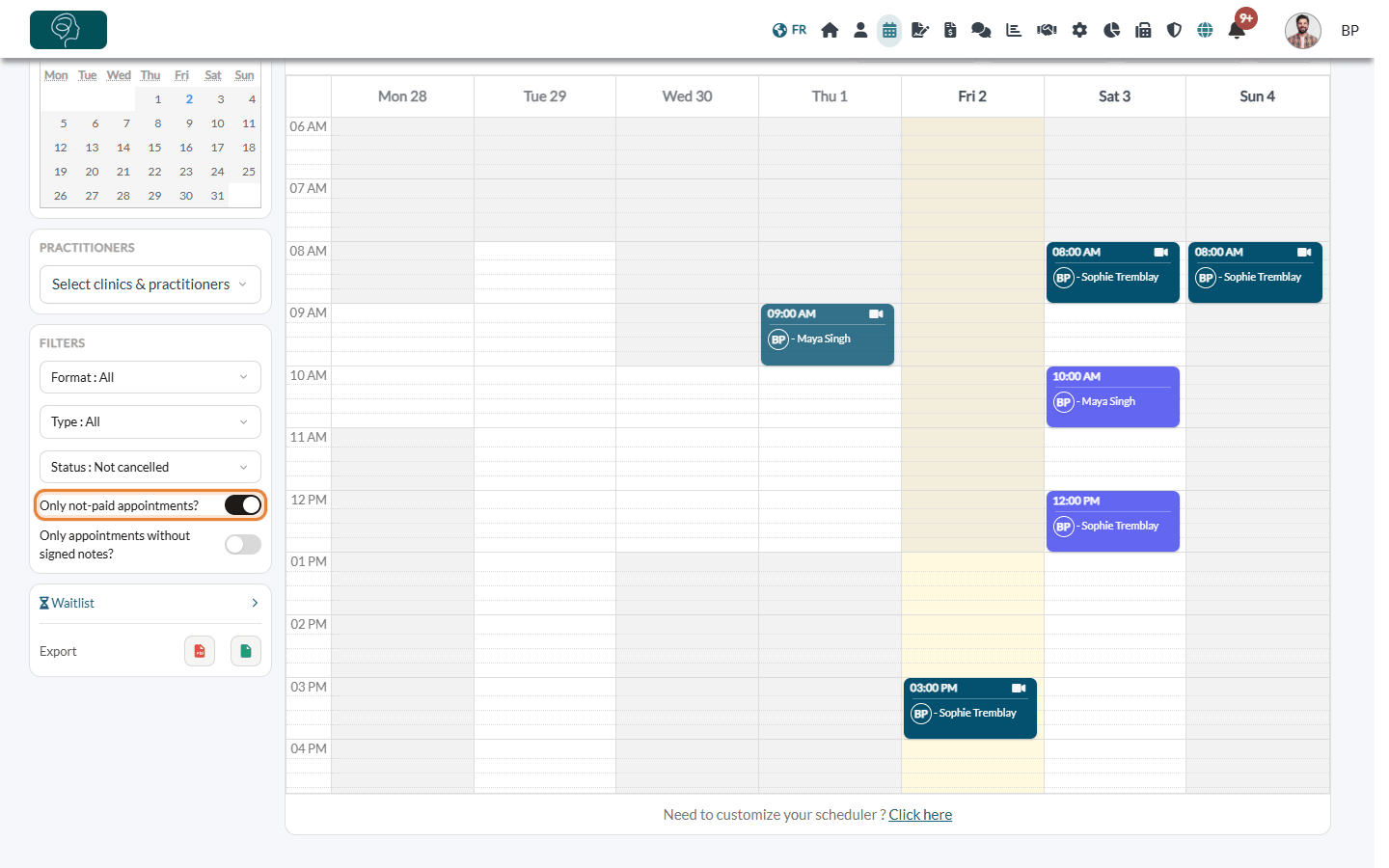
Tip: at the end of the week or of the month, choose the Month or List view and turn on Only not-paid appointments? to find the appointments still to invoice, then Only appointments without signed notes? to find the notes to sign. See How to create and send an invoice or a receipt and How to work efficiently with notes on Colib?
3Search with the Filter field
- Click the Filter field at the top of the scheduler, next to Add appointment.
- Type a word: a client's name, the title of an event, a practitioner's name, an appointment type, a room or an answer to the booking question.
- After a short moment, the calendar only shows the matching events of the displayed period. Erase the text to see everything again.
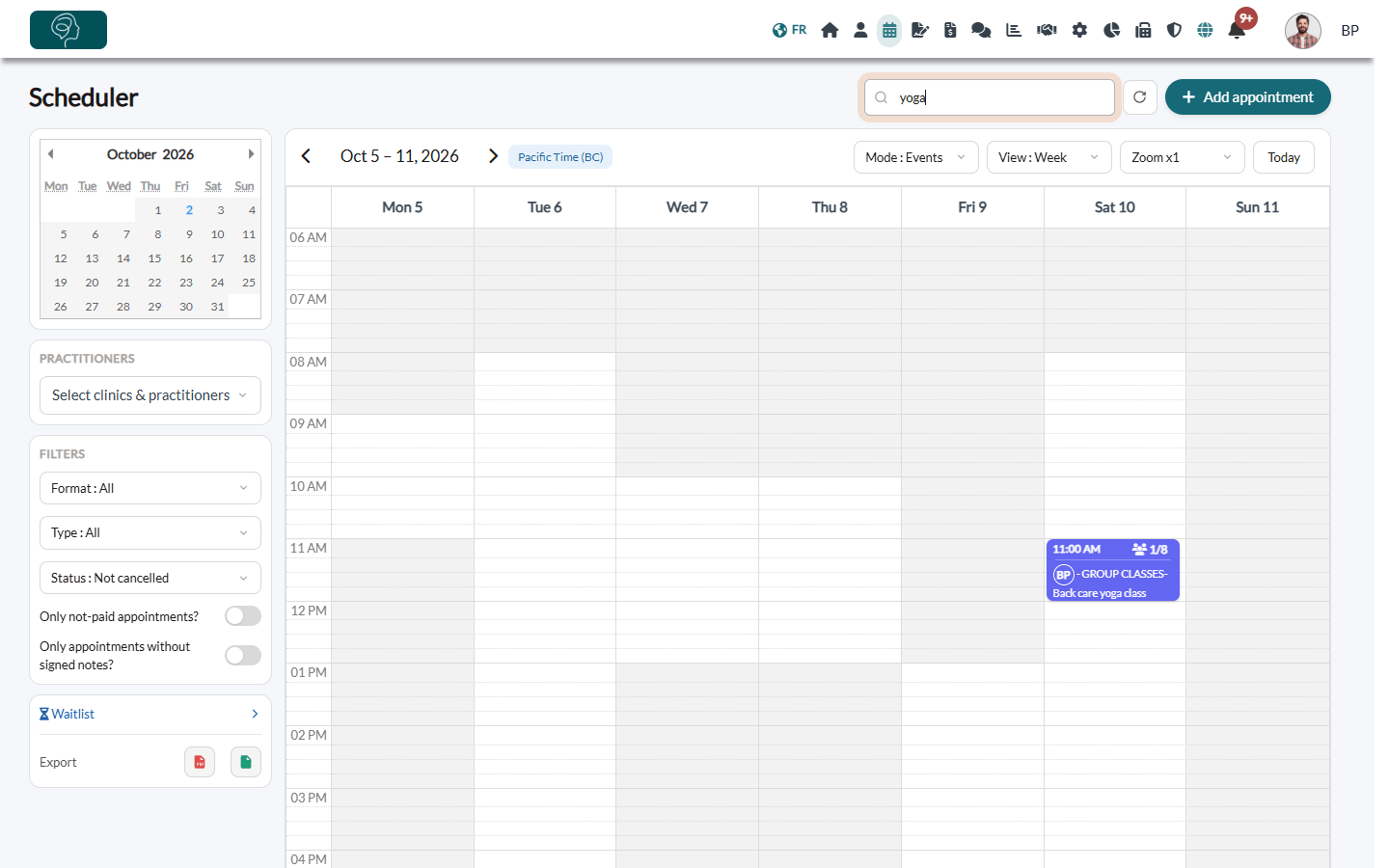
The search also applies to the selected practitioners and to the filters of step 2.
Good to know
- What is remembered — the practitioners you select are remembered on the same computer and browser. The Filters and the Filter field go back to their default values when you open the scheduler again.
- The first time — only your own schedule is selected. A team member who is not a practitioner chooses the practitioners to display.
- Access rights — a member who is not allowed to see the data of the other practitioners only sees their own schedule. With several clinics, the appointments of the clinics you are not assigned to are not shown, except your own. See What are the different levels of rights/options for the members of my practice? and Assigning practitioners and configuring client visibility.
- Rooms — in the Rooms mode, the Practitioners box is replaced by a Rooms box to choose the rooms to display.
- Print or export — the PDF and Excel exports at the bottom of the left column use the period displayed, the selected practitioners and the Format, Type, Status and Only not-paid appointments? filters.
- Several clinics — see How do filters change in Colib after creating several clinics?
- Appointments without invoice — to be notified automatically, see How to get notified when an appointment has no invoice attached?
Still have a question?
Write to us at support@colib.io, we will be happy to help.
Was this article helpful?
That’s Great!
Thank you for your feedback
Sorry! We couldn't be helpful
Thank you for your feedback
Feedback sent
We appreciate your effort and will try to fix the article