Who is this article for?
Small icons are displayed in the top right corner of the appointments on your scheduler. They tell you at a glance whether an appointment is confirmed, completed, cancelled, paid, online, and more, without opening it. This article explains every icon, and the other visual cues of the scheduler.
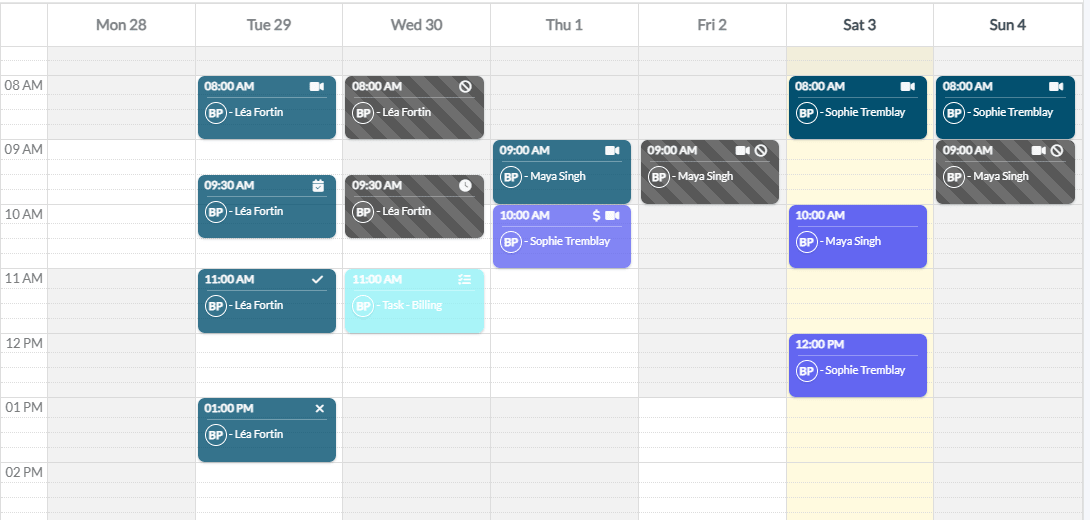
The icons on appointments
Hover over an icon to see its meaning. An appointment can show several icons at once (for example, paid and online).
| On the scheduler | Meaning |
|---|---|
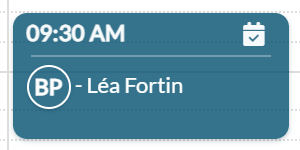 | Appointment confirmed (calendar with a check mark) — the status of the appointment is Confirmed. The status changes to Confirmed automatically when the client clicks the confirmation link of the email or SMS reminder. Your team can also choose this status in the appointment. |
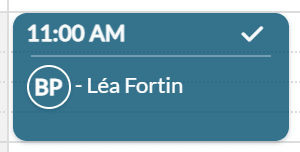 | Appointment completed (check mark) — the status of the appointment is Completed. |
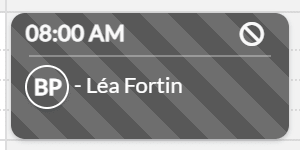 | Canceled (no-entry sign) — the status of the appointment is Cancelled. A cancelled appointment is also shown in grey with stripes. |
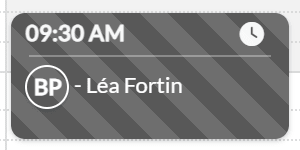 | Late-cancelled (clock) — the status of the appointment is Late-cancelled. It is also shown in grey with stripes. |
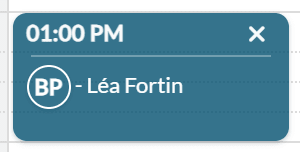 | No-show (cross) — the status of the appointment is No-Show: the client did not come. |
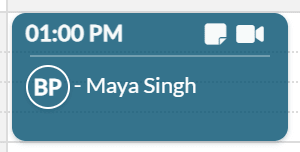 | Appointment has a signed note (sticky note) — at least one note has been signed for this appointment. |
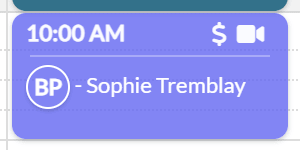 | Appointment paid (dollar sign) — at least one invoice with the Paid status is linked to the appointment. For a group appointment, the icon appears once every client of the appointment has a paid invoice. |
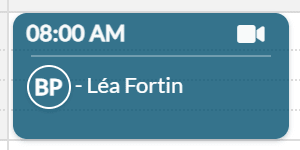 | Online appointment (video camera) — the appointment includes an online meeting. |
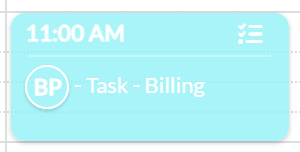 | Task (list) — this event is a task, not an appointment. See How to use tasks in your scheduler. |
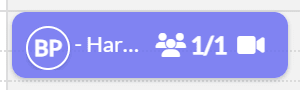 | Booked clients (group of people and a number) — for a group appointment, the number of booked clients and the maximum number of participants (for example, 5/10). See How to set up group and class appointments. |
| Two arrows in a circle | Synchronized from an external calendar — a busy period imported from your synced Google or Outlook calendar. See How to sync your Colib scheduler with Google Calendar or Outlook (two-way sync). |
Status icons: only one status icon is shown at a time. A cancelled or late-cancelled appointment shows its cancellation icon, otherwise a confirmed appointment shows the confirmed icon, otherwise a completed appointment shows the completed icon. The Scheduled and Rescheduled statuses have no icon. To change the status of an appointment, please see the article titled "How to mark an appointment as confirmed, completed or no-show". To cancel it, see How to cancel an appointment: for practitioners and clients.
Other visual cues of the scheduler
- Circle with initials — the initials of the practitioner of the appointment, followed by the name of the client.
- Color of the appointment — by default, it is the color of the practitioner; if the color code by appointment type is turned on, it is the color of the appointment type (unless a color was chosen for this appointment). See Can I use the color code for different appointment types?
- Icon next to a date (calendar with a cross) — that day is a public holiday, or an appointment pause applies to at least one of the selected practitioners. Hover over the icon to see its name. See How to pause online bookings (vacations, absences, closures).
- Light and greyed areas — the light areas are the times when the practitioner is available, the greyed areas are outside the availability. See How can I update the days and hours that I work?
- Asterisk on a shift — in the Availability mode, a shift open to all appointment types shows an asterisk. See How to manage your shifts (extra availability).
Good to know
- Where icons are displayed — icons appear in the day and week views of your Scheduler (www.colib.io/scheduler). To save space, they are hidden in the Week by practitioner and Week by room views when two or more practitioners are selected, and in the Month and List views.
- Short appointments — for an appointment of 30 minutes or less, the time is not shown and everything fits on one line, with the icons on the right.
- See cancelled appointments — by default, the scheduler hides cancelled appointments (Status : Not cancelled filter on the left). Change this filter to display them.
- Related filters — in the filters on the left, Only not-paid appointments? and Only appointments without signed notes? show only the appointments without the paid icon or without the signed note icon.
Still have a question?
Write to us at support@colib.io, we will be happy to help.
Was this article helpful?
That’s Great!
Thank you for your feedback
Sorry! We couldn't be helpful
Thank you for your feedback
Feedback sent
We appreciate your effort and will try to fix the article