Who is this article for?
Clinical notes take time. This article gathers the Colib tools that help you write them faster and never forget one: templates, dictation, the AI assistant, AI-generated notes, drafts and the list of appointments still waiting for a signed note. Each section links to the detailed article. You will also find all the articles about notes in the Notes section of the help center.
New to notes in Colib? Start with the basics: open the client's record, click the Notes tab (or New note under the client's name), write, then check Sign note and click Save.
1Start from a template
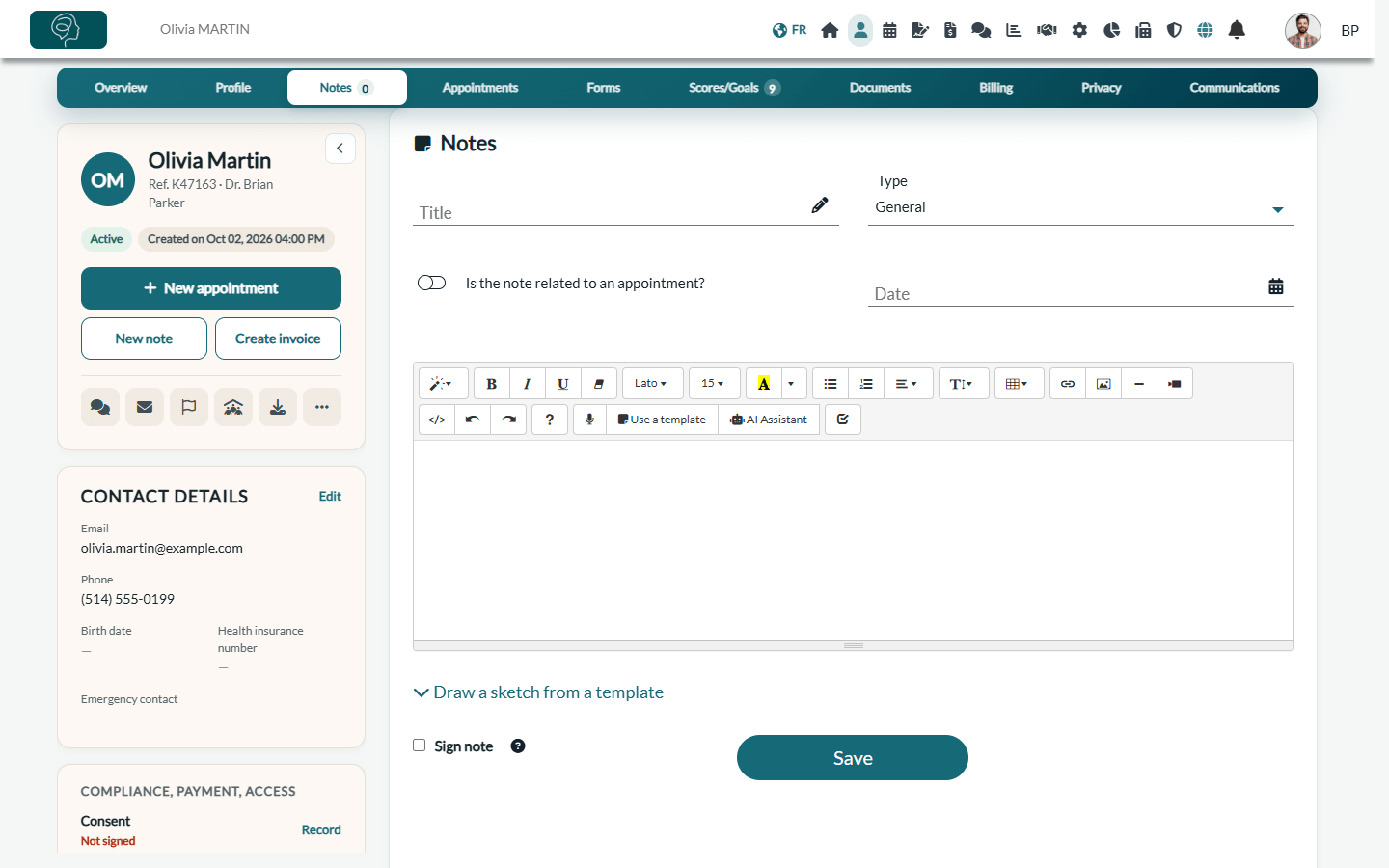
- In the note editor, click Use a template: its text is inserted and you only fill in the blanks.
- Create your templates in Settings > Notes (www.colib.io/settings?show=notes), section Templates: click Create Template, or Import Template From Library to start from a ready-made model.
- Add client data tags (name, birth date, etc.) to your templates so that they fill themselves in. See How to use client data tags in notes templates and How can I use note templates to create new notes?.
2Write faster in the editor
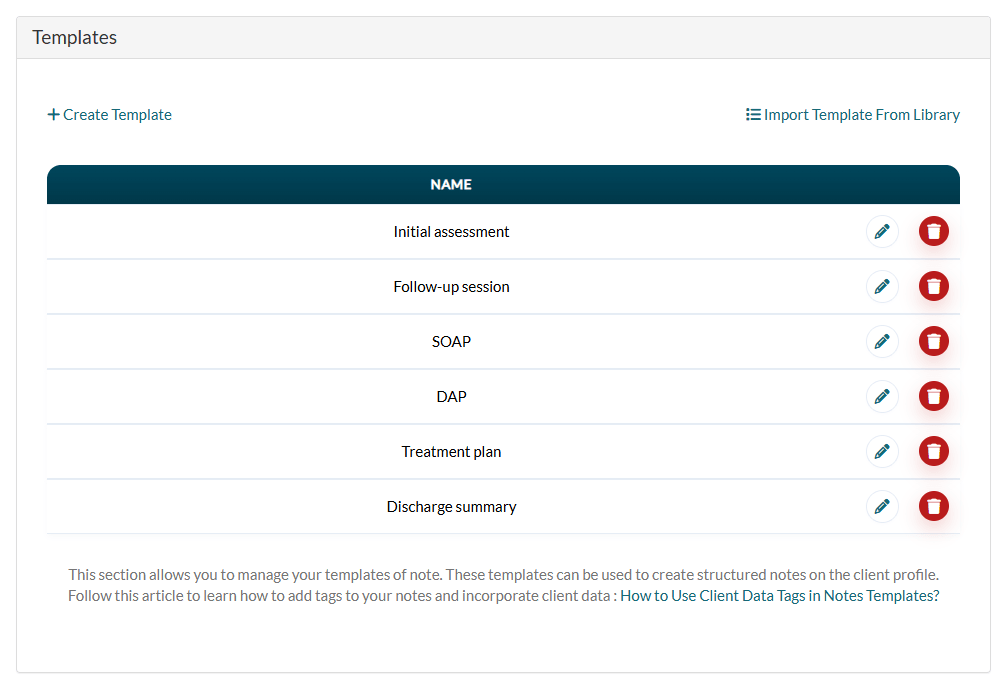
- Dictate — click the microphone in the toolbar and speak. See How can I use the voice recognition tool to create a note?.
- AI Assistant — corrects grammar and typos or rewrites your text (for example in a SOAP format). Always review the result.
- Draw a sketch from a template — draw on an image template and add the drawing to the note.
- Images and documents — insert them in the note. See How to attach documents and images to client notes.
3Let the AI draft the note
After an online session, or from an audio recording of an in-person session, Colib can write the draft of the note for you; you review it and sign it.
- How does the artificial intelligence note generation work?
- How to generate AI-powered session notes without using Colib's telehealth system
- How to select a different template for each type of appointment
- How to personalize AI-generated notes (point of view, writing style, text format, level of detail)
- How to include previous session history in AI note generation
- How to disable AI-generated notes for a specific client and How billing works for AI-powered notes
4Write the note from the appointment
In the scheduler (www.colib.io/scheduler), open the appointment and click More actions > Create note: the client's Notes tab opens with the note already linked to that appointment. In the editor, Is the note related to an appointment? also lets you link a note to one of the client's appointments.
5Never lose a note in progress
While you type, Colib keeps a draft of the note. If you leave the record before saving, you find your text when you come back. Your unfinished drafts are listed on the home page (www.colib.io/establishmentadmin/home) under Notes to resume. A draft is only visible to you.
6See which notes are missing
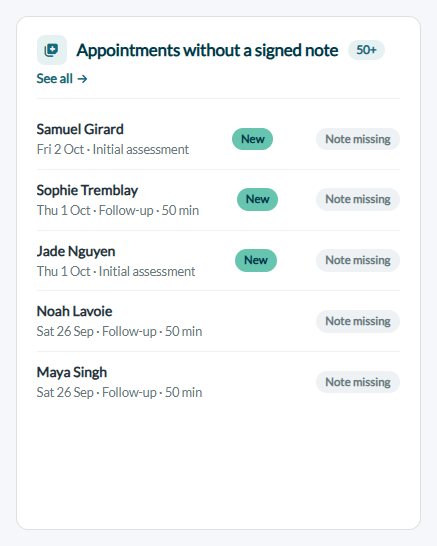
- On the home page (www.colib.io/establishmentadmin/home), the Appointments without a signed note card lists the past appointments that still have no signed note. Click an appointment to open it.
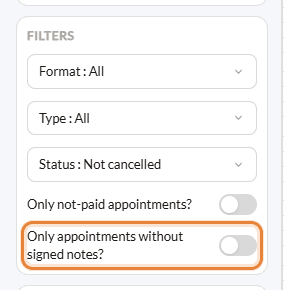
- In the scheduler (www.colib.io/scheduler), turn on Only appointments without signed notes? in the Filters of the left panel to see only those appointments.
- In the scheduler, an appointment that has a signed note shows a small note icon.
7Sign, complete and share
- A signed note can no longer be edited: to add information, open it and write an addendum.
- Add your handwritten signature automatically to your signed notes: see How to automatically add your handwritten signature to notes.
- Share a note with the client on the client portal: see How can I securely share notes with my clients?.
- The Note history of the client lets you filter the notes by type, search a word and Expand view to read them one after the other.
Still have a question?
Write to us at support@colib.io, we will be happy to help.
Was this article helpful?
That’s Great!
Thank you for your feedback
Sorry! We couldn't be helpful
Thank you for your feedback
Feedback sent
We appreciate your effort and will try to fix the article