Who is this article for?
Colib offers several features that use artificial intelligence (AI): automatic notes after online sessions, a rewriting assistant for your notes, the creation of forms from an existing document and voice dictation. You decide which ones are available in your practice.
This article is for practice administrators. It explains where to turn each feature on or off, how to limit automatic notes to some practitioners or appointment types, and how to follow the use of AI in your practice.
Before you start: these settings apply to the whole practice and require access to the practice settings. To read how Colib uses AI and protects your data, see our artificial intelligence policy.
1Open the AI settings
- Go to www.colib.io/settings?show=artificialintelligence. You can also click the Settings icon (gear) in the top bar, then AI in the Admin menu on the left.
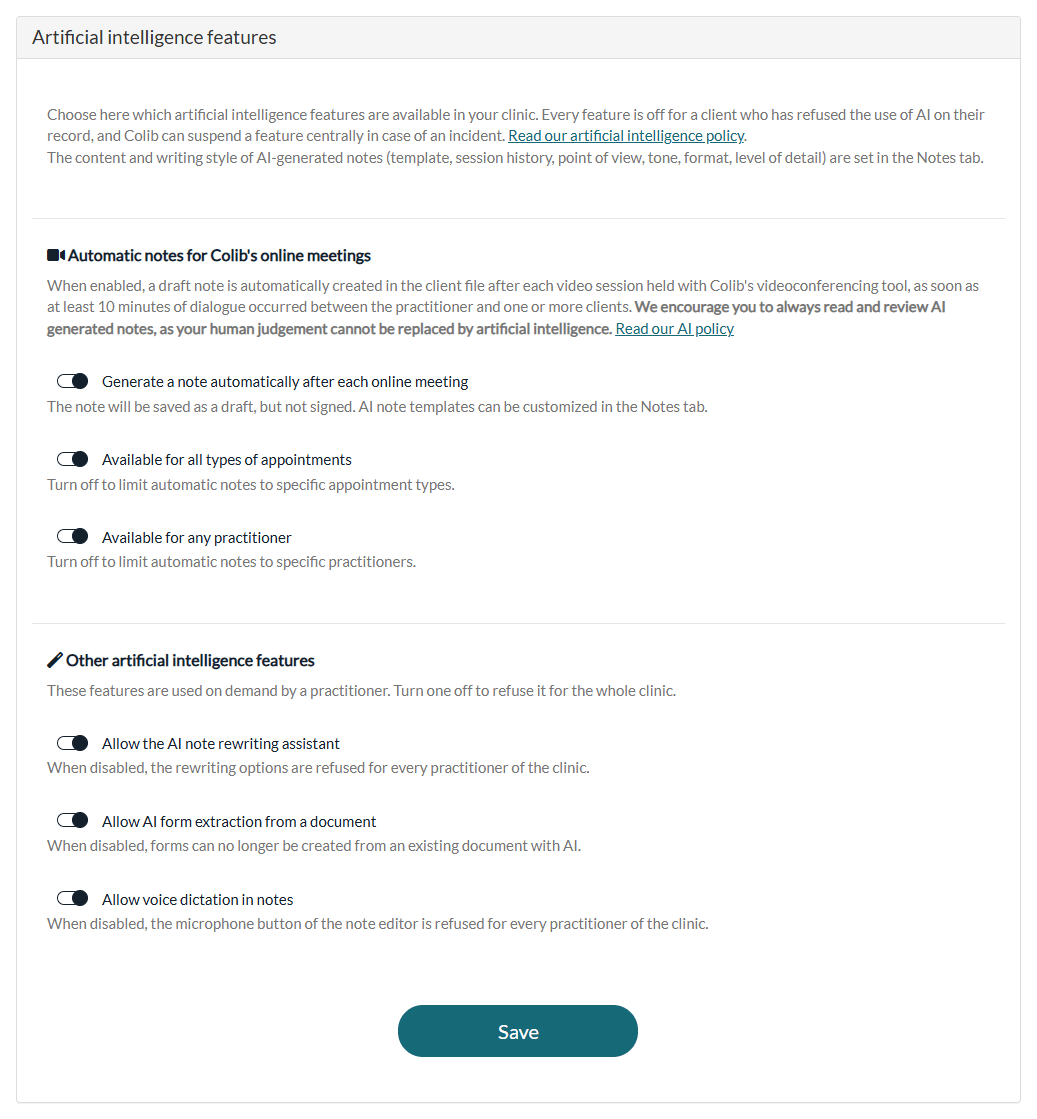
- The Artificial intelligence features section lists all the features, in two groups.
2Automatic notes after online meetings
Turn on Generate a note automatically after each online meeting to have a draft note created in the client's record after each video session held with Colib's videoconferencing tool, as soon as at least 10 minutes of dialogue took place between the practitioner and one or more clients. The note is saved as a draft and is not signed: the practitioner always reviews it before signing. This option is off for a new practice. For the details, see How does the Artificial Intelligence note generation work?
When the option is on, two more switches let you limit it:
- Available for all types of appointments — turn it off, then choose the appointment types concerned in Applicable appointment types:.
- Available for any practitioner — turn it off, then choose the practitioners concerned in Applicable practitioners:.
These two limits also apply to notes generated from the audio recording of an in-person session. See How to Generate AI-Powered Session Notes Without Using Colib's Telehealth System.
3Other AI features
These features are used on demand by a practitioner. They are on by default; turn one off to refuse it for every practitioner of the practice.
| Switch | Feature concerned |
|---|---|
| Allow the AI note rewriting assistant | The AI Assistant button of the note editor, which corrects or rewrites the text of a note. |
| Allow AI form extraction from a document | The creation of a form from an existing document (for example a paper intake form). |
| Allow voice dictation in notes | The microphone button of the note editor. See How can I use the voice recognition tool to create a note? |
4Save
Click Save at the bottom of the section. The changes apply right away to all the practitioners of the practice.
Clients who refuse AI
The settings above apply to the whole practice. For a client who does not want AI to be used on their record, turn off Allow AI-generated notes for this client in their record (Profile tab, Settings section). Colib then generates no AI note for this client, online or in person, and the rewriting assistant is refused on their notes. See How to disable AI-generated notes for a specific client?
Follow the use of AI in your practice
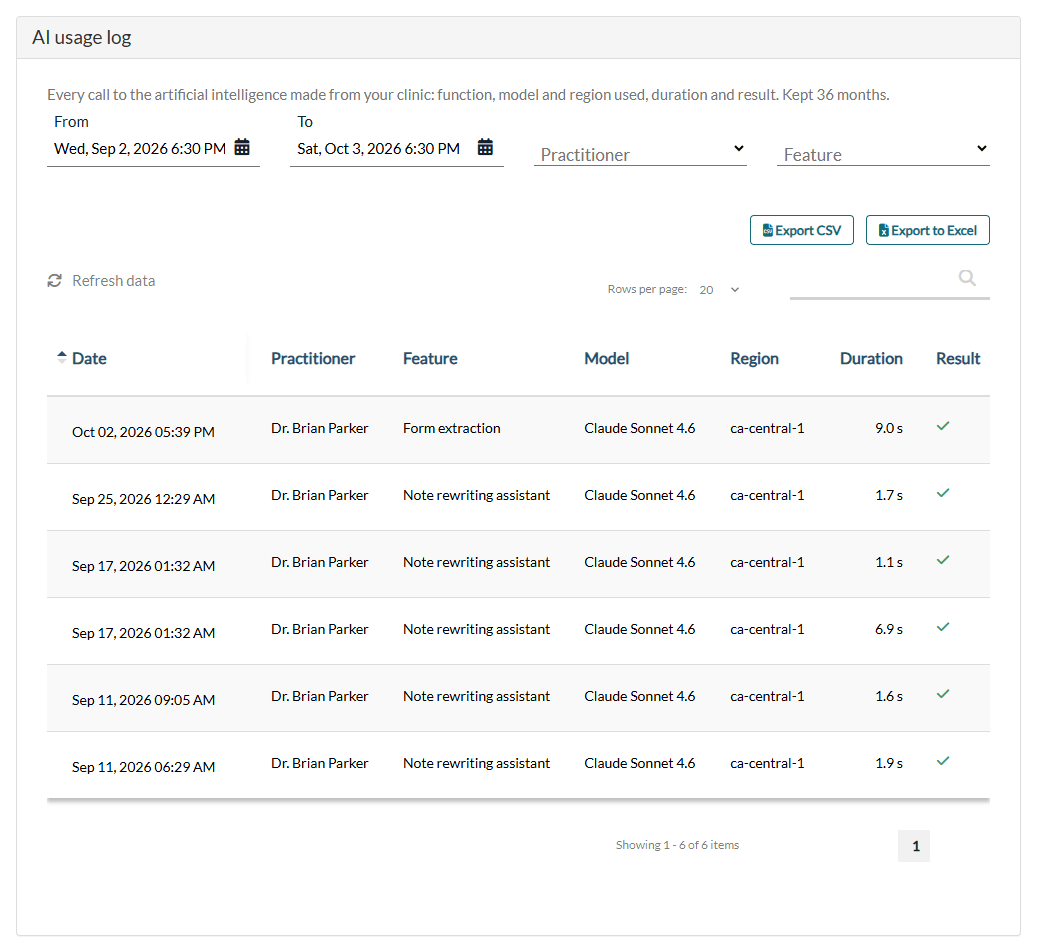
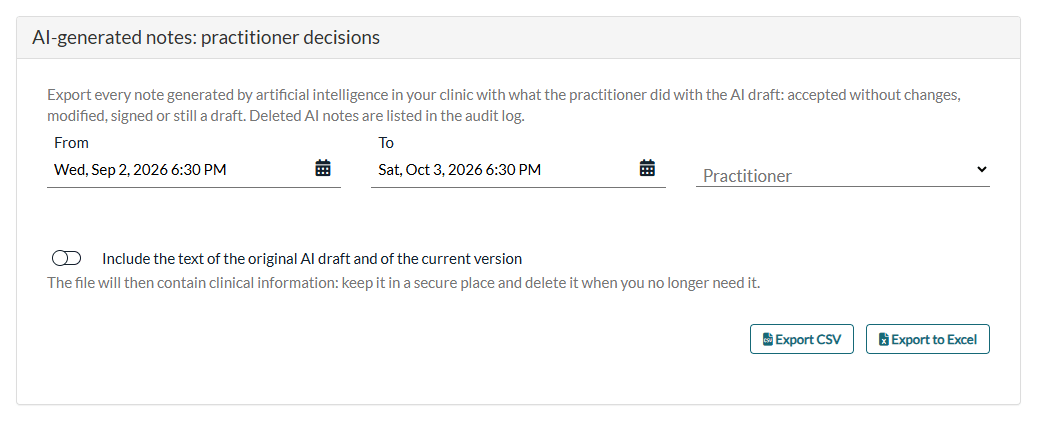
Under the features, two more sections are shown to the users who have the right to view the activity log:
- AI usage log — every call to the AI made from your practice, with the date, the practitioner, the feature, the model and region used, the duration and the result. Filter by period, practitioner or feature, and export the list with Export CSV or Export to Excel. Entries are kept 36 months.
- AI-generated notes: practitioner decisions — exports every AI-generated note of a period with what the practitioner did with the draft: accepted without changes, modified, signed or still a draft. Turn on Include the text of the original AI draft and of the current version only if you need the content: the file then contains clinical information, so keep it in a secure place.
For the activity log itself, see How to access the activity log?
Good to know
- Content and style of AI notes — the template, the session history, the point of view, the tone, the format and the level of detail of AI-generated notes are set in Settings > Notes (www.colib.io/settings?show=notes). See How to Personalize AI-Generated Notes in Colib?, How can I select a different template for each type of appointment when using AI-powered note generation? and How to include previous session history in AI note generation?
- Cost — see How billing works for AI-powered notes?
- Temporary suspension — in case of an incident, Colib can suspend an AI feature for all practices. A message then tells the practitioner that the feature is temporarily unavailable.
- Always review — AI-generated content can contain errors or omissions. The practitioner remains responsible for the clinical record and must review every note before signing it.
Still have a question?
Write to us at support@colib.io, we will be happy to help.
Was this article helpful?
That’s Great!
Thank you for your feedback
Sorry! We couldn't be helpful
Thank you for your feedback
Feedback sent
We appreciate your effort and will try to fix the article