Who is this article for?
Colib offers complete and customizable management of your rooms: treatment rooms, offices, gym, group room... You create your rooms, say which appointment types need one, and Colib makes sure the same room is never booked twice at the same time, in your scheduler and on your booking page.
Before you start: rooms are included from the Practitioner plan. On a plan that does not include them, Settings > Rooms shows This feature is not included in your current plan with an Upgrade my plan button. You also need access to the practice settings.
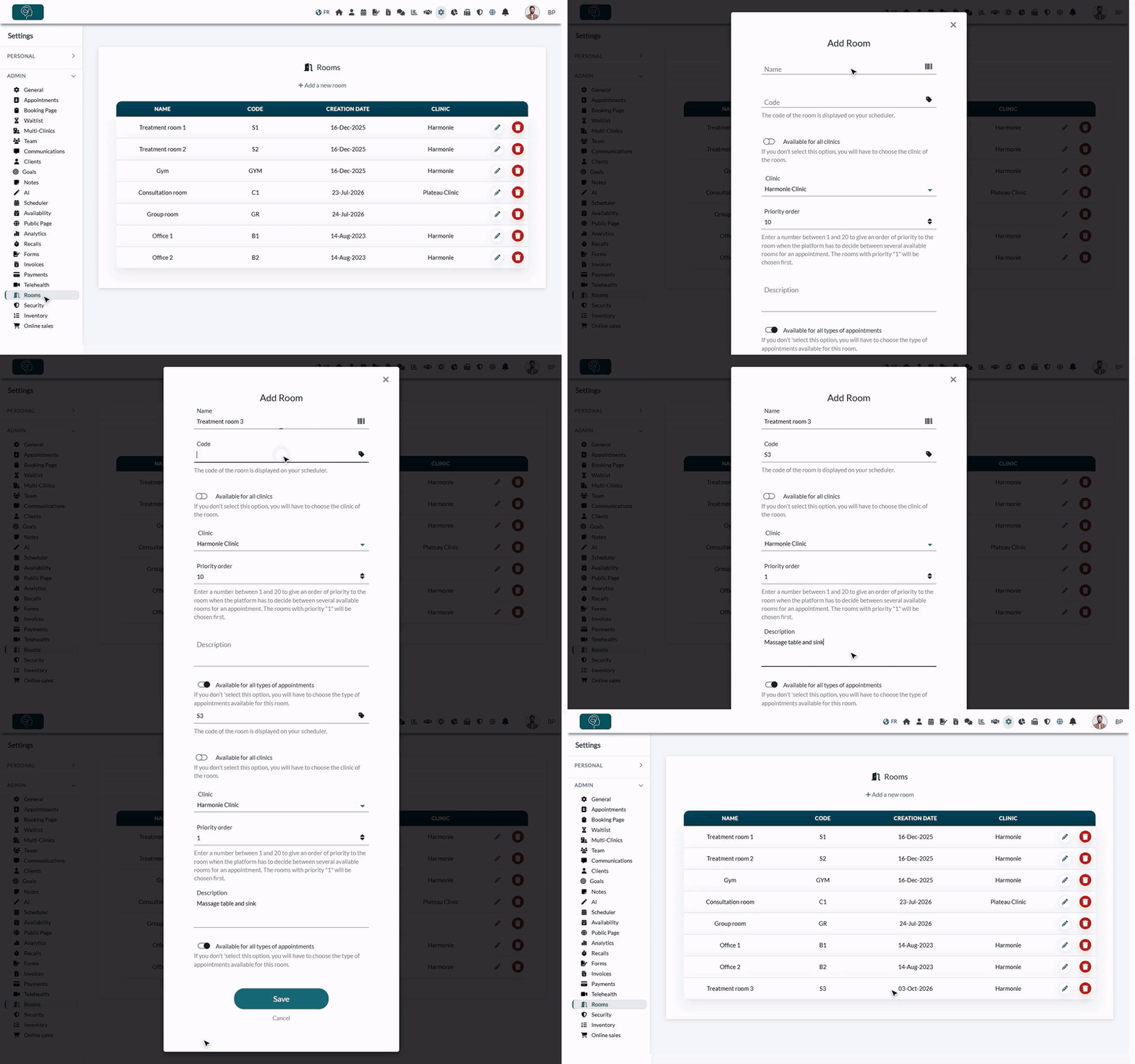
1Create your rooms
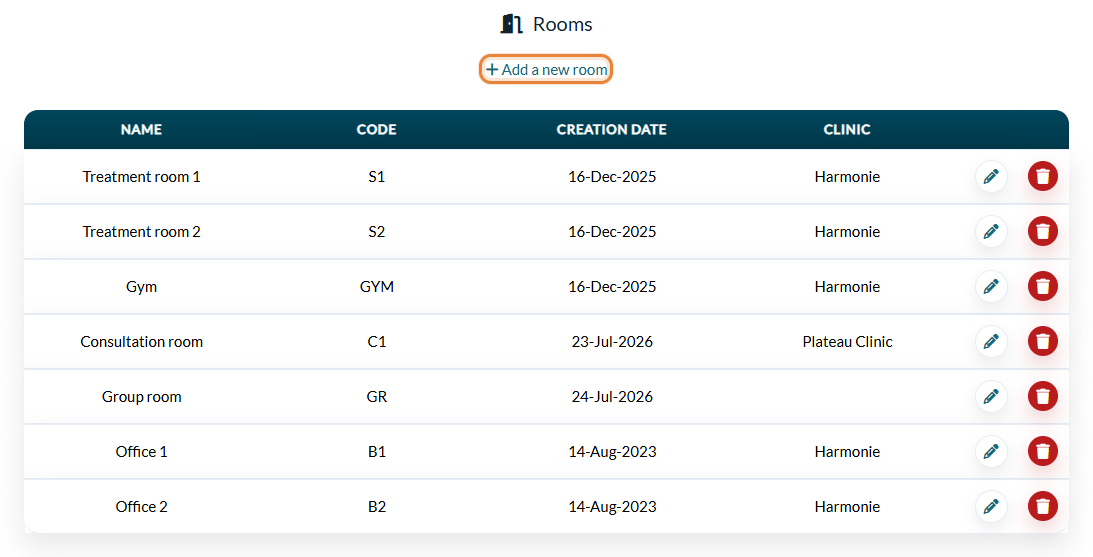
- Go to Settings > Rooms: www.colib.io/settings?show=rooms. The list shows your rooms with their name, code, creation date and clinic.
- Click Add a new room.
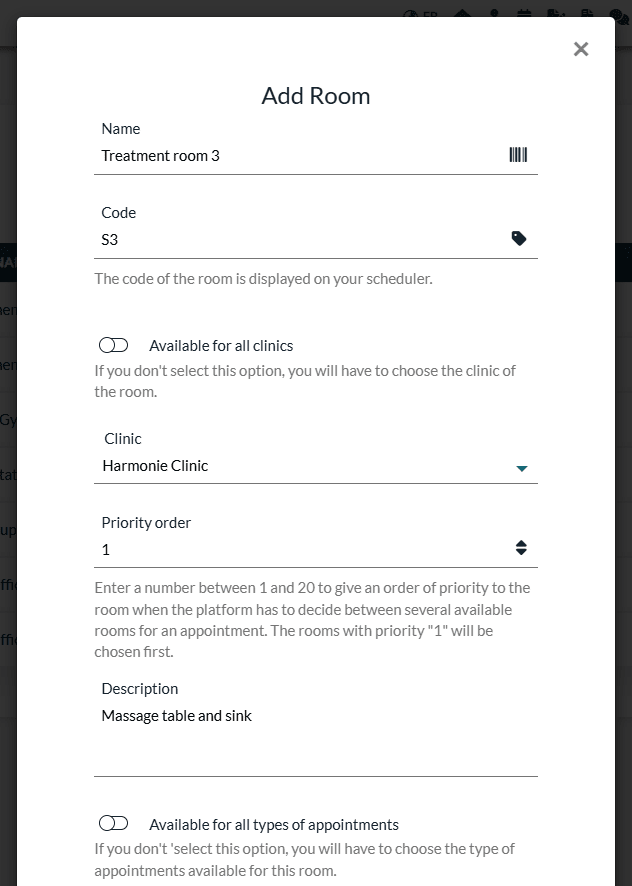
- Fill in the window (see the table below), then click Save.
| Field | What it is for |
|---|---|
| Name | The name of the room (required), for example Treatment room 3. |
| Code | A short code (up to 10 characters) displayed on your scheduler, next to the time of the appointment. |
| Available for all clinics | Practices with several clinics only. Turn it off to choose the Clinic where the room is. |
| Priority order | A number between 1 and 20. When several rooms are available, Colib chooses the room with the priority 1 first. |
| Description | Optional: equipment, floor... |
| Available for all types of appointments | On by default. Turn it off to choose the appointment types that can use this room (for example only massages in the room with the massage table). |
Two rooms cannot have the same name or the same code. To change a room, click its pencil icon; to delete it, click its trash icon.
2Require a room for some appointment types (optional)
- Go to Settings > Appointments: www.colib.io/settings?show=appointments.
- Click the pencil icon of the appointment type.
- In the General section, turn on Room required for this appointment, then save the type. This option only appears once you have created at least one room.
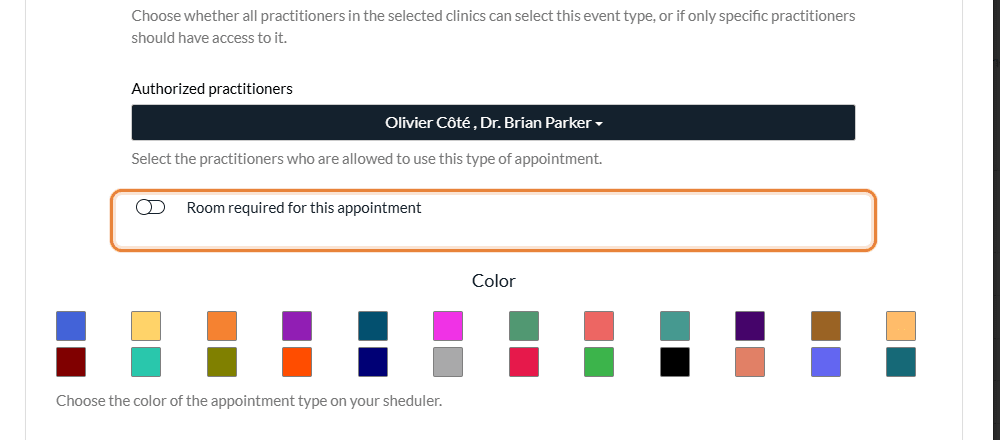
If this option is turned on for an appointment type:
- In your scheduler, an appointment of this type cannot be created or changed without an available room. If you leave the Room field empty, Colib picks an available room for you; if there is none, the appointment is not saved and a message tells you that a room is required.
- On your booking page, clients are only offered the time slots where a room is available for this type of appointment, and a room is assigned automatically to their booking.
A room is available if it is not used by another appointment during the entire appointment (cancelled appointments do not count), if it accepts this appointment type and, with several clinics, if it belongs to the clinic of the appointment or to all clinics.
3Use the rooms in your appointments
Once your rooms exist, a Room field appears in the appointment window of your scheduler (www.colib.io/scheduler):
- Choose the appointment type first: the list only shows the rooms that accept it.
- Choose a room, or click Find an available room: Colib selects the free room with the best priority for the type, the date and the times of the appointment (A room has been found.).
- Save the appointment.
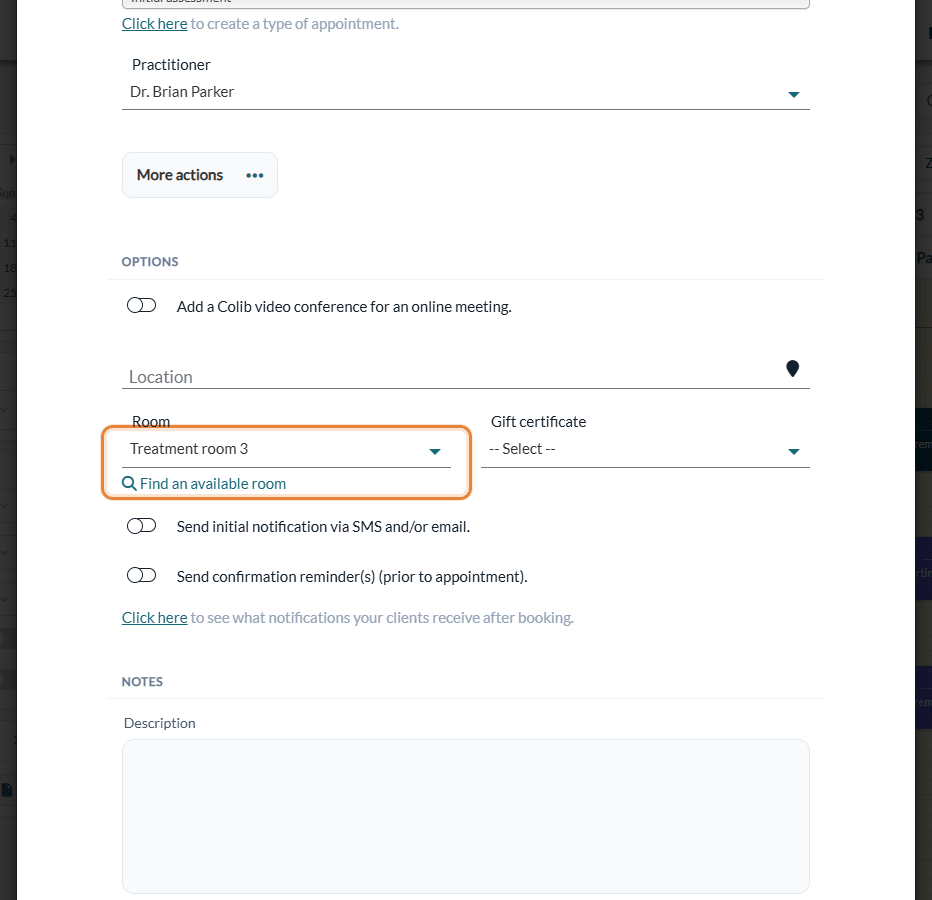
If the room you chose is already taken at that time, Colib tells you that the room is not available and does not save the appointment. The same check applies when you drag an appointment to another time.
4See your scheduler by room
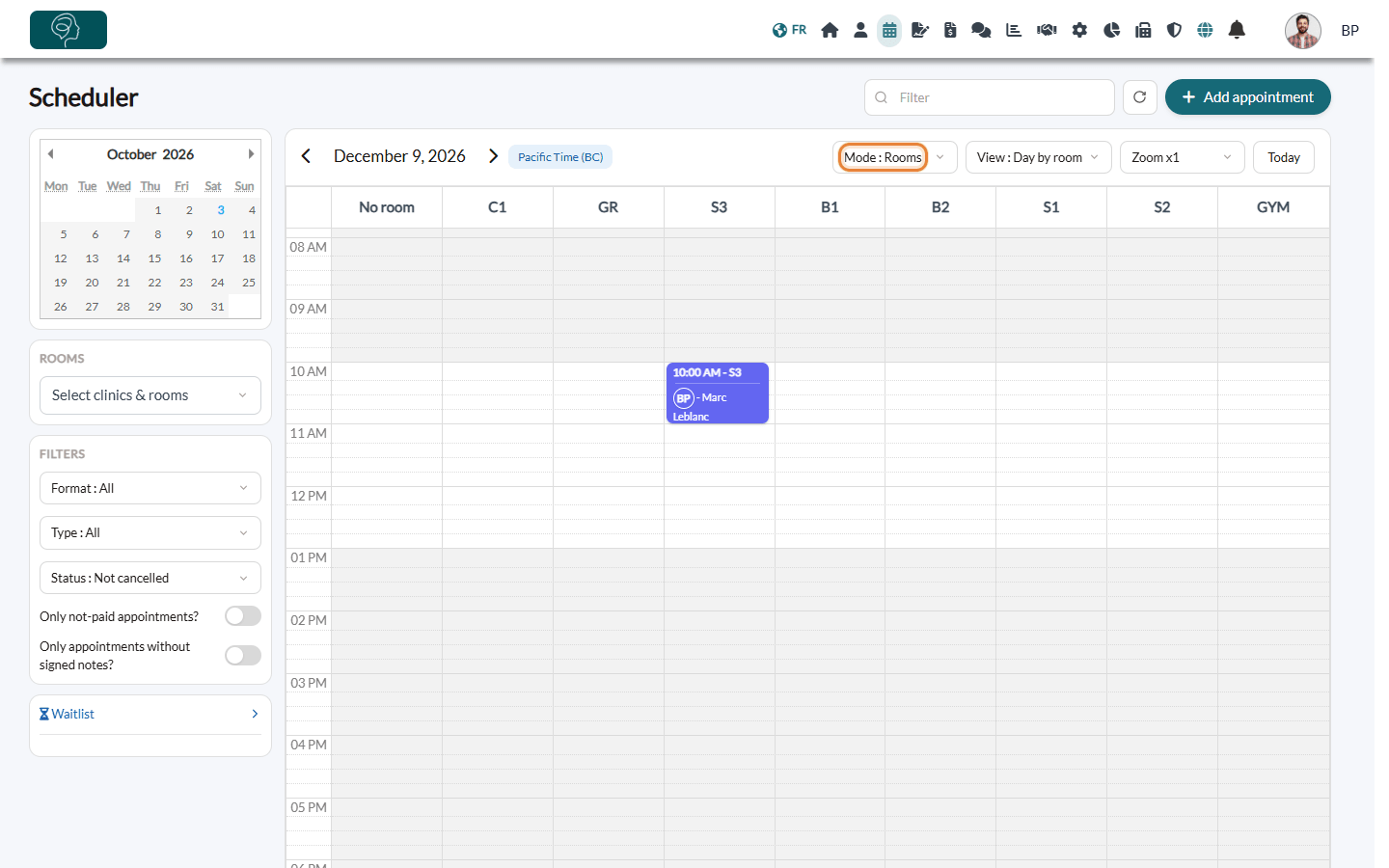
- In the scheduler, open the Mode menu and choose Mode : Rooms.
- In the View menu, choose Day by room or Week by room: each room has its own column (titled with its code), plus a No room column.
- Use the Rooms section on the left to choose the rooms (and clinics) to display.
Good to know
- Where the room appears — the room code is shown on the appointments of your scheduler, and you can search the scheduler by room name or code. The room is also added to the location of the events synchronized with your Google or Outlook calendar. Clients do not see the room in their notifications or on the booking page.
- Recurring appointments — each appointment of a series keeps the room only on the dates where it is free; otherwise that appointment is created without a room. Check those dates in the scheduler. See How to create and edit recurring appointments
- Deleting a room — the room is removed from your upcoming appointments (they no longer have a room); past appointments keep it.
- Cancelling an appointment frees its room.
Still have a question?
Write to us at support@colib.io, we will be happy to help.
Was this article helpful?
That’s Great!
Thank you for your feedback
Sorry! We couldn't be helpful
Thank you for your feedback
Feedback sent
We appreciate your effort and will try to fix the article