Who is this article for?
This article is for practitioners trained in EMDR who see clients by video on Colib. The built-in EMDR tool provides bilateral stimulation during the session: your client follows a moving dot on screen and can hear a short sound in the left or right ear, while you keep your client's video large and control each set.
Before you start: only practitioners can open and control the tool. Your client has nothing to install or set up. We recommend a computer for the practitioner, and headphones for the client so the sound reaches the correct ear.
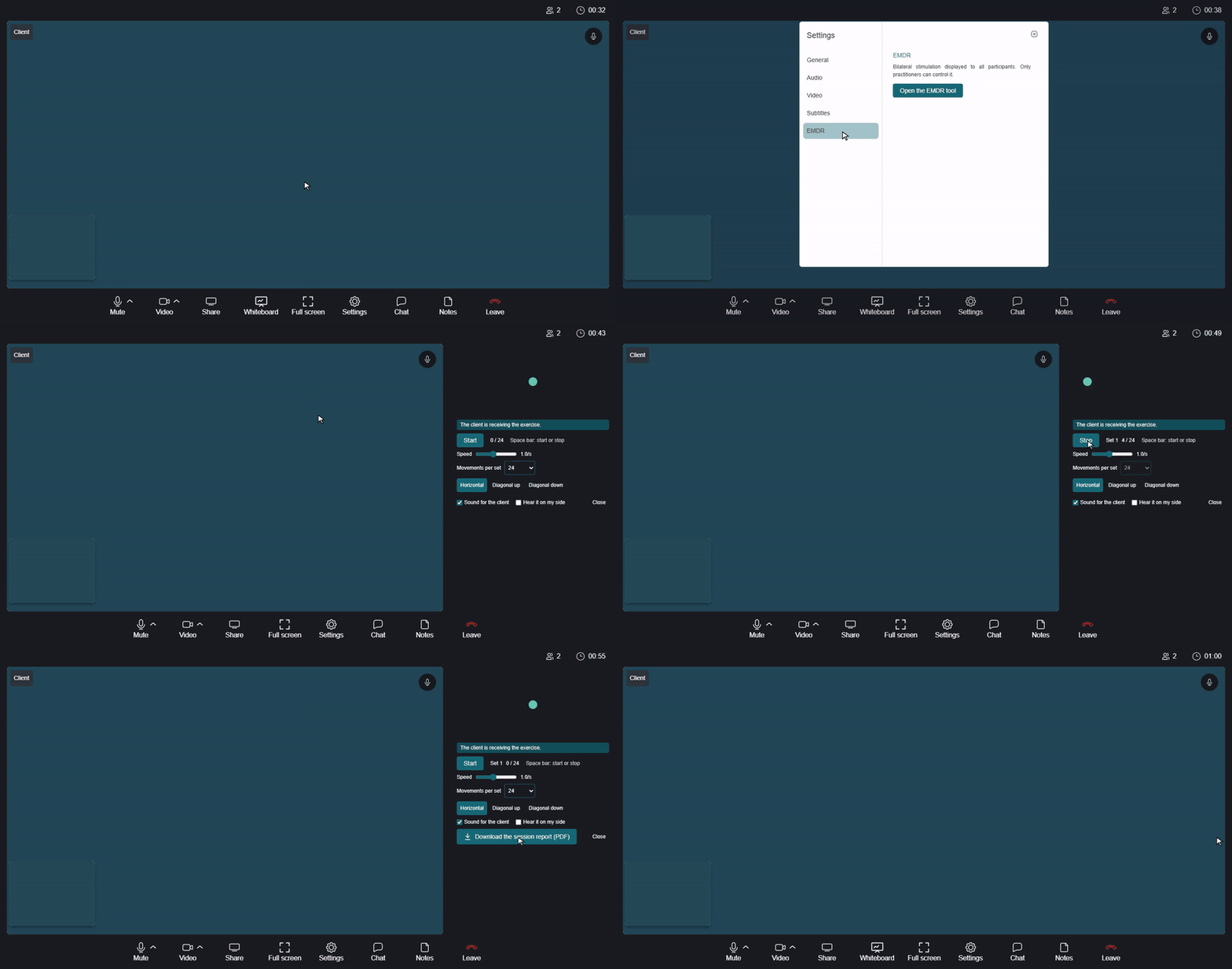
1Open the EMDR tool
- During the video session, click Settings (gear icon) in the control bar at the bottom of the screen.
- Click EMDR.
- Click Open the EMDR tool.
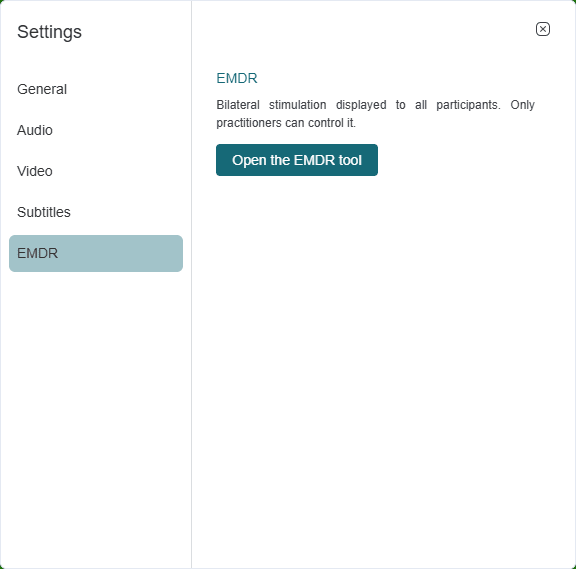
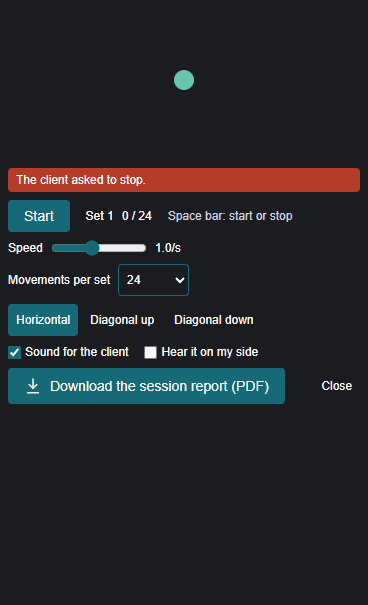
The tool opens at the same time for all participants. On your screen, your client's video stays large so you can observe your client, and a small preview of the dot appears above your settings. If the shared whiteboard was open, it is hidden while you use the EMDR tool and comes back when you close it.
2Choose your settings
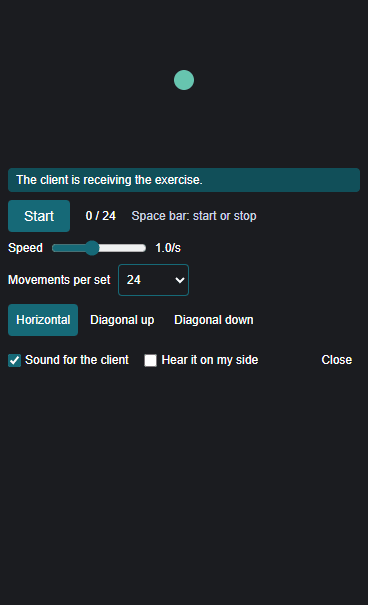
| Setting | What it does |
|---|---|
| Speed | From 0.3 to 2.0 movements per second (1.0 by default). You can change it during a set. |
| Movements per set | 12, 24, 36, 48 or 60 (24 by default), or No limit if you prefer to end the set yourself. One movement is a full round trip of the dot. This setting is locked during a set. |
| Horizontal, Diagonal up, Diagonal down | The path of the dot. You can change it during a set. |
| Sound for the client | Turns the left and right sounds on or off for participants. |
| Hear it on my side | Lets you hear the sound too, with a Volume setting. This option is off by default, because your speakers could otherwise be picked up by your microphone. |
3Run a set
- Click Start, or press the space bar so you can keep your eyes on your client. The space bar keeps its usual role while you type in a text field, such as your notes or the chat.
- Follow the set on your screen: the set number and the movement count update as it runs.
- The set ends on its own after the chosen number of movements. To end it sooner, click Stop or press the space bar again.
- Start another set whenever you are ready. The set number increases each time.
A set with No limit continues until you stop it. For safety, it ends on its own after 10 minutes without a new command from you, for example if your connection drops.
4What your client sees
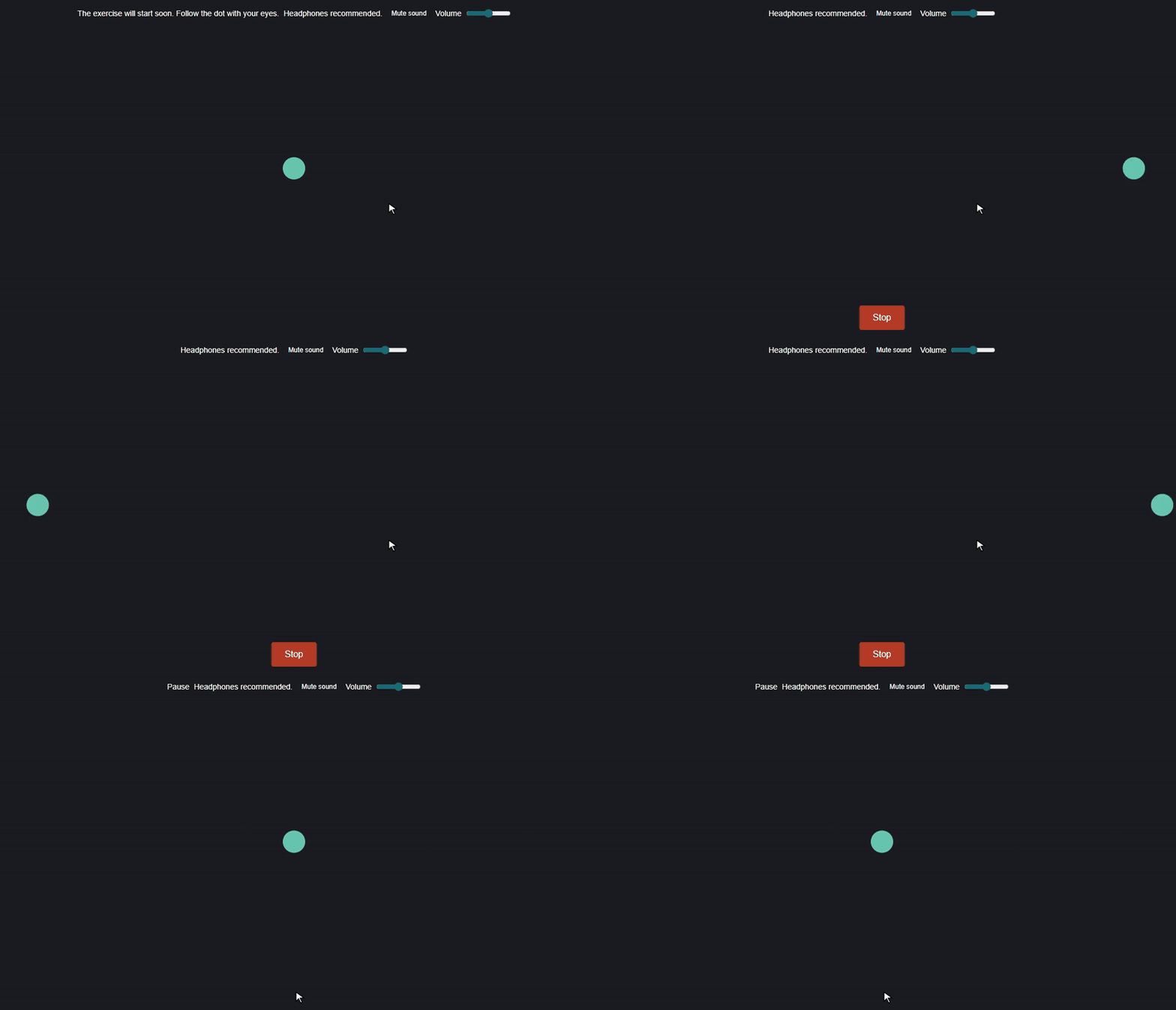
- Before the first set: a message tells your client that the exercise will start soon and to follow the dot with their eyes. If the sound is on, it also recommends headphones.
- The dot: it takes up most of the screen, with the videos alongside. Your client follows it with their eyes.
- Stop: during a set, this button stops the dot right away and alerts you.
- Sound: your client can use Mute sound or Unmute sound and adjust the Volume.
- Enable sound: this button appears if the browser blocked the sound. Your client clicks it to turn the sound on.
- Pause: this word appears between two sets. The next step is up to you.
Your client cannot change the settings or start a set. In a session with several clients, any client who clicks Stop ends the set for everyone.
5Check what is happening on your client's side
The dot runs in each participant's browser, so a message above your settings tells you what is happening on your client's side:
| Message | What to do |
|---|---|
| The client is receiving the exercise. | Everything is working. |
| The client asked to stop. | The set has stopped. You also get a notification. Check in with your client before continuing. |
| The client has muted the sound. | Your client can still follow the dot. Ask your client to turn the sound back on if you need it. |
| Sound is blocked on the client side. Ask the client to press Enable sound. | Ask your client to click Enable sound. |
| The client has not received the latest command. | Your client may have a connection problem. Check with your client before continuing. |
| No client is connected. | Wait for your client to join the session. |
6Download the session report (PDF)
Once a set has ended, Download the session report (PDF) appears in the tool. You can also find it in Settings > EMDR after closing the tool. Only practitioners have access to this button.
The report shows the appointment details (clinic, date and practitioner), the number of sets, the total movements and the total stimulation time. For each set, it lists the start time, duration, movements, speed, path, sound and how the set ended.
Important: the report is created in your browser and is not saved in the client file. Download it before you close the session tab, then add it to the client file yourself if needed. It does not include your client's name or any clinical notes.
7Close the tool
Click Close in the tool, or Close the EMDR tool in Settings > EMDR. The tool closes for all participants and the session continues as usual.
Good to know
- Reloading the page: if you or your client reload the page, the tool comes back once you have rejoined the session.
- Audio output: on Google Chrome and Microsoft Edge, the sound uses the speaker selected in Settings > Audio. On other browsers, it uses the device's audio output.
- Storage: nothing from the EMDR tool is stored on our servers.
- Clinical use: the tool supports practitioners trained in EMDR and does not replace their clinical judgment.
Still have a question?
Write to us at support@colib.io. We will be happy to help.
Was this article helpful?
That’s Great!
Thank you for your feedback
Sorry! We couldn't be helpful
Thank you for your feedback
Feedback sent
We appreciate your effort and will try to fix the article