Who is this article for?
With TELUS Health eClaims, you send your clients' claims to their insurance company directly from the Colib invoice, and you get the insurer's answer in a few seconds: amount covered, explanation of benefits, or pending review. Your clients no longer have to send their receipts themselves.
This article explains what you need from TELUS before you start, and how a clinic administrator turns on TELUS Health eClaims in Colib.
Plans: TELUS Health eClaims is available on every Colib plan.
1Before you start: register with TELUS Health eClaims
TELUS Health eClaims is a TELUS service. Before using it in Colib, your clinic (or you, if you work alone) must be registered as a provider with TELUS Health eClaims and have accepted the TELUS provider agreement. Have this information at hand:
| For… | Information provided by TELUS |
|---|---|
| The clinic | The clinic name as registered with TELUS, the TELUS Provider ID of the clinic and the Servicing Location ID. |
| Each practitioner | Their personal TELUS Health eClaims username and password, their TELUS provider ID, their license number, their role (profession) and their licensing body (professional order). |
| Each client | A signed TELUS Health eClaims consent form (downloadable from the client record in Colib). |
If you do not know where to find your IDs, contact TELUS Health eClaims: they are provided by TELUS when you register on their platform.
2Turn on TELUS Health eClaims in Colib
- Make sure the address of your clinic is filled in, in Settings > General (www.colib.io/settings?show=general). TELUS needs it, and the settings cannot be saved without it.
- Go to Settings > Direct Billing (www.colib.io/settings?show=directbilling). Only clinic administrators see this tab.
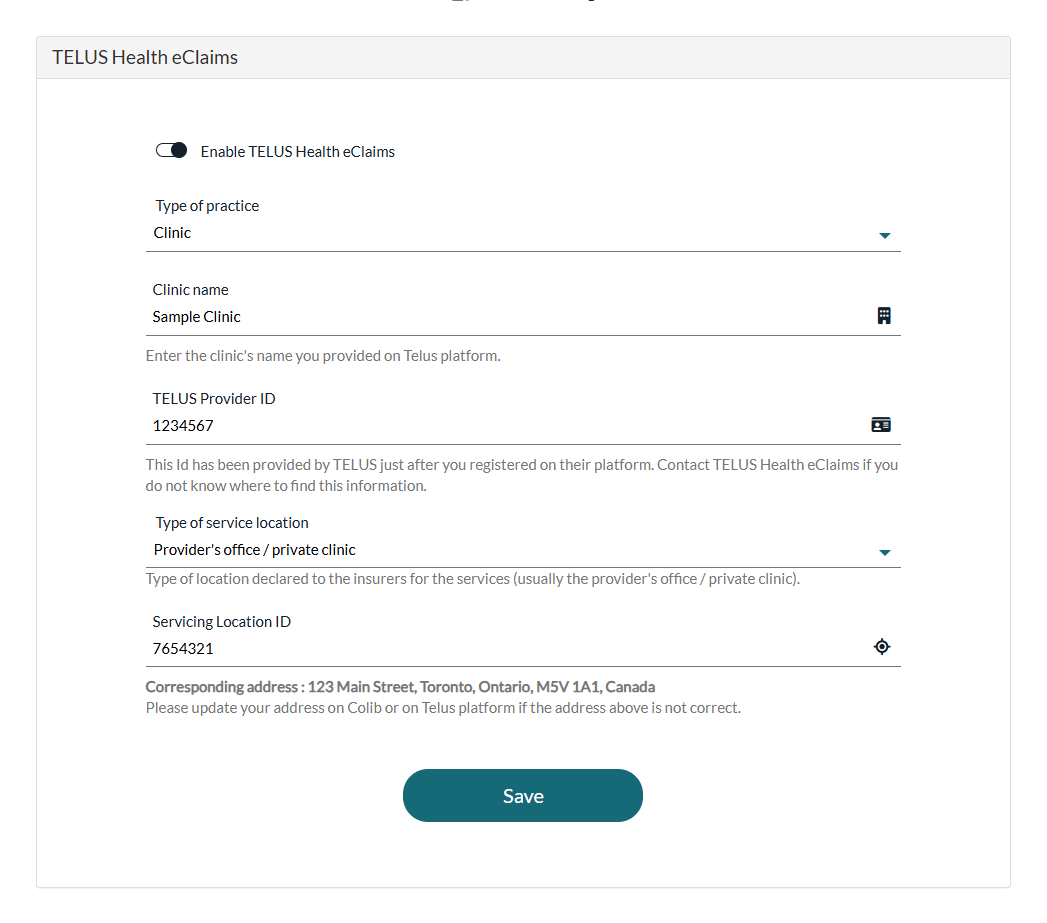
- In the TELUS Health eClaims panel, turn on Enable TELUS Health eClaims.
- Choose the Type of practice: Clinic if TELUS registered your clinic as an organization, or Individual Provider if you are registered on your own.
- For a clinic, enter the Clinic name exactly as provided on the TELUS platform, and the TELUS Provider ID of the clinic.
- Choose the Type of service location: in most cases, Provider's office / private clinic.
- Enter the Servicing Location ID. Check the Corresponding address shown under it: it must be the address registered with TELUS. If it is not, update your address in Colib or on the TELUS platform.
- Click Save. The message The modifications have been successfully saved. confirms it.
| Type of practice | Who receives the funds of a claim (choice made at each claim) |
|---|---|
| Clinic | The clinic (Clinic/Organization) or the insured client (Insured Member). |
| Individual Provider | The practitioner (Servicing Provider) or the insured client (Insured Member). |
3What appears once it is turned on
- A TELUS Health eClaims tab in the personal settings of every user, where each practitioner enters their TELUS information.
- A TELUS Health eClaims section in each client record, for the client's insurance and consent.
- A TELUS Health eClaims panel on appointment types (type of service) and a TELUS type on products.
- A TELUS Health eClaims - Direct Billing card on every invoice that is not a draft, to submit a claim.
- An Insurance claims tab on the Invoices page, to follow all your claims.
The next step is to complete this setup: please see the article titled "How to set up TELUS Health eClaims for practitioners, clients, appointment types and products".
Good to know
- One TELUS location per account — the TELUS settings apply to the whole Colib account. If you have several clinics in Colib with different TELUS locations, contact us before turning it on.
- Turning it off — turn off Enable TELUS Health eClaims and click Save. The claims already sent stay in your invoices.
- Professions — not every profession can claim through TELUS Health eClaims: please see the article titled "Which insurers and professions are supported by TELUS Health eClaims?".
Related articles
- Please see the article titled "How to set up TELUS Health eClaims for practitioners, clients, appointment types and products".
- Please see the article titled "How to submit a claim through TELUS Health eClaims".
- Please see the article titled "Which insurers and professions are supported by TELUS Health eClaims?".
- Please see the article titled "TELUS Health eClaims: frequently asked questions".
Still have a question?
Write to us at support@colib.io, we will be happy to help.
Was this article helpful?
That’s Great!
Thank you for your feedback
Sorry! We couldn't be helpful
Thank you for your feedback
Feedback sent
We appreciate your effort and will try to fix the article