Who is this article for?
If you hold your online appointments with Colib's video conferencing on a computer, you can write your session note in the same browser window as the video, without switching tabs. This article explains how to open the notes panel, use a note template, save the note and find it afterwards.
Before you start: the Notes button is only shown to practitioners of the practice who are logged in to the meeting, on a computer (it is hidden on phones and small screens). Your access rights must allow you to write notes and to modify the appointment.
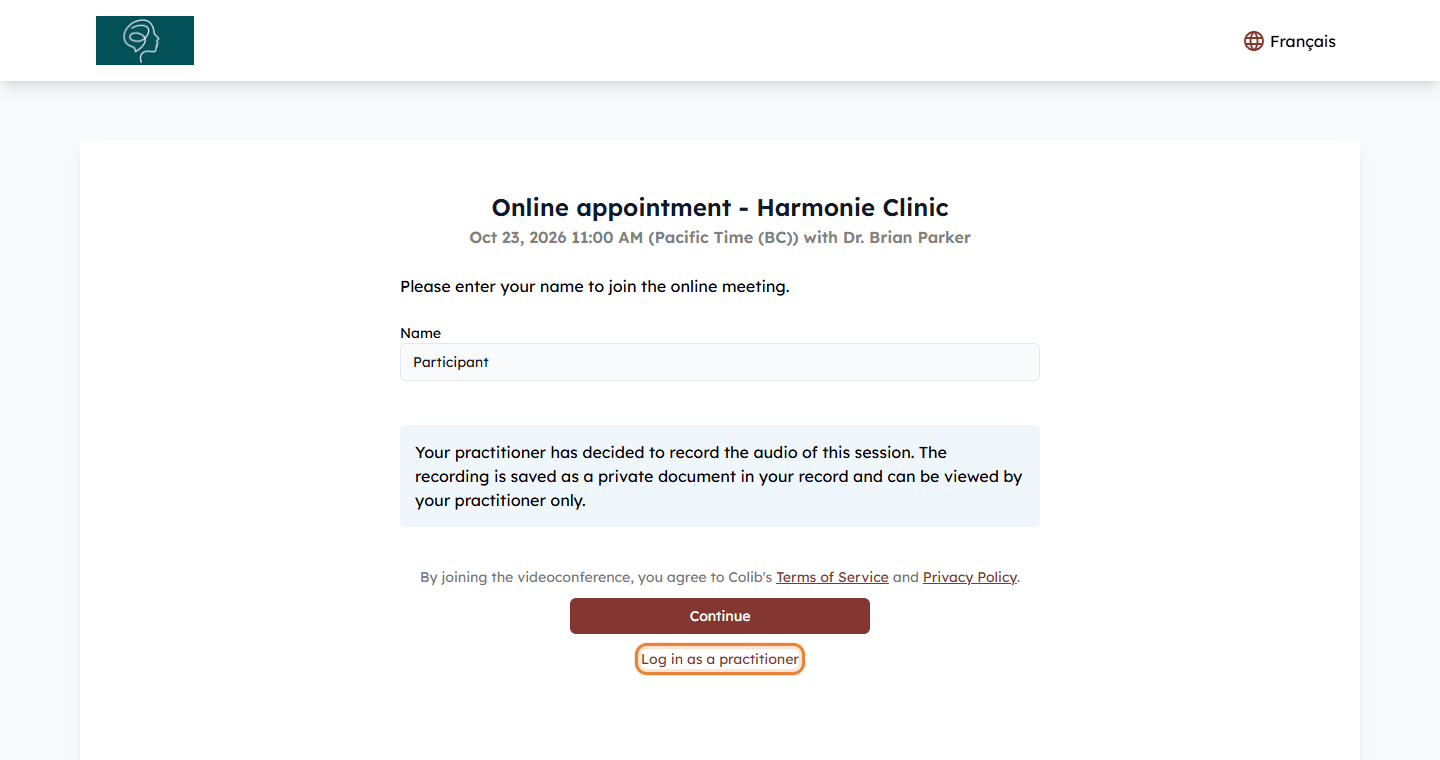
1Join the meeting as a practitioner
- Open the meeting from the appointment window in the scheduler (www.colib.io/scheduler).
- Make sure you are logged in as a practitioner. If the meeting page shows Log in as a practitioner, you are not logged in: click the link and sign in with your Colib account. You are then brought back to the meeting.
- Click Continue and join the meeting.
2Write your note
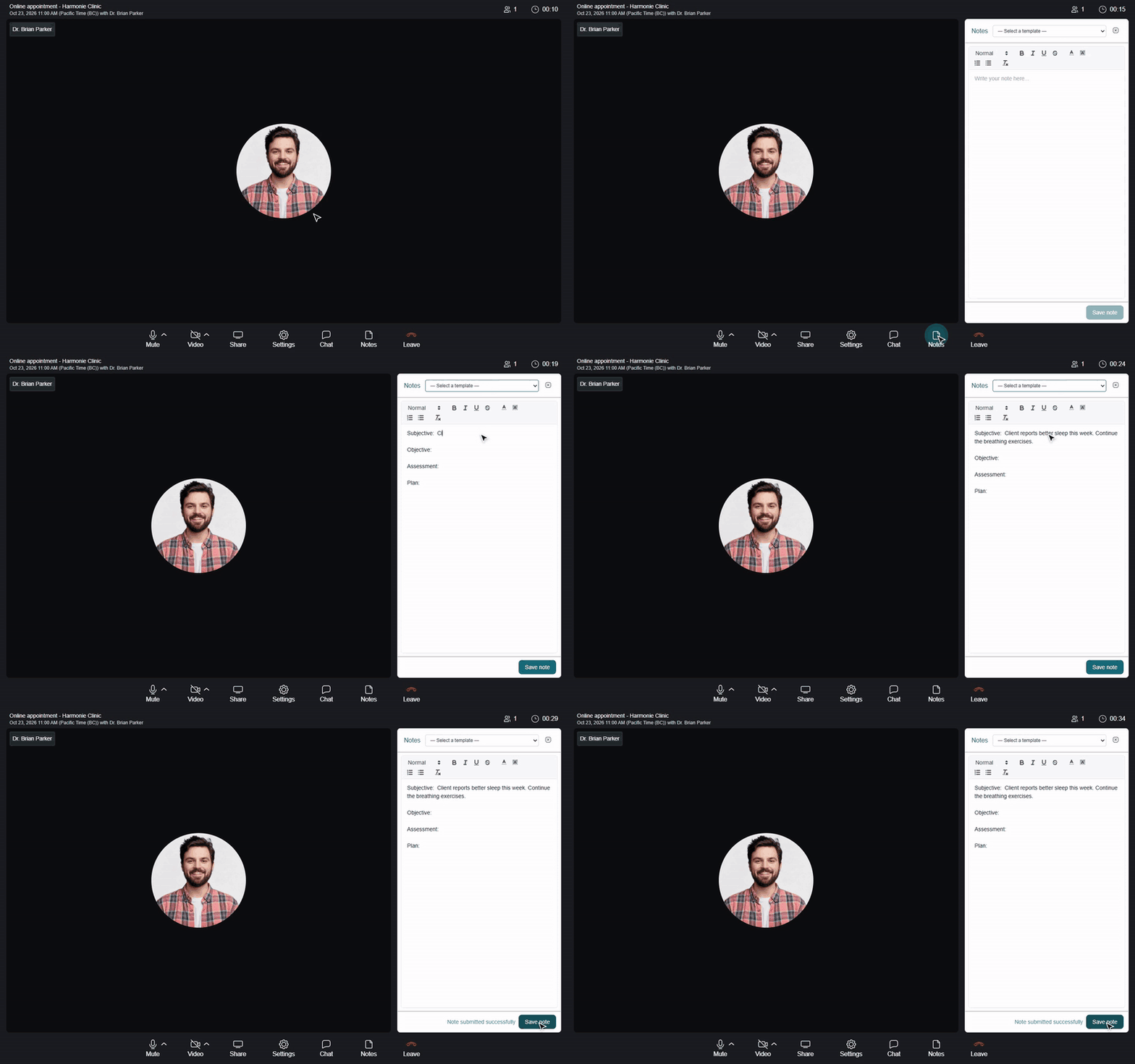
- In the control bar at the bottom of the meeting, click Notes. The notes panel opens on the right, next to the video.
- Optionally, choose a template in — Select a template —. The list shows the note templates of your practice. See How to create and use note templates.
- Write your note. The toolbar lets you add headings, bold, italic, underline, colors and lists.
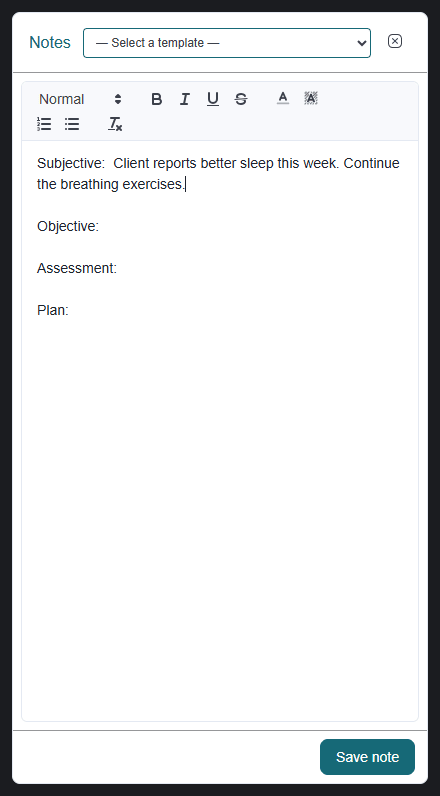
Important: choosing a template replaces everything already written in the panel. Choose your template before you start writing.
3Save the note
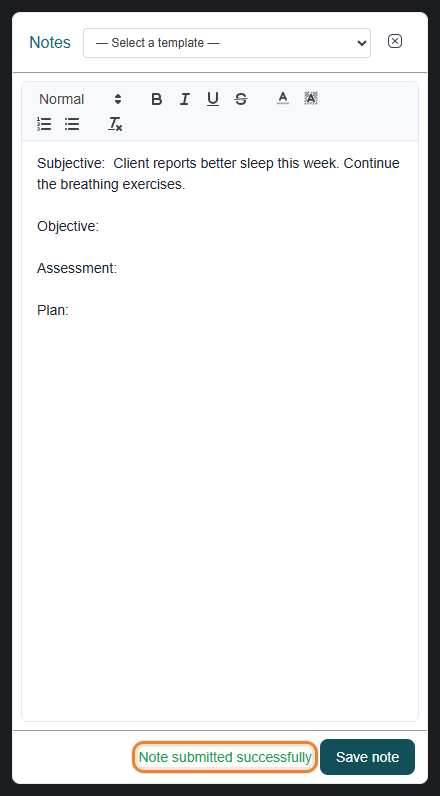
- Click Save note. The button is available as soon as the note contains text.
- Note submitted successfully appears next to the button.
- You can keep writing and click Save note again: the same note is updated.
If the note cannot be saved, the message Failed to submit note. Please try again. appears: check your connection and click Save note again.
4Find and sign the note after the session
The saved note is an appointment note, like the notes created from the client record:
- it is linked to the appointment (you find it in the notes of the appointment) and appears in the Notes tab of the client record (from your client list, www.colib.io/clients). When several clients take part in the appointment, the note is added to the record of each of them;
- its title is the date and the appointment type, for example 23-Oct-2026 - Initial assessment;
- it is not shared with your clients in the client portal.
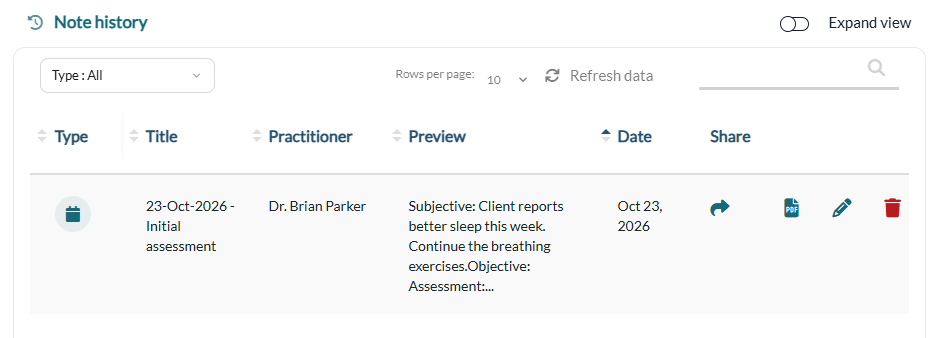
Important: a note cannot be signed from the video meeting. Open it from the client record after the session to complete it and sign it.
Good to know
- Close and reopen the panel — click the close icon of the panel (or press Escape): your text is kept until you leave the meeting. Opening Notes closes the Chat and the Settings.
- Reload or rejoin — if you reload the page or leave and rejoin the meeting, the next Save note creates a new note.
- Notes written by artificial intelligence — this panel is for your own notes. To have Colib draft the note of the session for you, see How does the artificial intelligence note generation work?
- Computer only — the notes panel is not available on phones and small screens.
Still have a question?
Write to us at support@colib.io, we will be happy to help.
Was this article helpful?
That’s Great!
Thank you for your feedback
Sorry! We couldn't be helpful
Thank you for your feedback
Feedback sent
We appreciate your effort and will try to fix the article