Who is this article for?
During an online session, what is behind you can distract the other participants or reveal private details of your home or office. With the background blur, you stay sharp and everything behind you is blurred.
This article is for practitioners and clients who take part in a video session provided by Colib. It explains how to turn the blur on and off.
Before you start: join the session first. The blur is offered in the session itself, not on the screen where you choose your camera and microphone. It only appears when your browser supports it: on a computer, a recent version of Google Chrome gives the best results.
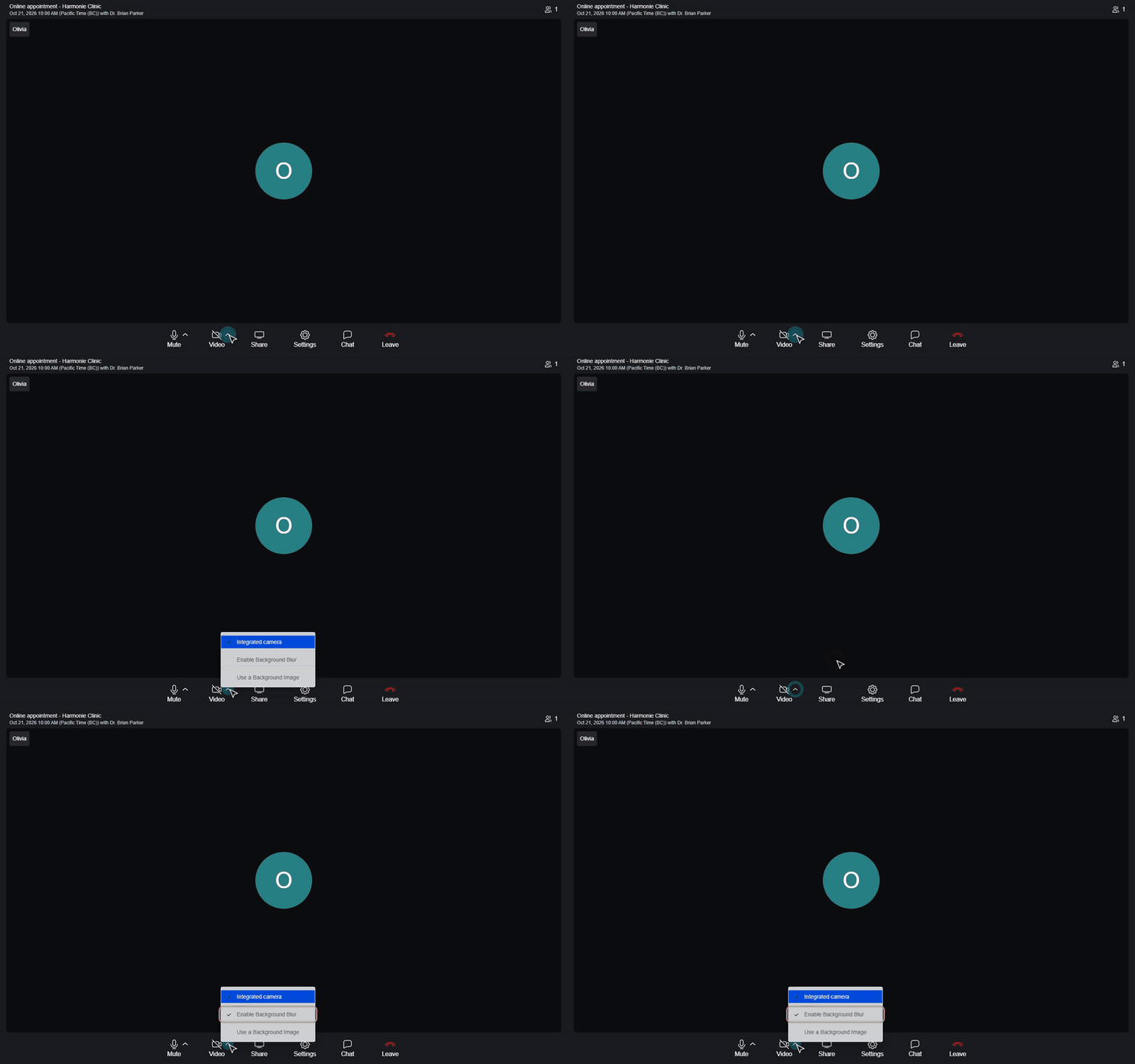
1Open the video options
- In the bar at the bottom of the session, find the Video button (camera icon).
- Click the small arrow next to it. A menu opens with your camera and the background options.
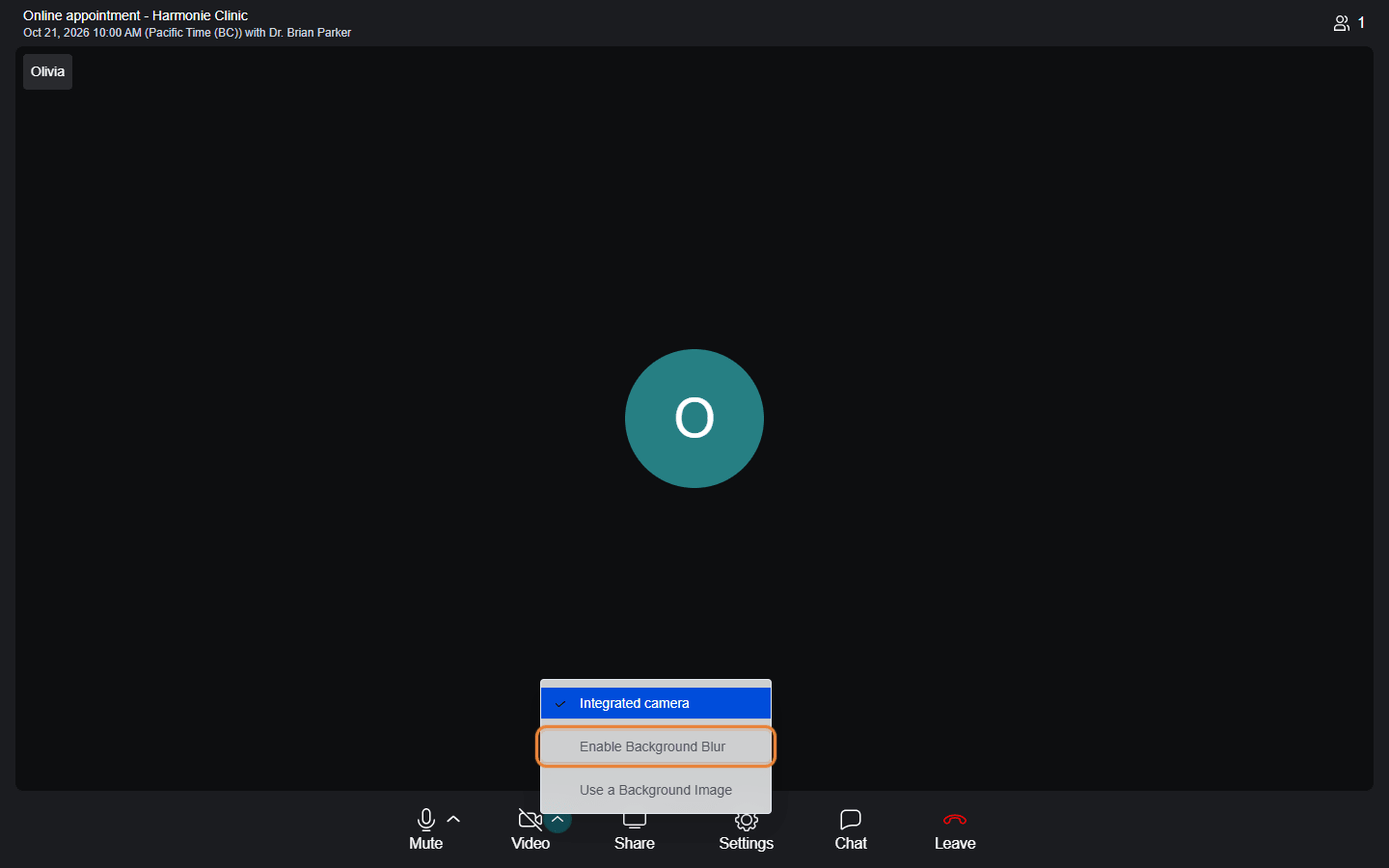
2Turn on the blur
- Click Enable Background Blur.
- After a second or two, your background is blurred for everyone in the session. When you open the menu again, a check mark is shown next to Enable Background Blur.
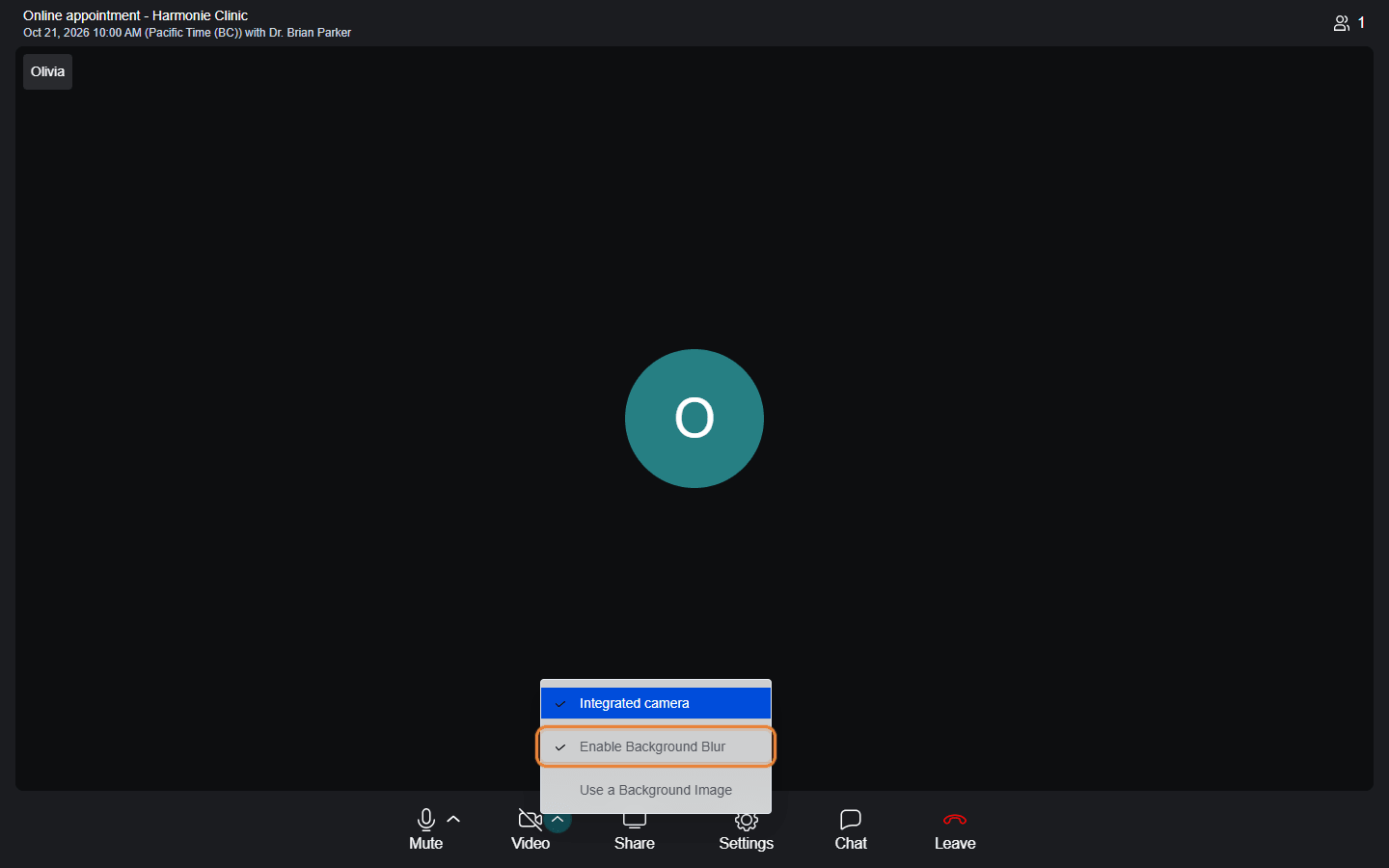
3Turn off the blur
To turn off the background blur, simply repeat the same steps: click the arrow next to Video, then Enable Background Blur again. The check mark disappears and your background is shown normally.
Good to know
- Blur or background image — you can use one or the other, not both: turning on the blur removes the background image, and choosing an image removes the blur. See How to use a background image during a video session?
- Camera turned off — you can turn on the blur before turning on your camera: it is applied as soon as your video is shown.
- Changing camera — if you choose another camera in the same menu, the blur stays on.
- The option is missing — your browser or device does not support the blur. Join the session from a computer with a recent version of Google Chrome.
- Other features of the session — see What features are integrated into the video conferences provided by Colib?
Still have a question?
Write to us at support@colib.io, we will be happy to help.
Was this article helpful?
That’s Great!
Thank you for your feedback
Sorry! We couldn't be helpful
Thank you for your feedback
Feedback sent
We appreciate your effort and will try to fix the article