Who is this article for?
You will often encounter situations where a client takes longer than expected to pay an invoice, and you have to remind them of their outstanding balance. Colib gives you peace of mind by automating this process: it emails a reminder to clients whose invoice is still unpaid after the number of days you choose, and repeats it until the invoice is paid.
Before you start: reminders are set in Settings > Invoices (www.colib.io/settings?show=invoices). Only invoices that have been sent to the client by email at least once can receive a reminder.
1Turn on the automatic reminders
- Go to the Invoices section of your Settings page: www.colib.io/settings?show=invoices.
- Scroll down to the Automation section and open it.
- Turn on Automatically send a reminder if an invoice sent to a client has not been paid. Three new fields appear.
2Set the delay and write your message
- Number of days between the last email sent and the invoice reminder. — a whole number greater than 0. For example, with 10, the first reminder leaves 10 days after the invoice was emailed, then every 10 days while it stays unpaid.
- Email reminder content (English). — the message for English-speaking clients. Use the [clientname] tag to display the first name of the client.
- Email reminder content (French). — the French version for French-speaking clients, with the [nomclient] tag.
- Click Save at the bottom of the section.
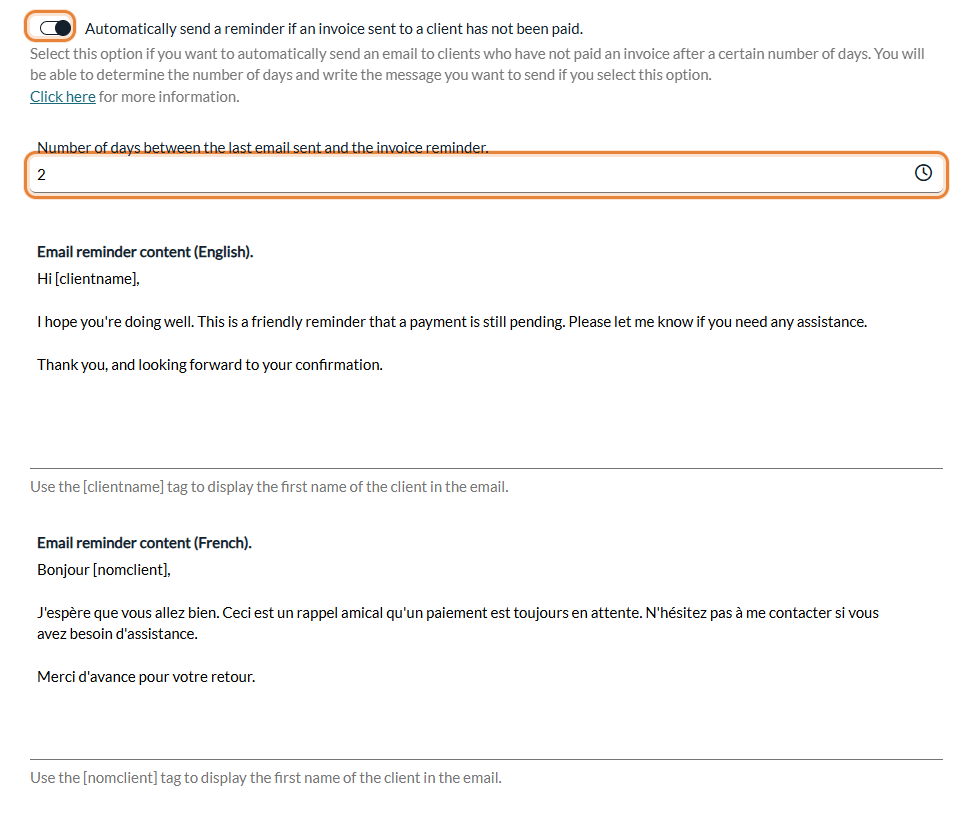
Each client receives the version of their language. If you only fill in one language, it is used for all your clients.
3What your client receives
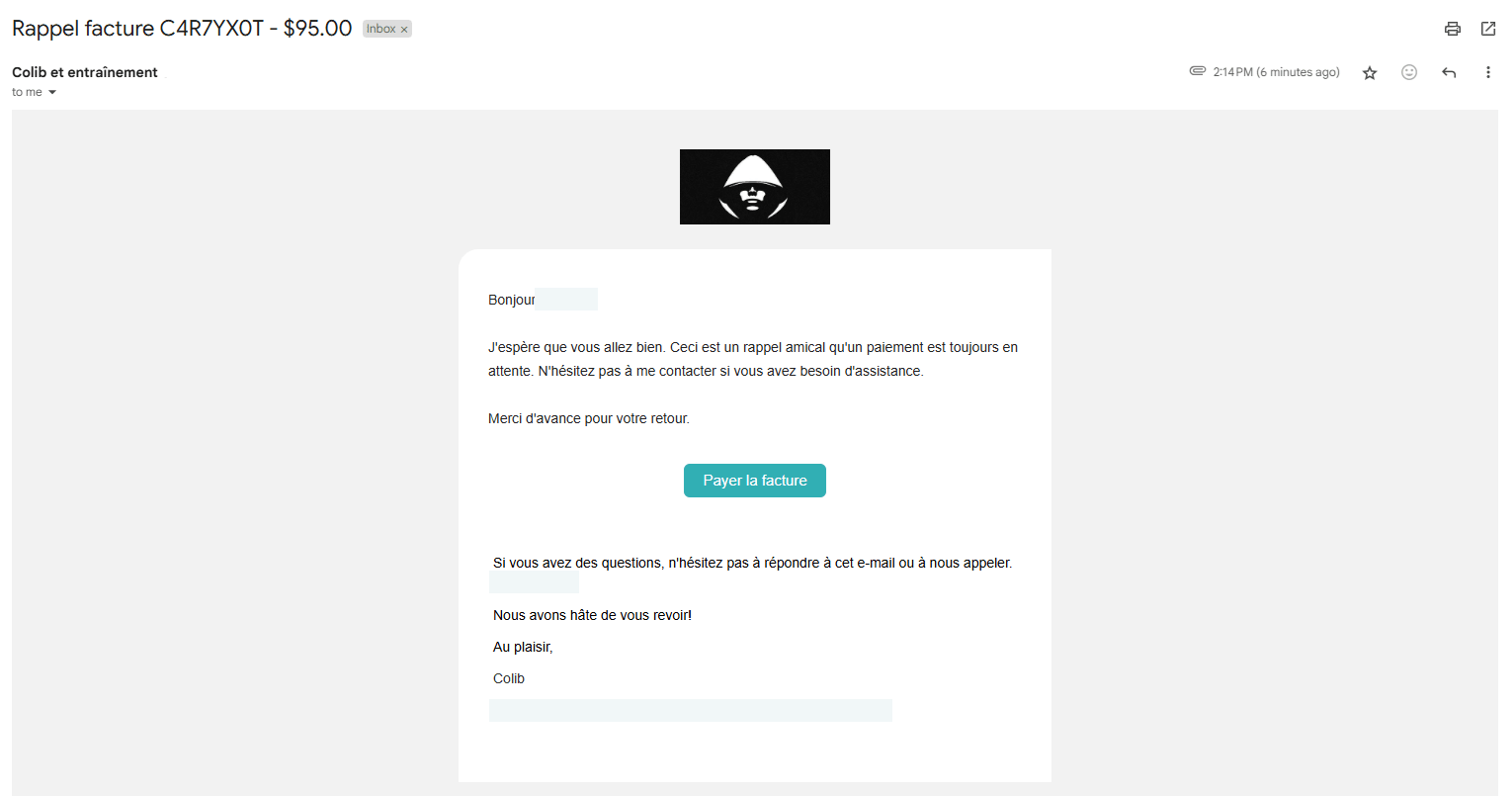
- The reference of the invoice and the amount still due are automatically included in the email subject, for example [Reminder] Invoice G9C5H18E - $5.00.
- The invoice is attached to the reminder email (PDF).
- A button to pay the invoice is automatically added to the email if your settings allow it: Add “Pay” button to invoice emails and client portal. turned on (Online payments section), card payments set up, and at least $1 left to pay.
- If the client replies, the reply goes to the email address of your clinic.
Example of an email sent (here, a reminder in French):
Important considerations
- Only invoices with an Unpaid, In progress or Partially paid status receive reminders. Invoices with a Paid, On hold, Refunded, Cancelled or Written off status do not. Put an invoice On hold to pause its reminders (see How to change the status of an invoice).
- A client may receive multiple reminders for the same invoice over time if it remains unpaid.
- The invoice must have been sent to the client by email at least once to be eligible for a reminder.
- Invoices billed to a third-party payer, and the clients for whom Skip invoicing automation is turned on, do not receive reminders (see How to skip invoicing automation for specific clients).
- The reminder is also sent to the additional email addresses of the client, to the CC email of the invoice, and to the person responsible for the client's group if that person receives the billing notifications.
How to know if a reminder has been sent?
1. Communication history of the client — open the client's record, then the Communications tab: each reminder appears as Invoice reminder, with the invoice reference and its delivery status.
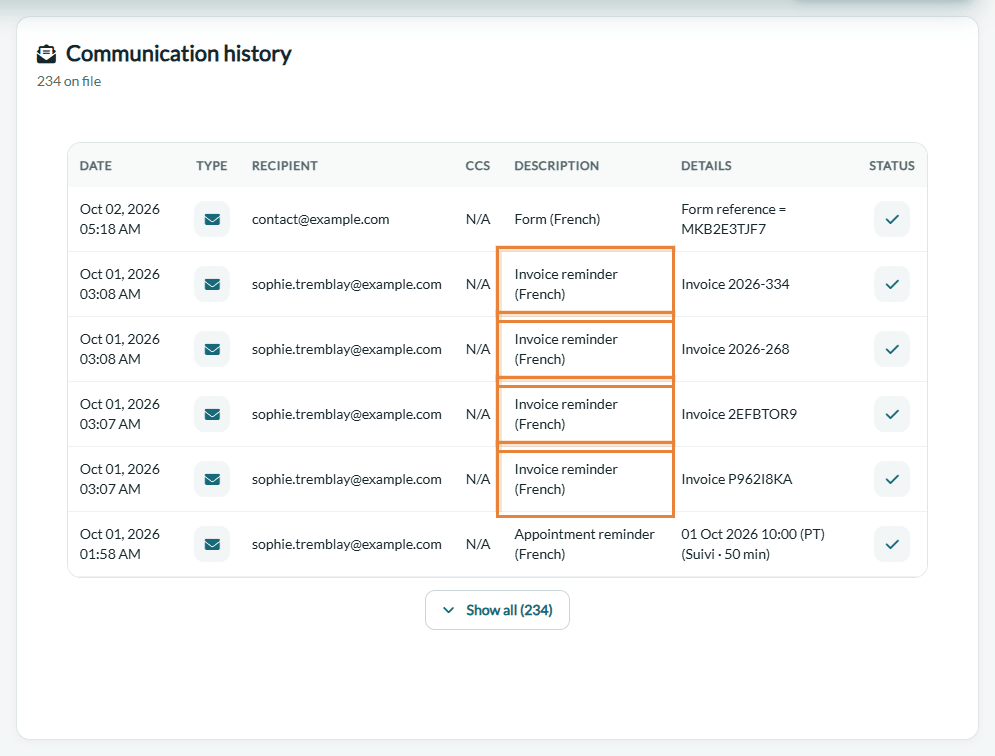
Please read this article for more information: How to view client communications: emails and SMS delivery status.
2. Invoice page — the top of the invoice page, under the title, shows the last time the invoice was sent to the client (Sent for the last time to the client on). Reminders update this date.

Still have a question?
Write to us at support@colib.io, we will be happy to help.
Was this article helpful?
That’s Great!
Thank you for your feedback
Sorry! We couldn't be helpful
Thank you for your feedback
Feedback sent
We appreciate your effort and will try to fix the article