Who is this article for?
By default, your clients can only change the appointments they booked themselves on your booking page. Appointments that you or your team create in the scheduler cannot be changed by the client: they have to contact you.
One option lets your clients reschedule these appointments too, on their own, using the same rules as your online booking. This article explains how to turn it on, where your clients find the modification link, and the limits that apply.
Before you start: this option only exists when the Client booking type is Online booking by client (Settings > Booking Page, www.colib.io/settings?show=bookingpage). See How do I set up the booking process in Colib?
1Turn on the option
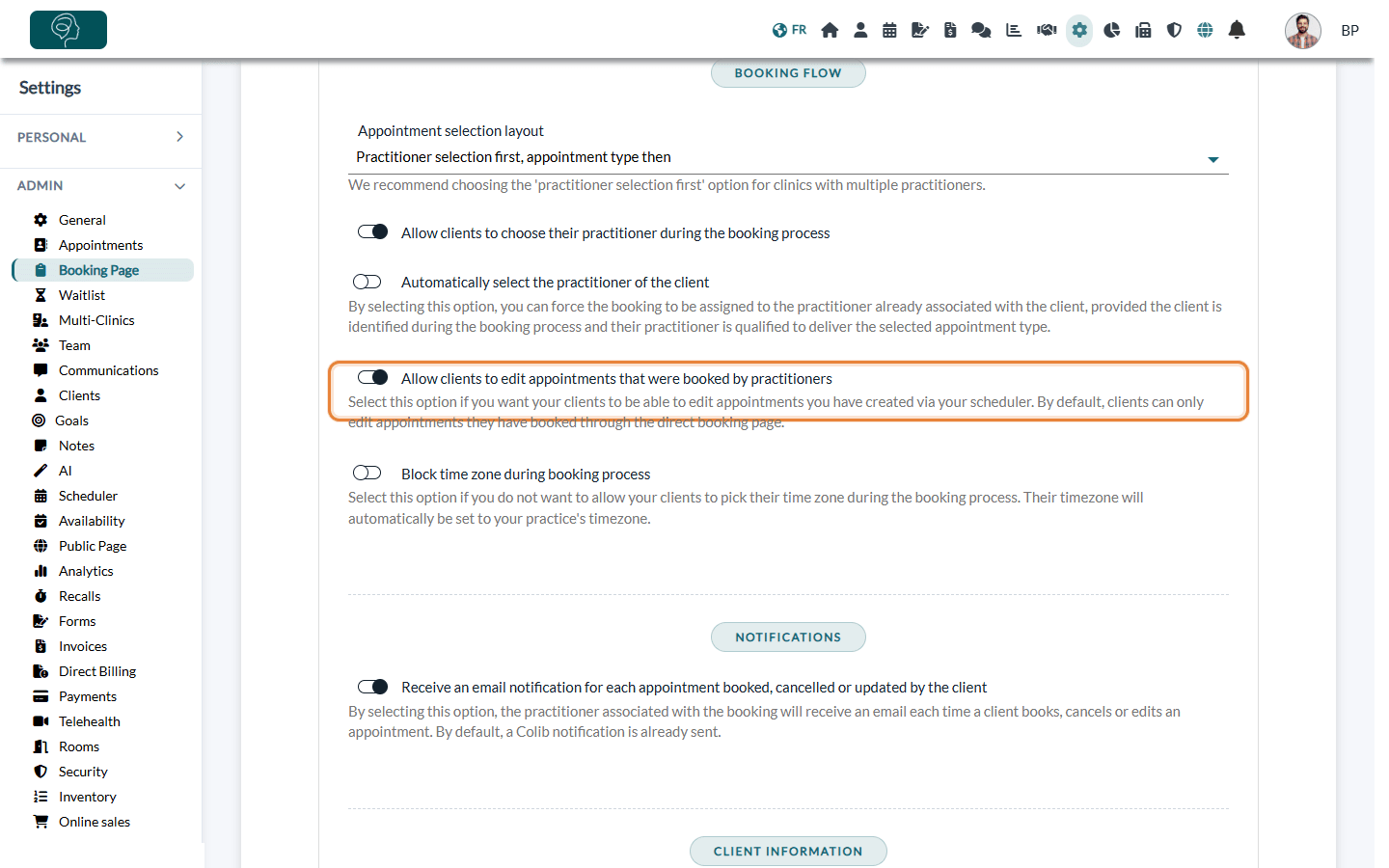
- Go to Settings > Booking Page (www.colib.io/settings?show=bookingpage).
- Open the Direct Booking section.
- Under Booking flow, turn on Allow clients to edit appointments that were booked by practitioners.
- Click Save at the bottom of the page.
2Where your clients modify their appointment
For the appointments created by your team, your clients now find a way to change them:
- in the confirmation and reminder emails, with a modification button;
- in the confirmation and reminder text messages, with a modification link;
- in their client portal, Appointments tab, with the Modify button;
- on the cancellation page, if you allow cancellations.
The link opens your booking page with the appointment already filled in. Your client picks a new date and time among the slots you offer online, exactly as when booking a new appointment, and confirms.
3Limits that apply
- Your availability — your client can only choose a time that your booking page offers (opening hours, availability groups, booking window, other appointments), exactly as for an appointment booked on your booking page. To set your availability, see Why are my availabilities not showing on my scheduler or booking page?
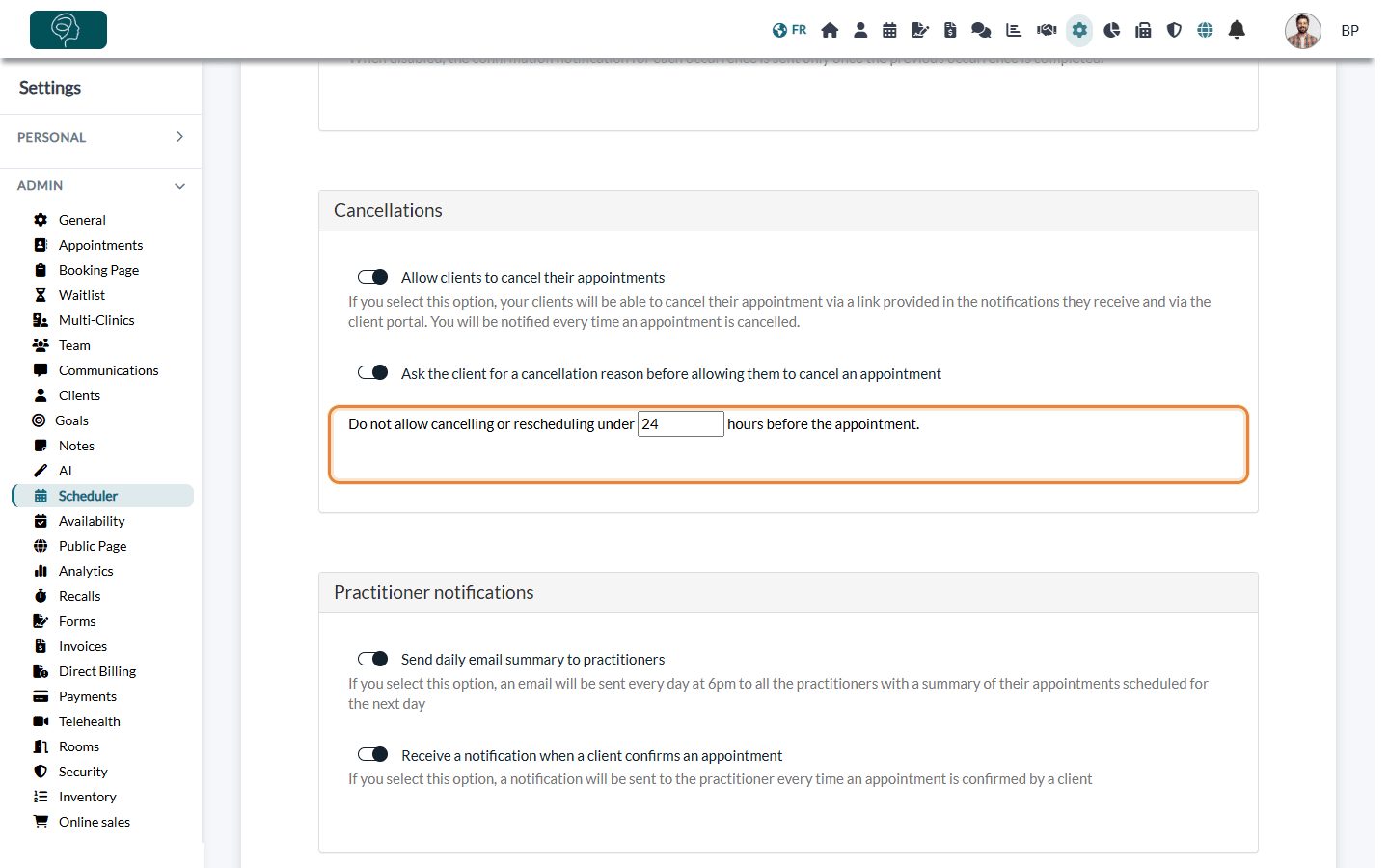
- Last-minute changes — if you set Do not allow cancelling or rescheduling under ... hours before the appointment in Settings > Scheduler > Cancellations (www.colib.io/settings?show=scheduler), the change is refused inside that delay and your client is asked to contact you directly.
- Past or cancelled appointments — they can no longer be modified.
Good to know
- Notifications already sent — the modification button is added to the notifications sent after you turn on the option. The Modify button of the client portal appears right away.
- Be notified of the changes — turn on Receive an email notification for each appointment booked, cancelled or updated by the client in the same Direct Booking section.
- Turning the option off — your clients keep the ability to change the appointments they booked online, but no longer the ones created by your team.
- Cancellations — letting clients cancel is a separate setting. See How to cancel an appointment (for practitioners and clients).
Still have a question?
Write to us at support@colib.io, we will be happy to help.
Was this article helpful?
That’s Great!
Thank you for your feedback
Sorry! We couldn't be helpful
Thank you for your feedback
Feedback sent
We appreciate your effort and will try to fix the article