Who is this article for?
A time slot you expected is not offered on your online booking page, or your scheduler shows greyed areas where you thought you were available? You may also be setting up your booking page and want to know which settings decide the times your clients can book. This article lists every reason why a time is not offered, in the order Colib checks them, with the setting to change each time.
In short: a time is offered online only if it is inside the practitioner's hours (or an availability group), on a day that is not paused or a statutory holiday, inside the booking window of the appointment type, and if the whole appointment, buffers included, fits without overlapping another event of the practitioner. Then the booking page options (time between slots, clustering, maximums) decide which of these free times are displayed.
These settings only apply to online booking (and to the openings offered to your waitlist). You and your team can always create an appointment by hand in the scheduler, at any time.
Tip: after each change, save, then open your booking page in a private browser window to see it as a new client does.
1Review your declared availability
Make sure the days and hours set as available are correct. By default, every practitioner follows the opening hours of the practice; a practitioner can also have their own weekly schedule, which then replaces the opening hours for them.
- Go to Settings > Personal > Availability (www.colib.io/settings?show=personalscheduler).
- If Use the practice opening hours is on, your hours are the Opening Hours of the practice, in Settings > General (www.colib.io/settings?show=general).
- If it is off, check the Booking Availability grid: each day must be Open, with the right start and end times. A break (Break included) removes its time from the day.
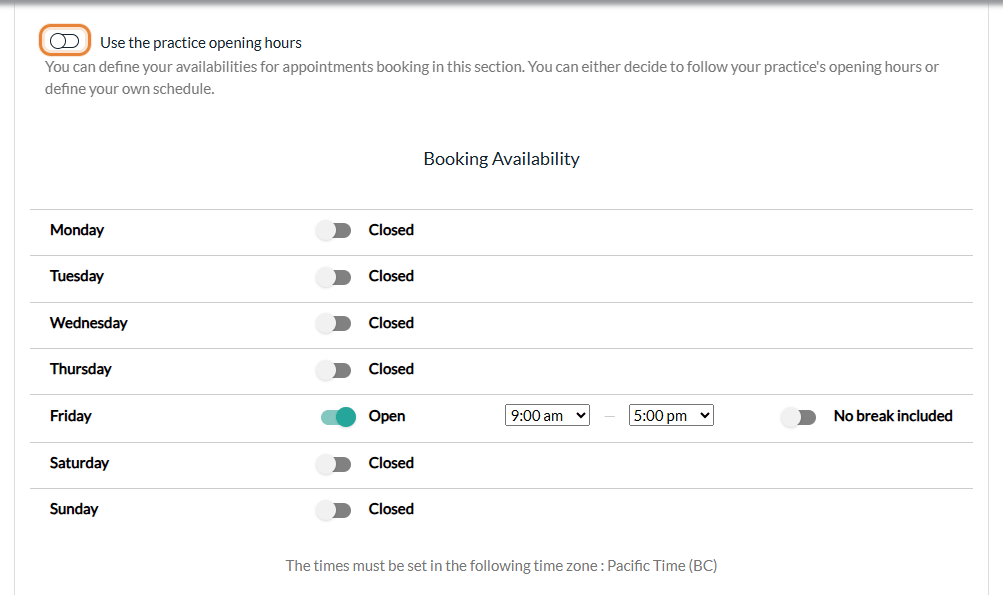
- Own schedule replaces, it does not add up — if the practice is open on Saturday but the practitioner's own schedule is closed that day, clients cannot book this practitioner on Saturday, and the other way around.
- The whole appointment must fit — a time is offered only if the appointment ends before the end of the day (or before the break). With hours from 9:00 to 12:00 and a 50-minute appointment, 11:30 is not offered.
- The scheduler — the same hours draw your scheduler: the light areas are the times when you work, the greyed areas are outside your hours.
- For a team member — an administrator can check the hours of another practitioner in Settings > Team (www.colib.io/settings?show=team), pencil icon of the member, Availability section.
See How can I update the days and hours that I work? To understand how opening hours, practitioner availability and availability groups are combined, please see the article titled "Opening hours, practitioner availability or availability groups: which should I use?".
2Verify your availability groups
If your practice uses availability groups, check the groups you have configured in Settings > Availability (www.colib.io/settings?show=availability), section Availability Groups.
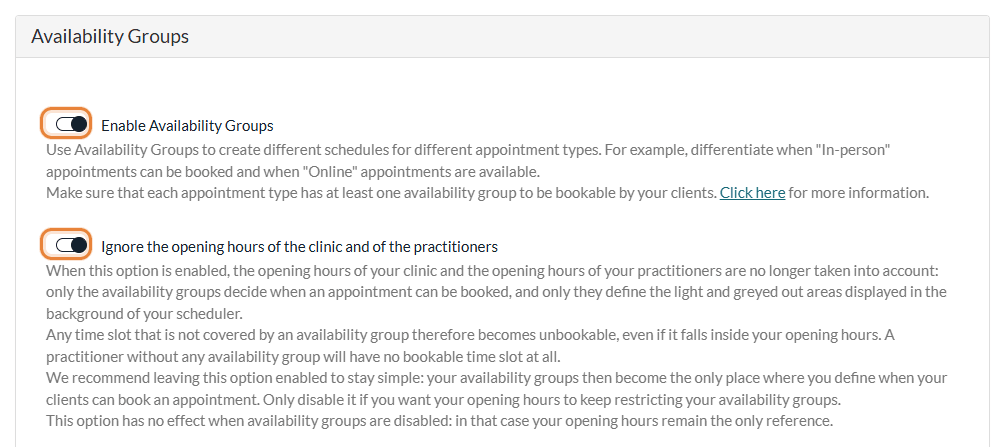
| Your settings | Hours offered to your clients |
|---|---|
| Enable Availability Groups off | The practitioner's own availability if they have one, otherwise the opening hours of the practice (step 1). |
| Groups on, Ignore the opening hours of the clinic and of the practitioners on | Only the availability groups. The opening hours and the practitioners' availability are no longer taken into account, and the groups also draw the light areas of the scheduler. |
| Groups on, Ignore the opening hours... off | Only the times that are both inside a group of the appointment type and inside the practitioner's hours. |
Important: once availability groups are turned on, an appointment type with no group has no time slot, and a practitioner with no group for the chosen type has no time slot either. A group with a practitioner only applies to that practitioner, and a temporary group (Is temporary ?) only applies between its dates.
A time slot must also fit entirely inside one window of a group: with two groups from 9:00 to 12:00 and from 12:00 to 15:00, a one-hour appointment at 11:30 is not offered. See How to customize your availability with availability groups.
3Verify your absences, statutory holidays and shifts
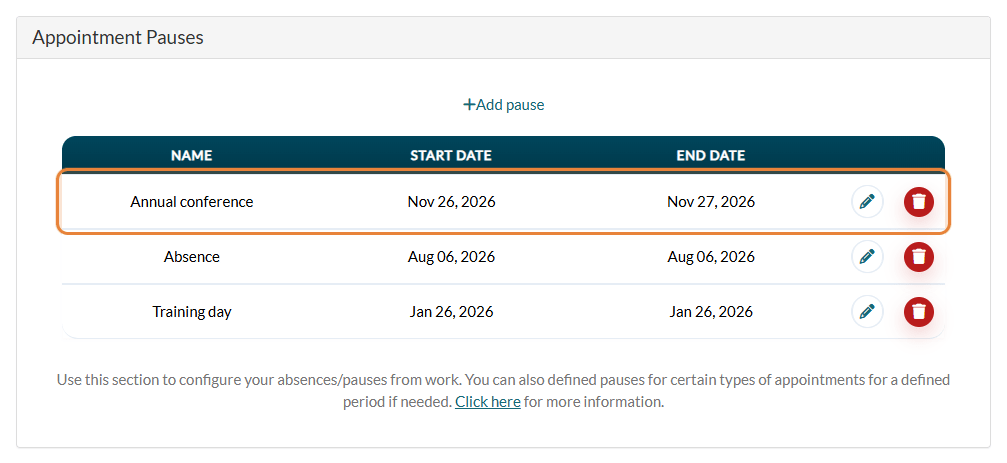
- Pauses (absences) — a pause blocks whole days, for all the practitioners or only some of them, and for all the appointment types or only some of them. Check the list in Settings > Availability > Appointment Pauses (www.colib.io/settings?show=availability). See How to pause online bookings (vacations, absences, closures).
- Statutory holidays — national holidays and the holidays of your province are closed to online booking, unless Allow bookings during national and provincial statutory holidays is on in Settings > Booking Page (www.colib.io/settings?show=bookingpage). Please see the article titled "How to block statutory holidays on your booking page".
- Shifts — a shift adds bookable hours on a given date, on top of the usual hours, even on a day that is otherwise closed. If you expected extra hours on a date, check that the shift exists in the scheduler (Mode: Availability) and covers the appointment type. See How to manage your shifts (extra availability).
4Review the appointment type: buffers, booking window, room
Go to Settings > Appointments (www.colib.io/settings?show=appointments), click the pencil icon of the appointment type, then open the Direct booking section.
Time buffers
Time buffers added before or after an appointment type may block certain time slots: Time buffer before the appointment (minutes) and Time buffer after the appointment (minutes) artificially extend the time needed to book this type.
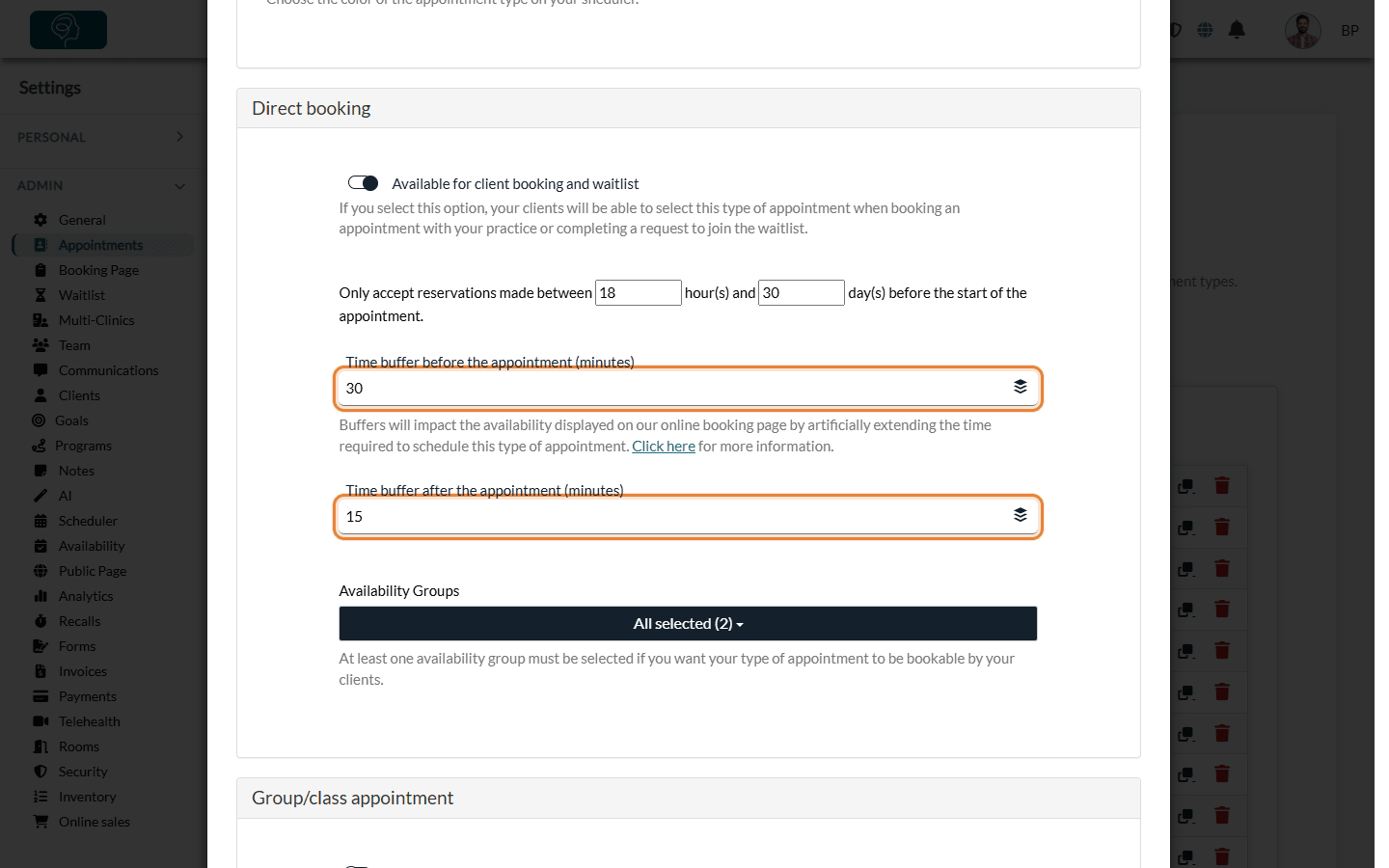
Example: if you have set a 30-minute buffer before and a 15-minute buffer after a 1-hour appointment, a total of 1 hour and 45 minutes must be free in your scheduler for the time slot to appear bookable. The buffers can extend before the start or after the end of your hours, but they cannot overlap the break of the day or another event. With availability groups, the whole time, buffers included, must fit inside the window of the group.
Once the appointment is booked, its buffers stay blocked in your scheduler, so they also reduce the free time around it for the next bookings.
Booking window
On the line Only accept reservations made between ... hour(s) and ... day(s) before the start of the appointment:
- Minimum notice (hours) — with 24, at 3 PM on Monday the first times offered start at 3 PM on Tuesday. The times of today and tomorrow morning are therefore not offered.
- Maximum advance (days) — with 30, clients can book up to the end of the 30th day after today. Later dates show no availability.
See How to control how far in advance clients can book online.
Other settings of the type
- Available for client booking and waitlist — must be on, otherwise the type cannot be booked online at all.
- Practitioners — when Available for all practitioners is off, only the practitioners chosen in Authorized practitioners offer this type. A practitioner must also be Available for direct booking and waitlist in their team member record (www.colib.io/settings?show=team).
- Room required for this appointment — a time is only offered when at least one room that accepts this type is free for the whole appointment. If all those rooms are taken, the time is not offered, even if the practitioner is free. See How to manage your practice rooms.
- Group appointments — when only existing sessions that are not full can be booked, a time only appears where a session of this type already exists in your scheduler and still has room.
If a practitioner or an appointment type is missing from your booking page altogether, please see the article titled "Why doesn't a practitioner or appointment type appear on my booking page?".
5Check your scheduler
An appointment or another event may already be scheduled for the time slot. Every event of the practitioner in the scheduler blocks its time on the booking page:
- Appointments — including their buffers. Cancelled and late-cancelled appointments free their time; an appointment marked as a no-show still blocks it.
- Busy and Other events, tasks — the time you blocked yourself (lunch, admin work, training...). See How can I block time on my scheduler?
- Events from your Google or Outlook calendar — when your calendar is synchronized, your personal events come back into your Colib scheduler as Busy blocks and close those time slots. See How to sync your Colib scheduler with Google Calendar or Outlook (two-way sync).
6Check your online booking options
Some options do not change your availability, but they decide which of the free times are displayed.
Time between slots
In Settings > Booking Page (www.colib.io/settings?show=bookingpage), Time between available appointment slots sets the interval between the start times offered (9:00, 9:30, 10:00... with 30 minutes). With Availability preference set to Offer consistent time slot regardless of schedule, a time that overlaps an existing appointment is simply not offered, so a gap right after an appointment ending at 10:15 is lost; the other choice also offers a time as soon as an appointment ends.
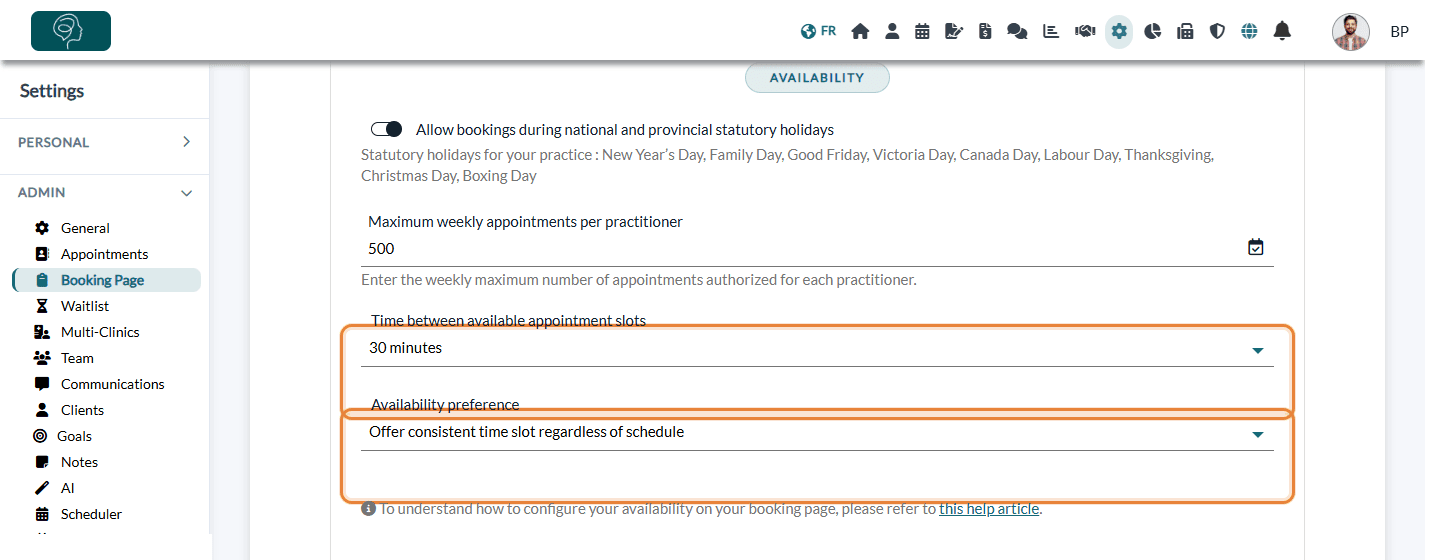
See Time between available slots on your booking page.
Cluster online booking, Make me look busy and maximums
Certain settings of the practitioner can influence the availability shown on the booking page. Update them in Settings > Personal > Availability (www.colib.io/settings?show=personalscheduler):
- Cluster online booking — on a day that already has appointments, only the times just before or just after those appointments are offered. On a day with no appointment, all free times are offered.
- Make me look busy — limits the number of time slots displayed per day (for example 3), spread over the day. The other free times are hidden, not booked.
- Daily maximum number of authorized appointments — once the practitioner has that number of appointments in a day, no more time slots are offered that day.
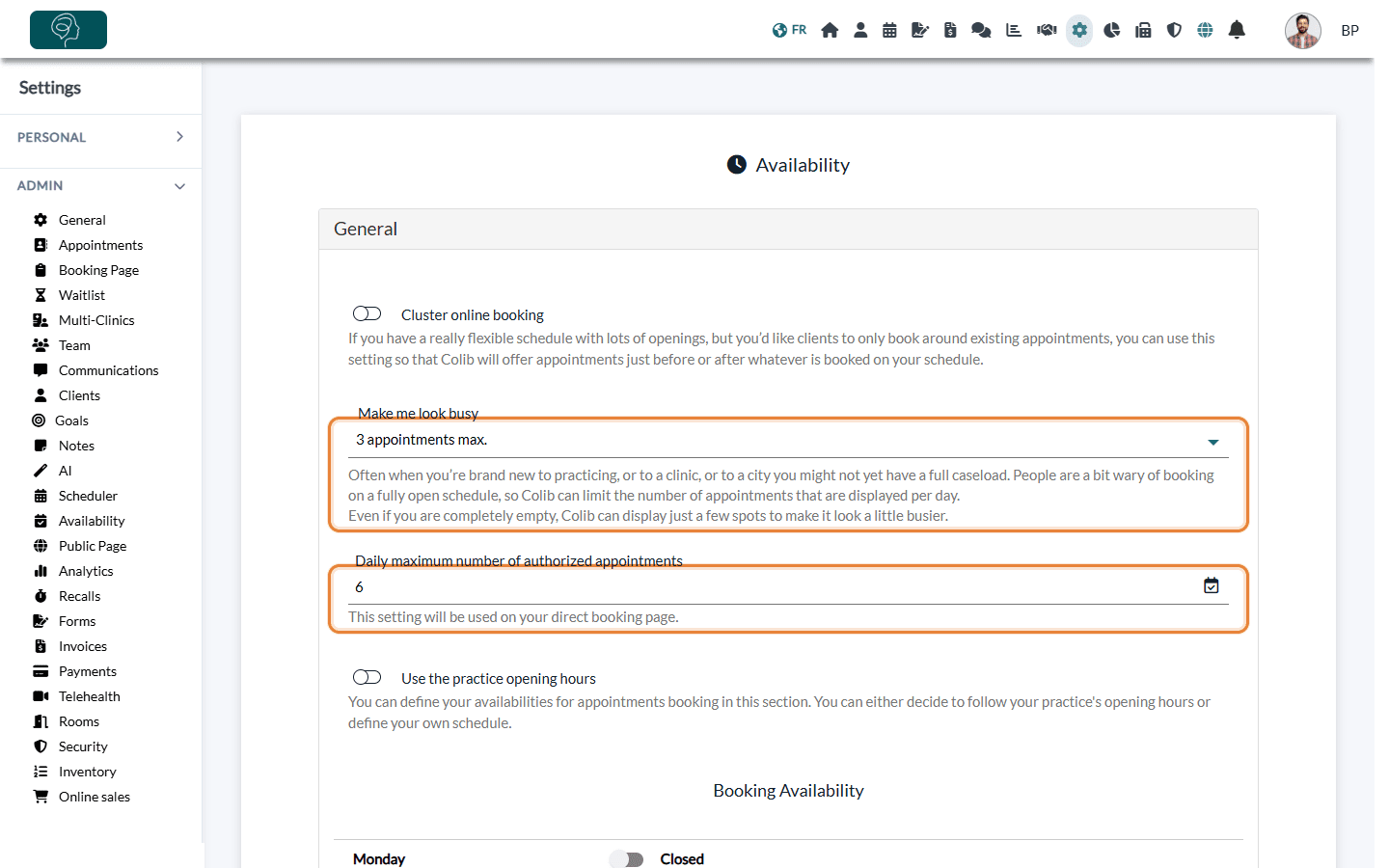
Cluster online booking and Make me look busy apply when the client looks at the times of this practitioner alone; when the times of several practitioners are shown together, all the free times are displayed. At the practice level, Maximum weekly appointments per practitioner (Settings > Booking Page) stops online bookings for a practitioner once they reach that number of appointments in the week. Please see the article titled "How to limit the number of weekly or daily appointments of a practitioner".
7With several clinics
- One schedule for all the clinics — the opening hours, the practitioners' availability, the availability groups, the shifts and the pauses are shared by the whole account. An appointment in one clinic makes the practitioner unavailable in the other clinics at that time.
- The clinic — Allow direct booking for this clinic must be on in Settings > Multi-Clinics (www.colib.io/settings?show=clinics).
- The appointment type — its Authorized clinics must include the clinic.
- The practitioner — assign them to the clinic in their team member record.
- Rooms — a type that requires a room only uses the rooms of the clinic; rooms set to Available for all clinics are not offered on the booking page. Please see the article titled "How to manage rooms across several clinics".
- Time between slots — each clinic can have its own Time between available appointment slots.
See How to have a different booking page for each clinic? and the article titled "Availability and opening hours with several clinics".
Time zones
Your hours, availability groups and shifts are set in the time zone of your practice. On the booking page, the times are shown in the client's time zone, detected automatically: a client in another province sees the same slots at a different time. The client can change it with the time zone list (globe icon) of the time slot screen. If a client tells you that the times look shifted, ask them to check this list.
Good to know
- No time slot at all? — after choosing a practitioner, the client sees It looks like there is no availability for online appointment booking in the future. when none of the dates of the booking window has a free time. Go through the steps above for this practitioner and this appointment type.
- Your team is not limited — all these rules only apply to online booking and to the waitlist. In the scheduler, your team can still book any time, even outside the hours.
- Set up the booking page — see How to set up the booking process in Colib.
Still have a question?
Write to us at support@colib.io, we will be happy to help.
Was this article helpful?
That’s Great!
Thank you for your feedback
Sorry! We couldn't be helpful
Thank you for your feedback
Feedback sent
We appreciate your effort and will try to fix the article