Who is this article for?
If your cancellation policy includes fees for missed appointments, Colib can charge them for you. Once the option is on, you only have to change the status of the appointment to No-Show or Late-cancelled: Colib creates the invoice, charges the client's payment card on file, or sends the invoice by email if there is no card.
Before you start: to charge a card, card payments must be set up in Settings > Payments and the client must have a payment card on file (see How to request a client to enter their payment information). Each appointment type must also have a price (Settings > Appointments, Invoicing section).
1Turn on the option and set your fees
- Go to your invoice settings: www.colib.io/settings?show=invoices (Settings > Invoices).
- Open the Automation section.
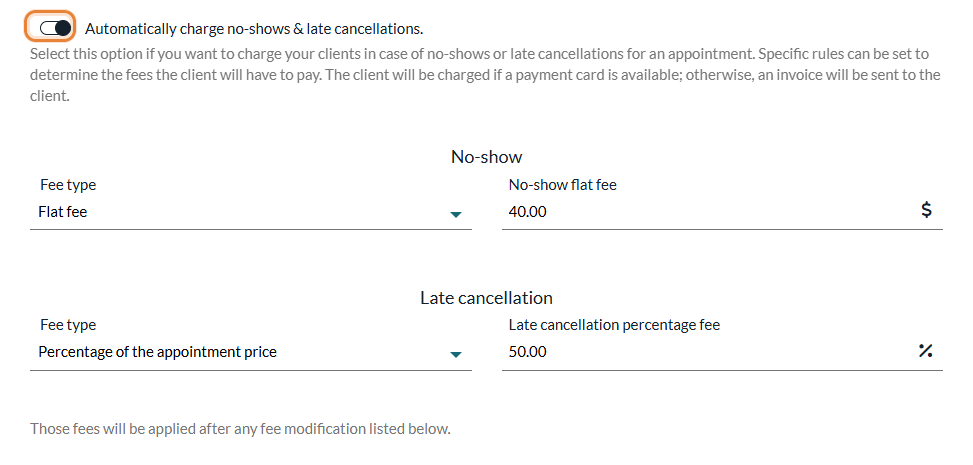
- Turn on Automatically charge no-shows & late cancellations.
- Under No-show, choose the Fee type: Flat fee (a fixed amount, for example $40) or Percentage of the appointment price (for example 50%). Then enter the amount or the percentage.
- Do the same under Late cancellation. The two fees can be different.
- Click Save.
2Change the status of the appointment
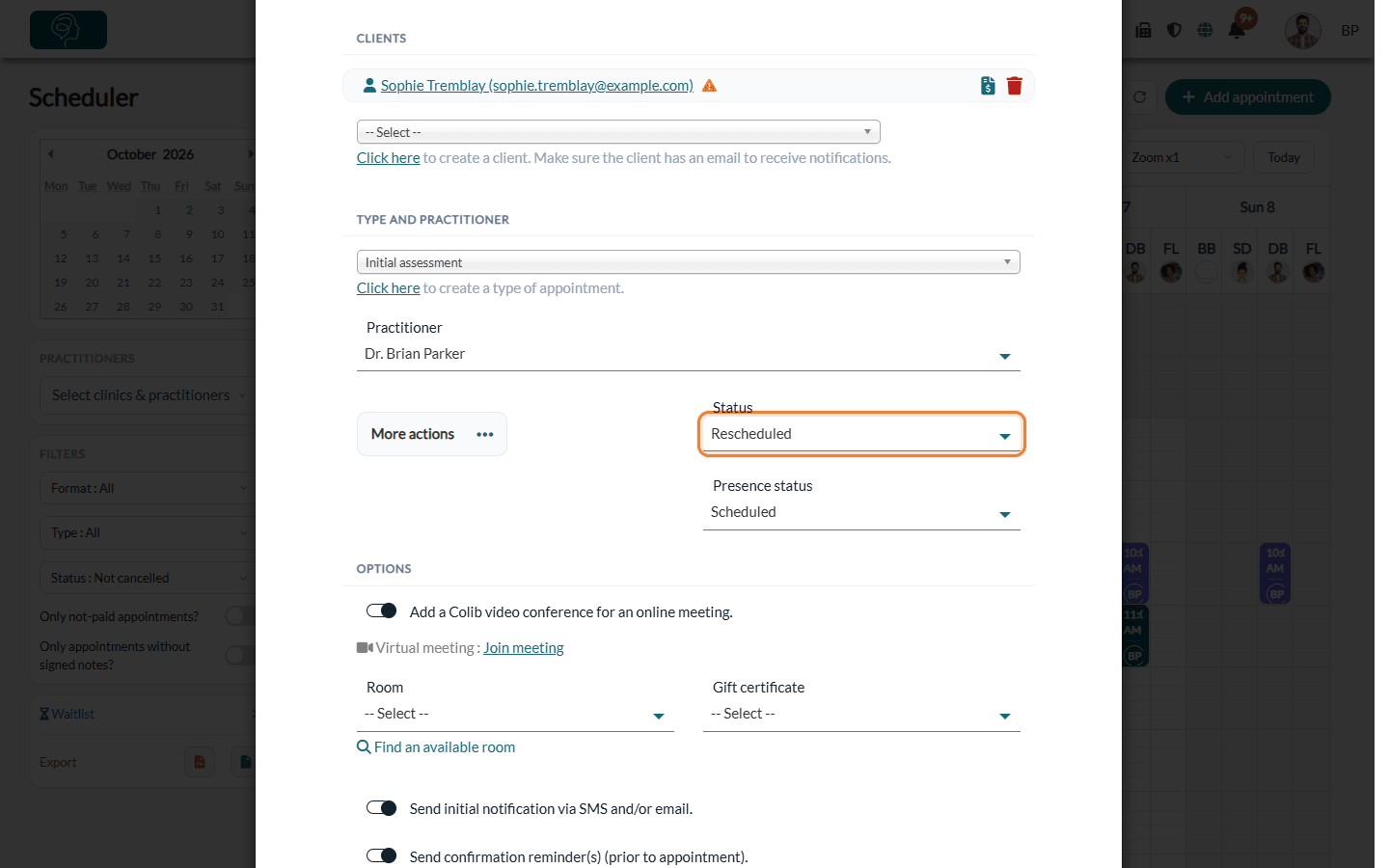
- Open the appointment from your scheduler (www.colib.io/scheduler).
- In Status, choose No-Show or Late-cancelled, depending on the situation.
3Confirm: the client is charged
A Confirmation needed window tells you that the client(s) will be charged and notified. Click Yes to confirm, or No to keep the previous status.
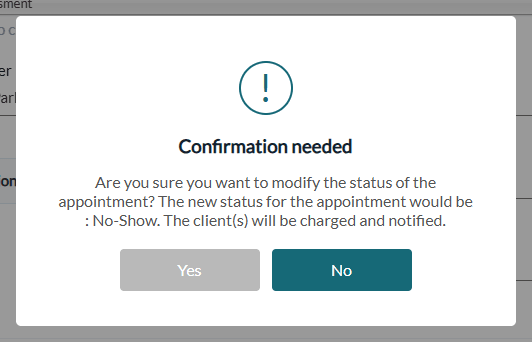
After you confirm, Colib creates an invoice for the fee and:
- charges it to the client's payment card if one is on file and the appointment has not already been paid;
- otherwise, sends the invoice to the client by email;
- if the card is declined, sends the invoice by email and shows you a warning asking you to check the client's payment card.
For Late-cancelled, the client is also notified of the cancellation, and the confirmation window lets you add an optional message to that notification. For a group appointment, every participant is invoiced; otherwise, the invoice goes to the payer of the appointment.
Good to know
- Price required — no fee is created for an appointment type without a price or with a price of $0. Colib shows a warning if the invoice could not be created.
- Fee modifications — if the client has a fee modification (sliding scale), it is also taken into account in the fee (see How to set up sliding scale fees for clients).
- Currency — a flat fee applies to appointment types priced in Canadian dollars. For another currency, use a percentage of the appointment price.
- An invoice already exists — the confirmation window says so and offers a link to change the status without creating a new invoice.
- Some clients only — for a client you never want to charge automatically, see How to skip invoicing automation for specific clients.
- Taxes based on the client's province — if you use this mode, nothing is invoiced or charged for a client without an address (see How to update the default taxes for my invoices).
- Refunds — if you charged a client by mistake, you can refund the payment from the receipt of the invoice.
Still have a question?
Write to us at support@colib.io, we will be happy to help.
Was this article helpful?
That’s Great!
Thank you for your feedback
Sorry! We couldn't be helpful
Thank you for your feedback
Feedback sent
We appreciate your effort and will try to fix the article