Who is this article for?
The status of an invoice tells you where it stands: unpaid, partially paid, paid, cancelled, and so on. Colib updates it by itself when a client pays online, but you will often change it yourself, for example when a client pays in cash or by e-Transfer.
There are two ways to manually change the status of an invoice: from the list of invoices, or from the invoice page. This article explains both, and what happens next.
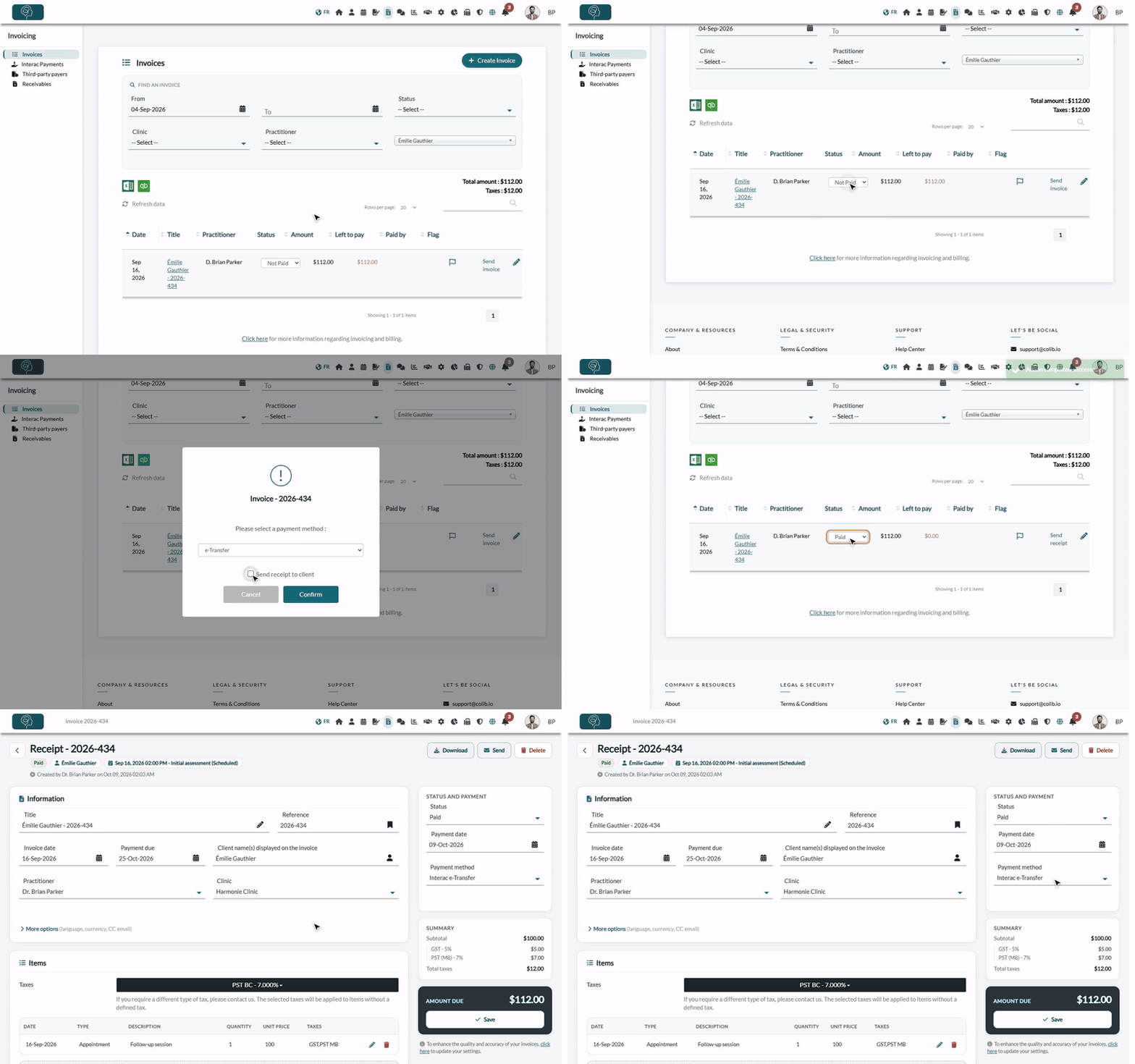
The available statuses
| Status | Use it when |
|---|---|
| Unpaid (Not Paid in the list) | The invoice is waiting for payment. This is the status of every new invoice. |
| In progress | A payment is on its way (for example, a transfer announced by the client). |
| On hold | You do not want to collect the invoice for now. |
| Partially paid | The client paid part of the amount. From the list, you can enter the amount received. |
| Paid | The whole amount was paid. The invoice becomes a receipt. |
| Cancelled | The invoice should no longer be paid (issued by mistake, replaced by another one, etc.). |
| Written off | You consider the amount lost and stop collecting it. |
| Refunded | The payment was refunded to the client. In the list, this status only appears on invoices that already have it. |
1Change the status from the list of invoices
- Go to www.colib.io/invoices.
- Find the invoice you want to update in the list (the filters at the top help you: dates, Status, client).
- Select the new status in the drop-down list of the Status column. The status is updated as soon as it is selected.
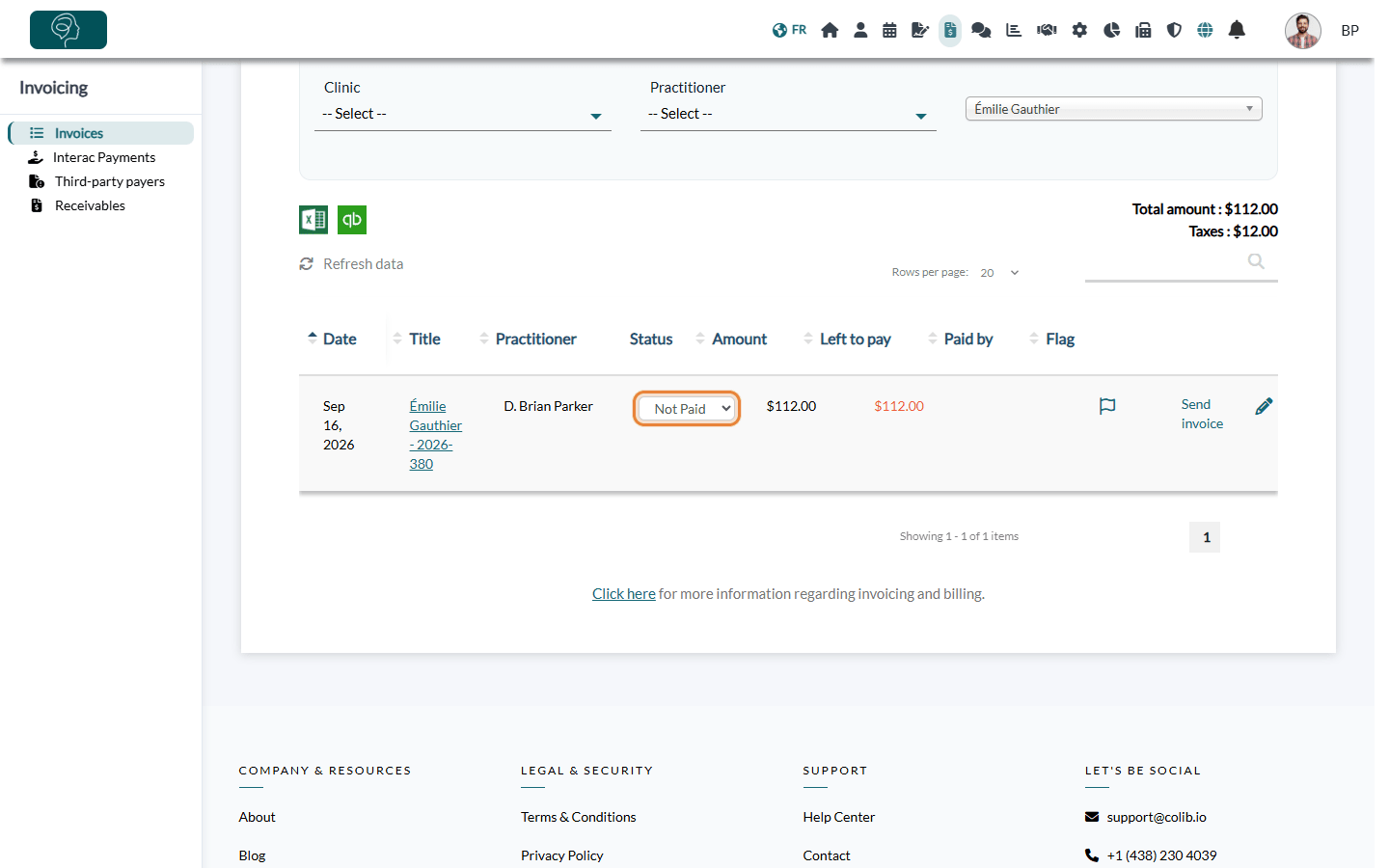
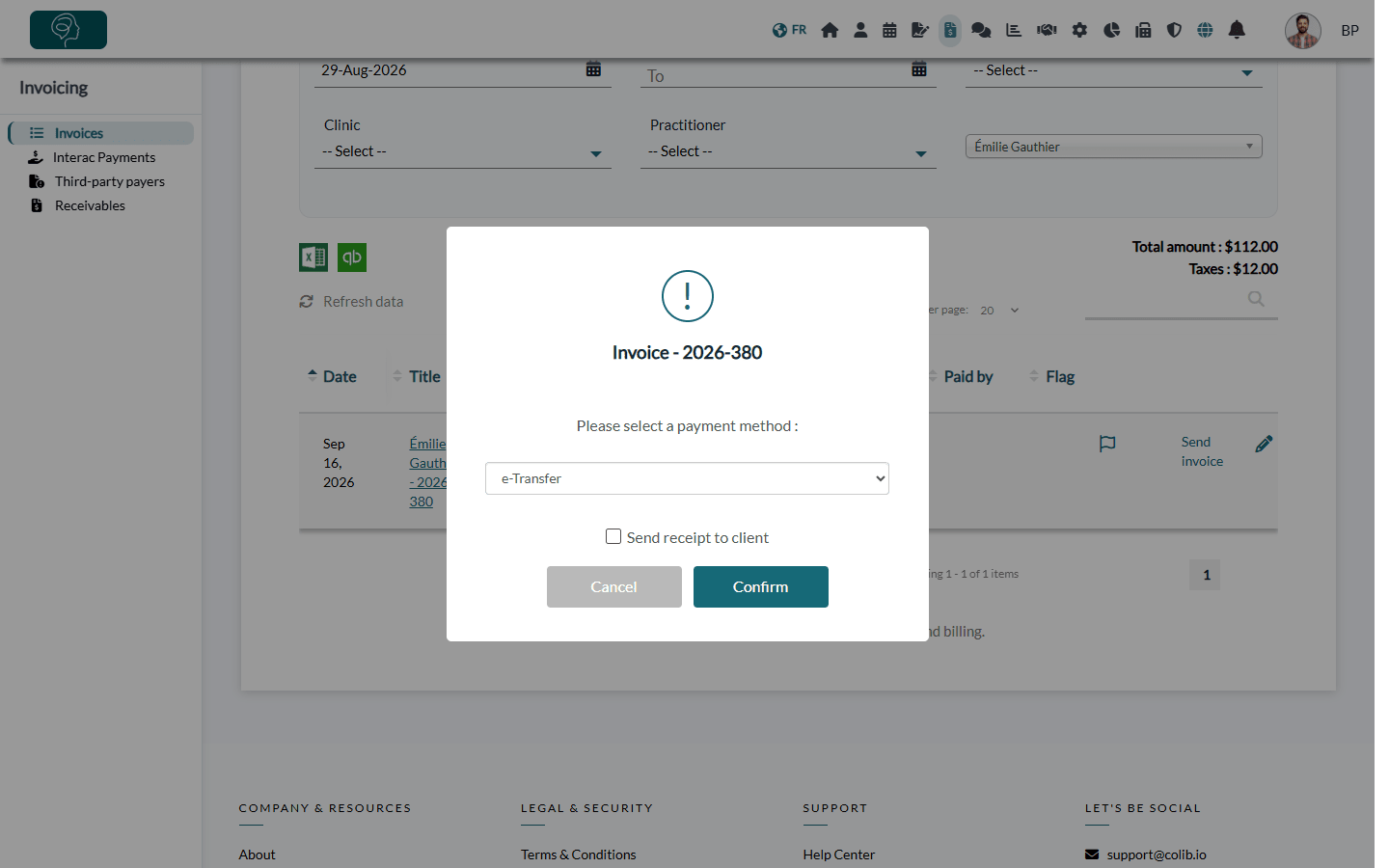
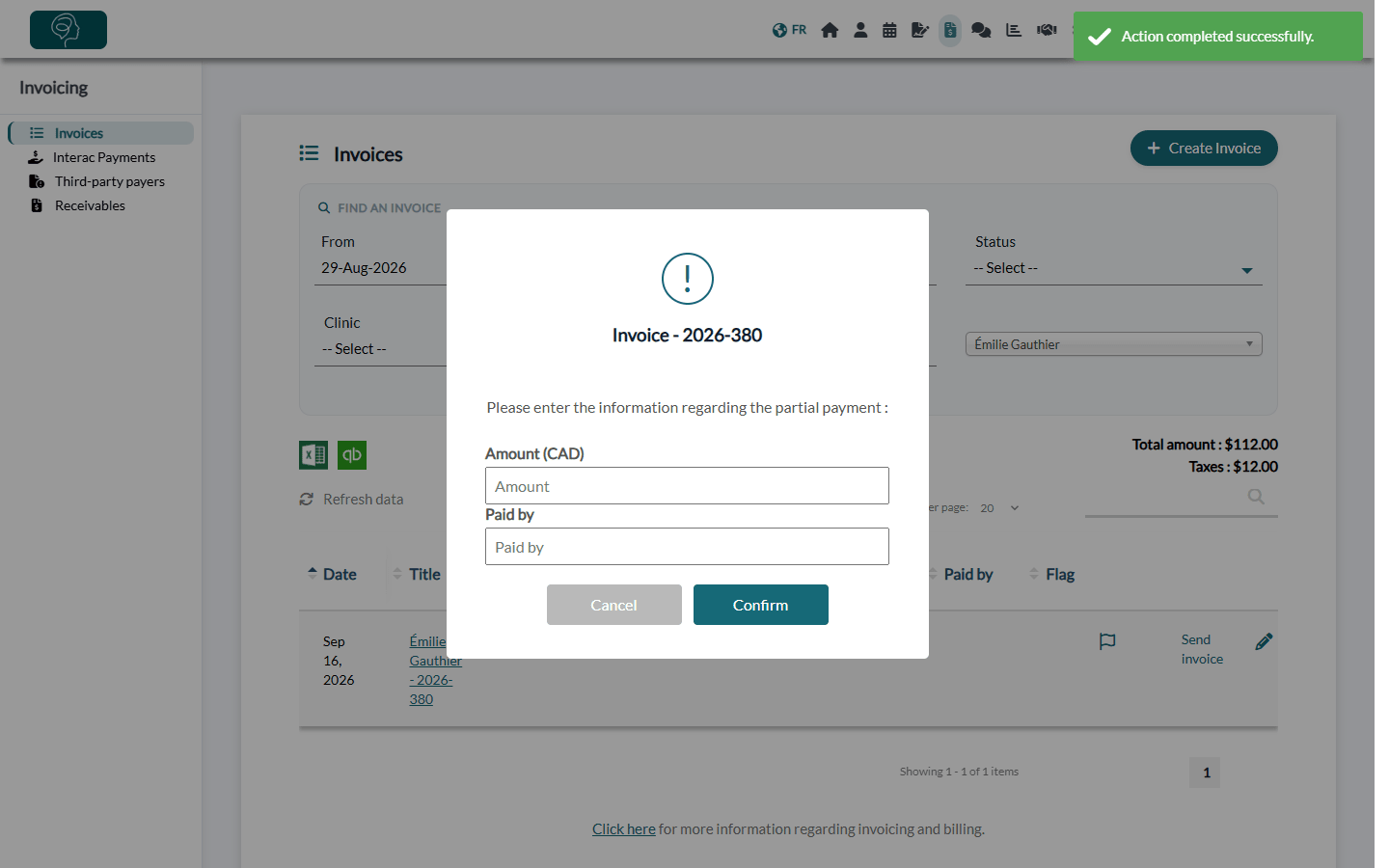
Depending on the status you choose, you may have to enter additional information:
- Paid — if the option Require a payment method information when selecting the “Paid” status for an invoice. is on in Settings > Invoices (www.colib.io/settings?show=invoices), a window asks for the payment method (Card, e-Transfer, Cash, Third party or Other, with details). Check or uncheck Send receipt to client, then click Confirm.
- Partially paid — a window asks for the amount received and who paid it (Paid by). Click Confirm: the amount already paid appears on the invoice and in the Left to pay column. The amount must be lower than the total of the invoice. See How to record a partial payment on an invoice
2Change the status from the invoice page
- Go to www.colib.io/invoices.
- Find the invoice in the list and click its title (link) to open the invoice page.
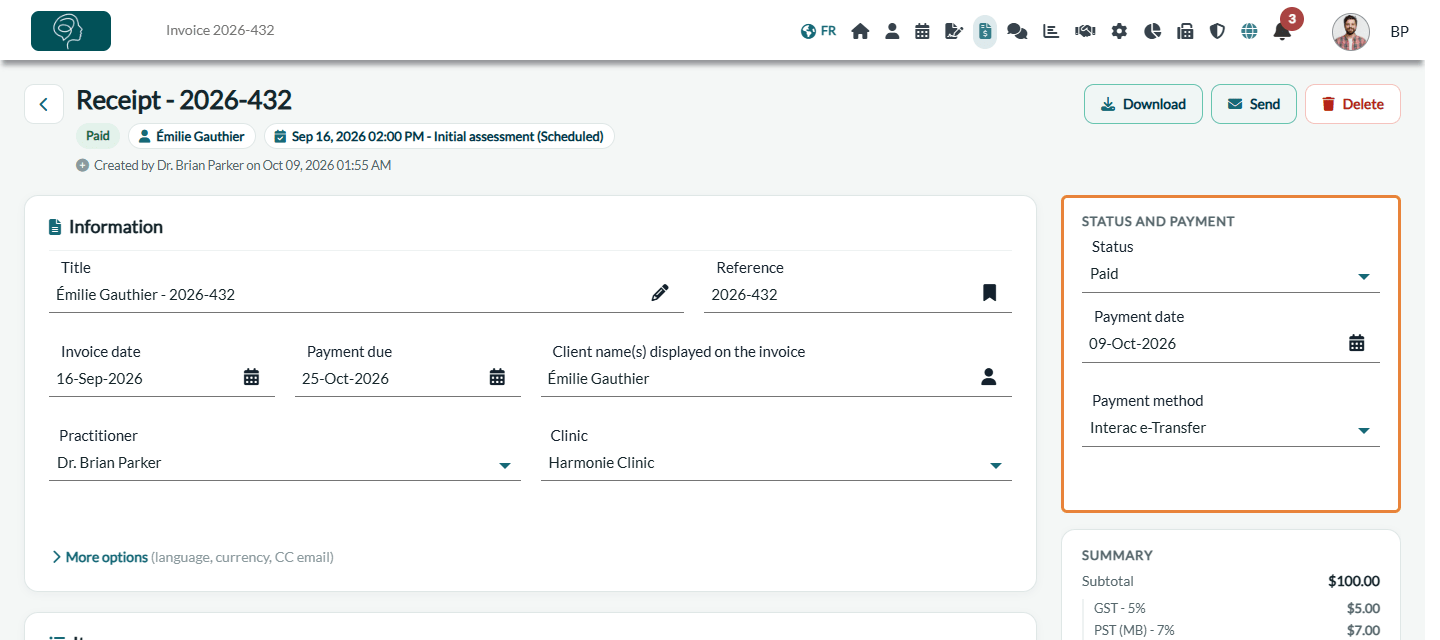
- Choose the new status in the Status list, in the Status and payment panel on the right of the page.
- If you select Paid, new fields appear: Payment date and Payment method (plus Payment method details if you choose Other). If you leave the payment date empty, today's date is used. When the option Require a payment method information when selecting the “Paid” status for an invoice. is on, the payment method is mandatory.
- Click Save in the panel on the right, under Amount due (on a narrower screen, in the bar at the bottom of the screen).
3What happens when an invoice is paid
Once the status of the invoice has been changed to Paid, the invoice is automatically converted into a receipt.
You can also automatically send the receipt to your client when this happens. To enable this option, go to www.colib.io/settings?show=invoices, section Automation, and turn on Automatically send receipt when a payment has been recorded. You can always send the receipt yourself with Send receipt in the list.
Good to know
- Paid by card through Colib — when an invoice has a completed online card payment, its status can no longer be changed.
- From Paid to another status — the receipt becomes an invoice again, and its payment date and payment method are removed.
- Clients who skip automation — no receipt is sent automatically to a client whose record has the Skip invoicing automation option (How to skip invoicing automation for specific clients). In the payment method window, the Send receipt to client box still decides.
- Read-only access — if your access to financial information is view only, the status is displayed as text and cannot be changed.
- Payments received outside Colib — see How to record an offline or manual payment on an invoice
Still have a question?
Write to us at support@colib.io, we will be happy to help.
Was this article helpful?
That’s Great!
Thank you for your feedback
Sorry! We couldn't be helpful
Thank you for your feedback
Feedback sent
We appreciate your effort and will try to fix the article