Who is this article for?
For various reasons, you may need to edit a receipt (an invoice that has been paid) after it has been sent. Most often, it is to correct the client's name, but you can also change the dates, the notes or the payment information.
This article explains what you can change on a receipt, how to save your changes and how to send the corrected receipt to your client.
Important: if the receipt has the Paid status and was paid by card through Colib (a completed online payment), you cannot change its items, its taxes, its currency or its status, and you cannot delete it. All the other fields stay editable.
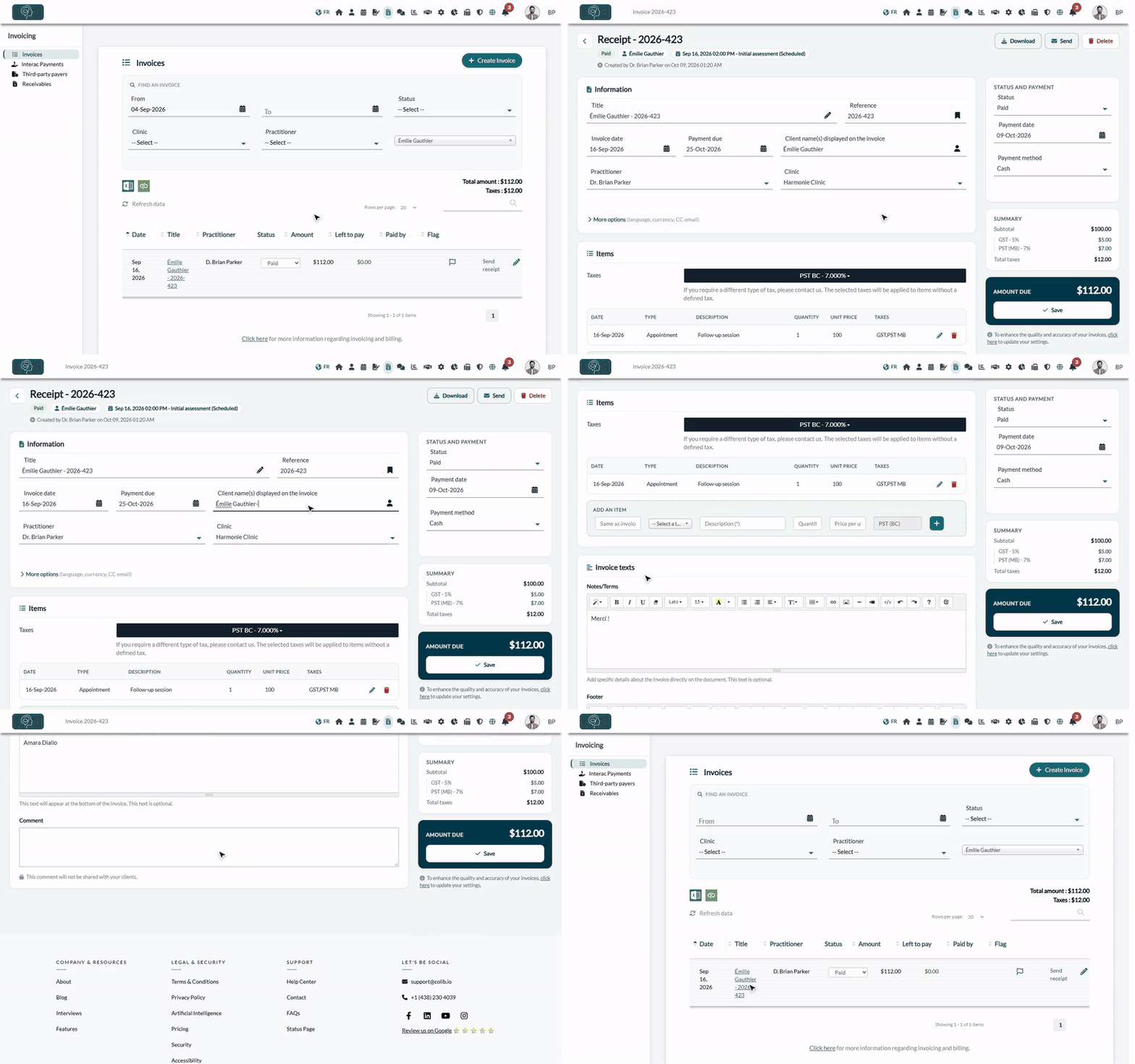
1Open the receipt
- Go to www.colib.io/invoices. You can narrow the list with the filters (dates, Status, client).
- Click the title of the receipt in the list. You can also open it from the client's record, in the Billing tab.
- The page shows Receipt followed by its number at the top, with a Paid badge under the title: the invoice has the Paid status.
2Make your changes
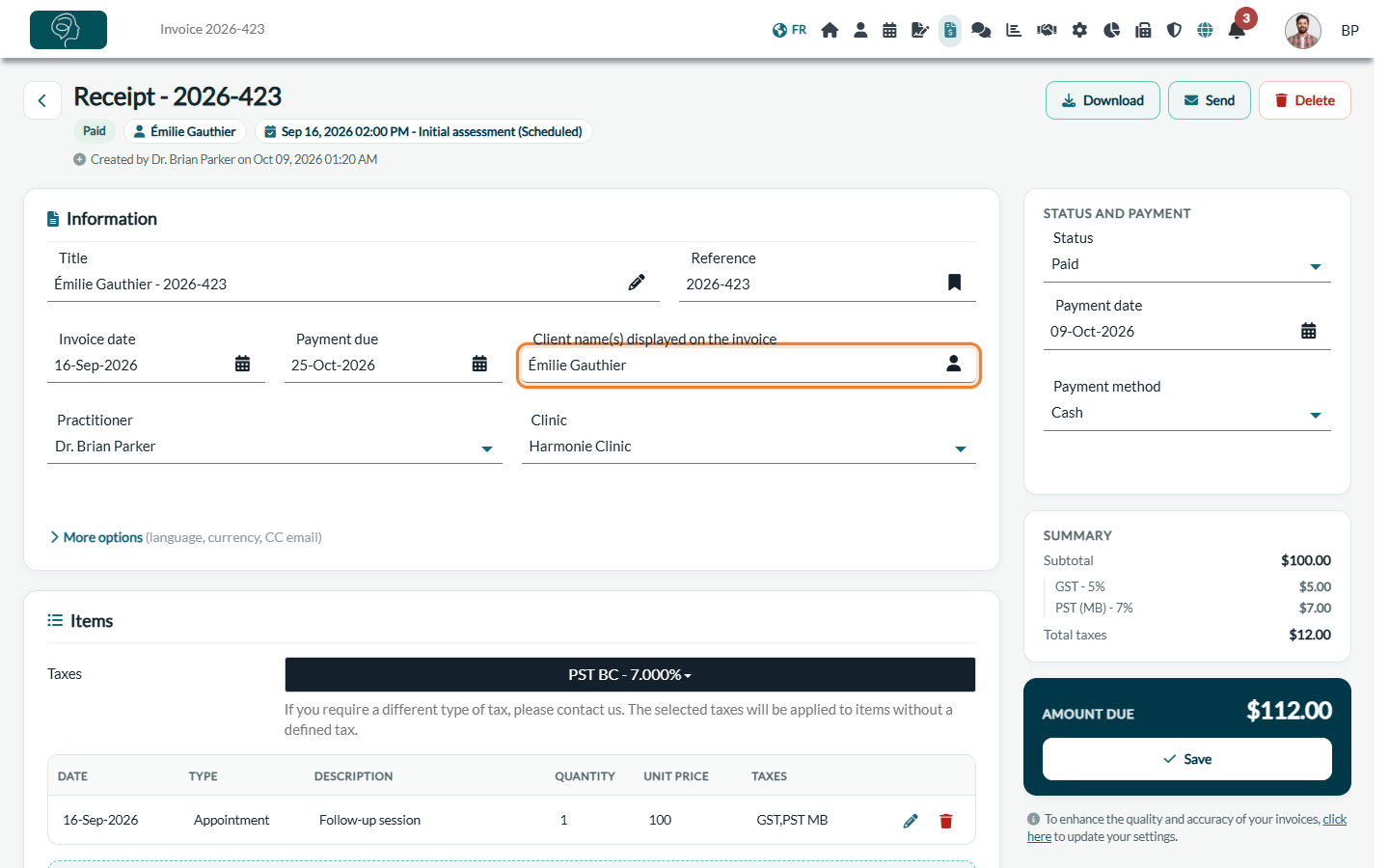
Change the fields you need, for example the client's name in Client name(s) displayed on the invoice. The fields you can edit on a receipt are:
| Field | What it changes |
|---|---|
| Client name(s) displayed on the invoice | The name printed on the receipt (for example, to fix a typo or add the name of a parent). |
| Title and Reference | The title shown in your invoice list and the number of the receipt. |
| Invoice date and Payment due | The dates printed on the document. |
| Payment date and Payment method | When and how the client paid (card, e-Transfer, cash, third party or other). In the Status and payment panel on the right. |
| Language | The language of the receipt (English or French). Under More options, in the Information card. |
| Practitioner and Clinic | Shown when your practice has several practitioners or several clinics. |
| CC Email | An optional address that receives a copy of the invoice and receipt emails. Under More options. |
| Comment | An internal note: it is never shared with your client. In the Invoice texts card. |
| Notes/Terms and Footer | Optional texts printed on the receipt. In the Invoice texts card. |
| Items, Taxes and Currency | Editable only when the receipt was not paid by card through Colib (for example, a payment you recorded yourself in cash or by e-Transfer). In the Items card, use the pencil icon to edit a line, the trash icon to delete it, and the Add an item line under the table to add one. The Currency is under More options. |
3Save
- Click Save in the panel on the right, under Amount due (on a narrower screen, in the bar at the bottom of the screen).
- Colib creates a new version of the receipt PDF with your changes and brings you back to your invoice list, where the preview of the receipt opens.
4Send the corrected receipt to your client
Saving does not send the receipt again. If your client already received the previous version, send the corrected one:
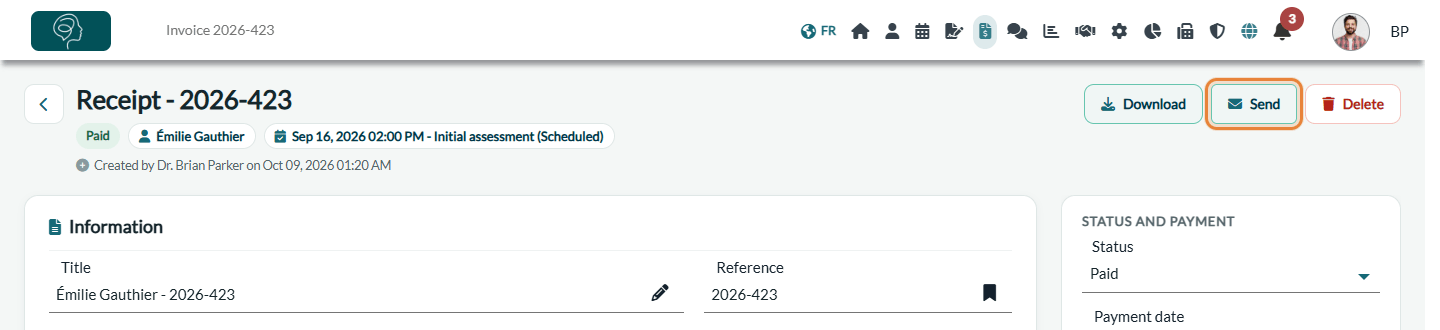
- Open the receipt again and click Send at the top of the page. In the invoice list, you can also click Send receipt again on its row.
- Add a personal message if you wish, then click Confirm. Your client receives the corrected receipt by email.
Good to know
- Receipt never sent — if the receipt was never sent and the option Automatically send receipt when a payment has been recorded. is on in Settings > Invoices (www.colib.io/settings?show=invoices), saving the receipt sends it to the client, unless the client skips invoicing automation (How to skip invoicing automation for specific clients).
- Wrong amount on a card payment — the items of a receipt paid by card through Colib are locked. To give money back, use the refund icon in the Payments card at the bottom of the receipt (if your access rights allow it).
- Back to an invoice — if you change the status from Paid to another status (possible only when there is no card payment through Colib), the receipt becomes an invoice again. See How to change the status of an invoice.
- Add a line — see How to enter additional items on an invoice.
- Delete a receipt — the Delete button at the top of the page is available only when no online payment was made on the receipt.
Still have a question?
Write to us at support@colib.io, we will be happy to help.
Was this article helpful?
That’s Great!
Thank you for your feedback
Sorry! We couldn't be helpful
Thank you for your feedback
Feedback sent
We appreciate your effort and will try to fix the article