Who is this article for?
You charge late cancellations or missed appointments, or you have rules your clients must know before they book? Show your cancellation policy on your booking page: clients read it on the last screen and must accept it before they can book.
This article explains how to write your policy in English and French, what your clients see, and where you find the proof that they accepted it.
Before you start: the policy is set in Settings > Booking Page (www.colib.io/settings?show=bookingpage), in the Direct Booking section. It only appears when the Client booking type is Online booking by client. You need access to the practice settings to change it.
1Write your cancellation policy
- Go to www.colib.io/settings?show=bookingpage. You can also click the Settings icon (gear) in the top bar, then Booking Page in the Admin menu on the left.
- Open the Direct Booking section and scroll down to the Cancellation policy part (just before SEO).
- Type your policy in Cancellation policy / terms (english).
- Type the French version in Cancellation policy / terms (french).
- Click Save at the bottom of the page.
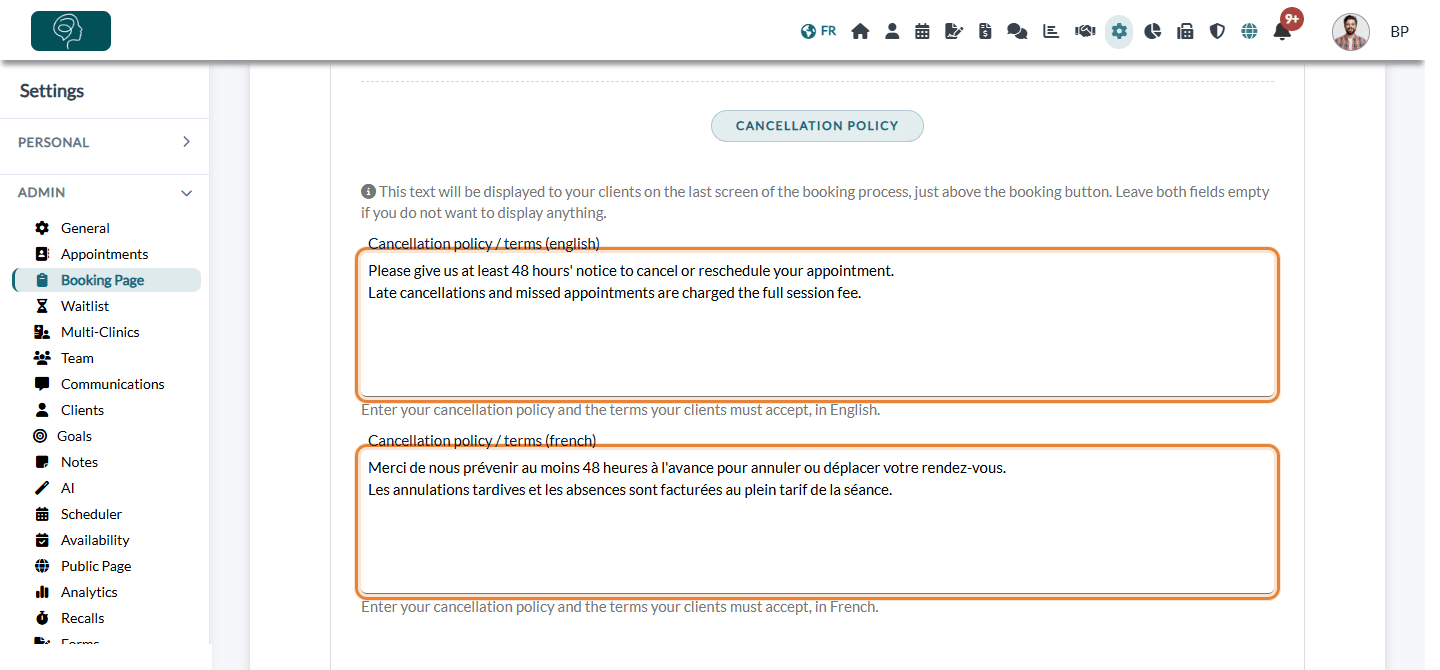
The fields contain plain text: no bold or links, but the line breaks you type are kept on the booking page. Keep it short and clear: notice required to cancel or reschedule, fee for late cancellations and missed appointments, any other condition.
2What your clients see
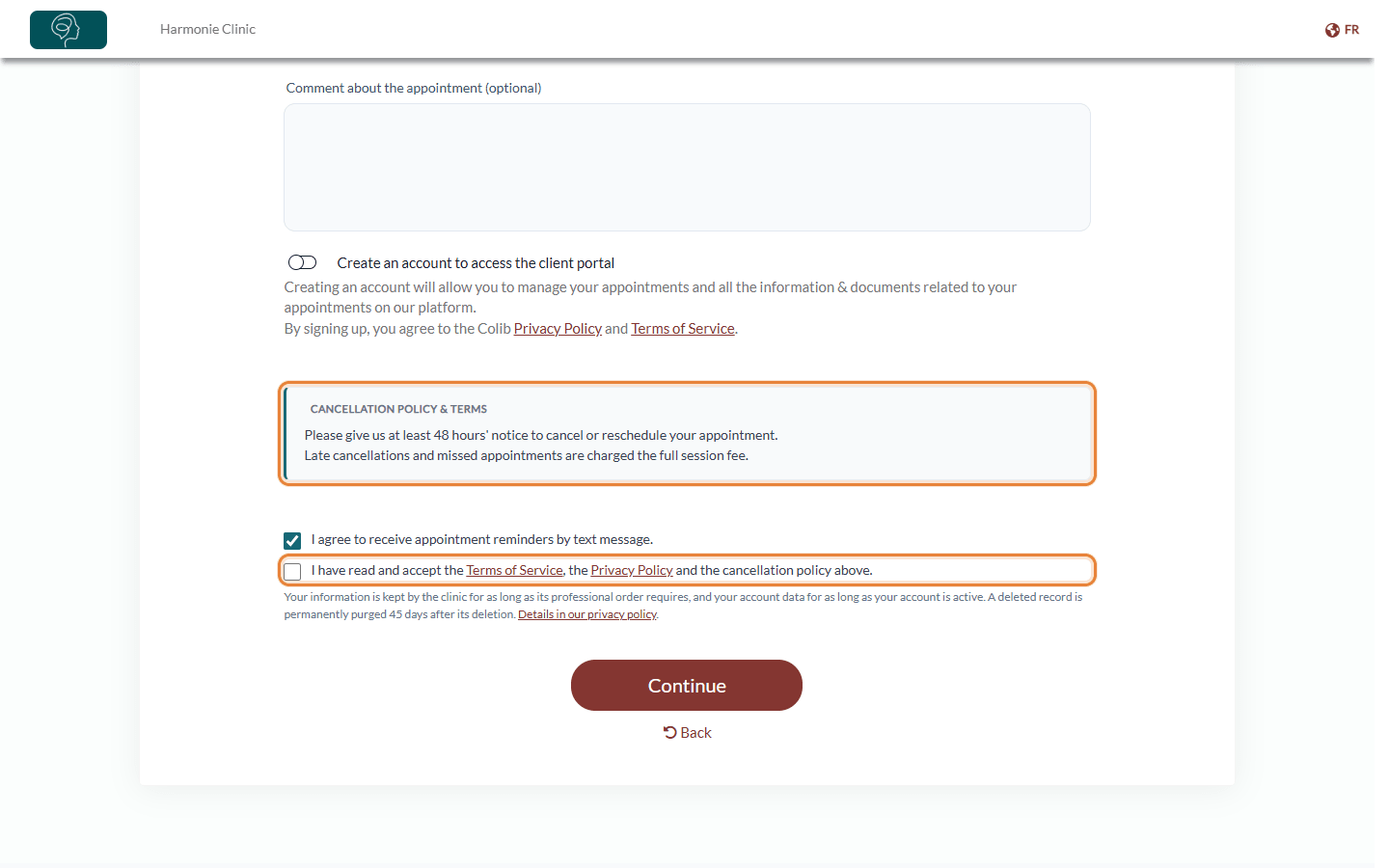
On the last screen of the booking page, just above the Continue button that finalizes the booking, a Cancellation policy & terms box shows your text.
- Clients who book in English see the English text, clients who book in French see the French text. If one of the two fields is empty, the other language is shown instead.
- Clients must check I have read and accept the Terms of Service, the Privacy Policy and the cancellation policy above. Without this box checked, the booking cannot be completed.
3Find the proof of acceptance
Each acceptance is recorded in the client record, with the date and the source.
- Open the client's record from your client list (www.colib.io/clients).
- Click the Privacy tab, then Consents.
- The line Terms of service and cancellation policy, with the source Online booking, shows when the client accepted it.
Good to know
- Remove the policy — empty both fields and click Save: the box no longer appears. Clients still accept the Terms of Service, the Privacy Policy and the cancellation policy of the clinic before booking.
- Every booking page — the policy is shown on your practice booking page, on clinic booking pages and on practitioner links.
- Charge the fees — to keep a card on file and charge late cancellations or missed appointments, see how to charge clients automatically during online booking. The Payment part of the same section also has a text shown on the payment step.
- Online cancellations — whether clients can cancel online, and until when, is set elsewhere: see how to cancel an appointment.
- The whole booking page — see how to set up the booking process.
Still have a question?
Write to us at support@colib.io, we will be happy to help.
Was this article helpful?
That’s Great!
Thank you for your feedback
Sorry! We couldn't be helpful
Thank you for your feedback
Feedback sent
We appreciate your effort and will try to fix the article