Who is this article for?
Your clients book their appointments on your online booking page, and you want them to leave a credit card at that moment. The card is saved in their client record, so that you can charge the appointment, a no-show or a late cancellation later without asking them again.
This article explains how to turn on this step, what your clients see, how to exempt some appointment types, and when the card is used.
Before you start: collecting a card during the booking requires the online payment system provided by Colib. If it is not activated yet, see How do I activate the online payment system on Colib? Otherwise, Colib refuses to save the option and asks you to enable it in the Payments tab first.
1Check the booking type
It is only possible to collect credit card information when clients book directly online.
- Go to www.colib.io/settings?show=bookingpage. You can also click the Settings icon (gear) in the top bar, then Booking Page in the menu on the left.
- In the Booking Type section, make sure that the Client booking type is Online booking by client. If it is already selected, go to the next step.
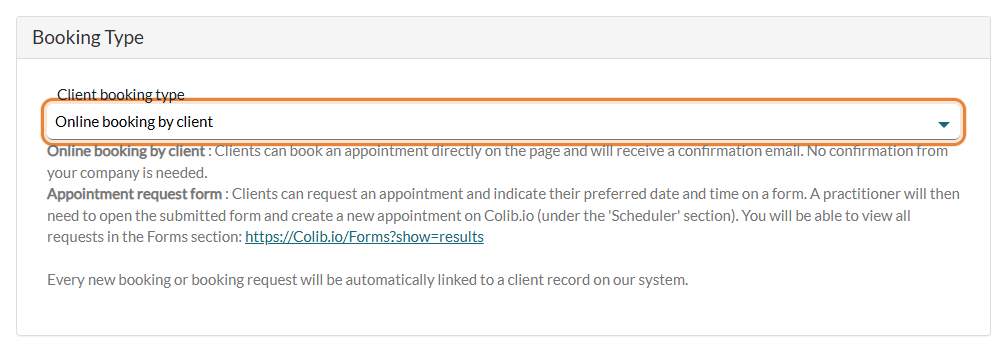
With the Appointment request form type, no card is collected: the option is turned off when you save.
2Turn on the card step
- Scroll down to the Direct Booking section, then to the Payment part.
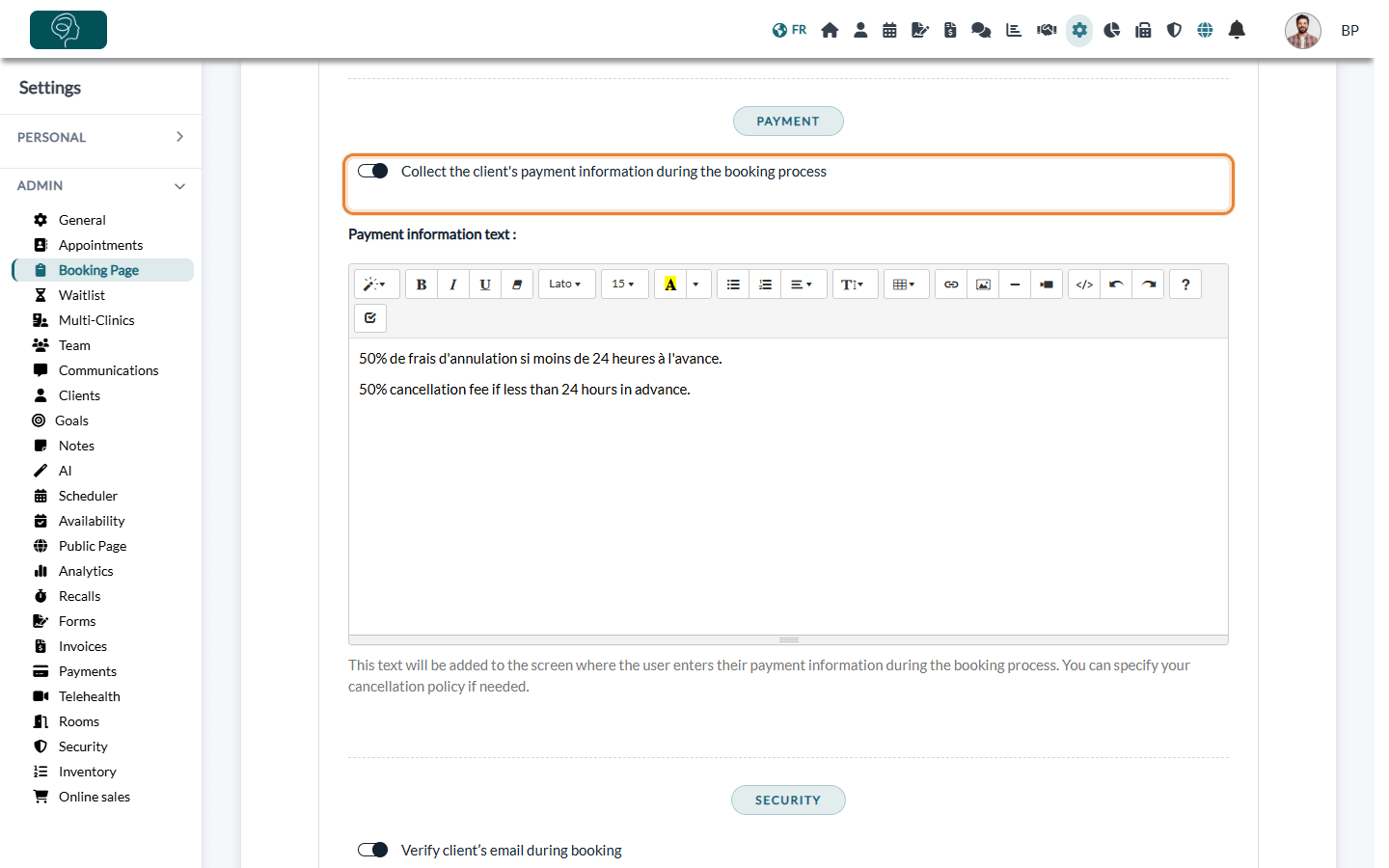
- Turn on Collect the client's payment information during the booking process.
- Optionally, write a Payment information text. It is added to the screen where clients enter their card: it is the right place for your cancellation policy.
- Scroll to the bottom of the page and click Save.
3What your clients see
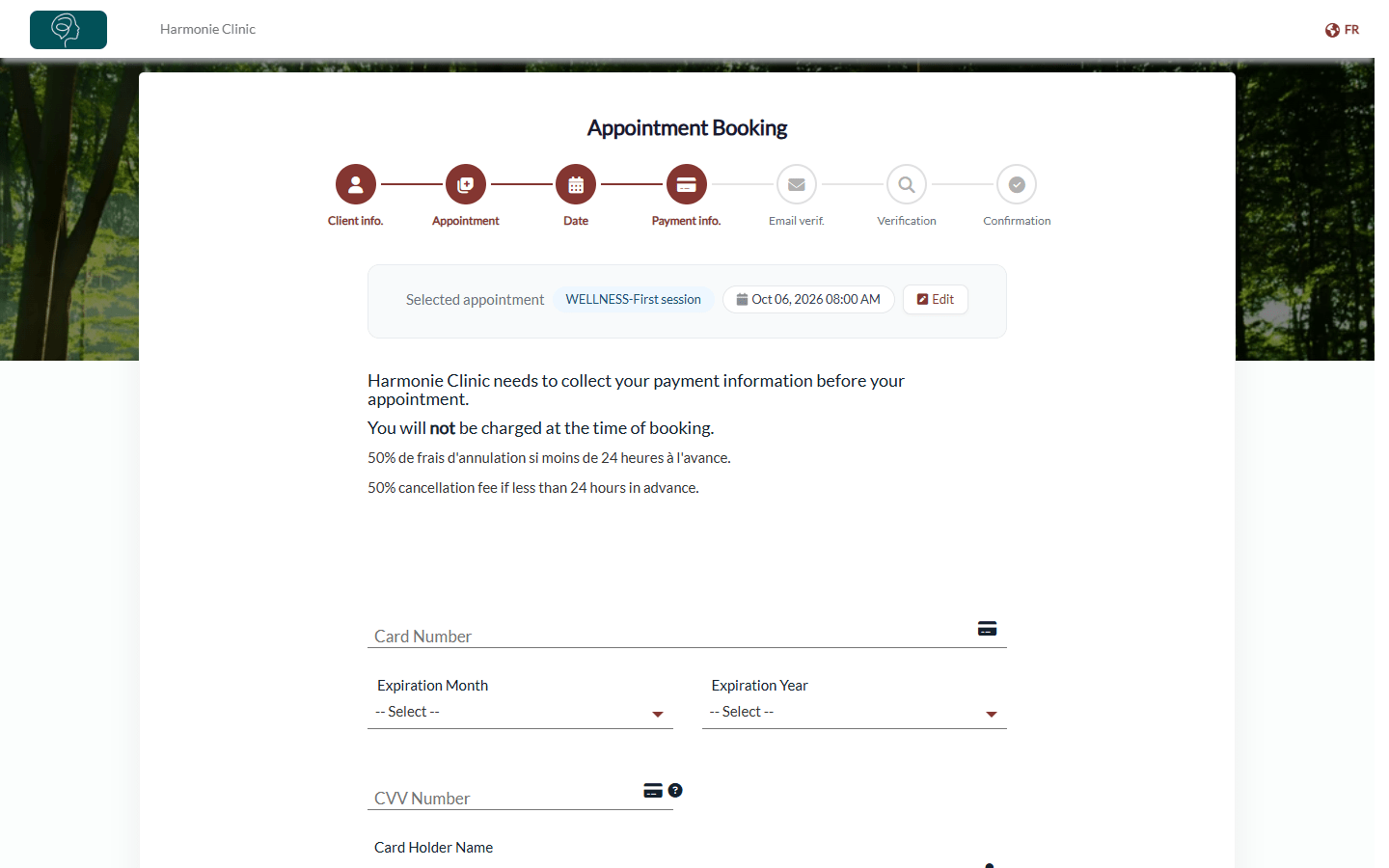
After choosing the date of their appointment, your clients reach a Payment info. step. It tells them that your practice needs to collect their payment information before the appointment and that they will not be charged at the time of booking, followed by your payment information text. They enter their card number, expiration month and year, CVV number and the cardholder's name, then continue their booking.
This step is skipped automatically when:
- the client already has an active payment card on file;
- the appointment is covered by a gift certificate;
- the appointment type has the No credit card required option (see the next step).
4Exempt some appointment types (optional)
Some appointments do not need a card, for example a free discovery call.
- Go to Settings > Appointments (www.colib.io/settings?show=appointments).
- Click the pencil icon of the appointment type, then open the Invoicing section.
- Turn on No credit card required, then save the appointment type.
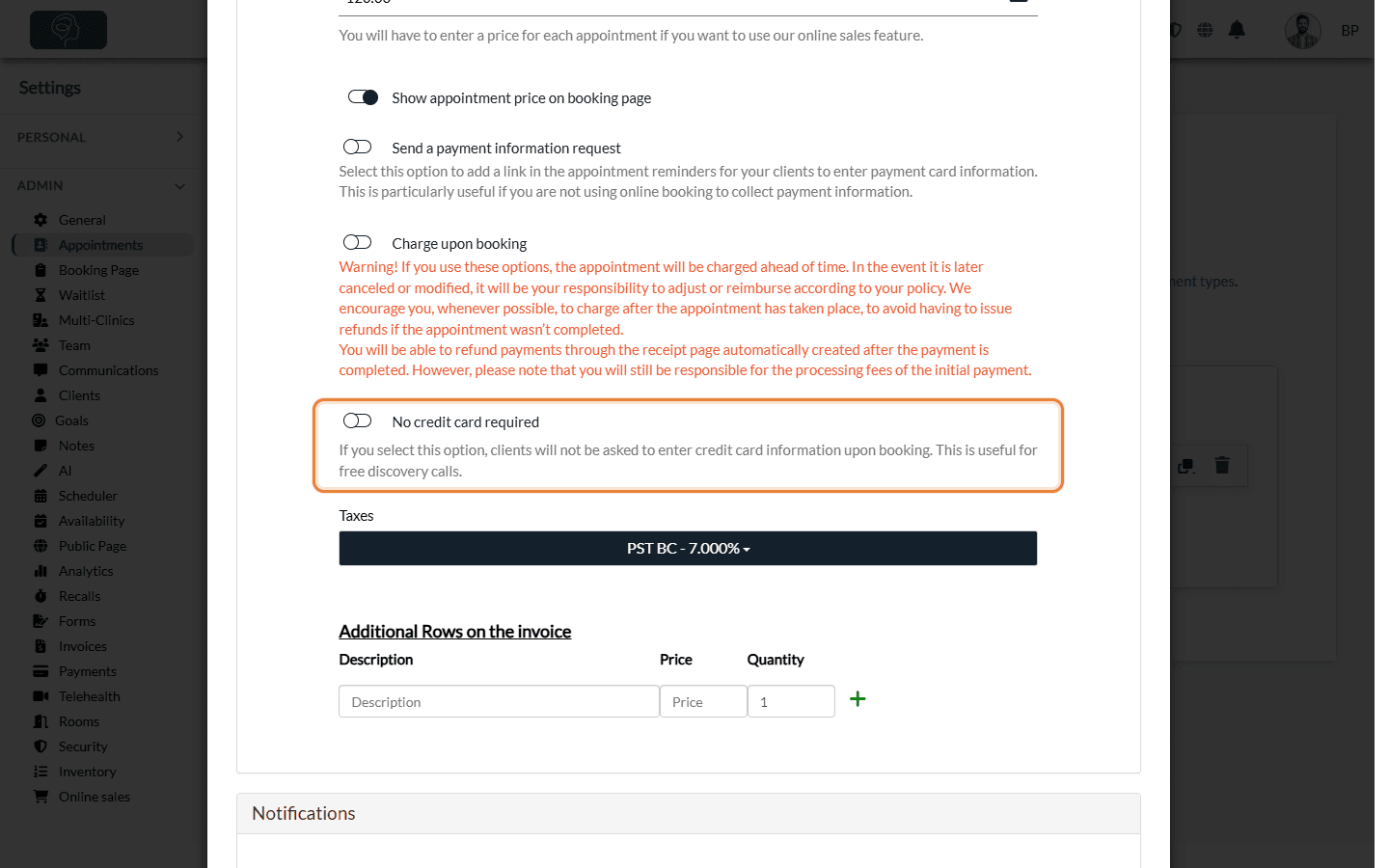
This option only appears when your booking page collects payment information and the appointment type can be booked online. In the same section, Charge upon booking does the opposite: the client is charged the price of the appointment as soon as they book, and is asked for a card each time, even if one is already on file. See How to charge clients automatically during online booking.
When is the card used?
Collecting the card does not charge the client. The card is saved in the client record (Billing tab > Payment Cards) and is only charged:
- when you charge it yourself, or automatically when you mark the appointment as completed (see How to charge a client's saved credit card);
- for a no-show or a late cancellation, if you set up the automatic fees (see How to charge no-shows and late cancellation appointments);
- at booking, for the types with Charge upon booking.
Otherwise, your clients pay their invoices with the online payment system as usual.
Good to know
- Appointments booked by your team — to collect a card from clients who do not book online, see How to request a client to enter their payment information or Is it possible for me to manually enter my client's credit card information?
- All the options in one place — please see the article titled "What are the ways to collect a client's credit card?".
- Fees — saving a card is free; fees only apply when a payment is made. See What payment methods are accepted on Colib? What are the fees?
Still have a question?
Write to us at support@colib.io, we will be happy to help.
Was this article helpful?
That’s Great!
Thank you for your feedback
Sorry! We couldn't be helpful
Thank you for your feedback
Feedback sent
We appreciate your effort and will try to fix the article