Who is this article for?
When clients book online, a typo in their email address means they never receive their confirmation or their reminders. With email verification, Colib sends a one-time code to the address the client entered, and the booking can only be completed once that code has been entered. You make sure that every online booking comes with an email address the client really uses.
This article explains how to turn the option on, how to set it for each clinic if you have several, and what your clients see.
Before you start: email verification is part of online booking. Your client booking type must be Online booking by client in Settings > Booking Page (www.colib.io/settings?show=bookingpage). See how to set up the booking process.
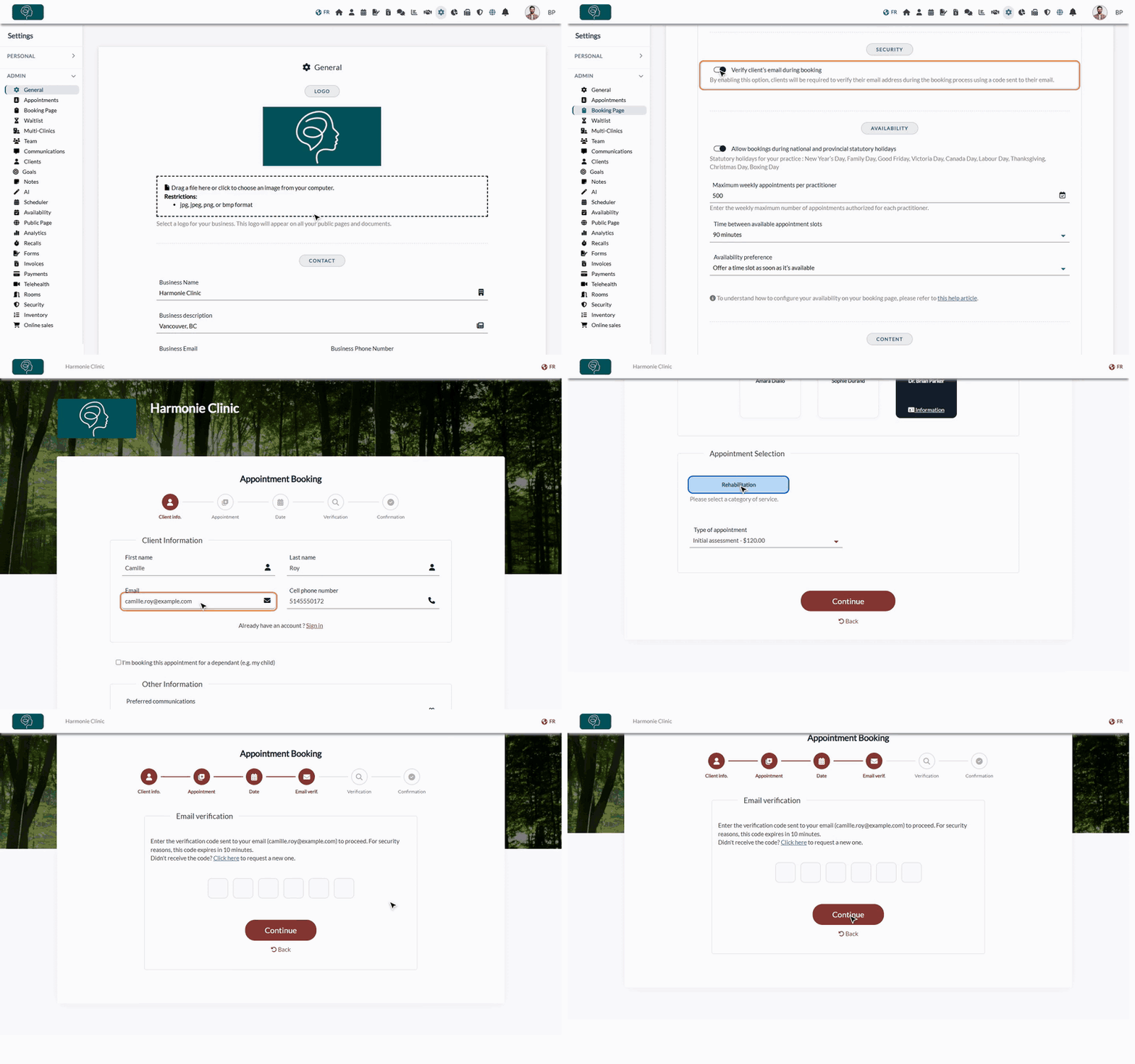
1Turn on email verification
- Go to www.colib.io/settings?show=bookingpage. You can also click the Settings icon (gear) in the top bar, then Booking Page in the Admin menu on the left.
- Open the Direct Booking section and scroll down to Security.
- Turn on Verify client’s email during booking.
- Click Save at the bottom of the page.
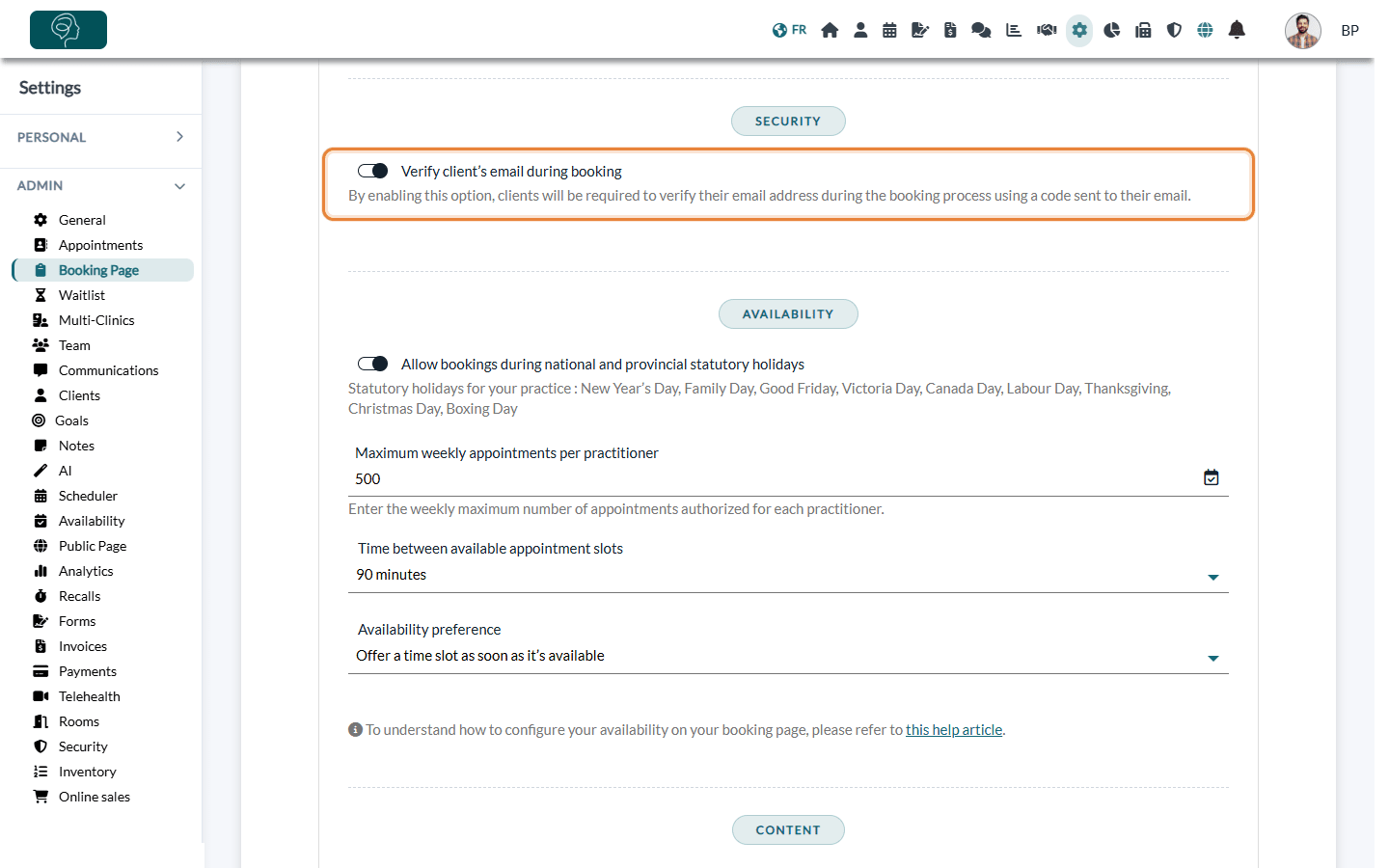
The Direct Booking section, and therefore this option, is only shown when the client booking type is Online booking by client.
2Choose the setting for each clinic (multi-clinic practices)
If your practice has several clinics, each clinic has its own booking page and can use its own setting.
- Go to Settings > Multi-Clinics (www.colib.io/settings?show=clinics).
- Click the pencil icon of the clinic to open Edit clinic.
- In the Direct booking section, make sure Allow direct booking for this clinic is on, then turn Verify client’s email during booking on or off.
- Click Save.
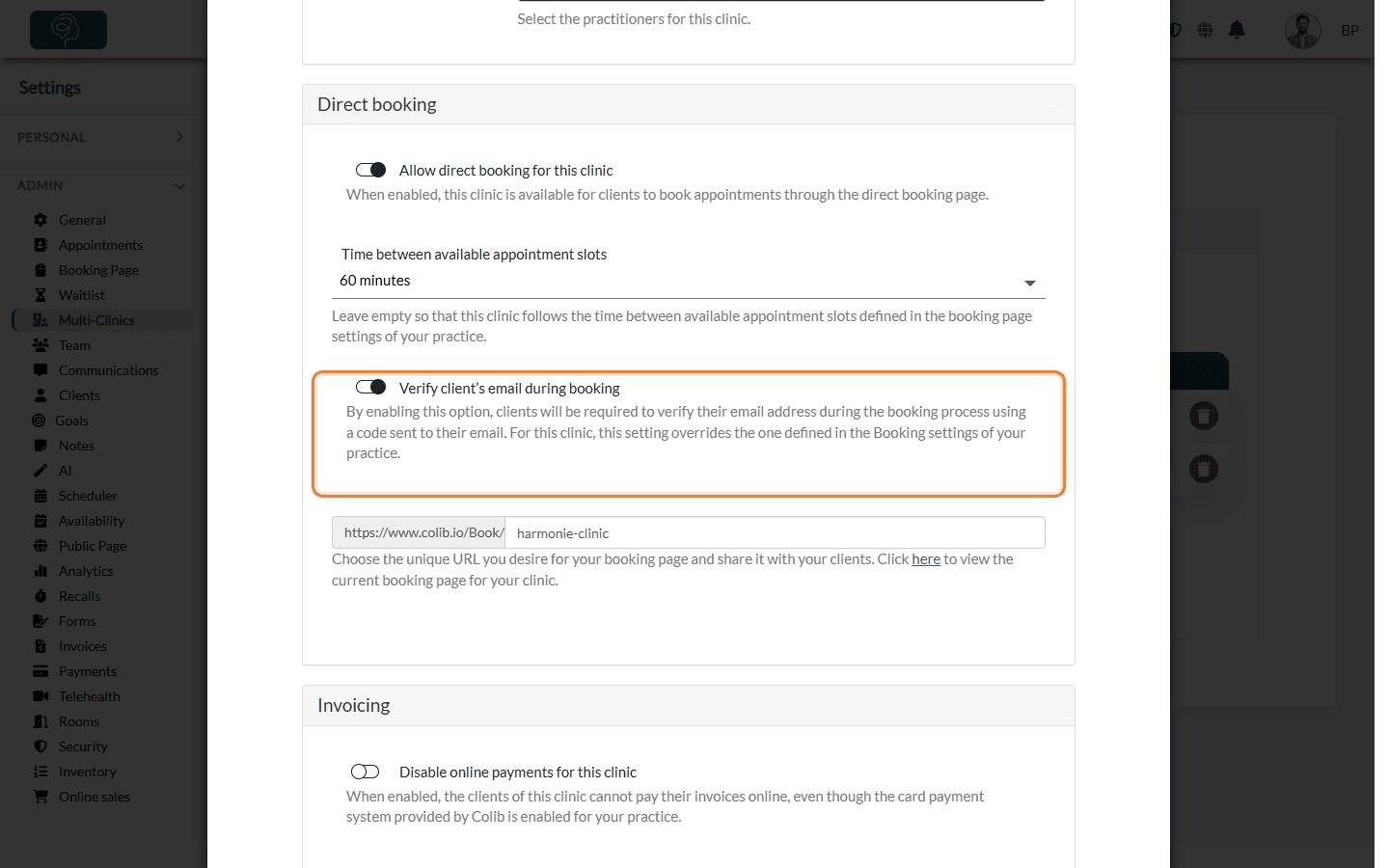
For the booking page of this clinic, this choice replaces the one made in Settings > Booking Page. A new clinic starts with the setting of your practice. To learn more about clinic booking pages, see how to have a different booking page for each clinic.
3What your clients see
- The client fills in their details, chooses an appointment type, then a date and time, as usual.
- A new step, Email verif., appears in the progress bar. If you collect payment information during booking, it comes right after the payment step.
- Colib sends a 6-digit code to the email address entered in the first step. The code is valid for 10 minutes.
- The client types the code in the boxes. The page moves on as soon as the 6 digits are entered (or when they click Continue).
- The client reviews the summary of the appointment on the Verification step and confirms the booking.
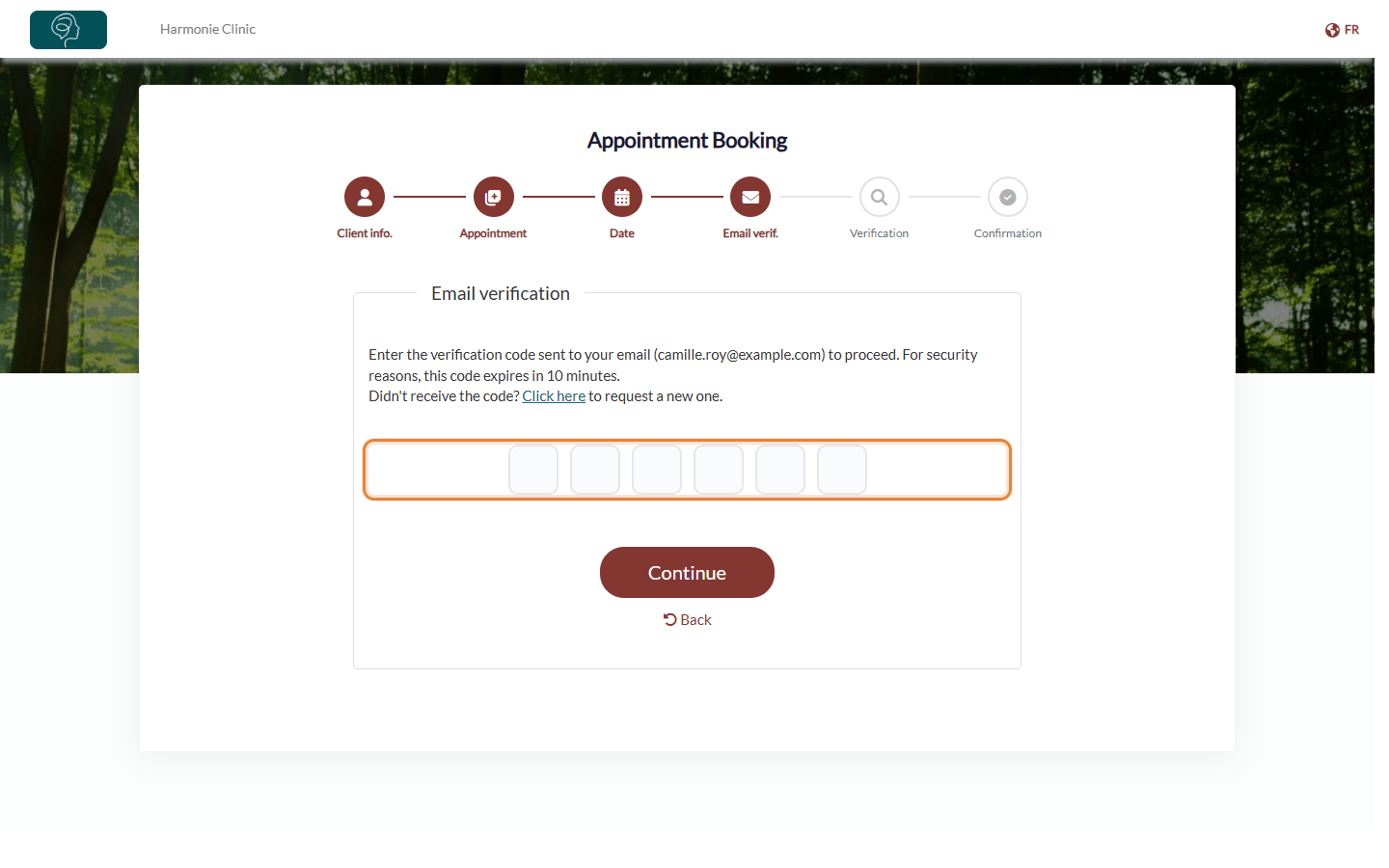
The email comes from Colib, with your practice name and the code in the subject, in the language of the booking page. If the client did not receive it, they can click Click here on the screen to get a new code, or go Back to correct their email address. If the code is wrong or has expired, the message The code you entered is incorrect. Please try again. is shown: the client requests a new code and enters it.
Good to know
- The appointment is created only after verification — nothing appears in your schedule until the client has entered the code and confirmed the booking. A client who stops at the verification step has not booked.
- Clients signed in to their account — the step is skipped when the client is signed in and books with the email address of their account. See do my clients need to create a Colib account before booking?
- Changing an appointment — when a client changes an appointment they booked online without changing their email address, they do not have to verify it again. If they enter a different address, a new code is sent to it.
- Code not received? — ask the client to check their junk mail folder and the spelling of their address.
- Related settings — you can also charge clients automatically when they book and let clients book on behalf of a dependant.
Still have a question?
Write to us at support@colib.io, we will be happy to help.
Was this article helpful?
That’s Great!
Thank you for your feedback
Sorry! We couldn't be helpful
Thank you for your feedback
Feedback sent
We appreciate your effort and will try to fix the article