Who is this article for?
You wonder whether your clients must sign up before they can book online? No. Your clients can book on your booking page without creating an account or remembering a password. Creating an account to access the Colib client portal is optional, and they can do it while booking if they wish.
What clients enter to book
On the first step of your booking page, clients simply enter their first name, last name, email and cell phone number. You can make the phone number mandatory and ask for more information (insurance, address, a custom question, additional client fields) in your booking page settings.
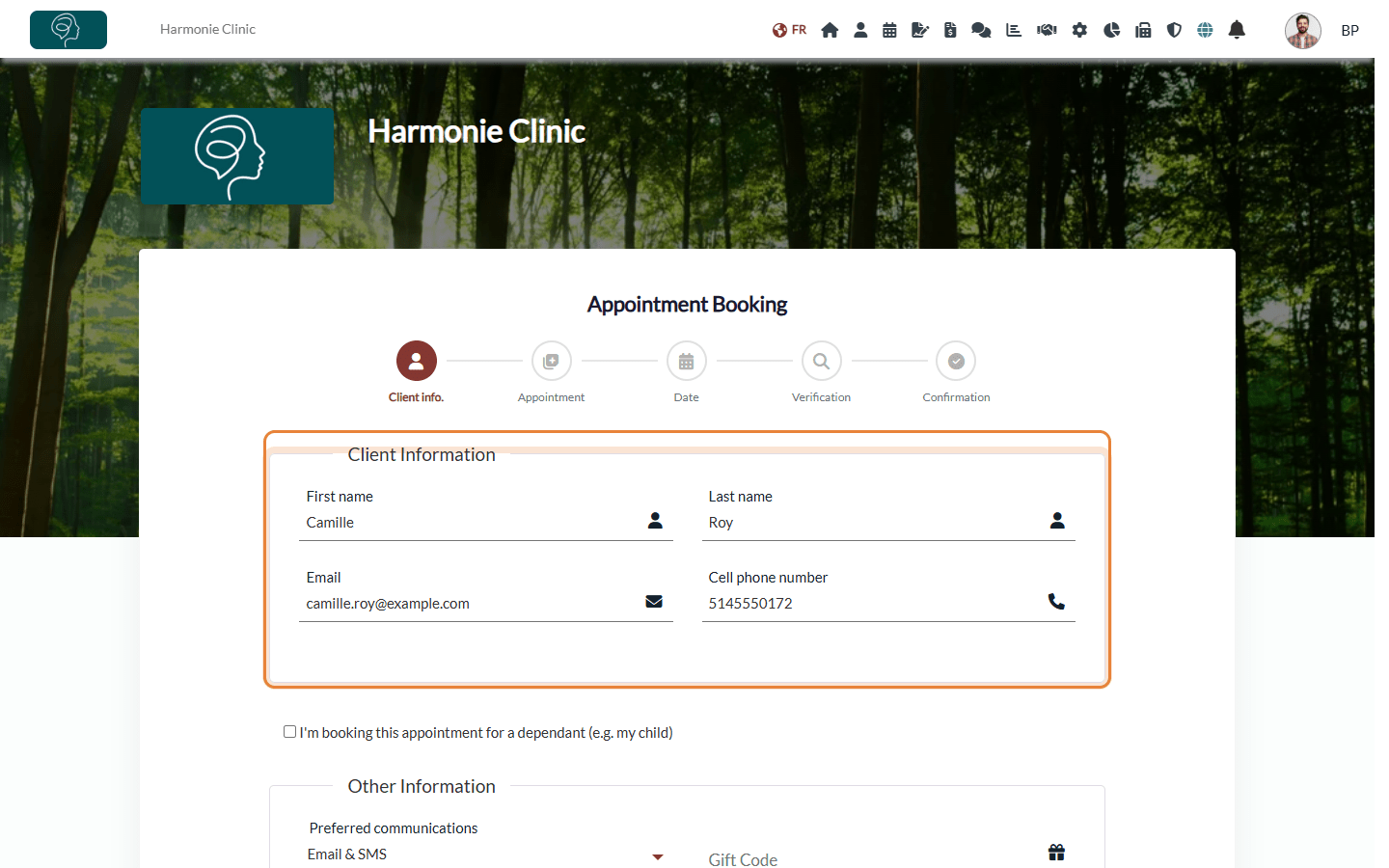
After booking, clients receive a confirmation by email (and/or SMS, depending on the communication preference they choose). They can use the links of this confirmation to change or cancel their appointment, if your settings allow it.
How Colib recognizes your clients
No login is needed because Colib uses the email address: when a client books, Colib looks for an active client of your practice with the same email address and attaches the appointment to that record, updating it if needed. If no record matches, a new client record is created automatically.
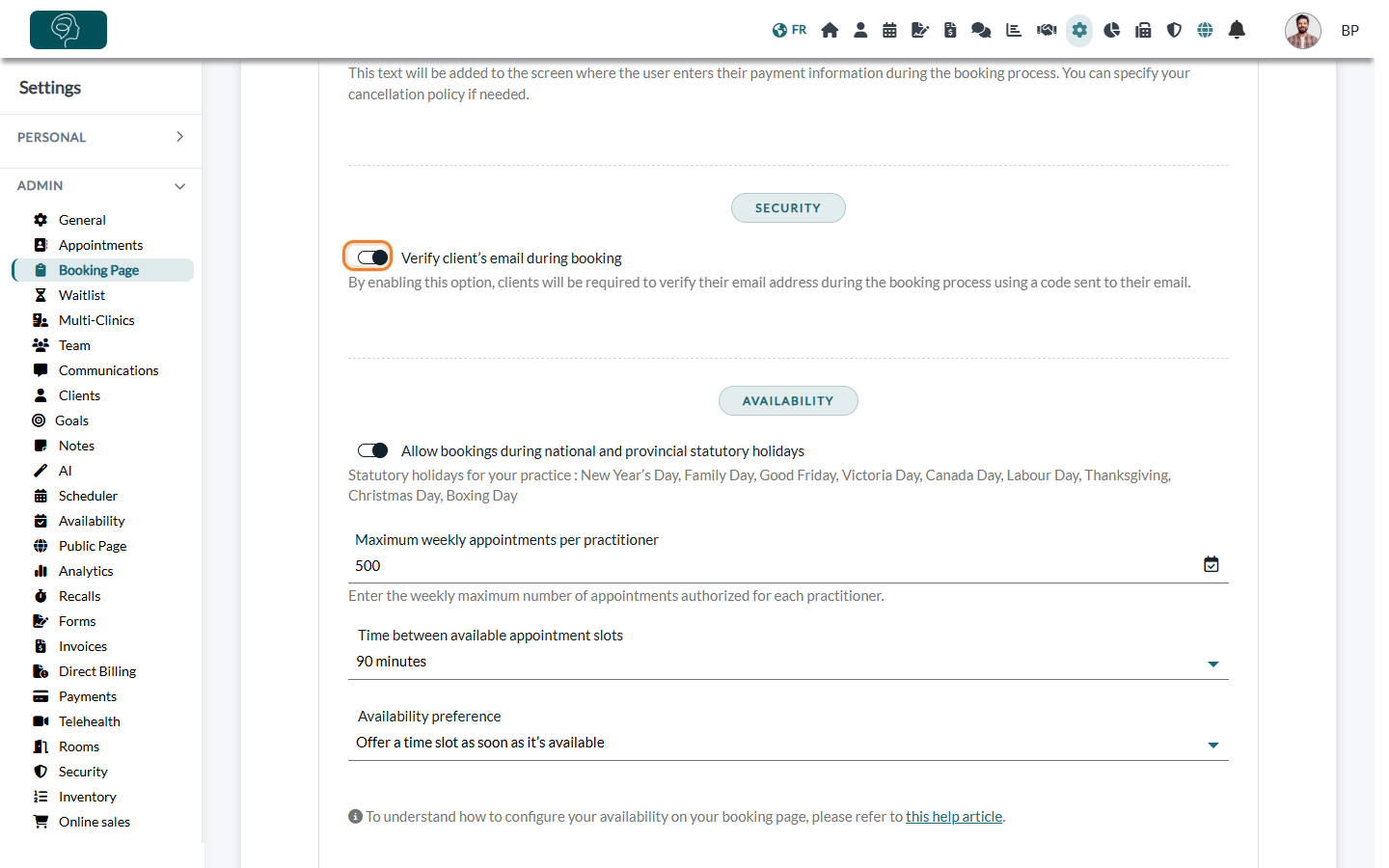
To make sure the person booking really owns the email address entered, turn on Verify client’s email during booking in Settings > Booking Page (www.colib.io/settings?show=bookingpage), in the Security section. Clients then receive a code by email and must enter it to continue. See how to verify the email address of your client during the booking process.
The optional client account
On the summary step of the booking page, just before they click Continue, clients who do not have an account yet see the option Create an account to access the client portal. If they turn it on, their account is created with the email address they entered, and they receive an email to verify it.
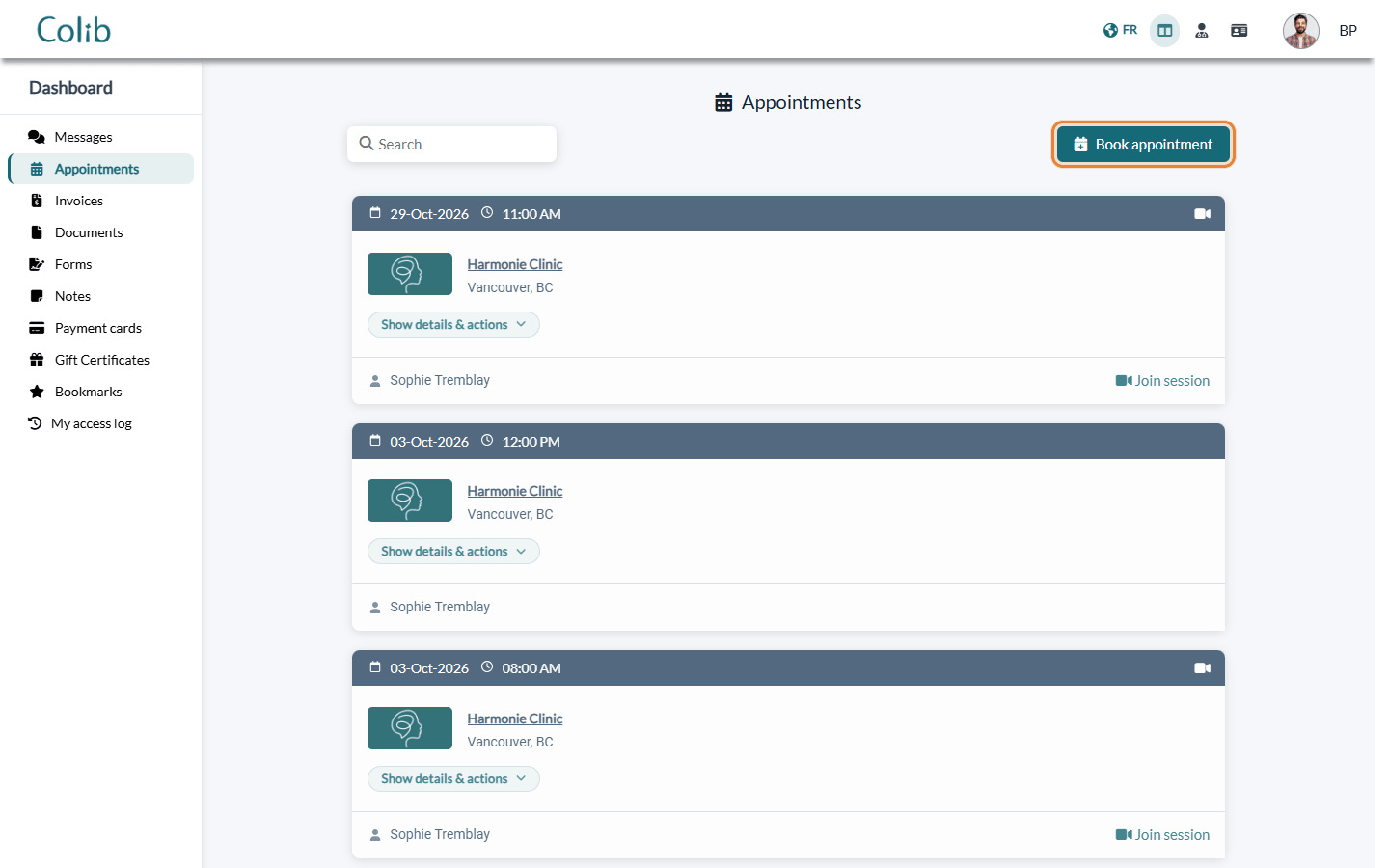
With an account, your clients can log in to the client portal (https://portal.colib.io) to see all their appointments, change or cancel them according to your settings, and find their invoices, documents and forms. The Book appointment button of their appointments takes them back to your booking page.
Learn more: what is the client portal? and who can access the client portal?.
Good to know
- Booking for someone else — parents can book for a child without a separate account if you allow it: see how to allow clients to book on behalf of a dependant.
- Same email, same record — ask your clients to always use the same email address, so that all their appointments stay in the same client record.
- Set up your booking page — see how to set up the booking process.
Still have a question?
Write to us at support@colib.io, we will be happy to help.
Was this article helpful?
That’s Great!
Thank you for your feedback
Sorry! We couldn't be helpful
Thank you for your feedback
Feedback sent
We appreciate your effort and will try to fix the article