Who is this article for?
Every Colib form is made of sections, and each section holds questions or content. Sections organize your form into clear parts (About you, Your health, Consent...) so that your clients find their way through it easily.
This article explains how to add a section, what each type of section is for, and how to rename, describe, reorder and delete your sections.
Before you start: sections are managed in the form editor. Go to www.colib.io/forms, click the pencil icon (Edit) of your form, or create a new form (see How can I build a new form from scratch?). Only the administrators of your practice can edit forms.
What is a section?
A section is a block of your form with an optional title. Your clients see the whole form on a single page: each section appears as a heading followed by its questions, in the order you choose. Sections are not separate pages or steps.
There are three types of sections:
| Type | Use it for |
|---|---|
| Questions | A group of questions your clients answer (yes/no, text, date, lists, document). This is the most common type. |
| Content (Text/images) | A block of text or images without any question: instructions, a consent text, your policies, a diagram. |
| Score/Goal | Your clients rate the goals or scores of your practice (for example a pain level or progress towards a goal). The goals must first be activated and created in Settings > Goals (www.colib.io/settings?show=goals). See the article titled "How to include scores and goals in a form". |
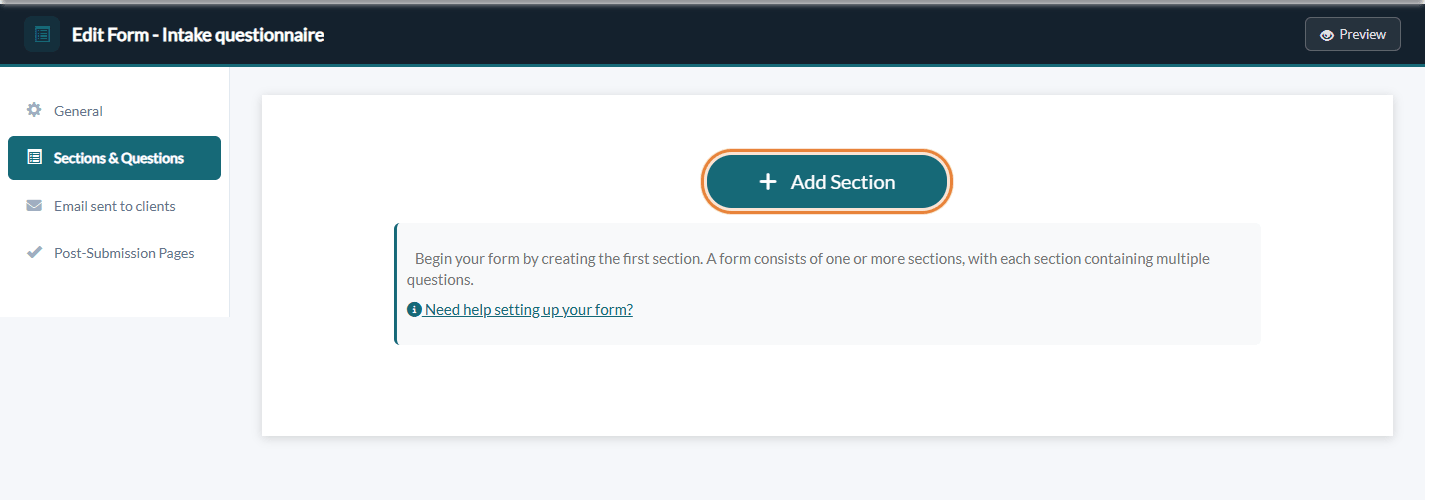
1Open the Sections & Questions tab
- Go to www.colib.io/forms and click the pencil icon (Edit) of the form.
- In the menu on the left, click Sections & Questions.
- Click Add Section.
2Fill in the section
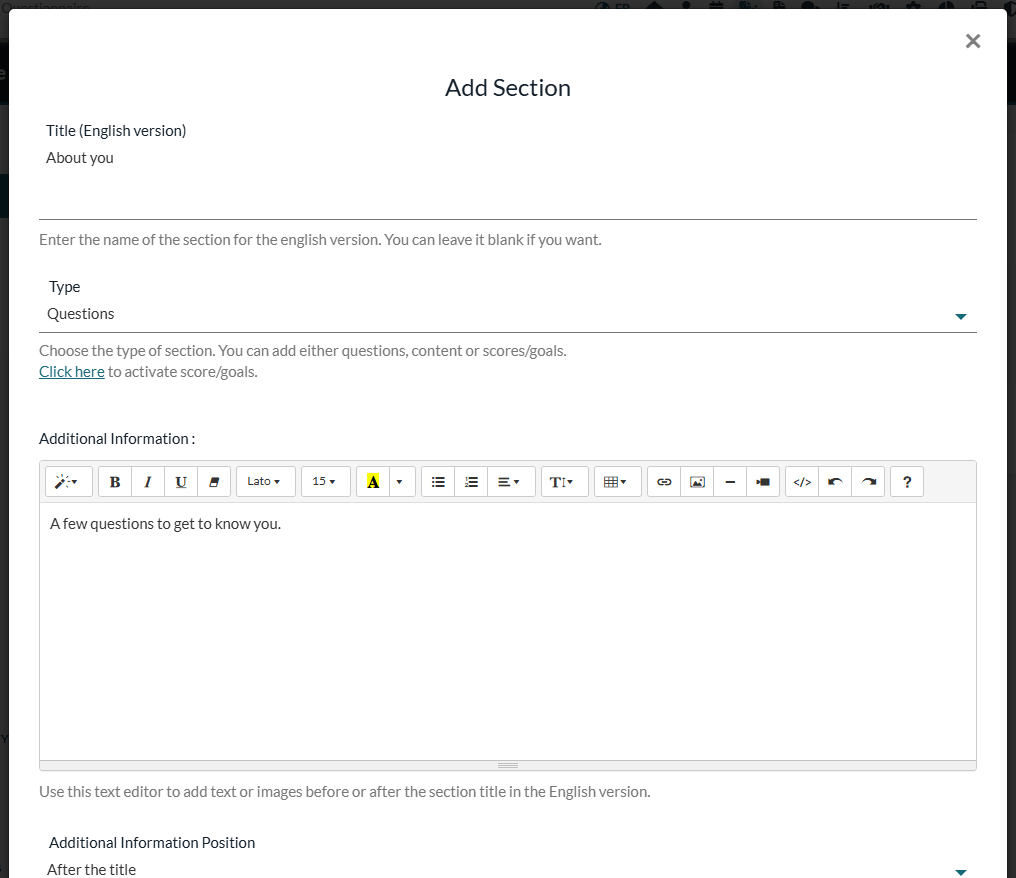
- Enter the Title of the section, for example About you. It is optional: leave it blank if you do not want a heading. For a form in English and French, you enter a Title (English version) and a Title (French version).
- Choose the Type: Questions, Content (Text/images) or Score/Goal (see the table above).
- If your form already has sections, choose its position in Order (1 = first section of the form). By default, the new section is added at the end.
- Optionally, add a description in Additional Information: text, links or images, formatted with the editor toolbar. For a form in English and French, there is one editor per language.
- In Additional Information Position, choose whether this text is shown Before the title or After the title (default).
- Click Save. Colib displays The section has been saved. and the section appears in the list.
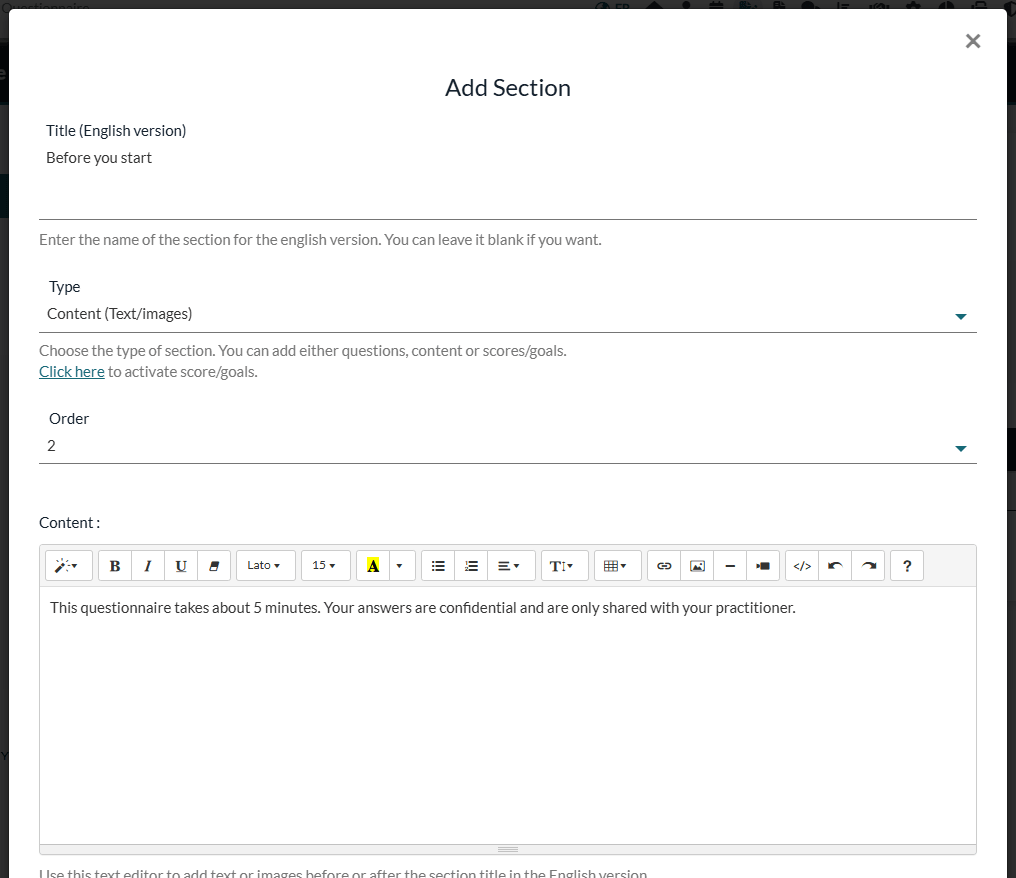
For a Content (Text/images) section, the editor is called Content: type the text your clients must read, or insert an image.
3Add questions to the section
In the list, each section is shown as a dark header with its questions below it. In a Questions section, click Add Question in the header to create its questions. See the article titled "How to add a question to a form" for each type of question and its options.
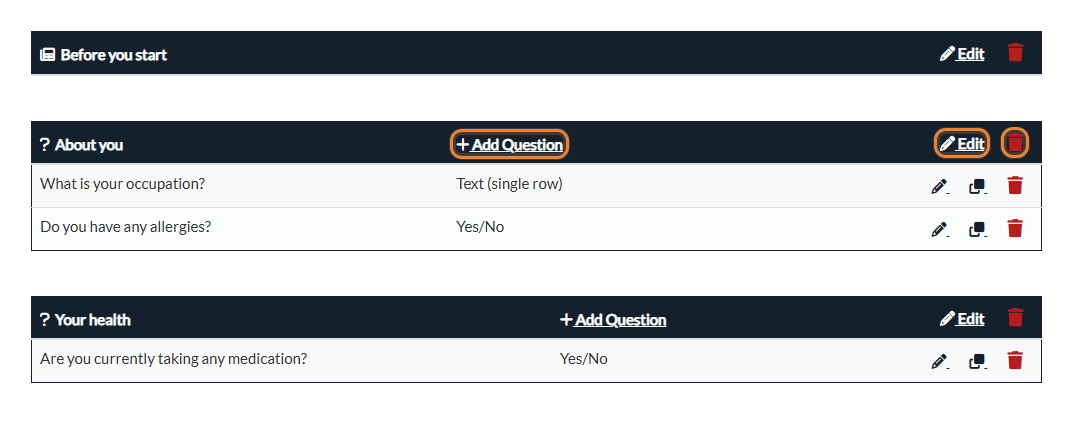
The icon at the start of the header shows the type of the section: a question mark for Questions, a newspaper for Content (Text/images) and a target for Score/Goal. Content and Score/Goal sections have no Add Question button.
4Rename, describe or reorder a section
- Click Edit in the header of the section.
- Change the title, the additional information or its position.
- To move the section, choose its new position in Order. The other sections shift automatically.
- Click Save.
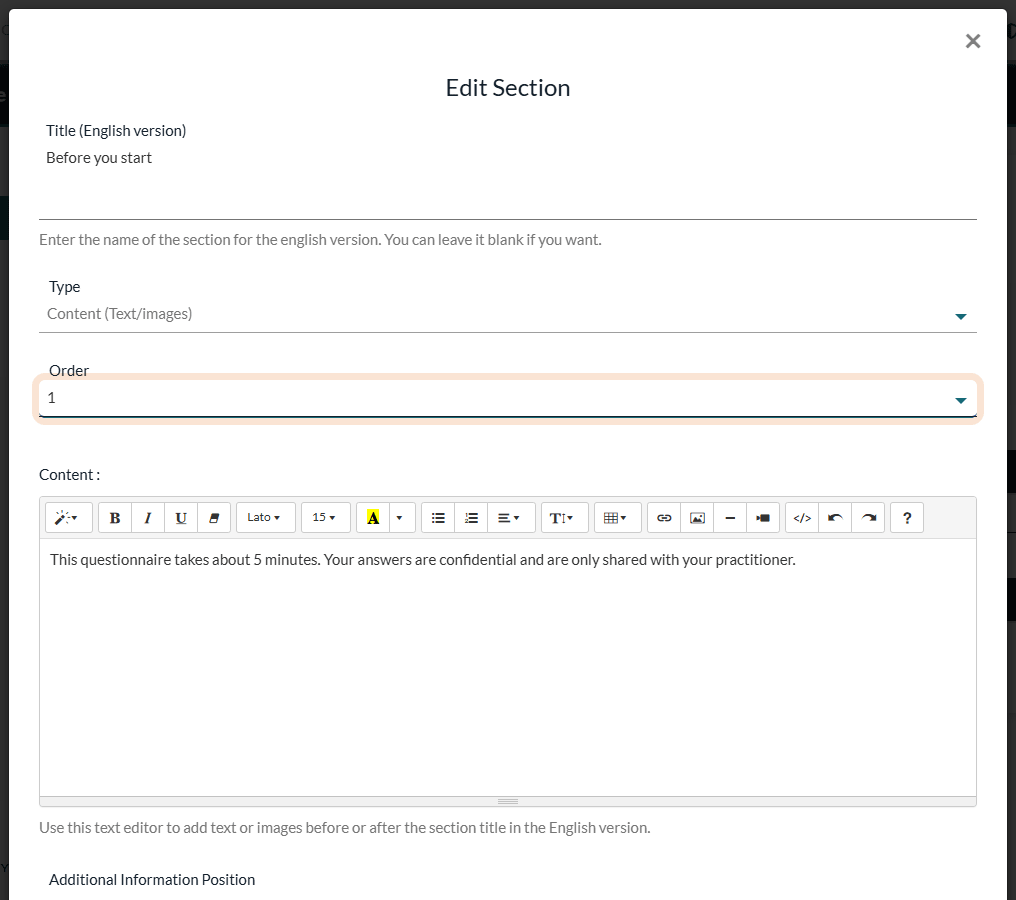
You can also drag and drop a section by its header to change its place in the list.
Important: the Type of a section cannot be changed once it is created (the list is greyed out in the Edit Section window). If you chose the wrong type, create a new section of the right type and delete the other one.
5Delete a section
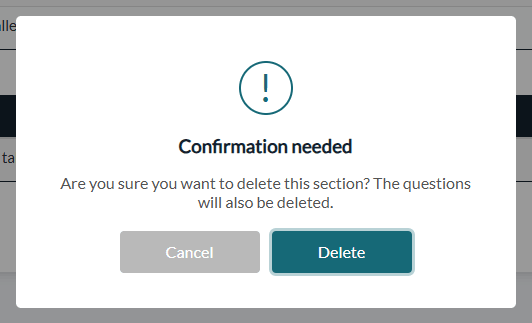
- Click the trash icon at the right of the section header.
- Colib asks: Are you sure you want to delete this section? The questions will also be deleted. Click Delete to confirm, or Cancel.
The forms your clients have already completed are not affected: their answers and their PDF stay as they were.
6Check what your clients see
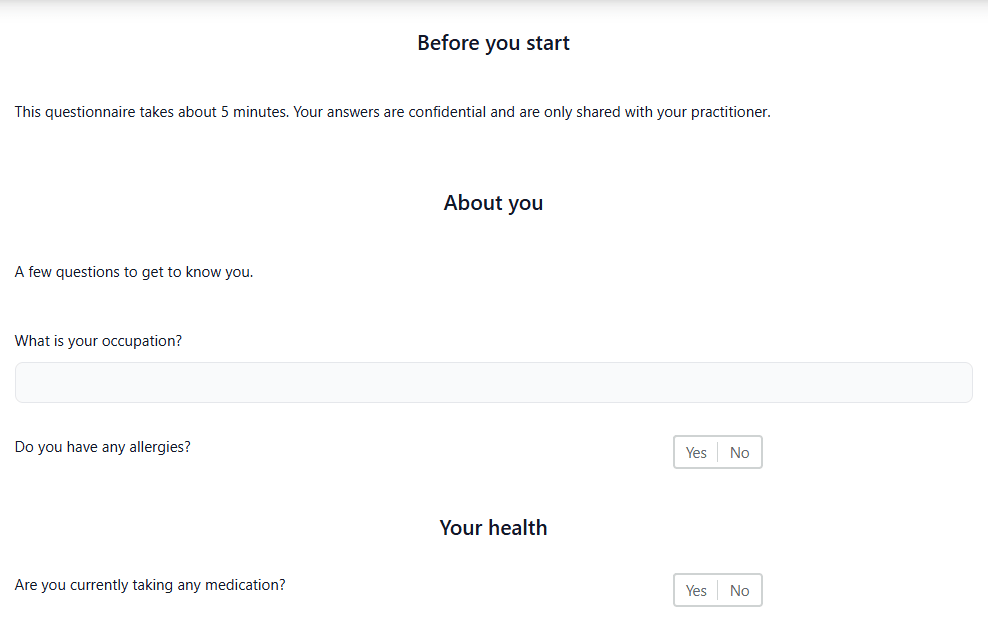
Click Preview at the top right of the form editor. Each section appears as a heading, with its additional information and its questions, one after the other on the same page.
Good to know
- No duplicate button for sections — to reuse a section, create a new one and duplicate its questions one by one (copy icon on each question), or duplicate the whole form from the Templates tab of www.colib.io/forms.
- No condition on a whole section — a section is always displayed. Conditions apply to questions only, and the title of a section stays visible even when all its questions are hidden. See the article titled "How to show a question based on the answer to another question".
- Forms in English and French — the sections are shared by both versions (one title per language), while the questions are entered separately for each version. A section with no question in a language still shows its title and its additional information in that language.
- Score/Goal sections — countersignature does not work with forms that display goals. See the article titled "How to include scores and goals in a form".
- Signatures — the signature is not a section: it is added at the end of the form with the options of the General tab. See the article titled "How to add a second signature to a form".
- Countersigned forms — if your practice countersigns forms, you must first countersign the forms waiting for your signature before you can change the sections and questions (How to countersign a form).
- Related articles — How can I build a new form from scratch?, How to edit an existing form, How to connect your client fields to your form questions.
Still have a question?
Write to us at support@colib.io, we will be happy to help.
Was this article helpful?
That’s Great!
Thank you for your feedback
Sorry! We couldn't be helpful
Thank you for your feedback
Feedback sent
We appreciate your effort and will try to fix the article