Who is this article for?
You track your clients with scores and goals (anxiety scale, sleep quality, weight, blood pressure...) and you want your clients to answer them themselves, from home, before or between sessions. By adding a Score/Goal section to a form, your clients rate each goal when they fill out the form, and their answers are saved directly in the Scores/Goals tab of their client record, with progress charts.
This article explains step by step how to prepare your goals, add them to a form, what your clients see, and where their answers land.
Before you start
- The Scores/Goals feature must be turned on, with at least one category and its goals, in Settings > Goals (www.colib.io/settings?show=goals). See How does the Scores/Goals feature work?
- You need a form to add the goals to. To create one, see How can I build a new form from scratch?
- You need access to the practice settings and to forms.
1Check your goals and categories
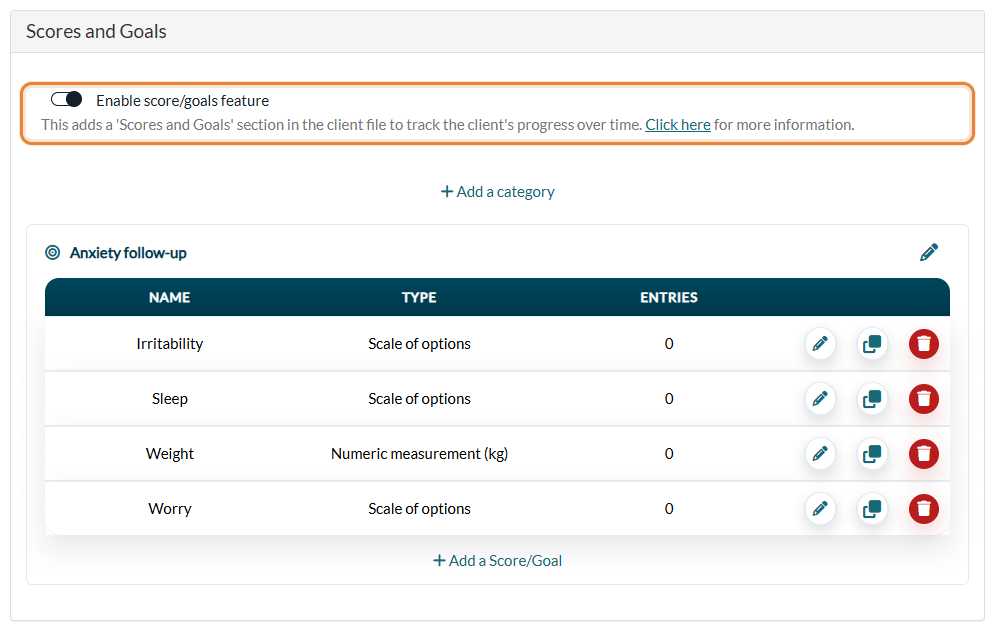
- Go to www.colib.io/settings?show=goals and check that Enable score/goals feature is turned on.
- Check the categories and the goals you want to ask: in the form, you choose the goals category by category.
- Check the Description of each goal (pencil icon): it is the text your clients read on the form. Write it as a question or a statement they can rate, for example I had trouble sleeping. For a scale, the text of the options is shown too (for example Never / Sometimes / Often / Always).
2Link completed forms to client records
The scores answered in a form are saved in the client record only when the form is linked to a client.
- Go to Settings > Forms (www.colib.io/settings?show=signature) and open the Clients section.
- Turn on Link every completed form to a client record. Colib then links each completed form to the existing client record (using the first name, the last name and the birthdate if provided), or creates a new client record.
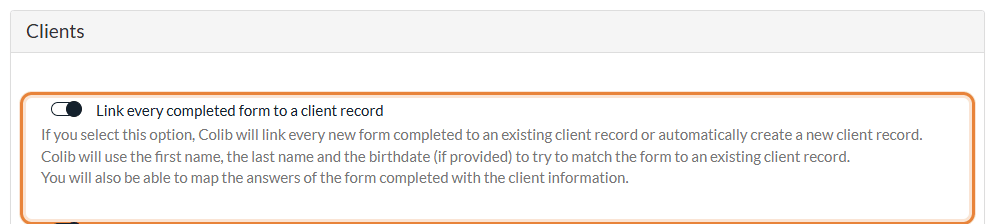
Important: if this option is turned off, your clients can still fill out the Score/Goal section, but their answers are not saved in their Scores/Goals tab.
3Add a Score/Goal section to your form
- Go to Forms (www.colib.io/forms) and open your form.
- Click Sections & Questions in the menu of the form builder.
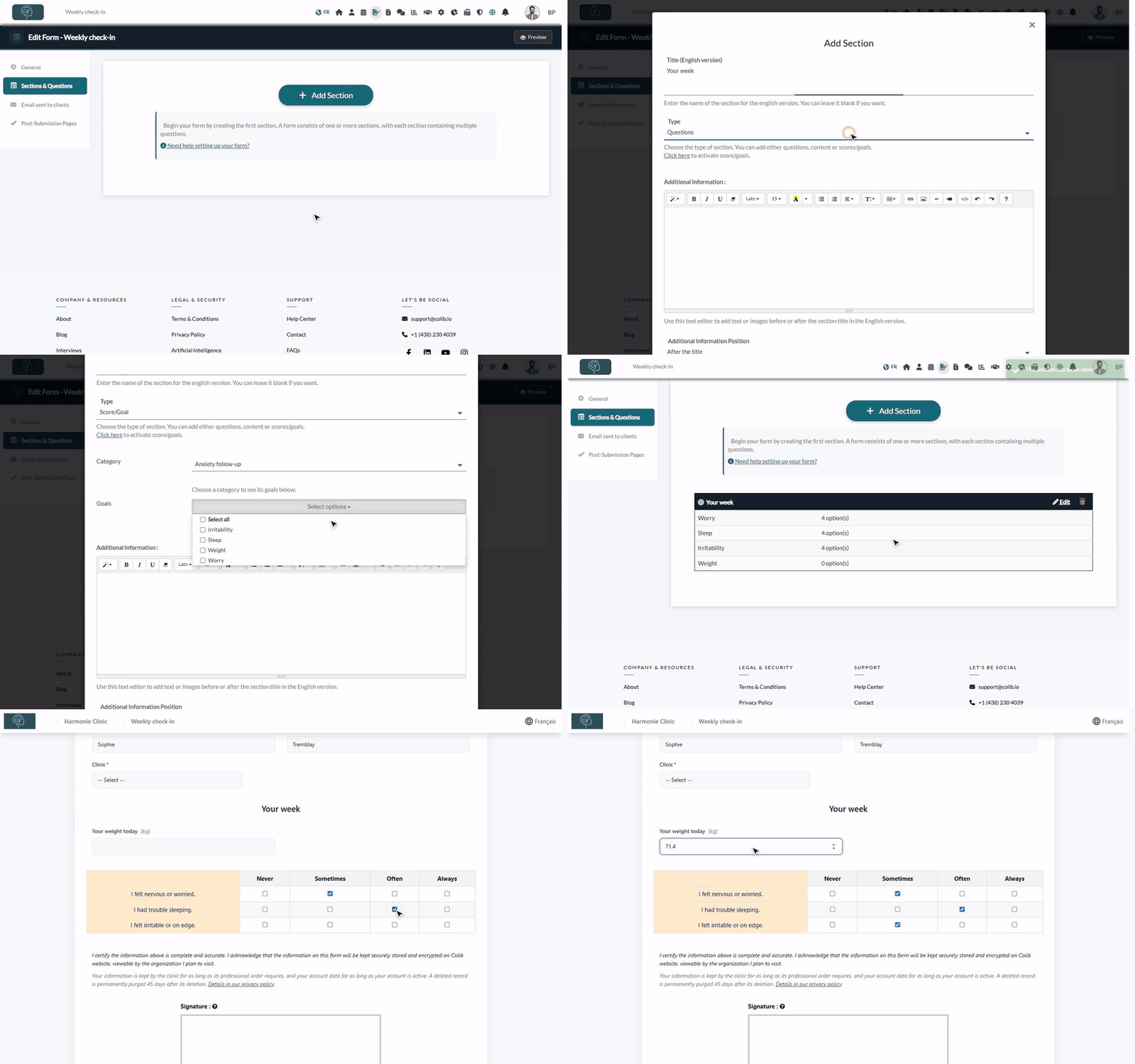
- Click Add Section.
- Optionally, enter the Title of the section (for example Your week). A bilingual form has one title field per language.
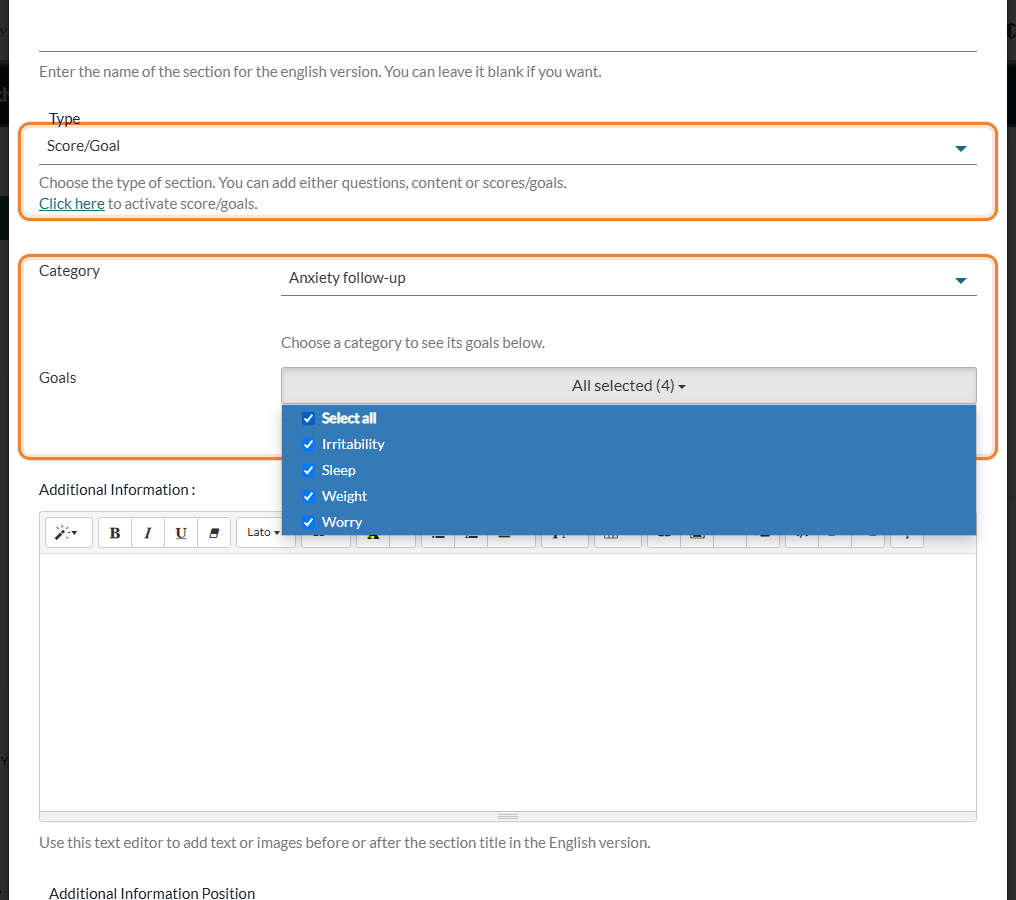
- In Type, select Score/Goal. The Category and Goals fields appear.
- Choose the Category: the Goals list then shows the goals of that category.
- Click the Goals list and tick the goals to include, or Select all. You do not have to include every goal of the category.
- Optionally, use the Additional Information editor to add an instruction for your clients (for example Over the last 7 days, how often...), and choose whether it is shown before or after the section title.
- If the form already has sections, choose the position of the new section in Order.
- Click Save.
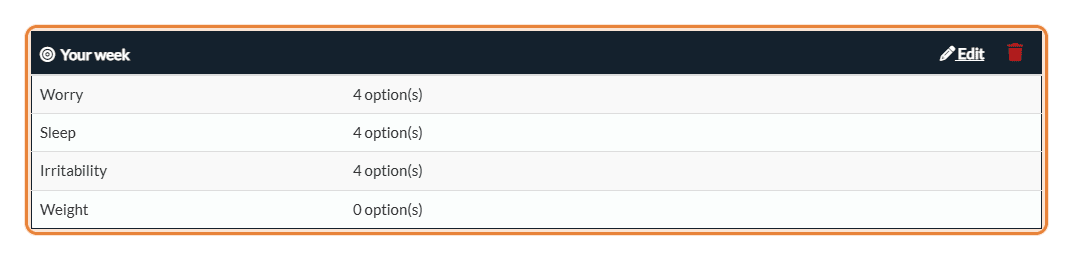
The section appears in the form with a target icon and the list of its goals. To add or remove goals later, click Edit on the section; the trash icon deletes the section.
- Several categories — a section contains the goals of one category: changing the category clears the selection. To ask goals from several categories, add one Score/Goal section per category.
- Type of section — the type cannot be changed once the section is saved. To turn a Questions section into a Score/Goal section, add a new section.
- For everything about sections (titles, order, additional information), please see the article titled "How to add a section to a form".
4What your clients see
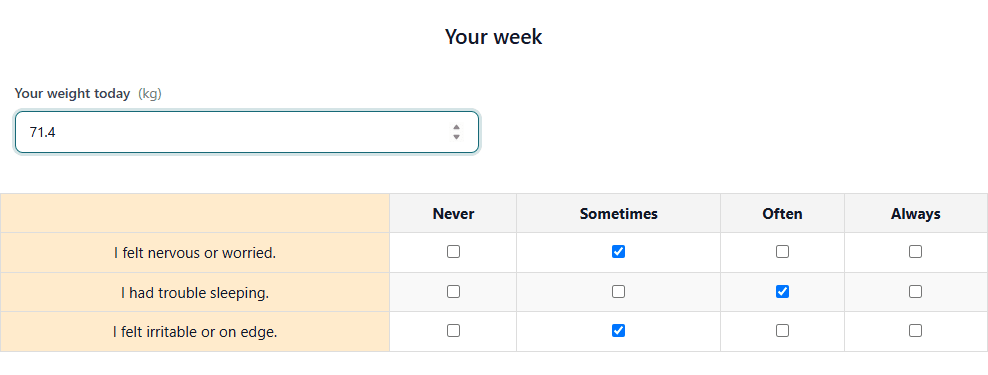
Your clients open the form from the link you send them (by email, or through the public link or QR code of the form). Click Preview at the top of the form builder to see the form as they will, without submitting anything.
- Scale goals — they appear as a grid: one row per goal (its description) and one column per option. The client ticks one option per row. Goals that share exactly the same options are grouped in the same grid.
- Measurement goals — they appear as numeric fields with their unit (for example kg). Decimal values are accepted.
- Required answers — every goal of the section must be answered. If one is missing when the client submits, the message Please answer this question. is displayed under it.
- Your clients see the text of the options, not their numeric value.
5Find the answers in the client record
- Open the client's record from your client list (www.colib.io/clients).
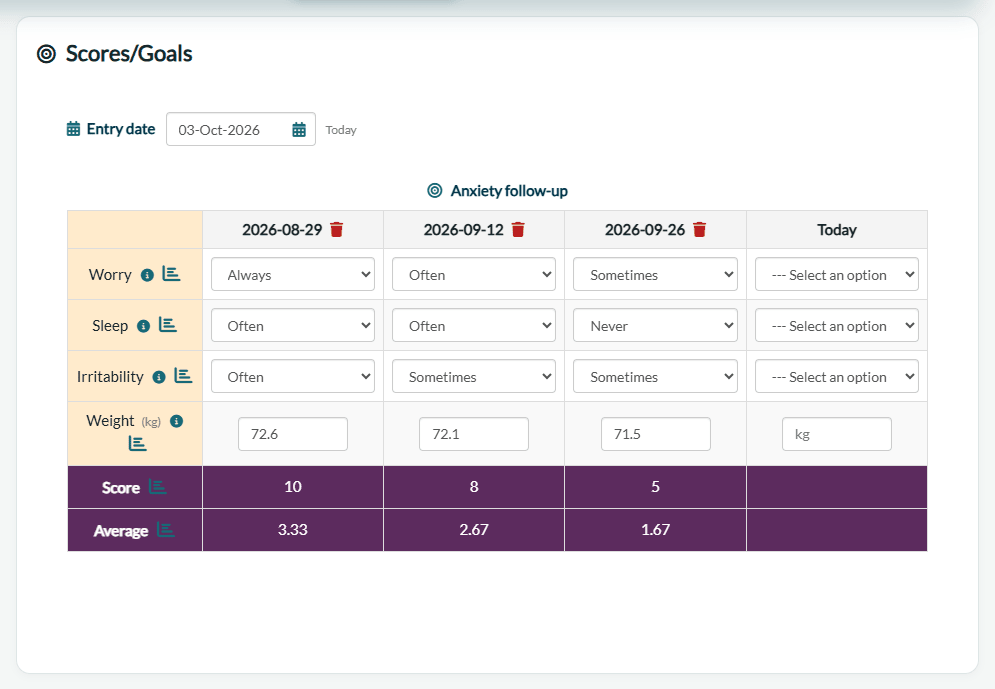
- Click the Scores/Goals tab. There is one table per category, and one column per date: the answers of the form are in the column of the day the client submitted it.
- Hover over a value to see its origin: Form followed by the reference of the completed form.
- For scale goals, the Score (sum) and Average rows are calculated for each date.
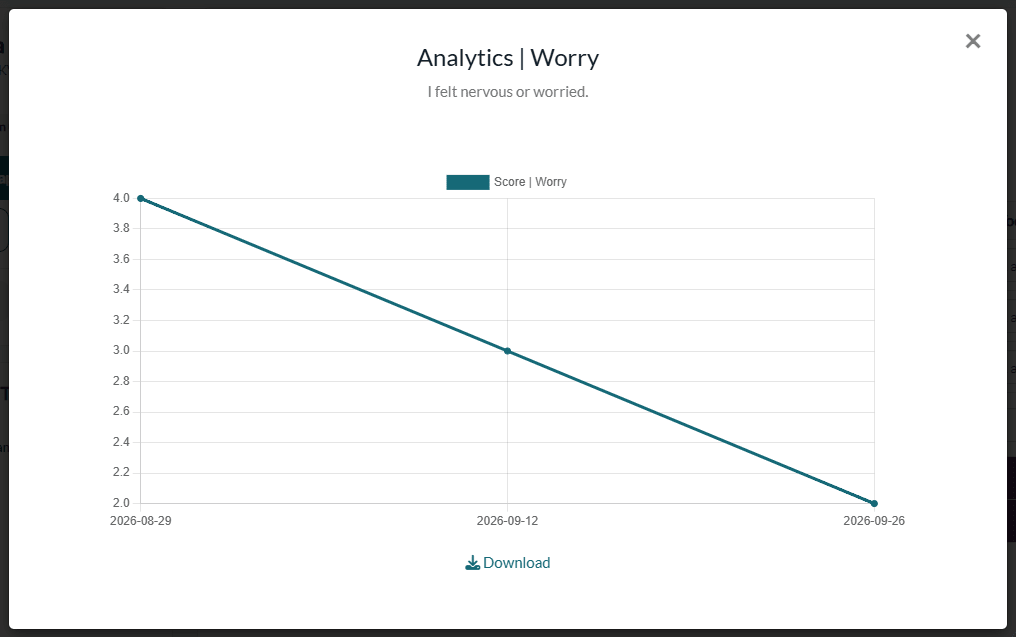
- Click the analytics icon next to a goal to see its evolution on a chart.
The answers also appear on the PDF of the completed form, in the Score/Goal section.
6Repeat the form to track progress
Each time the client fills out the form again, a new column is added on the date of the answers, and the charts show the evolution. To collect answers regularly without thinking about it:
- Every week or every month — set up a recurring sending of the form for the client: How to create a recurrent form sending for a client.
- Before each appointment — attach the form to an appointment type so it is sent automatically: How can I automatically ask a client to fill out a form before an appointment?
- Scores given another way — if the client gives you their answers by phone or on paper, you can enter them yourself in the Scores/Goals tab, even for a past date: please see the article titled "How to enter scores for a past date".
Good to know
- One value per day on screen — if the client submits the form several times on the same day, the most recent answer is displayed for that day.
- Changes to a goal — the form always uses the current description and options of the goal: if you edit them in Settings > Goals, the next clients who fill out the form see the new version.
- Deleting a goal — it is removed from every form that uses it, and all the scores recorded for it are deleted from your clients' records.
- Language — the section title exists in English and French, but the description and the options of a goal are written once: they are shown as you typed them in both versions of a bilingual form.
- Counter-signature — counter-signatures do not work with forms that display goals.
- Several clinics — goals are shared by the whole practice, whatever the clinic. To choose in which clinics a form is available, see How do Colib forms work for multiple locations?
Still have a question?
Write to us at support@colib.io, we will be happy to help.
Was this article helpful?
That’s Great!
Thank you for your feedback
Sorry! We couldn't be helpful
Thank you for your feedback
Feedback sent
We appreciate your effort and will try to fix the article