Who is this article for?
You forgot to record a score after a session, a client gave you measurements taken at home, or you are entering the history of a client who arrives from another practice. With the Entry date of the Scores/Goals tab, you record scores and measurements for a past date: they take their place in the right column and on the progress charts.
This article is for practitioners who track their clients with scores and goals.
Before you start: the Scores/Goals feature must be turned on and contain at least one goal, in Settings > Goals (www.colib.io/settings?show=goals). To set it up, see How does the Scores/Goals feature work?
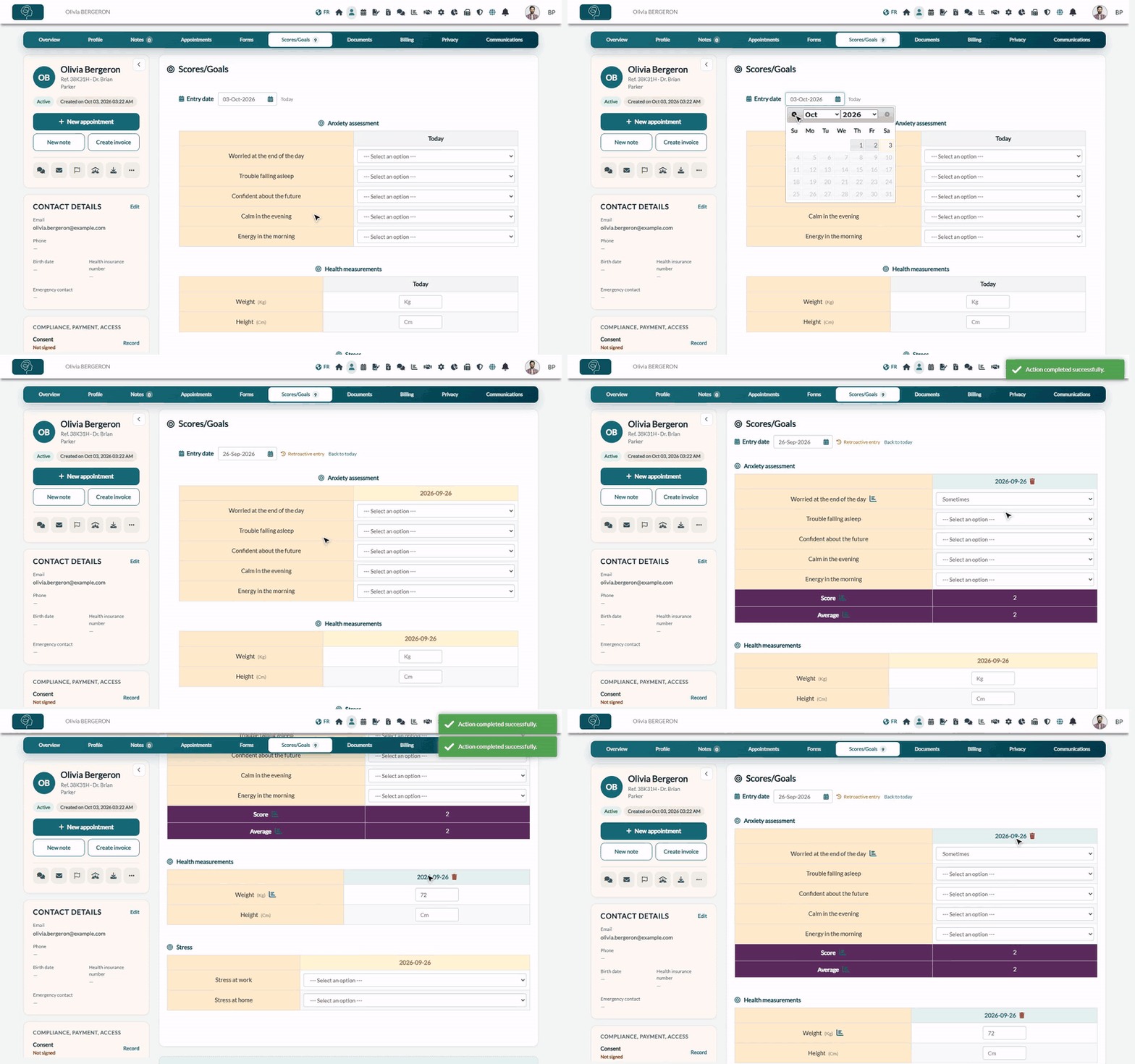
1Open the Scores/Goals tab
- Open the client's record from your client list (www.colib.io/clients).
- Click the Scores/Goals tab. There is one table per category of goals.
- Above the tables, the Entry date is set to today, and the entry column of each table is titled Today.
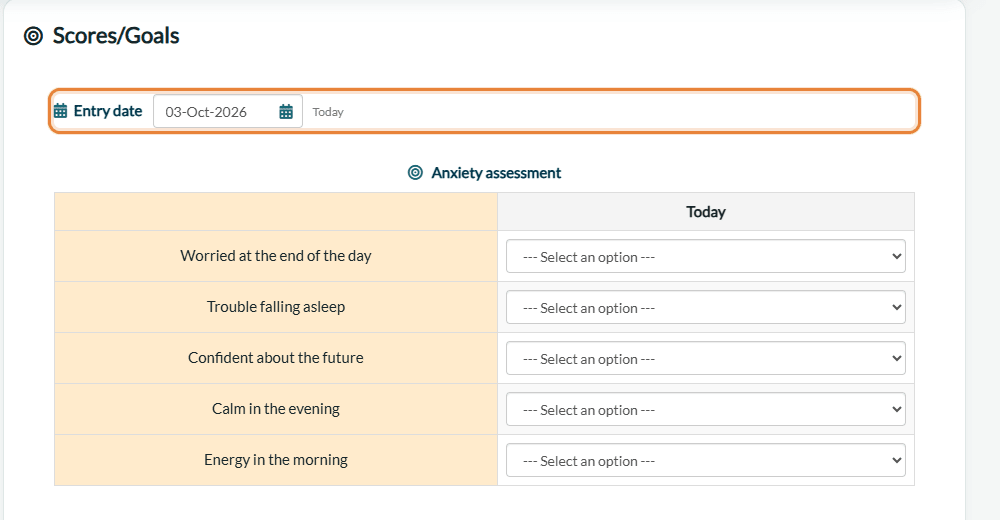
2Choose the past date
- Click the Entry date field: a calendar opens.
- Go to the right month with the arrows and click the day. Dates in the future cannot be chosen.
- Retroactive entry is displayed next to the date, and the entry column of every table now shows the chosen date instead of Today.
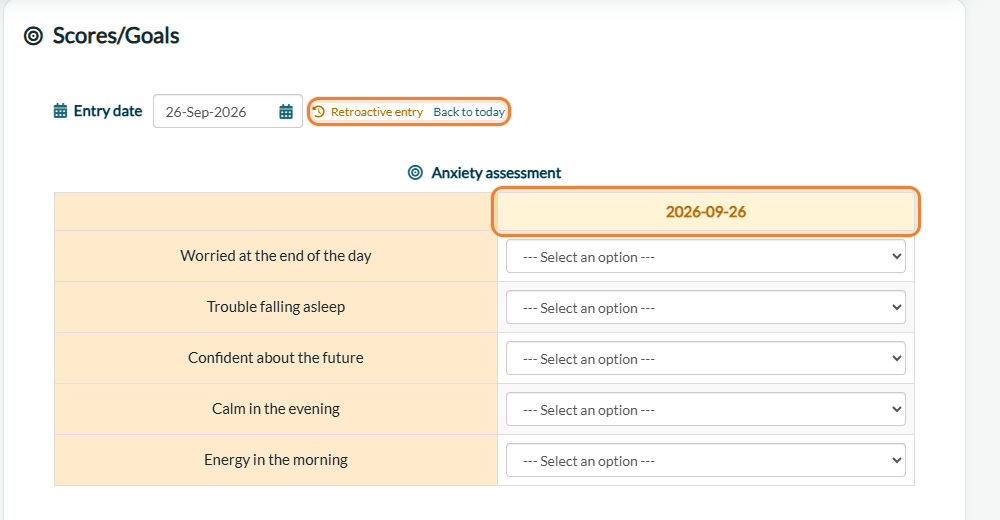
If the client already has scores on that date, there is no new column: the existing column of that date is highlighted, and you can fill in its empty cells or change its values.
3Enter the scores and measurements
- For a scale goal, choose the answer in the list of the date column.
- For a numeric measurement (weight, blood pressure...), type the value in the field, then click elsewhere.
- Each value is saved as soon as you choose or type it: there is no button to click. A confirmation message is displayed.
The chosen date stays selected while you work, for all the tables of the tab: you can enter several values for the same day one after the other. The column of the date is then shown among the other dates, in date order, with the Score and Average of the day for scale goals.
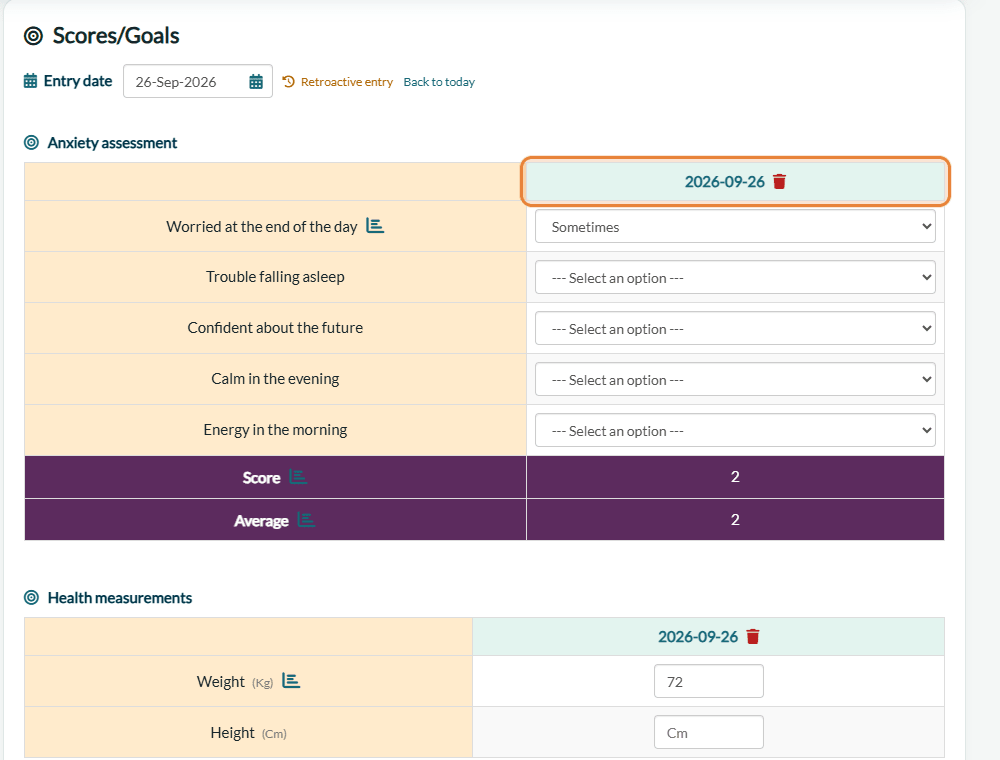
4Go back to today
When you are done, click Back to today next to Retroactive entry (or choose today's date in the calendar). The entry column is titled Today again.
Good to know
- One value per goal and per day — choosing a value for a date that already has one replaces it.
- Who entered it and when — hover over a value to see its origin, for example Created by [your name] on [day of entry] for the date of [chosen date].
- Charts — the analytics icon next to each goal shows its evolution over time: a value entered for a past date appears at that date.
- Correct or delete — change a value directly in its column. Clearing a measurement field deletes that day's measurement. The trash icon next to a date deletes all the scores of that day for the client, after confirmation.
- Scores sent by the client — your clients can also record their answers and measurements themselves through your forms; they are saved in their record automatically. See How does the Scores/Goals feature work?
Still have a question?
Write to us at support@colib.io, we will be happy to help.
Was this article helpful?
That’s Great!
Thank you for your feedback
Sorry! We couldn't be helpful
Thank you for your feedback
Feedback sent
We appreciate your effort and will try to fix the article