Who is this article for?
Colib uses the same text editor everywhere you write formatted text: client notes and note templates, the messages of your appointment types, the email footer and welcome email, the texts of your booking page, your public page, your invoices, your waitlist, your recalls and your forms. This article explains how to insert an image in any of these texts: an exercise diagram in a note, your logo in an email footer, a photo of your clinic on your public page...
Before you start: have your image ready on your computer (JPG, PNG, GIF or BMP, up to 10 MB), or copy the address of an image that is already online.
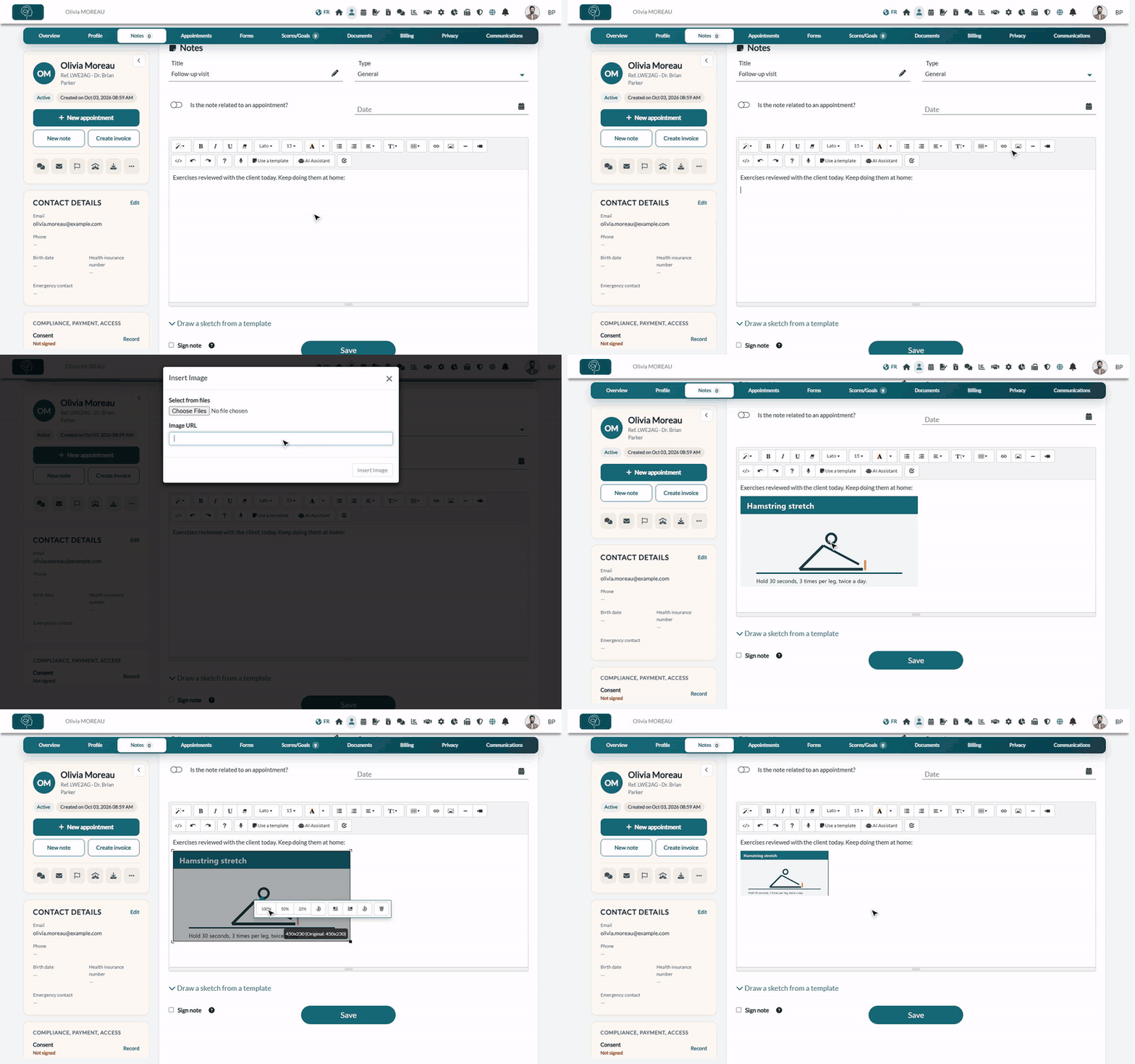
1Go to the text editor
- Open the text you want to edit. For example, for a note: open the client's record from your client list (www.colib.io/clients) and click the Notes tab.
- Click in the text where you want to add the image to place your cursor there.
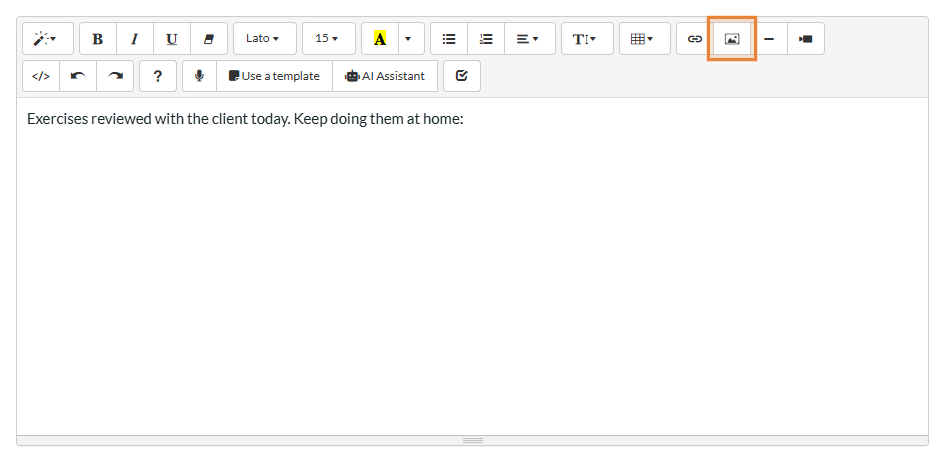
2Click the picture icon
In the toolbar of the editor, click the Picture icon (a small landscape), between the link icon and the horizontal line icon.
3Choose the image
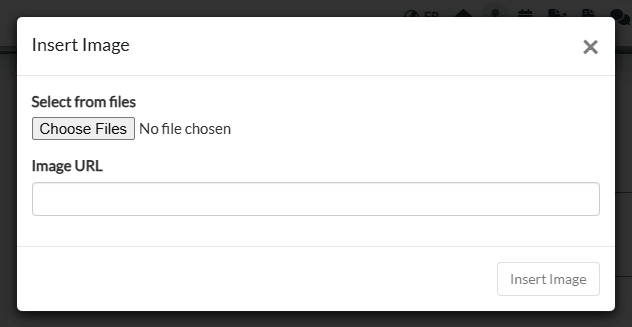
The Insert Image window opens. You can either:
- Select an image from your computer — under Select from files, click Choose Files (the label depends on your browser) and pick the image. It is added to the text right away.
- Enter the address of an online image — paste it in Image URL (it starts with https://), then click Insert Image.
You can also drag an image file from your computer and drop it directly in the text.
4Adjust the size and position (optional)
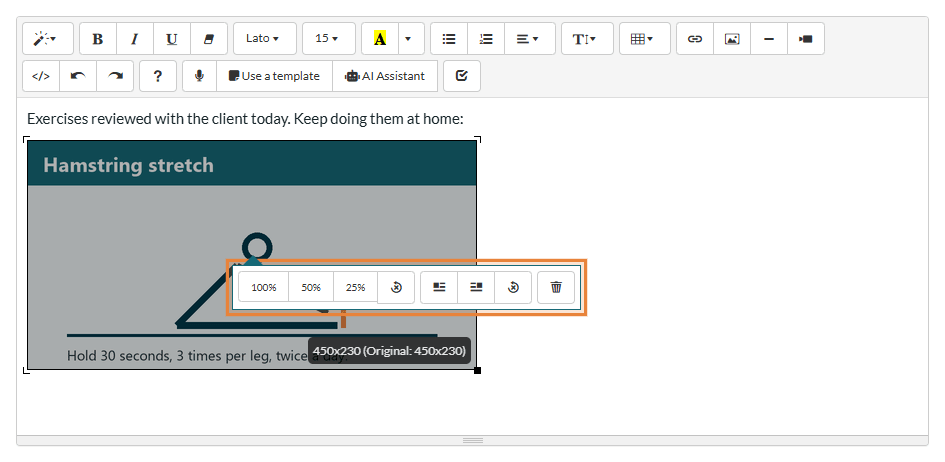
Click the image in the text: a small toolbar appears on it.
| Button | What it does |
|---|---|
| 100%, 50%, 25% | Resizes the image to the full width of the text, half or a quarter of it. |
| Original size (circular arrow, first group) | Puts the image back to its original size. |
| Float Left, Float Right | Places the image on the left or on the right, with the text flowing beside it. |
| Remove float (circular arrow, second group) | Puts the image back on its own line. |
| Remove Image (trash icon) | Deletes the image from the text. |
You can also drag the small square at the bottom right corner of the selected image to resize it freely. The size of the image is shown while it is selected.
5Save
The image is only kept once you save the text: click the Save button of the page or window you are in (for example, the Save button under the note).
Good to know
- Accepted files — JPG, JPEG, PNG, GIF and BMP images, up to 10 MB. A larger file is refused with the message Picture must be smaller than 10 MB. To attach a PDF or another type of document to a note, see How to attach documents and images to client notes?
- Images in client notes are protected — an image added to a note is stored securely with the client's record, like the rest of the note.
- Images in emails and public pages — an image added to an email message, your booking page, your public page or another text sent to your clients must be visible to everyone who receives it. Never put confidential information in these images.
- Images added by address — an image inserted with Image URL stays on the website it comes from: if that website removes it, it disappears from your text too. Prefer the Choose Files option for important images.
- Window in English — the Insert Image window and the tooltips of the editor are displayed in English, whatever the language of your account.
- Other insertions — see How to add a link in the Colib text editor and How to add a video in the Colib text editor
Still have a question?
Write to us at support@colib.io, we will be happy to help.
Was this article helpful?
That’s Great!
Thank you for your feedback
Sorry! We couldn't be helpful
Thank you for your feedback
Feedback sent
We appreciate your effort and will try to fix the article