Who is this article for?
Colib streamlines communication with your clients by automatically sending confirmations, reminders, follow-ups and recalls, based on your preferences. This article explains what your clients receive, when, and where each notification is set up, whether the appointment was booked online by the client or by you in the scheduler.
| Notification | When | Where it is set |
|---|---|---|
| Confirmation (email and/or SMS) | Right after the appointment is booked | Appointment window; content in the appointment type |
| Reminders (email and/or SMS) | Up to two, a number of hours before the appointment | Appointment type (Settings > Appointments) |
| Follow-up (email only) | A number of hours after the end of the appointment | Appointment type (Settings > Appointments) |
| Recalls (email and/or SMS) | When a client has not booked for a number of days | Settings > Recalls |
| Change and cancellation notices | When an upcoming appointment is moved or cancelled | Asked or sent automatically (see below) |
1Appointment confirmations
Confirmation messages ensure that clients are promptly informed after booking an appointment. They give the date, time and type of the appointment, the practitioner, the location or the link to join the online meeting, and the links to modify or cancel the appointment if your settings allow it.
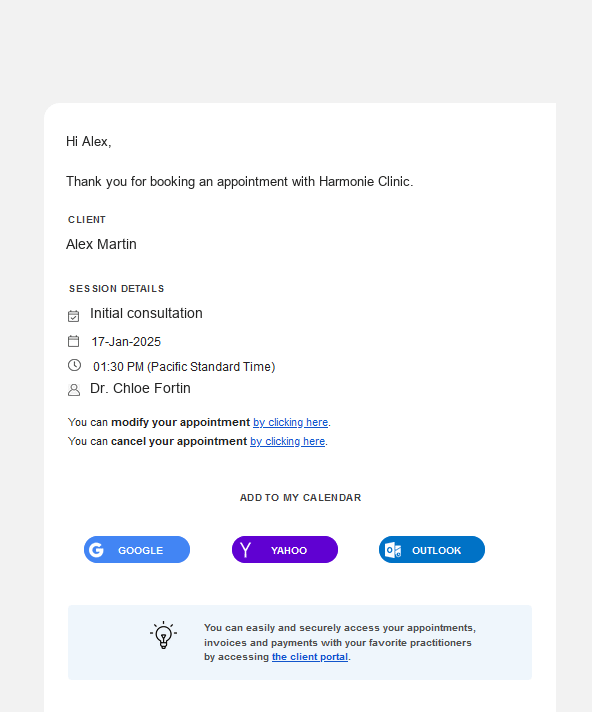
- Online booking (by the client) — a confirmation email and/or SMS is sent immediately after the client books through your booking page.
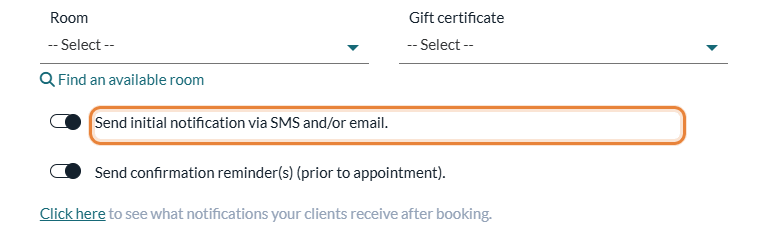
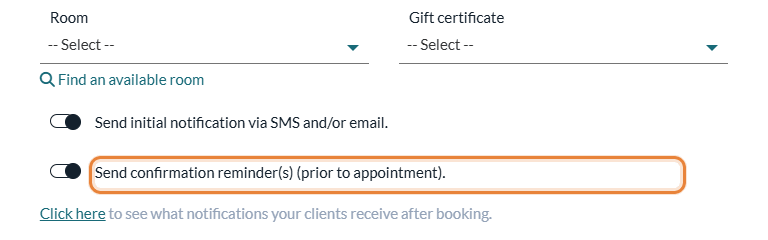
- Scheduler booking (by the practitioner) — a confirmation email and/or SMS is sent when the appointment is created in the scheduler, provided that Send initial notification via SMS and/or email. is turned on in the Options of the appointment window.
You can add your own text or images to the confirmation email with Additional content for the initial email notifications, in the Notifications section of each appointment type (www.colib.io/settings?show=appointments). An appointment type can also send forms to fill out with the confirmation: see How can I automatically ask a client to fill out a form before an appointment? For a single appointment, see How to add a custom message to an appointment?
For a recurring appointment, Send confirmation notifications for recurring appointments immediately (Settings > Scheduler > Client notifications) decides whether all the occurrences are confirmed right away, or each occurrence only once the previous one is completed.
2Appointment reminders
Reduce no-shows with up to two reminders per appointment, keeping clients informed as their appointment approaches.
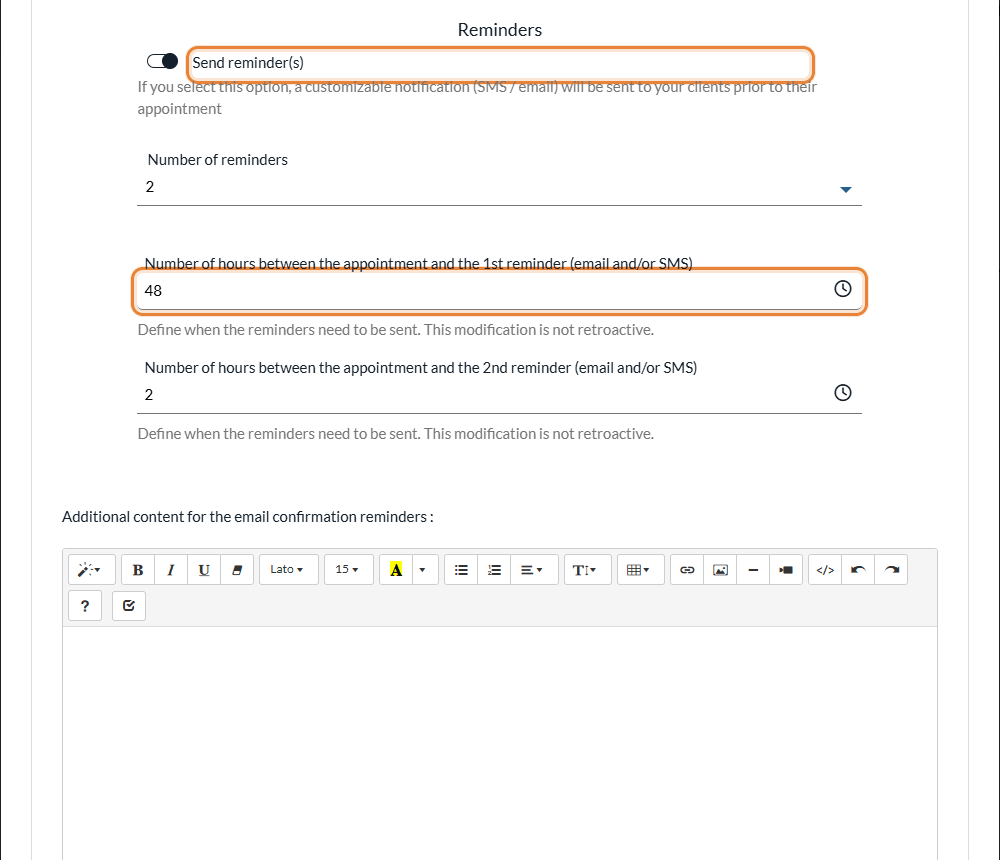
Important: reminders are set for each appointment type. Go to Settings > Appointments (www.colib.io/settings?show=appointments), click the pencil icon of a type and open its Notifications section. Turn on Send reminder(s), choose the Number of reminders (1 or 2) and the number of hours between the appointment and each reminder. You can also add your own content to the reminder emails. Notifications are sent by email and/or SMS.
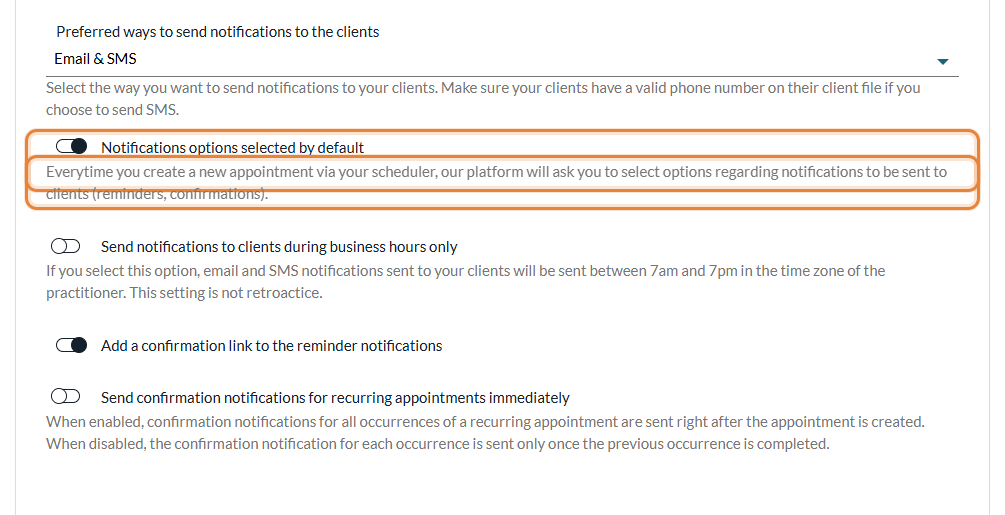
- Online booking (by the client) — reminders are scheduled automatically if Notifications options selected by default is turned on in Settings > Scheduler (www.colib.io/settings?show=scheduler), section Client notifications.
- Scheduler booking (by the practitioner) — reminders (by email and/or SMS) are scheduled automatically if Send confirmation reminder(s) (prior to appointment). is turned on in the appointment window.
A reminder whose time is already past when the appointment is booked is not sent. Your reminders can contain a link that lets clients confirm their appointment in one click. For more details, please see the article titled "How clients confirm their appointments and how you are notified".
3Recalls
Recalls re-engage clients who have not booked in a while:
- Send email and/or SMS recalls to clients who have not booked certain types of appointments after a specified number of days (eligible clients must have booked at least once).
- Set up one or several recalls in Settings > Recalls (www.colib.io/settings?show=recalls) with Create Recall: name, number of days, applicable appointment types, and the English and French versions of the message.
- A recall does not apply retroactively. Click the pencil icon of a recall to edit it and see the notifications already sent for it.
- With Practitioner Specific Recalls, recalls are sent on behalf of the practitioner the client usually sees, with a link to that practitioner's booking page.
4Follow-ups
Follow-up emails are enabled for each appointment type, in the Notifications section of the type (www.colib.io/settings?show=appointments). Turn on Send a follow up email, then set the delay (in hours) between the end of the appointment and the follow-up email, the Email subject and the content of the email.
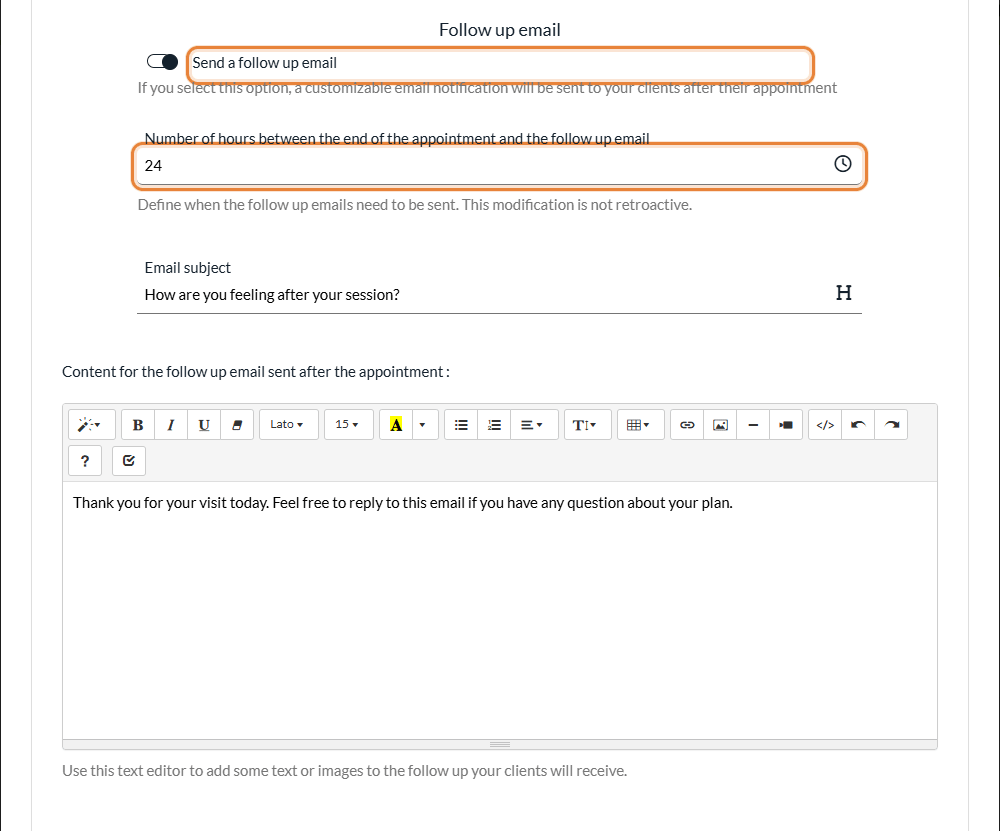
The follow-up is only sent by email, so it is not sent if your practice sends notifications by SMS only. It is not sent when the client did not show up, or when the appointment was cancelled.
Important considerations
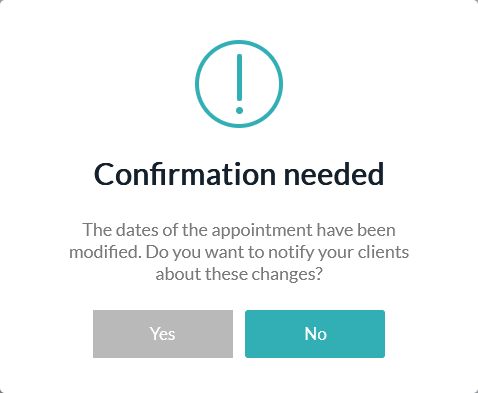
- Updates to appointments — changes to the details of an appointment (for example its date, its type or its practitioner) trigger a reassessment of all its scheduled notifications. When you change the date or time of an upcoming appointment from the scheduler, and its initial notification is turned on, Colib asks whether your clients should be notified: Yes sends them a change notice, No sends nothing.
- Appointment cancellations — all reminders are cancelled when an appointment is cancelled, and a cancellation notification is sent to the clients if the appointment is in the future and its initial notification is turned on. See How to cancel an appointment: for practitioners and clients.
- Communication preferences — clients receive notifications by email and/or SMS based on the channel chosen for your practice, their profile information (email address and/or phone number provided or not) and their preferences (for example, opting out of SMS). Please see the article titled "How do I choose whether client notifications are sent by email, SMS or both?"
- Viewing client communications — review all sent notifications, including email and SMS delivery statuses, in the client's record. See How to view client communications (emails, SMS, delivery status)? To see the notifications planned for one appointment, see How to view and delete scheduled notifications for an appointment?
- Default notification settings for appointments in the scheduler — the default values of Send confirmation reminder(s) (prior to appointment). and Send initial notification via SMS and/or email. are set with Notifications options selected by default, in Settings > Scheduler (www.colib.io/settings?show=scheduler).
Good to know
- Changes are not retroactive — a change to the reminders of an appointment type does not change the appointments already booked. For more details, please see the article titled "I changed my reminders: why don't existing appointments change?"
- Business hours — to avoid sending notifications at night, please see the article titled "How do I send client notifications during business hours only?"
- Resend a confirmation — see How can I manually resend a confirmation notification (email or SMS) for an appointment?
- Children and families — see How to manage client group notifications?
- Arrival confirmation — an appointment type can also ask the client, by SMS a few minutes before the appointment, to confirm their arrival (Ask the client to confirm their arrival, in the same Notifications section).
Still have a question?
Write to us at support@colib.io, we will be happy to help.
Was this article helpful?
That’s Great!
Thank you for your feedback
Sorry! We couldn't be helpful
Thank you for your feedback
Feedback sent
We appreciate your effort and will try to fix the article